Why did categories on quick-fill rules stop auto-filling? (Q Mac)

Jim Richar
Jim Richar Member ✭✭✭

Very recently on one of my accounts (I use Quicken for Mac version 9.0.1), the categories for payees stop auto-filling when downloaded? These have worked forever, but in the last week or so have stopped working. They do work on several other of my Quicken accounts.

Tagged:

Answers

  • Quicken Alyssa
    Quicken Alyssa Quicken Windows Subscription Moderator mod

    Hello @Jim Richar,

    Thank you for reporting the issues you are running into.

    I have some follow-up questions for you:

    • Did anything significant happen around the same time that this issue began?
      • Computer updates, Quicken updates, etc.
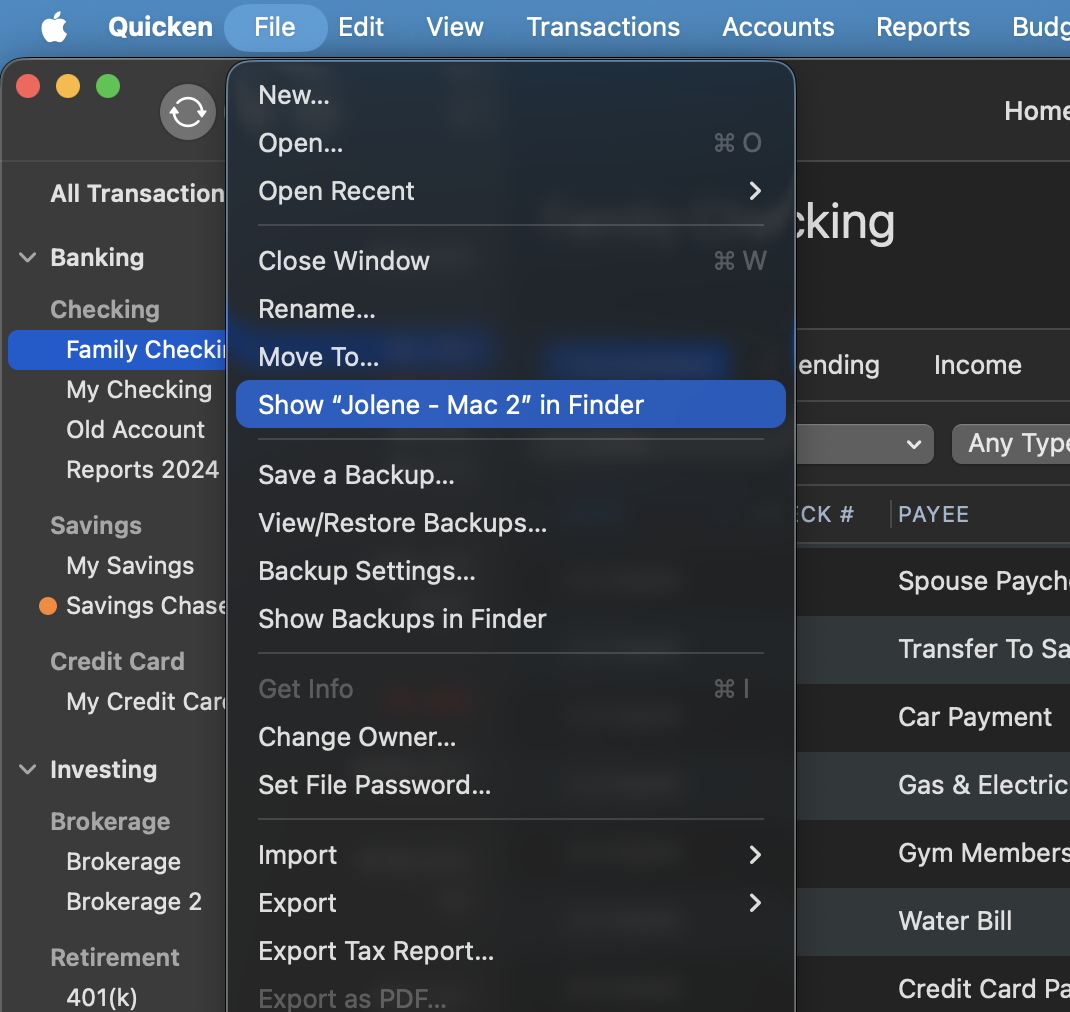
    • Where is your data file located?
      • You can see this by going to File>Show "name of file" in Finder. Screenshot 2026-04-29 at 12.28.08 PM.png
    • Is your file being synced/backed up by any third-party cloud services like iCloud, Dropbox, or BackBlaze?
    • Have you tried restoring a backup from before the problem started?
      • If not, this is a good first step to consider.

    Restore Quicken data

    1. In Quicken, select File>View/Restore Backups...
    2. Browse your computer or external media to find the backup file you want to restore. The Quicken backup file has the extension .quicken2017backup or .quickenbackup.
    3. Select the file to restore.
    4. Click Choose.

    Looking forward to your response!

    Quicken Alyssa

    Make sure to sign up for the email digest to see a round up of your top posts.

  • jacobs
    jacobs Quicken Mac Subscription SuperUser, Mac Beta Beta

    @Jim Richar That's really odd, since QuickFill rules have no capability of being applied to some accounts but not others, and Quicken's server-based auto-categorization process is similarly not account-specific.

    In addition to answering @Quicken Alyssa's question about the exact location of your data file, please check and report on the status of the checkbox in Settings > Connected Services for "Automatically improve the quality of downloaded payee names and categories" — is it checked or unchecked. (The release notes mention a bug fix related to this setting.)

    Quicken Mac Subscription • Quicken user since 1993
  • Jim Richar
    Jim Richar Member ✭✭✭

    @jacobs I used the wrong terminology… it's not (as I said) working in some accounts but not this one… it's working fine on other Quicken files! I have different Quicken files for each of several people I manage finances for. This particular person's file's downloaded payees do not apply the QuickFill rules for categories. I did check the checkbox you mentioned, and it is properly checked.

  • Jim Richar
    Jim Richar Member ✭✭✭

    @Quicken Alyssa I believed this stopped working when I was on vacation and brought my laptop with me to occasionally download and check finances for me and other people (I manage the finances for a couple of other people other than myself, each in their own Quicken file). So I was on a different wireless network, and I didn't have my backup drive with me, so some dynamics were different.

    The "show name of file" has this file in the same directory I have all my other Quicken files (that work properly).

    I pay extra to Quicken to use their cloud based backup for my files. Wouldn't doing a restore to a previous file mean all my updates since that time would be lost?

    Attached is an example of the QuickFill not working

  • Quicken Carlos
    Quicken Carlos Quicken Mac Subscription Moderator mod

    Hi @Jim Richar,

    Thanks for your reply and for answering the questions above in this thread!

    If you haven’t tried this yet, I recommend checking the following settings:

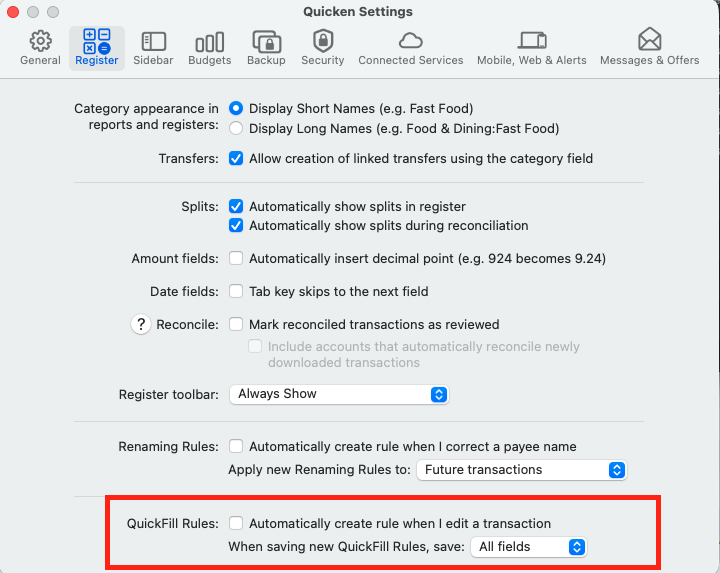
    Please go to Quicken > Settings
    Click on Register
    Go to QuickFill Rules and confirm that All Fields is selected in the dropdown menu.

    Screenshot 2026-05-02 at 3.01.33 PM.png

    If those steps do not resolve the issue, I recommend deleting the existing QuickFill Rule and trying again:

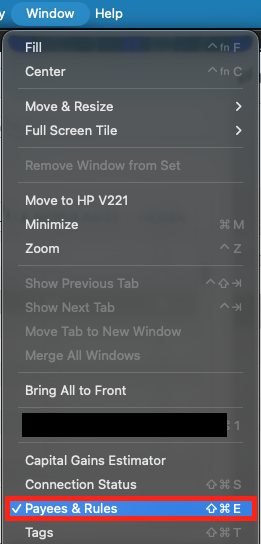
    • Go to the top menu and select Window
    • Click Payees & Rules
    • Select QuickFill Rules
      Screenshot 2026-05-02 at 3.07.44 PM.png
    • Find the rule in question
    • Click the rule once to highlight it
    • Press the Delete (–) button at the bottom of the list
    • Confirm the deletion when prompted
    • Press the Add (+) button
    • Re-enter the rule and try again

    Let us know how it goes!

    Quicken Carlos

    Make sure to sign up for the email digest to see a round up of your top posts.