My income reminder for my paycheck lists items I entered but they are not in the same order as my actual paycheck. Exactly (step by step for dummies) how do I make them in the same order
Are you talking about a paycheck reminder?
If so, the order is dictated by the order that you create the line items. There isn't any way to reorder them after the fact other than removing them and adding them again.
In the case of regular reminder, you can "type over" them to change their order, but you can't move them around.
If your paycheck has lines for employer contributions toward, for example, a 401K, and you want to track those as part of your paycheck in Quicken, then you will need to use the Paycheck Reminder. But as mentioned by @Chris_QPW your ability to order them to match your paycheck is quite limited and you will probably not be able to match the order exactly.
If you already have a Paycheck Reminder and are not tracking any employer contributions lines, then you would need to delete that Paycheck Reminder.
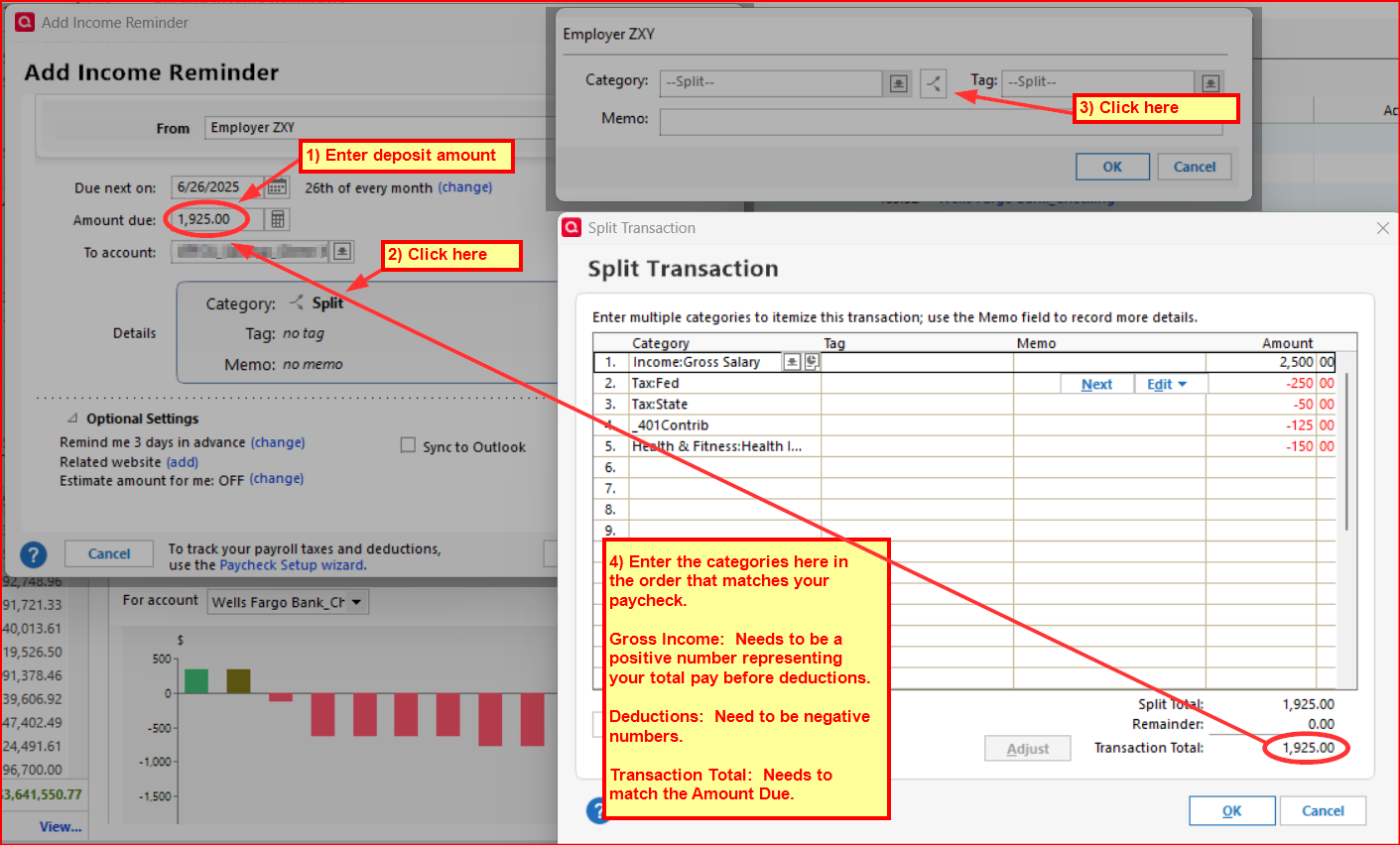
Then create a new Income Reminder. Now you will be able to set up the Reminder with all of the line items in the same order as on your paycheck as shown in the following picture. Just note that this will not let you track employer contribution lines.
Did this answer your question?