how to delete items from 'checks to print'

MichaelWeis
MichaelWeis Member ✭✭✭

Windows 11 and Classic Deluxe

Comments

  • Quicken Anja
    Quicken Anja Moderator mod

    Hello @MichaelWeis,

    Thanks for reaching out with your question about deleting items from the Checks to Print list in Quicken Classic Deluxe on Windows 11. Here’s how you can do that:

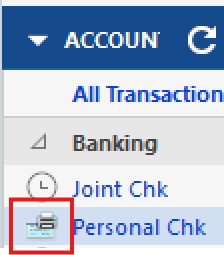
    1. In the Account list, look for the icon next to your account name indicating there are checks to print. image.png
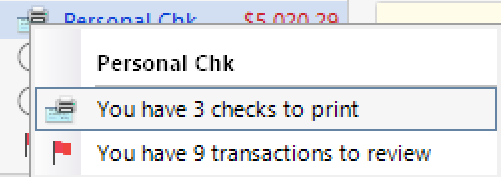
    2. Click on that icon and select "You have # checks to print" to see the list of pending checks. image.png
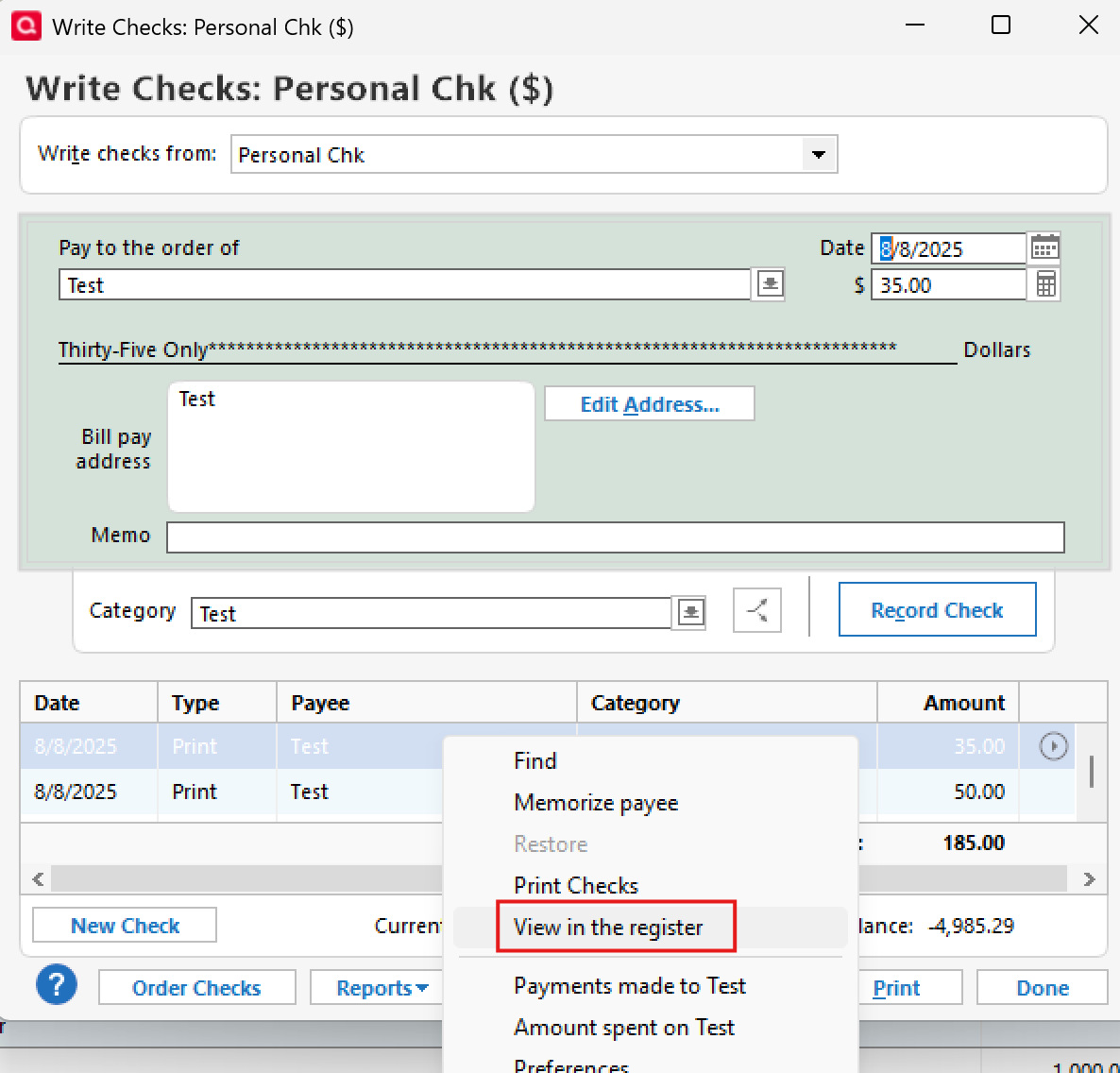
    3. In the list, right-click the check you want to remove and select "View in the register." image.png
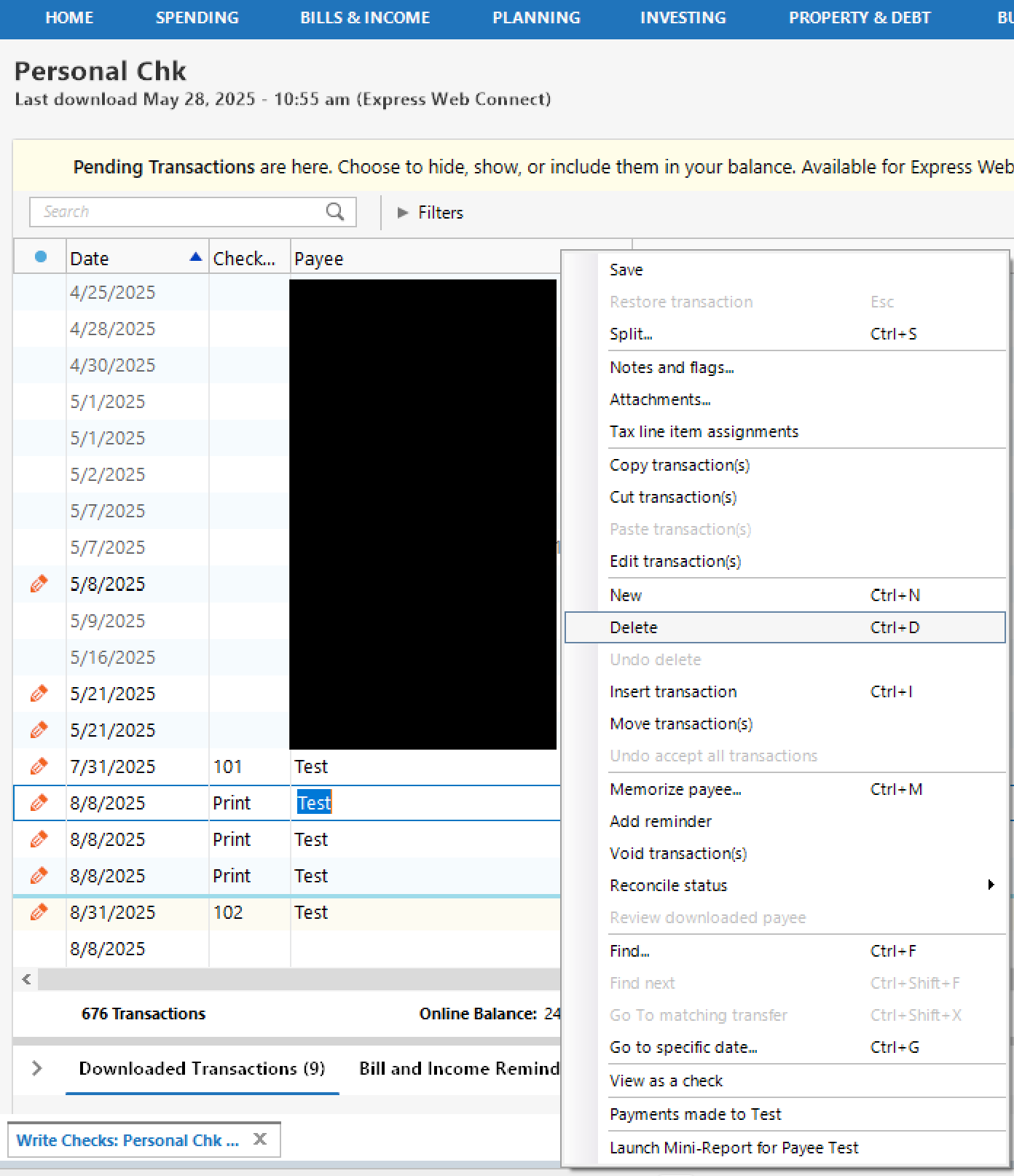
    4. This will open the transaction in the register.
      • If you want to delete the transaction entirely, right-click it and choose Delete. image.png
      • If you want to keep the transaction but remove it from the print queue only, simply clear the word "Print" from the Check # field and save the change. image.png

    Hope this helps!

    -Quicken Anja
    Make sure to sign up for the email digest to see a round up of your top posts.

  • UKR
    UKR Quicken Windows Subscription SuperUser ✭✭✭✭✭

    @MichaelWeis
    how were these transactions created to begin with?
    As entries from a Scheduled Reminder or from a Memorized Transaction?
    Either way, you may want to check where these transactions originated from and change them from "Print Check" back to a regular expense transaction. This will avoid future register transactions incorrectly marked as "Print"

    If you need help with that, please show and tell us more about these transactions.

This discussion has been closed.