Transfer Active Accounts with a Cut-off Date to New File
I'm using the Windows version for more than 25 years with a file size of 236MB. There are some features that no longer function correctly and the support technician (unable to fix) suggested I transfer the Active Accounts to a new file. How can I transfer the Active Accounts from a specific cut-off date, say nothing older than 3 years?
Comments
-
Hello @joat1965,
Thank you for sharing your experience. There are a couple options.
1. You can make a copy of your file and choose to copy only the most recent 3 years. However, while this does rebuild the database, it is not the same as creating a completely new file. Please note that if you choose to do this, all accounts will be deactivated in the copy. You would want to test to make sure the issues you were encountering are resolved, and if they are, then reconnect your accounts.
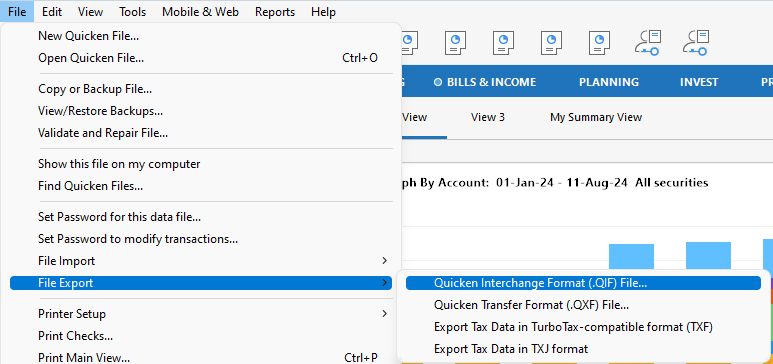
2. The other option is creating a completely new file and importing the data you want into the file. To do this, you will first want to export your data by navigating to File>File Export>Quicken Interchange Format (.QIF) File… (The QXF option does not let you select date range).
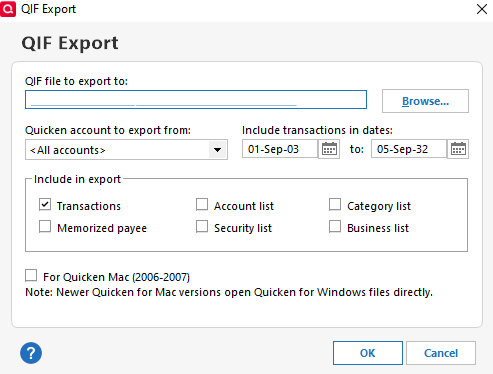
In the window that comes up, you will be able to select the information you wish to export. Please note that you'll have the option to export from all accounts or export one account at a time.
For more information about exporting your file, please review this help article:
Next, create your new Quicken file. For information on creating a new Quicken file, please review this article:
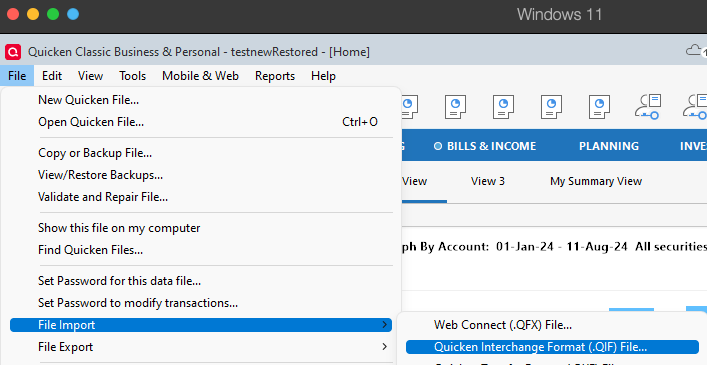
In that new file you can import your QIF file(s) by navigating to File>File Import>Quicken Interchange Format (.QIF) File….
Once your data is imported, please review to make sure it is correct. If data was damaged, sometimes it will not export/import properly. Transfer transactions can also sometimes cause balance discrepancies, especially if you import accounts one at a time. Please backup your file prior to making any corrections/changes.
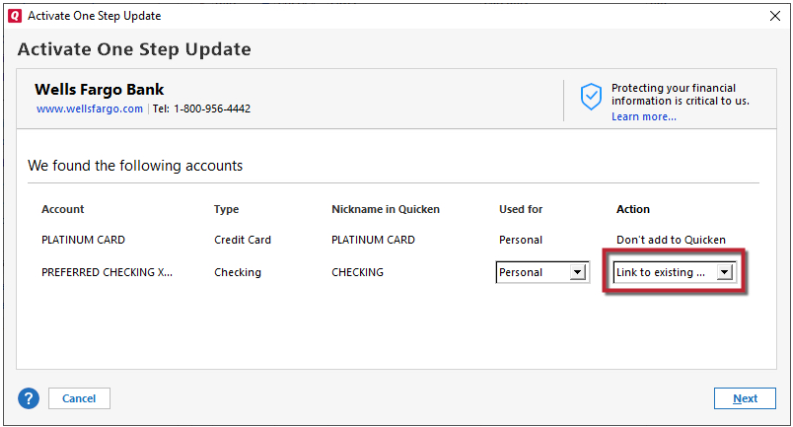
Once you have verified your data imported and corrected any discrepancies, you can connect the accounts by navigating to Tools>Add Account and following the prompts. On the Add/Link screen, please make sure to carefully link your accounts with the correct nickname in Quicken.
It's a good idea to retain your old file for reference. That way, you'll still have access to your older data, if needed.
Please let me know how it goes!
Quicken Kristina
Make sure to sign up for the email digest to see a round up of your top posts.
0 -
Would creating the accounts (same names) prior to importing help for the transfer records?
0 -
For importing some retirement account types using QIF import it might since the QIF format doesn’t have all the account types that Quicken supports. But pretty recently Quicken has expanded the ability to change a brokerage account into most of the retirement kinds of an account, so it might not be a problem.
I would would worry more over the fact that you are chopping off the history and so opening balances will be wrong and you will might be missing buys for open security lots. And note that the QIF format has no syntax for recording security lots and so everything becomes first in first out, and in the case of any open options, they will definitely be wrong.
And then there is the fact that Quicken’s QIF import doesn’t handle transfers correctly.
More on that here(and trying recreate a data file from a QIF export/import):
Signature:
This is my website (ImportQIF is free to use):0
Categories
- All Categories
- 56 Product Ideas
- 36 Announcements
- 223 Alerts, Online Banking & Known Product Issues
- 22 Product Alerts
- 701 Welcome to the Community!
- 671 Before you Buy
- 1.2K Product Ideas
- 53.7K Quicken Classic for Windows
- 16.3K Quicken Classic for Mac
- 1K Quicken Mobile
- 813 Quicken on the Web
- 111 Quicken LifeHub