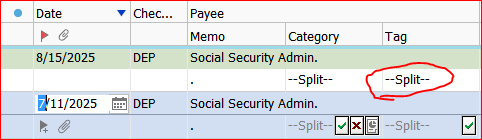
All split transactions are displayed in TAG column automatically and cannot be removed.
Please elaborate upon what you're seeing and what you expected. Graphics (JPG or PNG format, please) appreciated.
Because, if the transaction is split, both the category and tag fields PROPERLY appear in the split line. I have several transactions, my mortgage being the most prominent, where the same category;transfer (to my Escrow account) has differing tags since my escrow covers both Insurance and Real Estate tax.
Is this what you're seeing in your register?
"—Split—" is just an indicator that split categories and/or tags are defined for this transaction. To see what actually is defined for each split you need to bring up the Split Transaction Detail view. Hover the mouse pointer over the word "—Split—" for a popup view or select the transaction and click the green checkmark button.
When Splits are defined for a transaction, you cannot remove the word "—Split—" itself.
However, if you are not using Tags at all, you can remove the Tag column from the register view.