Schwab Investment and IRA accounts not downloading since mid-October
Hi! My Schwab Investment and IRA accounts stopped downloading in mid-October. Weirdly, the associated cash accounts do sometimes update.
I have tried:
- Resetting.
- Deactivating / Setup up now.
- Deactivating / Removing the Linked App on the Schwab website / Set up now.
- Deactivating / Removing the Linked App on the Schwab website / Set up now / Online Center - Ctrl+Click Contact Info - refresh all the options
Environment: Quicken Classic Premier R64.35 Build 27.1.64.35
Suggestions?
Thanks - Adam
[Edited-Readability]
Comments
-
Hello @adamwadesmith,
Thank you for sharing your experience, what you tried to resolve it, and posing this question.
Most of the troubleshooting steps I would recommend, you have already tried. So you are off to a great start! I have some follow-up questions for you.
- Where is your file located?
- Is your file being synced/backed up by any third-party services like OneDrive, Dropbox, or Carbonite?
Looking forward to your response.
Quicken Alyssa
Make sure to sign up for the email digest to see a round up of your top posts.
0 -
The file is on my C:\ drive, in a OneDrive folder that is backed up to the Cloud.
0 -
Thank you for following up with that information.
Can I have you move your file off of OneDrive? We do not recommend having your active data file synced with a cloud service. That being said, it is totally fine to save backups to OneDrive or any other cloud service, but doing this with your active file can cause data file damage.
The default file path is C:>Users>username>Documents>Quicken, and this is where we recommend keeping the file.
Once you have moved the file, save a backup. Then we will want to Validate your file.
To do this:
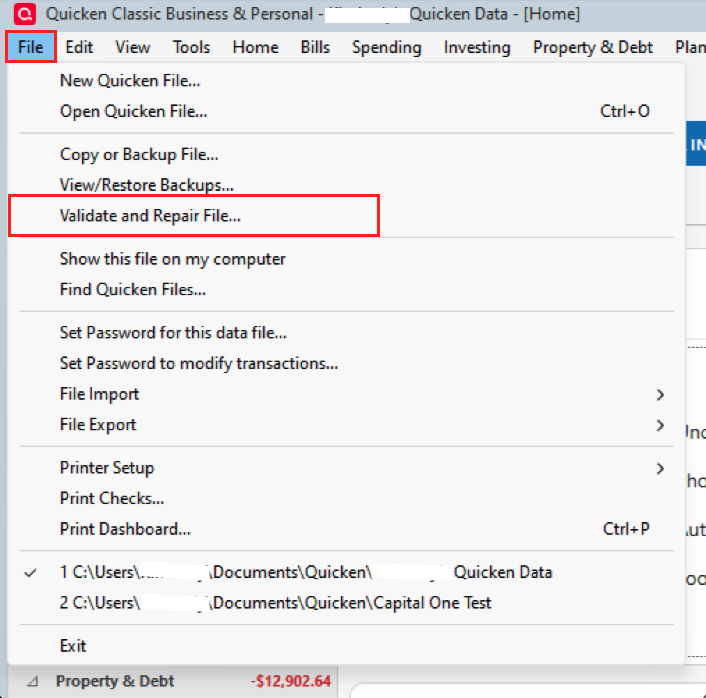
- Go to File.
- Select Validate and Repair file…
- Check the first box for Validate file.
- Click Ok.
After the validation completes, close Quicken. Wait a few seconds and reopen it. Try updating your accounts again.
Let me know how it goes.
Quicken Alyssa
Make sure to sign up for the email digest to see a round up of your top posts.
0 -
- As instructed, I moved my Quicken file to my local disk, and moved backups to OneDrive (thanks for the tip!)
- I ran Validate, which didn't fix much (see below).
- I then setup online services for my Schwab account. It still didn't work.
What's the next step I should try?
DATA_LOG.TXT
[Thu Nov 13 11:14:37 2025]File: ...
QDF:
Validating your data.
Repaired your data file by removing a damaged category. Please check your category list for missing categories by going to Tools>Category List.QEL:
No read errors.QEL:
All internal consistency checks passed.[Thu Nov 13 11:14:41 2025]
Maximum security reference: ..., number of securities: ....
Analyzing securities.
All security references are within the normal range.Validation has completed.
0 -
Thank you for trying those steps and following up!
I would like to try a "test file" to see if this issue still happens there. Basically, what you would do is create a brand new file and try adding your accounts there. If the issue no longer exists in the new file, then that would indicate that it is specific to your current data file.
To do this:
- Go to File.
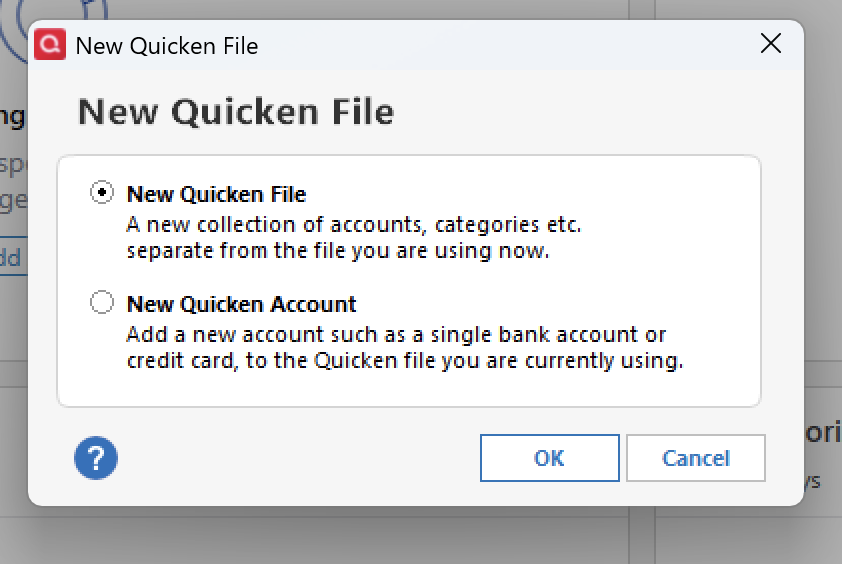
- Select New Quicken File.
- Select New Quicken File and click Ok.
- Name the file. You can name it "test", or anything really. Click Save.
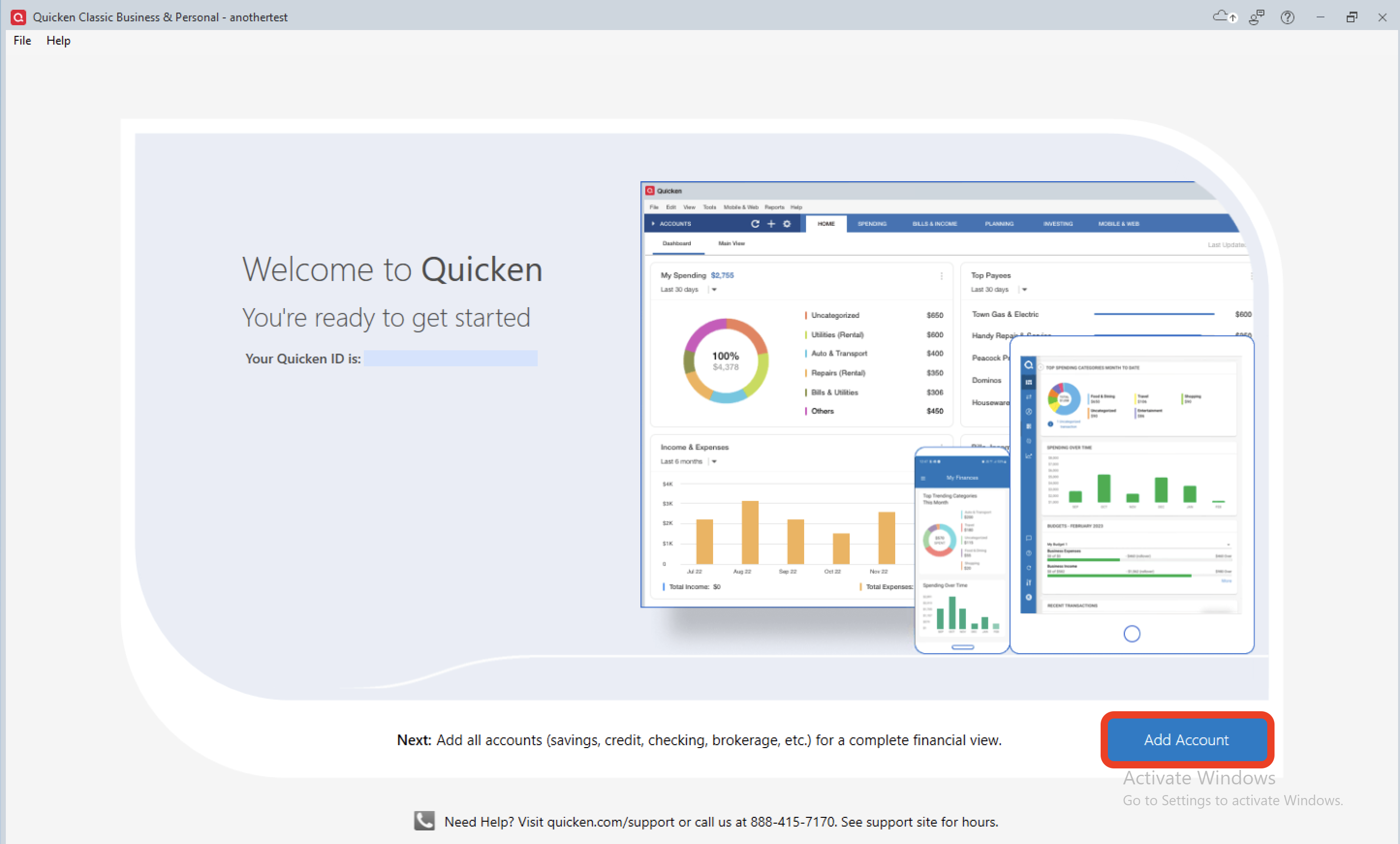
- Follow the prompts, clicking the Next buttons and then the Add Account button.
- Quicken will open up the new file and open a window where you can Add Accounts.
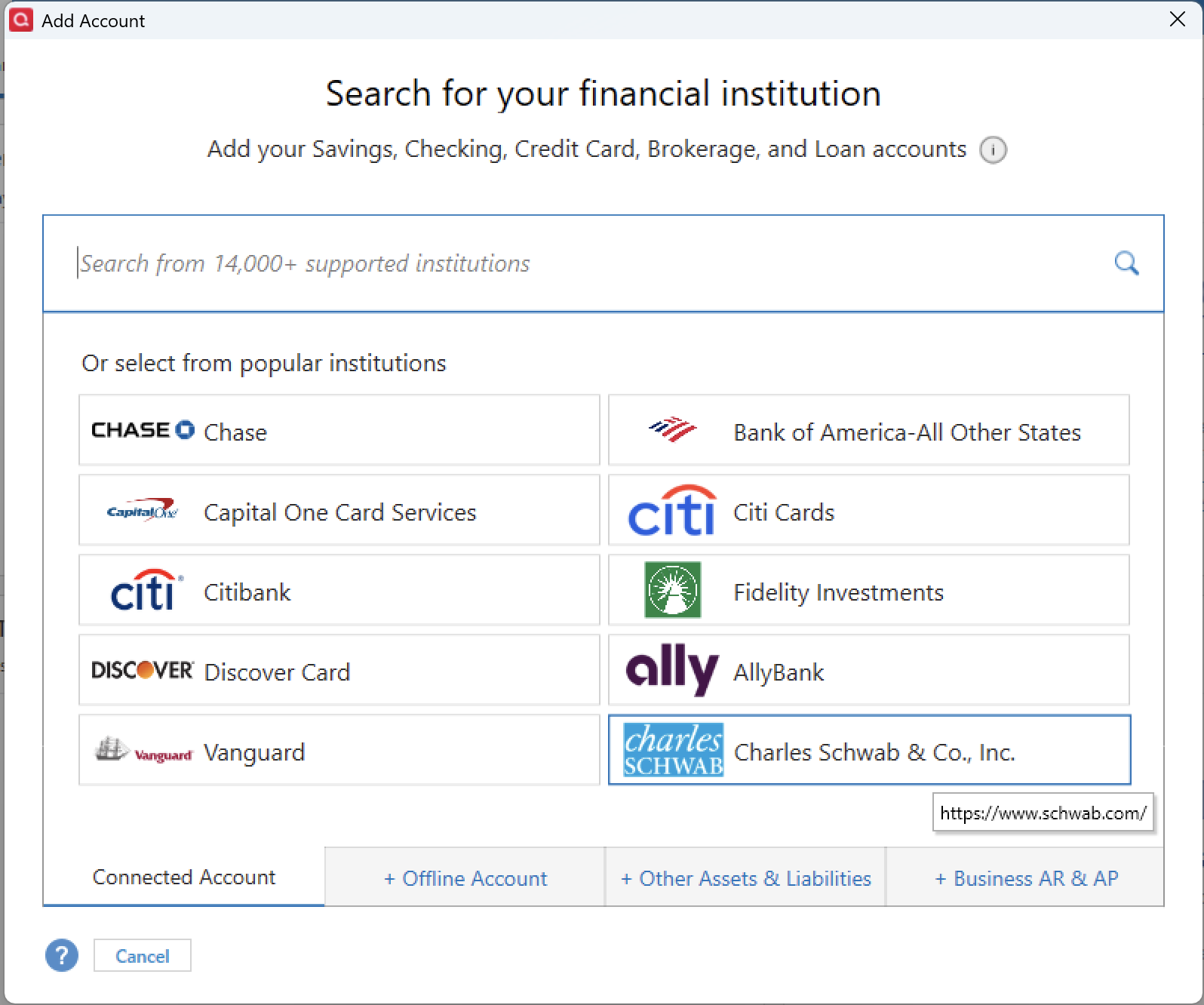
- Select/type in Charles Schwab.
- Go through the prompts to add/authorize your accounts.
Did the investment and IRA accounts update in this file?
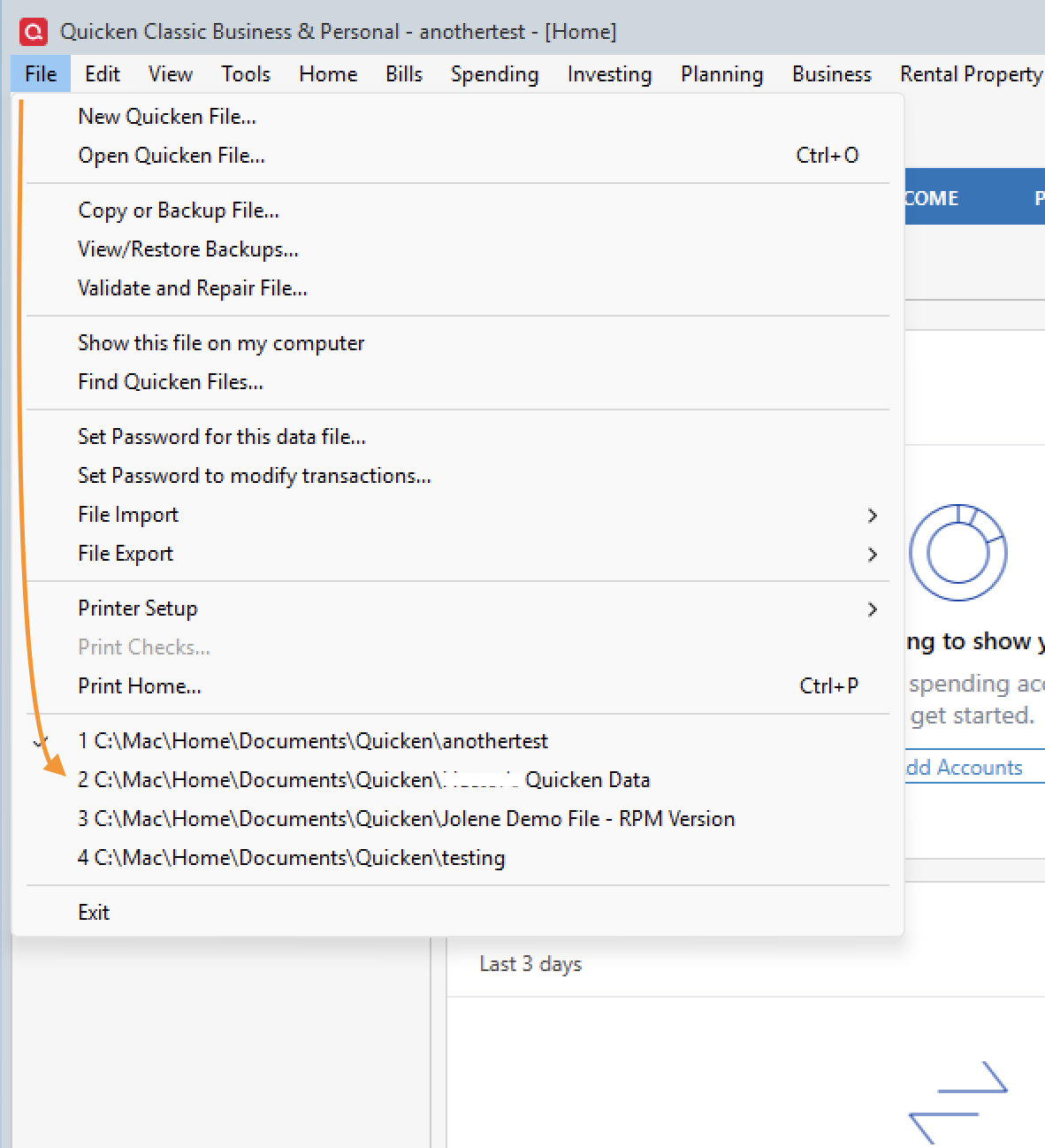
After you're done performing this test, you can get back to your original file by going to File and selecting the second file listed at the bottom of this menu.
Let me know how it goes!
Quicken Alyssa
Make sure to sign up for the email digest to see a round up of your top posts.
0 -
All the investment transactions loaded into the test file.
What would you like me to do next?
0 -
Thanks for trying that and following up.
These results would indicate the issue is in the main data file. Let's try some advanced data file troubleshooting. Please review this Support Article and apply the steps therein. You can start on the third step.
Please note that once you are in the new copy of your data file, you will need to reconnect all of your accounts. Also, keep in mind, if anything goes wrong throughout the process or you are not satisfied with the results, you can always go back to the original file.
To do this, you would go to File and select the second file listed at the bottom of the menu options.
Come back to share your results.
Quicken Alyssa
Make sure to sign up for the email digest to see a round up of your top posts.
0 -
That did the trick. I'm all set.
0 -
Thank you for coming back to let us know.
If you need more help, don't hesitate to reach out.
Thanks again.
Quicken Alyssa
Make sure to sign up for the email digest to see a round up of your top posts.
0
Categories
- All Categories
- 56 Product Ideas
- 36 Announcements
- 223 Alerts, Online Banking & Known Product Issues
- 22 Product Alerts
- 701 Welcome to the Community!
- 671 Before you Buy
- 1.2K Product Ideas
- 53.7K Quicken Classic for Windows
- 16.3K Quicken Classic for Mac
- 1K Quicken Mobile
- 813 Quicken on the Web
- 111 Quicken LifeHub