Indenting subcategories when Exporting to Excel (.xlsx)
When a Spending by Category report is viewed in Quicken, the main category line includes the subtotal in bold for the whole category and the sub-categories are indented. When the report is exported to Excel, the indenting and bold font is lost. This makes filtering and subtotaling the data difficult. Is there a way to preserve the indenting (by putting the sub-category and totals in the next columns?
Like this:
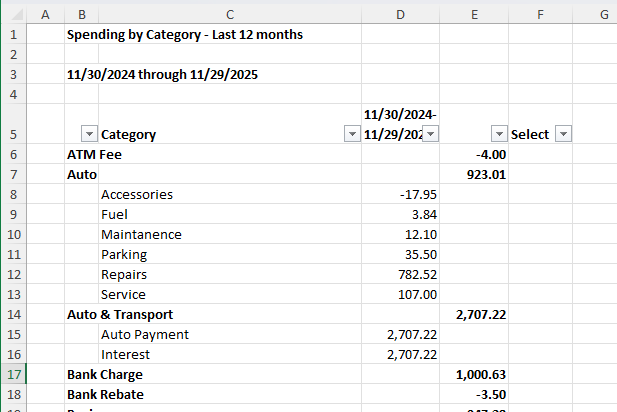
Instead of this:
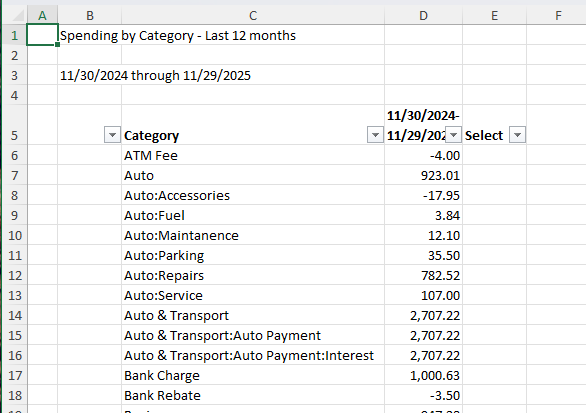
Or do I have to always modify it myself. Given the significant limitations when exporting reports to Excel Workbooks, I won't be surprised if the answer to my question is No, Can't do it.
Answers
-
There's no current way to do that in Q … and I don't believe that the CSV format (which is how Q does those exports) has any provisions for formatting.
SO, you're going to have to continue your current process.
Q user since February, 1990. DOS Version 4
Now running Quicken Windows Subscription, Business & Personal
Retired "Certified Information Systems Auditor" & Bank Audit VP0 -
Thank you for the reply.
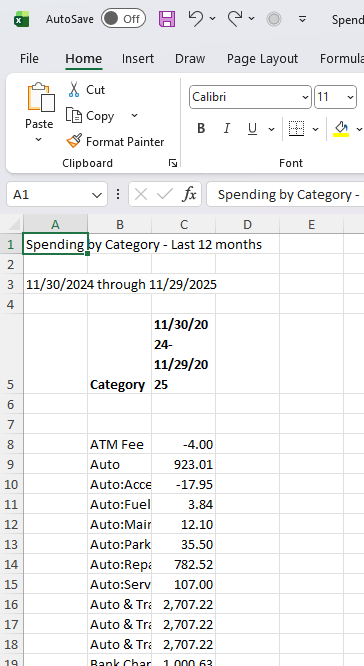
Your comment got me looking at the file created by Q in more detail. While viewing a report, if you select 'Export report date to different formats' and then 'Export to Excel Workbook (.xlsx).
You can tell Excel is getting formatted data to a worksheet because the file has title and date rows above the data and the data table doesn't start until cell B5. And the column headers are bold. I could be wrong but I don't think CSV files imported into Q will be able to have title rows. or blank column to the left.
Here's the file before ANY modifications:
Yup, gotta do all the pretty stuff on my own.
0 -
I think you could find all the cells containing a colon using a data filter, then indent the filtered cells.
Quicken user since Q1999. Currently using QW2017.
Questions? Check out the Quicken Windows FAQ list0 -
Agreed. There are many way to accomplish the desired result. I was just expecting more from Quicken that it is capable. The reason I'm going through all this is to search and filter the data in a way Q is not capable.
My method: Copy the category column, then in the original column, filter to show cells which contain ":" and then delete visible cells. Then in the copy column filter by which do not contain ":" and delete the remaining cells. that left the primary category in first column and sub-categories in second column. Then in the subcategory column Find *: and Replace with "". This stripped the category from the subcategory cell.
While filtering the category do the same copy and delete from the amount column and you've got a separation of the amounts. Now a Subtotal of the categories column calculates correctly.
There is a little more work to do if you have 3rd level subcategories.
Now just need to write a macro that does that.🤗
0
Categories
- All Categories
- 56 Product Ideas
- 36 Announcements
- 224 Alerts, Online Banking & Known Product Issues
- 22 Product Alerts
- 702 Welcome to the Community!
- 671 Before you Buy
- 1.2K Product Ideas
- 53.7K Quicken Classic for Windows
- 16.3K Quicken Classic for Mac
- 1K Quicken Mobile
- 812 Quicken on the Web
- 111 Quicken LifeHub