Deactivating and Reactivating Bank of America Accounts. Essential buttons missing.

hdowda
hdowda Quicken Windows 2017 Member ✭✭

Windows 11. Started recently after getting notice from bank to go to Quicken for above. No error messages. Carefully followed all methods provided by Quicken printed instructions. Reached point where I was to press the "deactivate" button. There was no deactivate button. Contacted Chat and was given another method involving calling up an account and pressing the system button (gear). Followed instructions exactly. Directed to click a 'Downloads" tab which was not present. Tried to continue with Chat but when clicking the Chat button I get the old closed Chat and cannot start a new chat.

Any help appreciated.

Answers

  • Quicken Anja
    Quicken Anja Moderator mod
    edited December 13

    Hello @hdowda,

    Thanks for providing all of those details. The “Downloads” tab mentioned in the instructions is specific to Quicken Classic for Mac, so it won’t appear in Windows.

    You can find Windows specific Deactivate/Reactivate instructions in this support article.

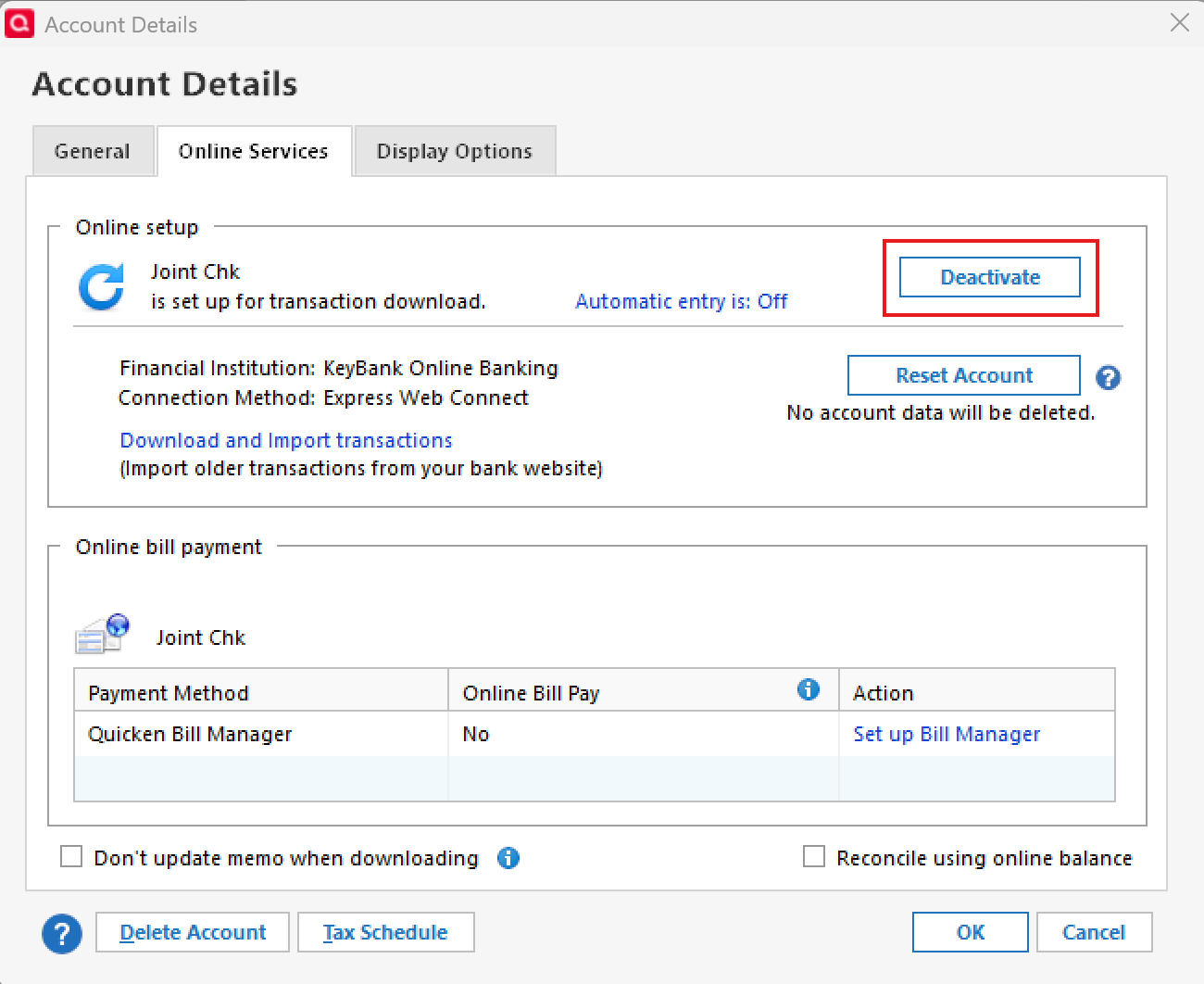
    On Windows, you should be able to deactivate an account by going to:

    Tools > Account List > Edit (next to the account) > Online Services tab

    The Deactivate button should be located there.

    image.png

    If you don’t see the button in that location, could you please provide a screenshot of what you’re seeing in the Online Services tab? That will help us pinpoint why it’s missing and guide you on the next steps.

    If needed, please refer to this Community FAQ for instructions on how to attach a screenshot. Alternatively, you can also drag and drop screenshots to your response if you are not given the option to add attachments.

    Thank you!

    -Quicken Anja
    Make sure to sign up for the email digest to see a round up of your top posts.