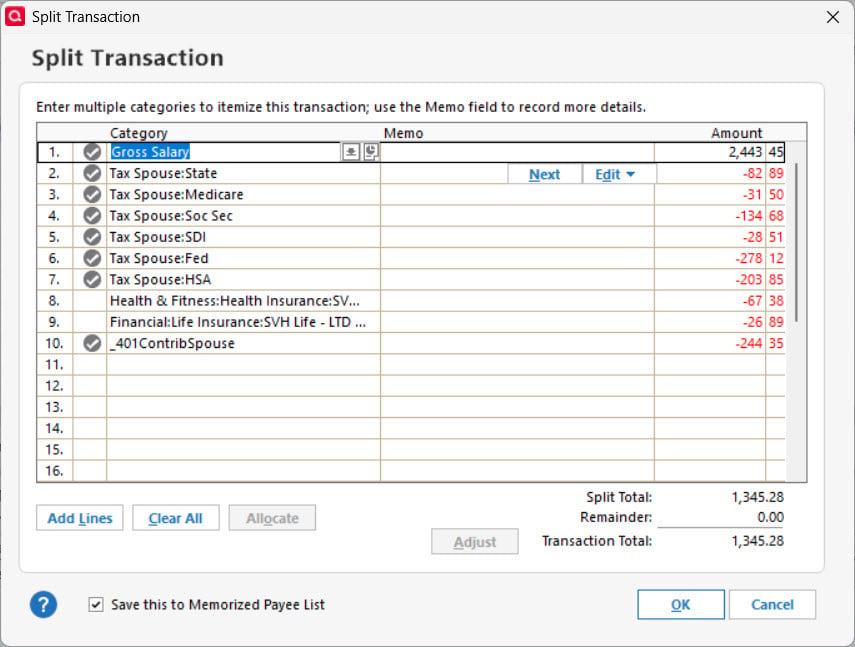
How do I copy a split from a paycheck register entry to a new one so I don't have to set up all the lines again? I memorized this transaction but I don't know how to apply it to the new downloaded transaction.
It's not possible to copy a "split". You can only copy/duplicate the entire transaction and then edit as needed.
And, please elaborate upon "apply it to the new downloaded transaction". Usually, a memorized transaction would be saved in the register prior to download, and Q would handle the "match" process … unless the downloaded txn differs in amount or differs significantly in date. Is that what you're saying happened?
You can edit the Memorized Payee category to include the split and listing all these categories. Then lock the category.
If there are other listings for the same Memorized Payee, they should be deleted.
Then when a transaction with that Payee is downloaded the split category should automatically be entered for it.
If the paycheck and deduction amounts are different each time then this would be a good option to deal with it. You would then need to enter the dollar amounts into the split category when the transaction has been downloaded.
If your paycheck amounts, regularly occurring and if the deductions are fairly stable from paycheck to paycheck, you might, instead, want to consider setting up a manual Income Reminder and then select the Paycheck Wizard option. This works really well the paycheck schedule, amounts and deductions are fairly stable.
I am getting payroll downloaded transactions from my bank. I was hoping I didn’t have to copy all the deductions one by one that I listed above each time I download the payroll transaction.
That's what "Memorized transactions" are for. And, also, "Scheduled Transactions".
See Q Help for more info.
The bank knows only what is deposited to your checking account by the employer. It knows nothing about the gross pay you get nor about the deductions that are taken from your check. So, all that gets downloaded from the bank is that checking account deposit.
For regular paychecks the Paycheck Wizard is a great tool to set up recurring paychecks in Quicken. After a Paycheck is set up then all you need to do is let Quicken automatically enter it into your checking account, or you can enter it manually, without needing to set up all the details of the paycheck, again. The important thing is to remember to enter the Paycheck Reminder into the checking account before the paycheck transaction is downloaded from the bank. Then Quicken will match the downloaded transaction to the Paycheck Reminder and unless the numbers need to be tweaked some there is nothing more you need to do with it.
The Paycheck Reminder is really nice because once you set it up it will schedule out all your future paychecks based on the data you initially enter into it. So, it pretty much is a one-and-done. And it will also help to ensure that all of the right categories are used and then the data will feed into Tax Planner and the Tax Reports.
There's a nice step-by-step setup process in Quicken Help. Just open Help and search for Set up your paycheck.
Alternately, setting up a Memorized Payee and locking it can also work but that will not proactively enter anything into your checking account. Nor will it schedule out your future paychecks like a Paycheck Reminder will. It will instead simply categorize your downloaded paycheck transactions but you will need to make sure it was matched correctly and that the dollar amounts for the various category splits are accurate every time. And, sometimes, a new Memorized Payee will be created by some transaction that was entered and then Quicken will need to decide which Memorized Payee is to be used for the downloaded transaction match and that match can often be with the wrong Memorized Payee.
So, I really prefer using the Paycheck Wizard. Try it out. I think you will be quite pleased with it.
Alternately, if you really like using the split category example that you have above, you can right click on the last paycheck transaction and click on Add reminder. It will not be a Paycheck Reminder but it will be an Income Reminder that you can set up and schedule with all of the category and dollar splits being exactly like what is in that paycheck transaction that you right clicked.. This would be the fastest and easiest way to set up a Reminder for the paychecks.
@Boatnmaniac I don't see how to apply the income reminder's splits to the new downloaded pay transaction.
Did you enter the Income Reminder before the pay transaction downloaded and the downloaded transaction is not being matched by Quicken to the previously entered Income Reminder?
Or are you trying to match the Income Reminder to the pay transaction after it downloaded?