Issue with update
I just updated to version R65.29, build 27.1.65.29. It seemed to go OK and I can open my file. However, when I download the latest transactions from my bank I get "Please wait while Windows configures Quicken" and then an error message that says "There are Quicken components current open and cannot be uninstalled. Please close Quicken and try uninstalling again." I don't want to uninstall, I just want to import the download file from my bank. Suggestions?
Answers
-
Hello @gatorprof,
Thanks for the report — what you’re describing sounds like the issue described in this Community Alert where users are seeing a Windows installer/configure dialog and errors when trying to import QFX files or download after updating to certain R65 builds:
In many cases, the only reliable way that has resolved this behavior so far is to uninstall and reinstall Quicken, which clears the broken or mismatched installer state that is triggering the Windows configuration prompt.
I know that’s not what you want to do — especially if you’re just trying to import a download — but because the Windows installer thinks components are still open, the system is blocking the import and triggering that uninstall message.
Reinstalling Quicken will not affect your existing data file. However, if you want, you can save a backup as a precaution.
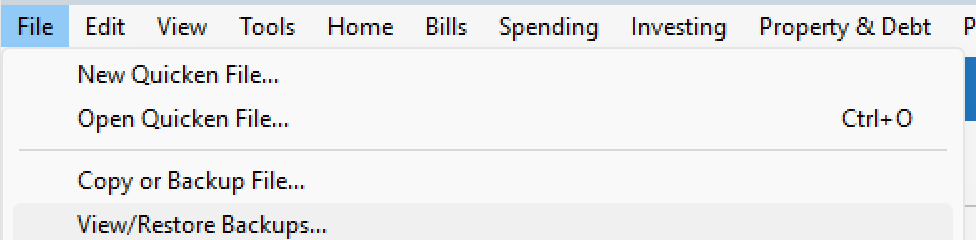
- File > View/Restore Backups...
Please refer to the following support articles for instructions on uninstalling and reinstalling Quicken:
- Uninstalling Quicken (Windows 11 instructions are provided below; you can also find Windows 10 and Windows 8 instructions in the link, if needed)
- Windows 11
- Click the Start button and select Settings (gear icon).
- Select Apps from the settings list, then click Installed apps.
- In the Installed apps list, scroll down to Quicken, click the three dots menu, then select Uninstall.
- Click on Uninstall again to confirm and follow through the prompts until the program is removed.
- Windows 11
- Reinstalling Quicken
Important extra step (recommended):
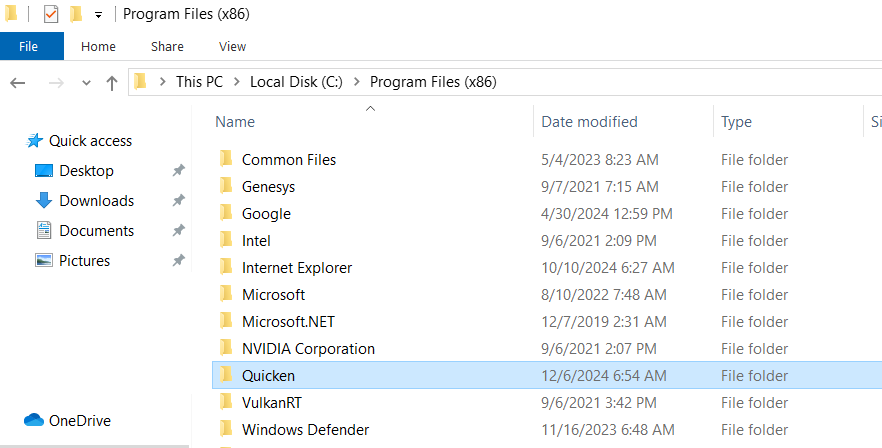
After uninstalling—but before reinstalling—please do the following:- Open Windows File Explorer
- Navigate to:
This PC > C: Drive > Program Files (x86) - Delete the folder titled “Quicken”
(This does not delete or affect your data files.)
Once that folder is removed, proceed with reinstalling Quicken and then open your existing data file.
Hope this helps!
-Quicken Anja
Make sure to sign up for the email digest to see a round up of your top posts.0 -
Yes, that worked. Thank you!
0 -
Thanks for the update! Glad to hear that worked for you.
-Quicken Anja
Make sure to sign up for the email digest to see a round up of your top posts.0
Categories
- All Categories
- 44 Product Ideas
- 36 Announcements
- 228 Alerts, Online Banking & Known Product Issues
- 21 Product Alerts
- 497 Welcome to the Community!
- 677 Before you Buy
- 1.3K Product Ideas
- 54.4K Quicken Classic for Windows
- 16.5K Quicken Classic for Mac
- 1K Quicken Mobile
- 814 Quicken on the Web
- 116 Quicken LifeHub