How to clear invoices from 2022 that were assigned the wrong payments?

Tominator
Tominator Quicken Windows Subscription Member ✭✭✭

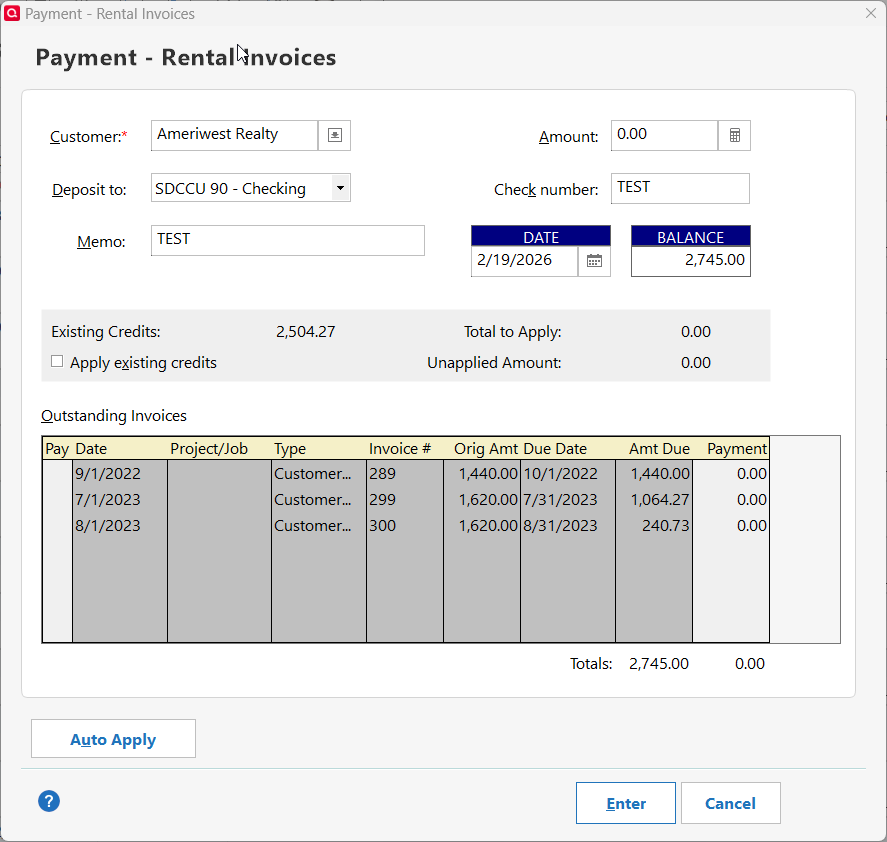
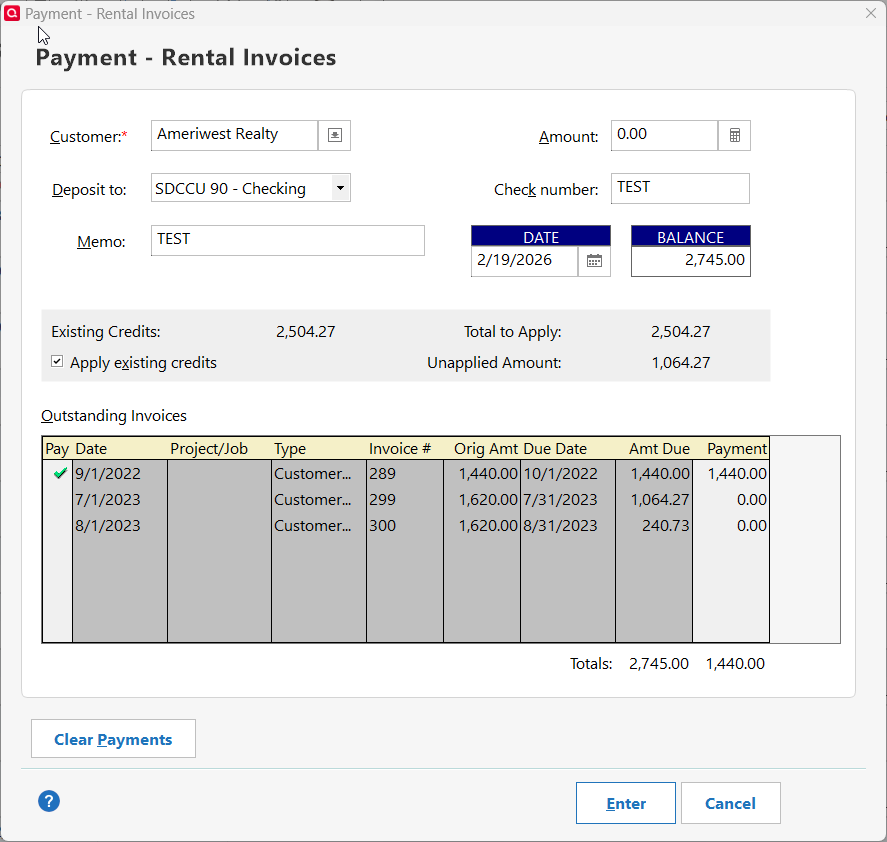
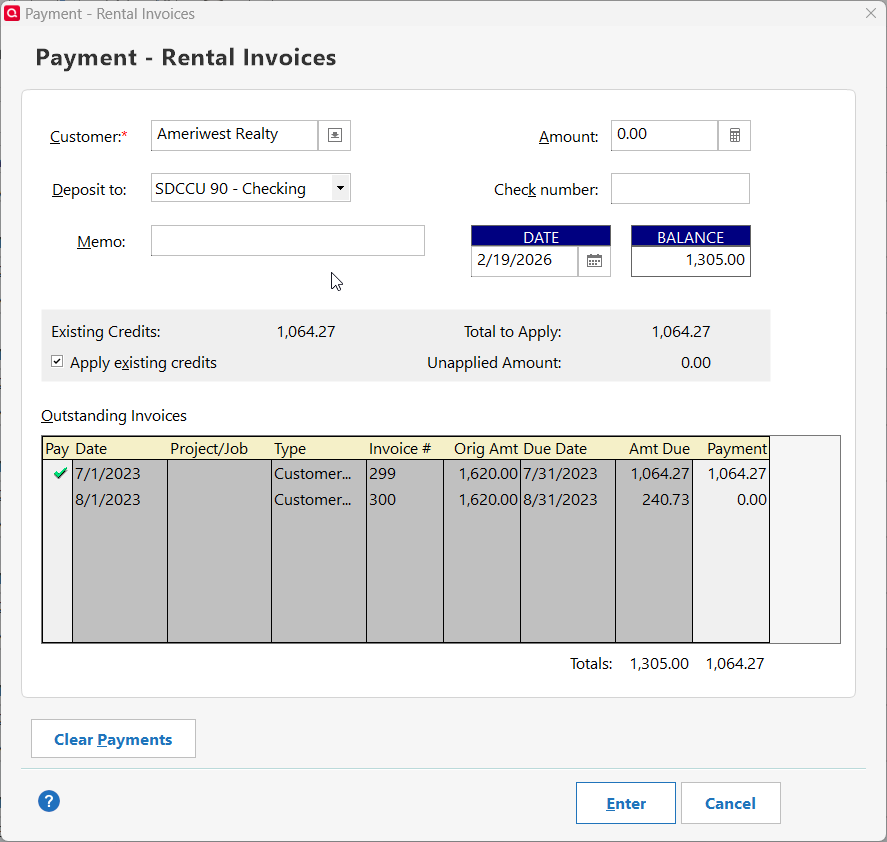
Sometimes Quicken just outsmarts itself. One area applying payments. I use a property manager for a rental property and they send us the monthly rent MINUS expenses and management fees. So I create an Invoice that shows the full amount of the rent with line items for expenses. I then use their EFT to pay the invoice. Somehow, some of these EFTs got marked as cleared in the Rental Invoice account which meant they got arbitrarily assigned by Quicken to the wrong invoices. I was partially able to correct the problem by going into the invoices and removing the payment but I'm left with about 10 uncleared and not easily resolved transactions involving credits and expenses. If there was any way to simply mark the invoices and payments as Cleared in the register, that would solve the problem. However, I cannot access the cleared field (grayed out). Reconciling doesn't help either because there's no traditional marking of transactions.

Incidentally, my system normally works well and ends up correctly matching the PM's 1099 and cash flow basis.

Suggestions?

Comments

  • Quicken Laura
    Quicken Laura Quicken Windows Subscription Member, Moderator mod

    Hi @Tominator,

    Thank you for explaining the situation — I know how tricky it can be when invoice payments get misapplied, so I’m happy to help clarify what’s happening and how to fix it.

    In Rental Property accounts, Quicken can occasionally auto‑match EFT payments to invoices based on amount and timing. When this happens, some payments may be incorrectly linked, and because Rental accounts work differently from regular banking accounts, the Cleared (C) column is grayed out and can’t be manually edited. They also don’t use the traditional reconciliation process, which is why reconciling doesn’t resolve the issue.

    To correct the mismatched payments, here are the best steps within Quicken for Windows:

    1. Remove incorrect payment links from the invoices

    For each invoice that has the wrong payment applied:

    1. Go to Customer invoices account
    2. Select the payment applied to the affected invoice.
    3. Remove the payment (Unlink/Delete Payment).

    You’ve already done some of this, which is great, the next steps will handle the remaining entries.

    2. Reassign the payments correctly

    You can reapply the payments using the correct workflow:

    1. Go to the Customer Invoices account.
    2. Open the invoice you want to apply the payment to.
    3. Select the option to Apply Payment.
    4. Enter the payment amount and choose the account where the deposit originated.

    This method applies the payment cleanly to the correct invoice and avoids needing to adjust the Cleared column, which isn’t editable in Rental/Customer Invoices accounts.

    Once your payments and invoices are correctly linked again, your system should return to its usual behavior and continue matching your property manager’s 1099 and cash‑flow totals accurately.

    Please let me know how it goes!

    Quicken Laura

    Make sure to sign up for the email digest to see a round up of your top posts.