Foreign Currency in Reports

DistressedParrot
DistressedParrot Quicken Windows Subscription Member
edited February 27 in Reports (Windows)

I am using Quicken Classic for Windows R66.18 and have multi-currency support enabled for some accounts.

When I look at the Banking/Transactions report, I only see amounts in my home currency regardless of what I have selected in the report Other / Currency: <Foreign Currency Selector> box. This seems to be a new-ish issue in the past year or so, previously I was able to see the transaction report amounts displayed in the original foreign currency (for accounts that use a foreign currency). This also appears to only happen for my older data file; if I create a brand new quicken data file that only has one checking account in home currency and one checking account in foreign currency, the Banking/Transactions report will show the correct amounts based on what is set in the Other / Currency: <Foreign Currency Selection> drop down box.

Example: Home currency is USD, foreign currency is EUR. Transfer $119 from USD checking to EUR checking, enter 100euro as the EUR checking received amount. When I look in the register for each account, I see the correct $119 or 100euro amounts, and the account bar shows the correct balance in $ or euro. But when I run a Banking/Transaction report, I only see the number 119 showing up.

I've submitted a "Share your Feedback" report with screenshot and uploaded a sanitized data file. Would greatly appreciate a resolution to this. Thanks!


Comments

  • Quicken Kristina
    Quicken Kristina Quicken Windows Subscription Moderator mod

    Hello @DistressedParrot,

    Thank you for sharing your experience. Since you mentioned this happens only in your older file, that implies the issue is most likely a file-specific problem. To start troubleshooting, I suggest that you try validating your data file.  Please save a backup file prior to performing these steps. 

    Validate: 

    1. File
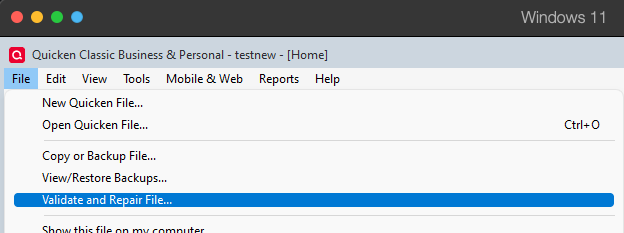
    2. Validate and Repair File... Validate and repair.png
    3. Validate File
    4. Click OK
    5. Close the Data Log
    6. Close Quicken (leave it closed for at least 5 secs)
    7. Reopen Quicken and see if the issue persists.

    Please let me know how it goes!

    Quicken Kristina

    Make sure to sign up for the email digest to see a round up of your top posts.

  • DistressedParrot
    DistressedParrot Quicken Windows Subscription Member

    I validated the file, there were no issues found. Problem still persists. Do you have any other suggestions?

  • Quicken Kristina
    Quicken Kristina Quicken Windows Subscription Moderator mod

    Thank you for your reply,

    The next step is to restore a backup from before the problem started, then verify if the issue is resolved in that newly restored file.

    To restore a backup, follow these steps from our article on backing up and restoring Quicken files:

    Restore Quicken data

    1. Go to File > View/Restore Backups....
    2. Browse the Local and Online Backups tabs to find the backup file you want to restore. The Quicken backup file has the extension .QDF-Backup.
    3. Select the file to restore and click Restore Backup.
    4. Next, you will be given the option to overwrite the file you have open or to create a copy of the backup you're restoring.
      • If you Create a copy, you will need to select a location to save the copy to and you will also need to give the copy a unique file name. After naming the file and selecting the location, click Save, then click Yes to open the restored file.
      • What does it mean to overwrite a file?: Restoring a backup file replaces your current data with the data stored on the backup. Be aware that you'll lose any changes you made since the backup was created. If you want to preserve the current file, you must rename the current file or the file you are restoring. We recommend avoiding overwriting files.

    If you don't have a manual backup, you can restore an automatic backup. See the steps below:

    Restore an automatic backup

    Quicken creates a copy of your data every seven days and stores five of these copies in a BACKUP folder. If the backup file you've created becomes damaged, you may be able to restore an automatic backup and save yourself the need to re-enter data.

    First, check to see if automatic backups are turned on (this is on by default)

    1. In Quicken, go to Edit > Preferences.
    2. Under Setup on the left, choose Backup.
    3. Make sure there is a check mark next to Automatic Backups.
      • To the right of Automatic Backups, there is an Open/Change backup directory link that goes directly to your BACKUP folder - a good way of finding them fast!
      • Choose to back up your Quicken data file after running Quicken X times (between 1 - 99).
      • Choose how many backup data files you would like to save (between 1 - 99 copies).

    Then, restore the automatic backup

    1. Go to File > View/Restore Backups....
    2. Select the file to restore.
    3. Click Restore Backup.
    4. Next, you will be given the option to overwrite the file you have open or to create a copy of the backup you're restoring.
      • If you Create a copy, you will need to select a location to save the copy to and you will also need to give the copy a unique file name. After naming the file and selecting the location, click Save, then click Yes to open the restored file.
      • What does it mean to overwrite a file?: Restoring a backup file replaces your current data with the data stored on the backup. Be aware that you'll lose any changes you made since the backup was created. If you want to preserve the current file, you must rename the current file or the file you are restoring. We recommend avoiding overwriting files.

    I hope this helps!

    Quicken Kristina

    Make sure to sign up for the email digest to see a round up of your top posts.

  • DistressedParrot
    DistressedParrot Quicken Windows Subscription Member

    I confirm this is a bug in the "Refreshed Customize Reports Dialog" feature within the Edit Menu / Preferences / Early Access settings.

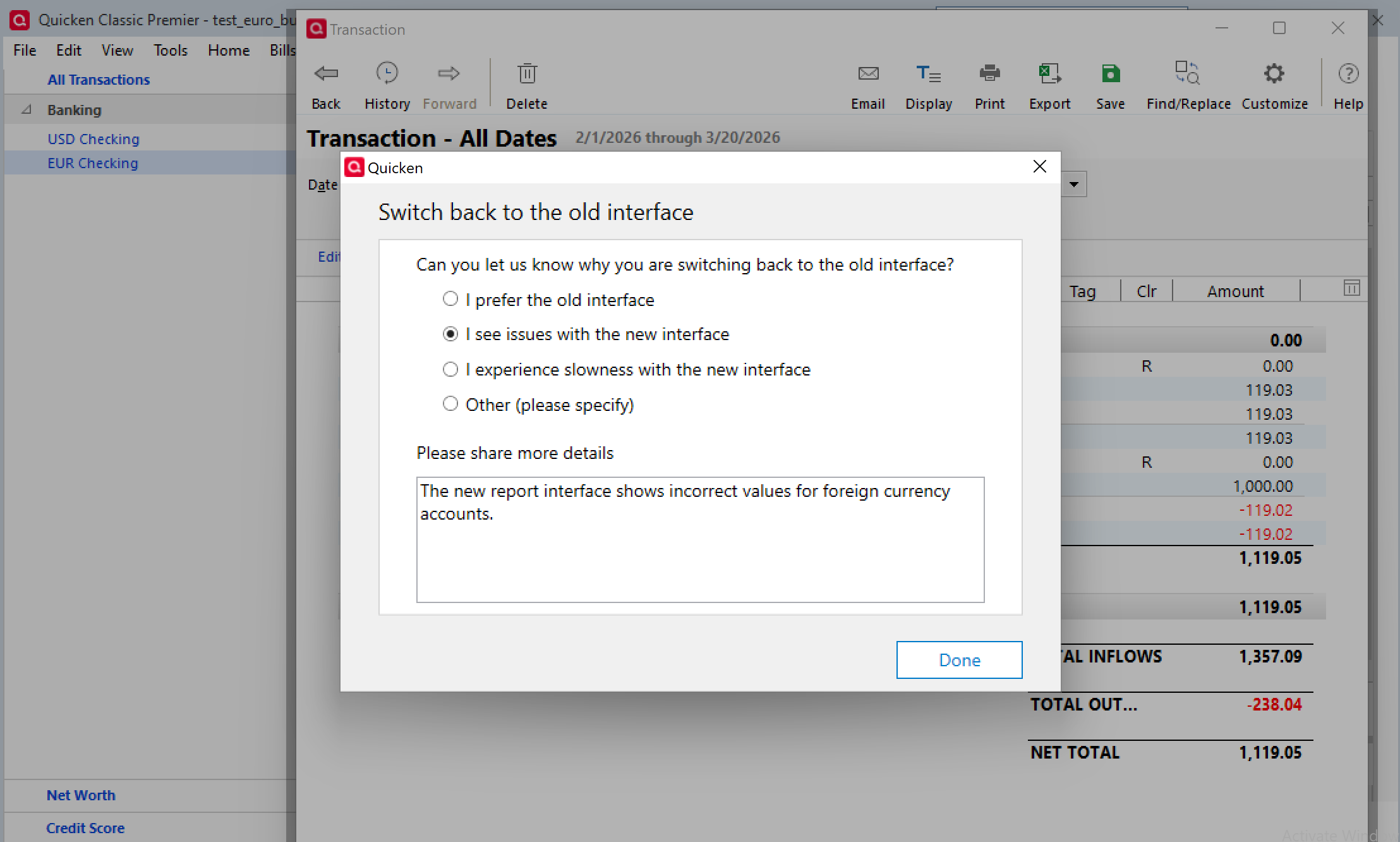
    When I switch back to the old interface, either by unchecking the "Refreshed Customize Resports Dialog" checkbox or by clicking the "Switch back to old interface" option under a Report dialog / Customize report configuration dialog, the problem goes away.

    Specifically by "the problem goes away" I mean that transactions in accounts configured for a foreign currency display the correct foreign currency value in a transactions report when the Report dialog / Customize report configuration dialog / Display tab / Currency drop-down setting is set to the foreign currency instead of the USD functional currency.

    I hope this work-around is helpful to others.

  • DistressedParrot
    DistressedParrot Quicken Windows Subscription Member

    Since the problem is related to the old vs new Report interface, I did not search through my backups to find when the problem originally started. Hopefully the tip that it's a new vs old Report interface bug is sufficient for you to find and fix the problem. Perhaps point an AI tool like Cursor or Claude at the two codebases and ask it to find the problem, given my description above?

  • Quicken Kristina
    Quicken Kristina Quicken Windows Subscription Moderator mod

    Thank you for the additional information,

    I tried to replicate the issue in my own file, but the report displays correctly, even with Early Access' "Refreshed Customize Reports Dialog" turned on. Would you please share screenshots of what you're seeing (please redact any personal information)? If needed, please refer to this Community FAQ for instructions on attaching a screenshot. Alternatively, you can also drag and drop screenshots to your response if you are not given the option to add attachments.

    Thank you!

    Quicken Kristina

    Make sure to sign up for the email digest to see a round up of your top posts.

  • DistressedParrot
    DistressedParrot Quicken Windows Subscription Member

    Sure, here is a set of screenshots.

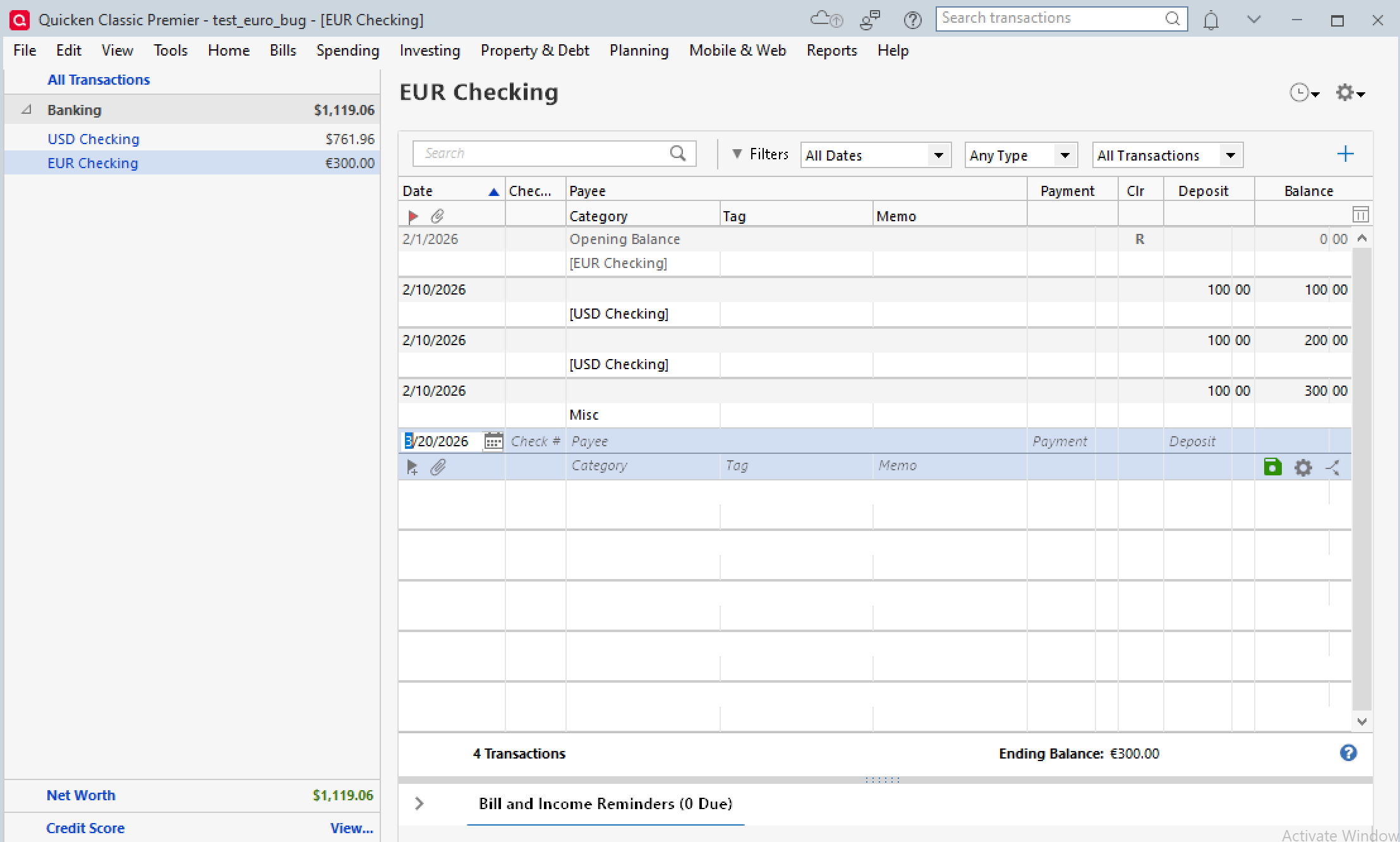
    Check register view of the EUR-denominated account

    Screenshot from 2026-03-20 14-18-58.png

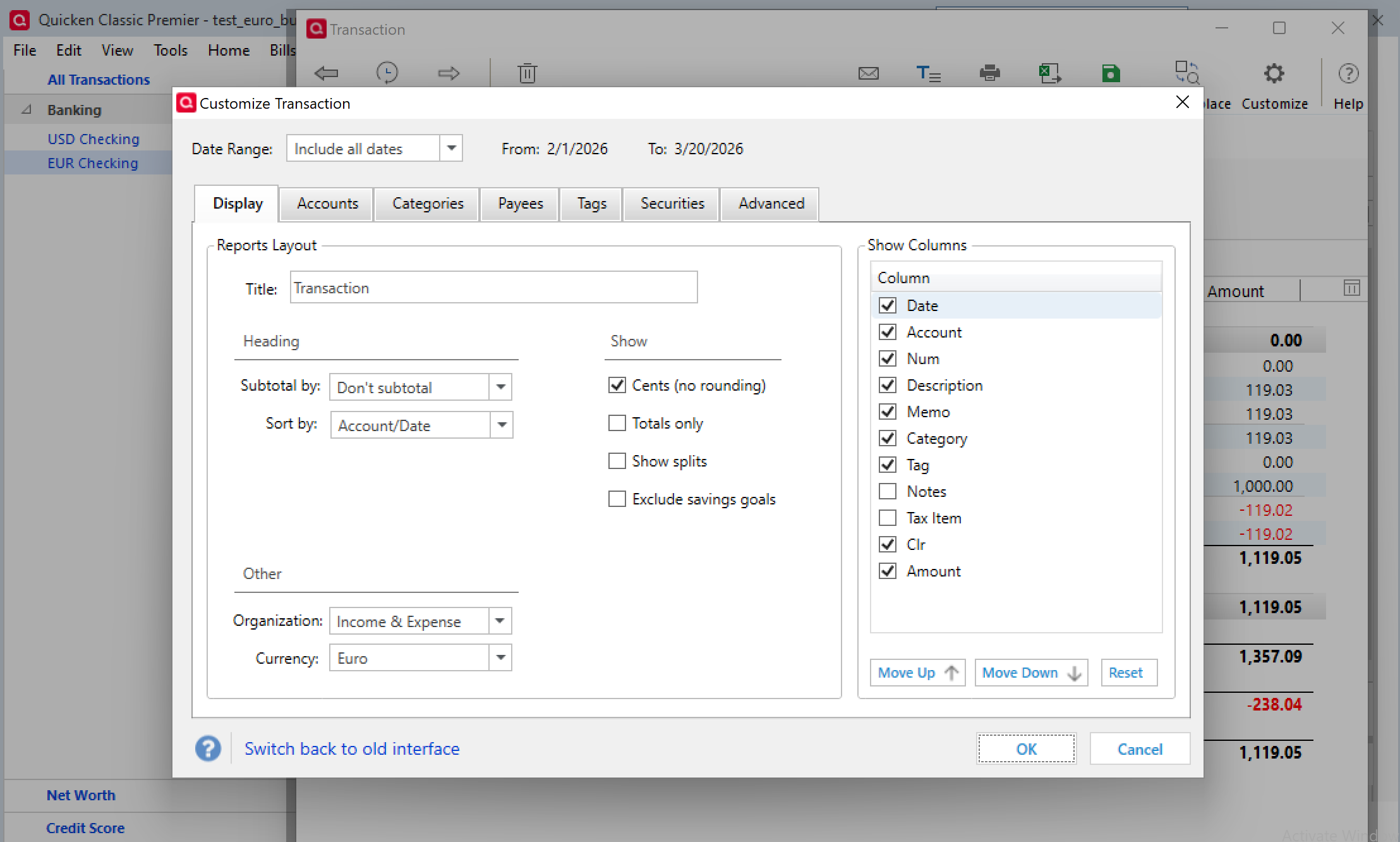
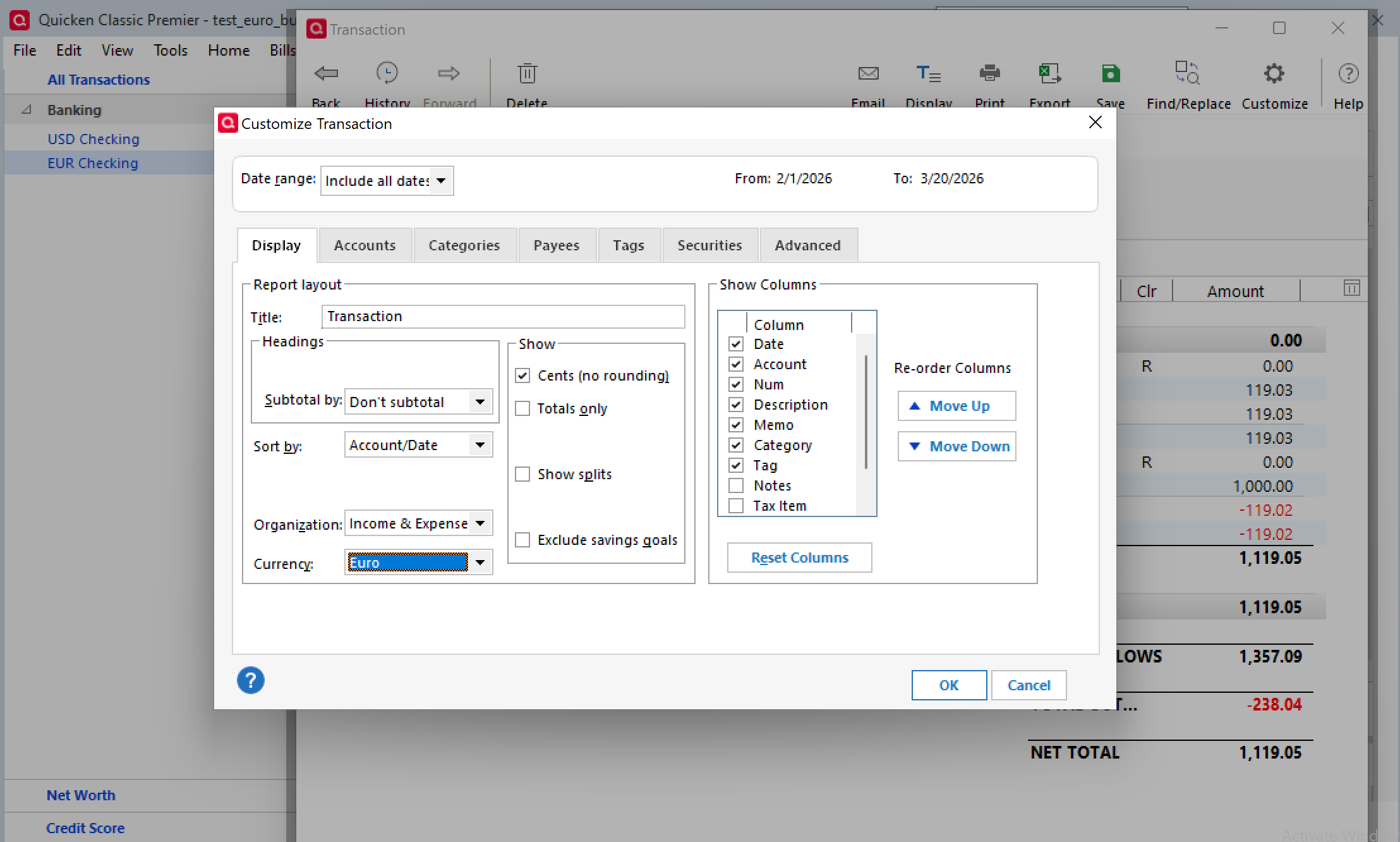
    Transaction report configuration screen showing EUR is selected as the currency

    Screenshot from 2026-03-20 14-20-49.png

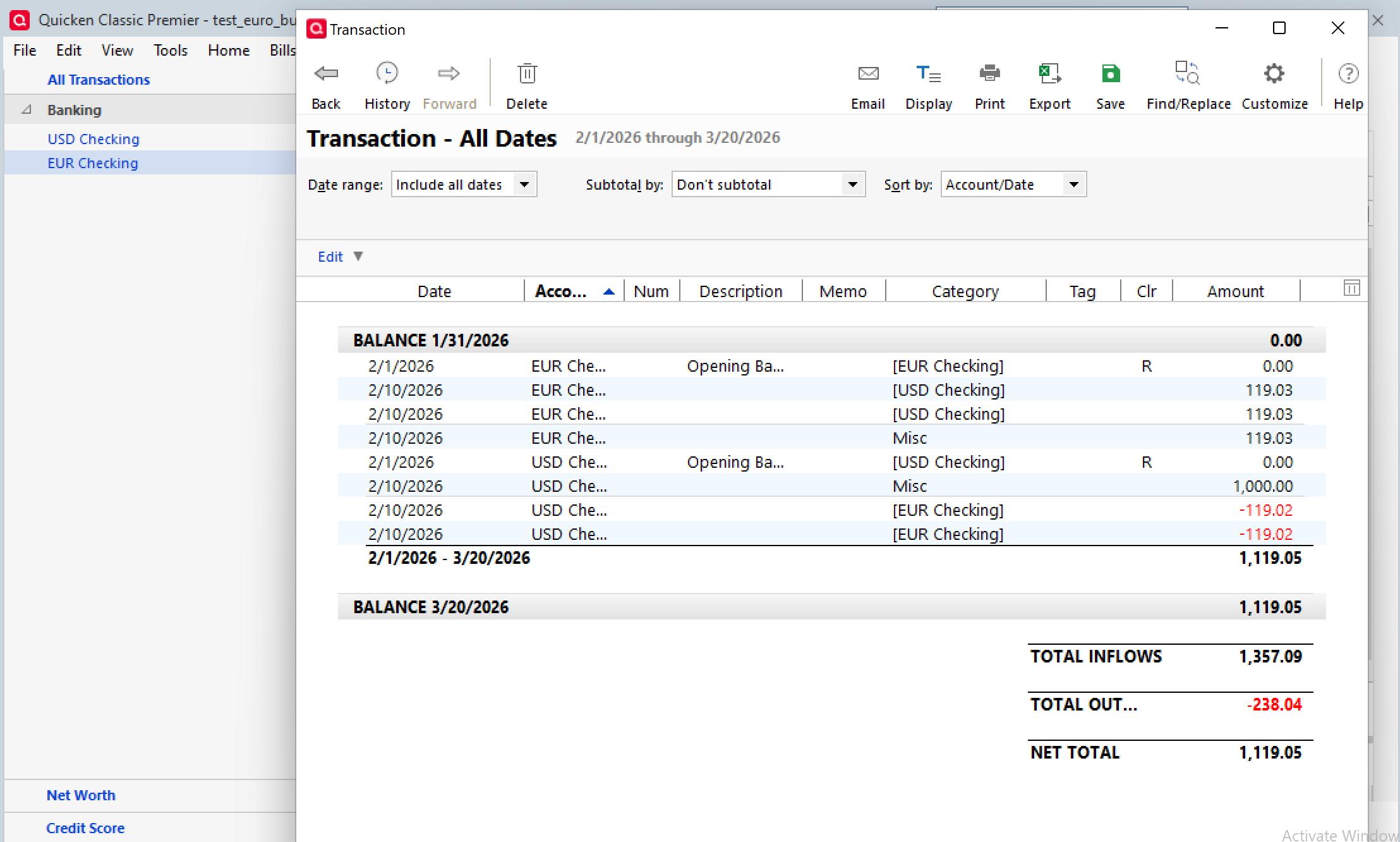
    The report showing incorrect values (those 119.03 on the EUR checking should be 100.00 as was shown in the check register view)

    Screenshot from 2026-03-20 14-21-40.png

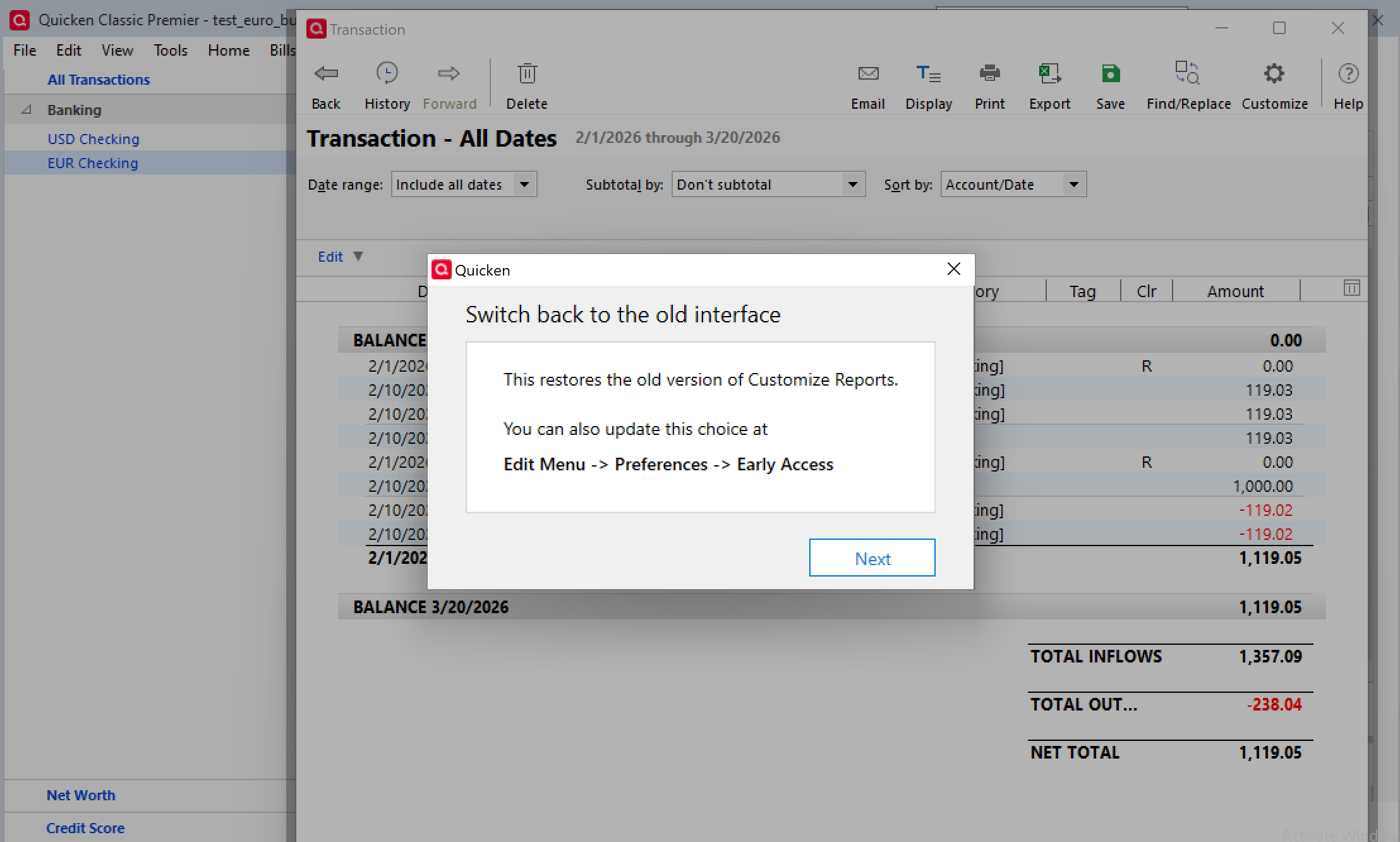
    Switching back to the old report interface:

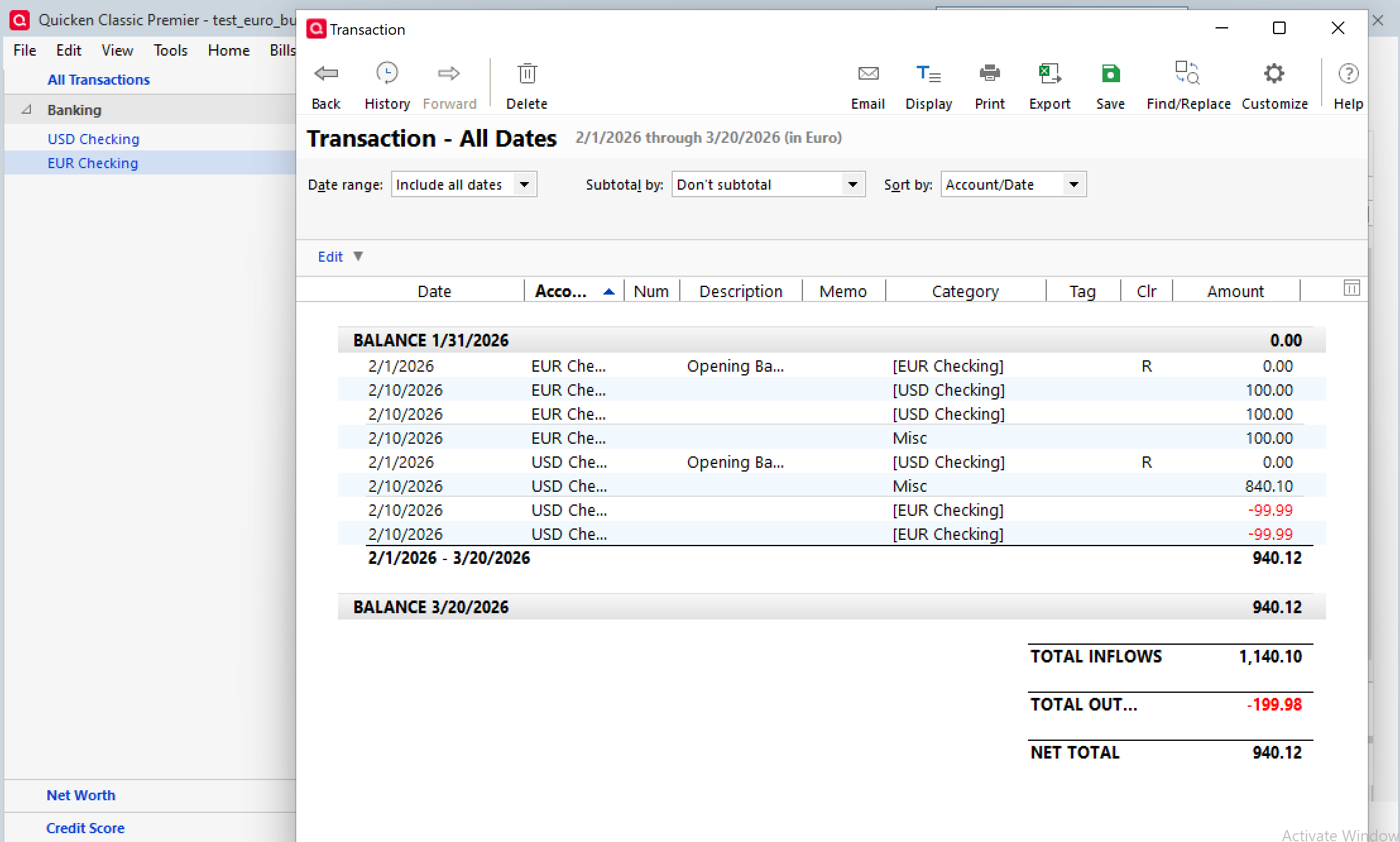
    Screenshot from 2026-03-20 14-23-52.png Screenshot from 2026-03-20 14-24-58.png Screenshot from 2026-03-20 14-25-10.png

    Result is correct for the EUR-denominated account. Seems to be a penny off for the USD-denominated account when shown in EUR, but I could live with that by filtering to only show EUR-denominated accounts when viewing euro currency.

    Screenshot from 2026-03-20 14-25-48.png
  • DistressedParrot
    DistressedParrot Quicken Windows Subscription Member

    >I've submitted a "Share your Feedback" report with screenshot and uploaded a sanitized data file. Would greatly appreciate a resolution to this. Thanks!
    Also please note, I had previously shared a sanitized version of this data file via the "Share your Feedback" mechanism within Quicken Classic for Windows…

  • Quicken Kristina
    Quicken Kristina Quicken Windows Subscription Moderator mod

    Thank you for the follow-up,

    I tried following the process, exactly as you specified and illustrated, but I still cannot replicate the issue. Since you replicated the issue in a test file, the issue shouldn't be file-specific. To troubleshoot program issues, please try installing the current update patch manually. To do that, please follow the instructions in the article linked below: https://www.quicken.com/support/update-and-patch-20182019-release-quicken-windows-subscription-product/#section-windows-2

    Thank you!

    Quicken Kristina

    Make sure to sign up for the email digest to see a round up of your top posts.