When I create a new folder, is there a way to store it in the file but not next to the old ones?

Susan From Vermont
Susan From Vermont Quicken Windows Other Member ✭✭✭

Working on a Windows 11 desktop PC. Every year I like to open a new file, but keep the previous year's file handy for reference. Quicken used to do that, the old files would be in their own space near the bottom of the area where the current files are located. I don't remember what they called it, but basically, it is like archiving a file. I guess I could put those files in My Documents, but it was nice to have it on the Quicken screen until I had no more reasons for accessing it.


Best Answers

  • Rocket J Squirrel
    Rocket J Squirrel Quicken Windows Subscription SuperUser ✭✭✭✭✭
    Answer ✓

    Under the Accounts on the left side of the screen are what I call "folders" - each one is a different bank account.

    You can call them whatever you like in the privacy of your home. QWin has nothing called "folders", so if you come here to the forum, no one will know what you're talking about. Better to use QWin terminology. In this case, "accounts" is correct.

    Quicken user since version 2 for DOS, as of 2025 using QWin Premier (US) on Win10 Pro & Win11 Pro on 2 PCs.

  • Tom Young
    Tom Young Quicken Windows Subscription SuperUser ✭✭✭✭✭
    edited March 23 Answer ✓

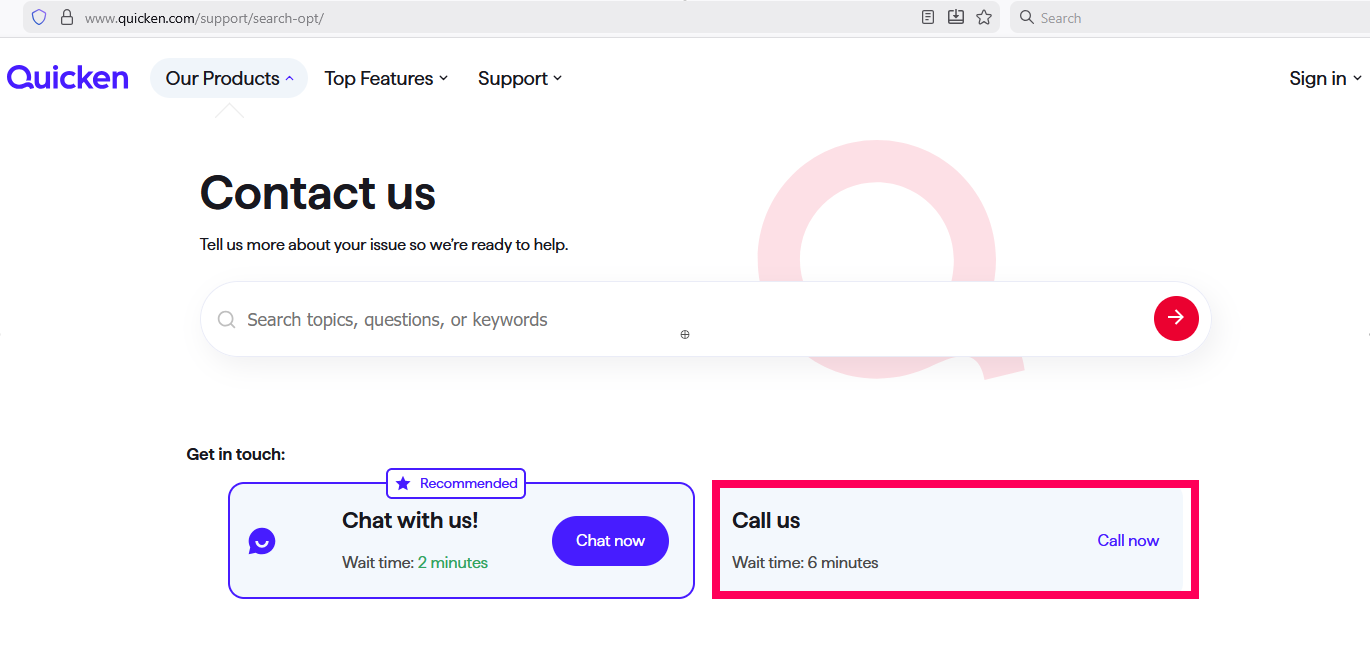
    Quicken does make it slightly difficult to find that phone number - I'm sure they prefer "chat" - but in my opinion a "chat" channel for helping people with technical issues just has never proven satisfactory. I'm guessing that screen sharing isn't even an option under chat. So for future reference, when you get on the Contact Us page you click on the small "call now" link:

    image.png

    and that phone number shows up:

    image.png

    Yes, you do need to learn a new vocabulary to talk about what you're seeing in Quicken when trying to communicate in here.

    The whole column of information titled "Accounts" is called, in "Quicken-Speak", the "Accounts Bar", and it can be placed on the left or right hand of the screen.

    As @Rocket J Squirrel explained, each line on the Account Bar is a separate Account. The word "Account" is not Quicken-Speak but the word "Category" is. Any amounts entered into a Category is treated as a bit of income or expense. Accounts appear on balance sheet Reports, Categories appear on Spending Reports.

    As you know there are probably hundreds if not thousands of different screens you might see when Quicken is running and you're looking at your monitor, so it is important that you identify the screen you're looking at with some precision. If you can see a title presented on a screen you're looking at use that exact title and maybe even the "path" taken to get to it. (As an aside, I'd advise showing in these pictures the maximum amount of information you can that doesn't include information that identifies you personally.)

    So I now know what it is you're looking at: the page that comes up when you click on the "Home" tab and have selected the "Dashboard" view. I'm guessing that the Dashboard isn't relevant to you question?

    I can also see that you seem to be using a very unconventional nomenclature in your creation of Accounts. "2025-2026…" isn't a real world account in the sense that some financial institution is sending you monthly statements for an account titled "2025-2026…" I'm guessing that the Accounts titled "2025-2026…" might be checking accounts and you also have a savings account?

    Now going back to your problem:

    "When I create a new folder, is there a way to store it in the file…" but not next to the old ones?

    So you really mean "new Account" here? And of course a newly created Account IS stored in the file.

    "…but not next to the old ones?"

    So now you're referring to where this new Account shows up in the Account Bar? The answer to that question is a qualified "Yes." If you click on the gear wheel for the Accounts Bar then one of the options is "Rearrange Accounts" and that lets you order them as you see fit. The "qualification" is that they will all appear in the "Banking" section of the Account Bar.

    The other option is to edit the Accounts - presumably the "old" Accounts - and select "Keep this account separate." That will put the Account is another section of the Account bar called "Separate"; the Account will still be available to you for viewing.

    Maybe that's what you were looking for?

    A big part of the confusion here was although you used "folder" in your headline, all throughout the body of the question you used the word "file", a distinctly different concept.

Answers

  • Tom Young
    Tom Young Quicken Windows Subscription SuperUser ✭✭✭✭✭

    Could you please identify what you're looking at when you say "the old files would be in their own space near the bottom of the area where the current files are located."

    If you're referring to the list of files you see at the bottom of the window that appears when you click on "File" in the upper left hand corner in Quicken, that list is just showing you recently opened files.

    Also, your headline is confusing. You refer to creating a "new folder" but you don't identify "the file" where you want store it in.

    When you open a "new file" are you also creating a new folder to store it in, such that the path to open that file is Documents > Quicken > New Folder > New File, or something?

    If that's the case then the easier way of doing that would be to simply create a new file each year with the same name as the prior year's file but with a "year" appended to that file name, e.g.:

    Susan 2021
    Susan 2022
    Susan 2023
    and so on.

    I'll admit that I'm not clear on what you're asking for here. Could you provide some more detail, and maybe some screen shots to clarify?

  • Susan From Vermont
    Susan From Vermont Quicken Windows Other Member ✭✭✭

    Tom Young: Thank you for responding. I am not sure what are the correct terms for describing what I would like to do. Will try to clarify for you.

    My Quicken Account keeps track of 3 folders, each of them a different account. In the past, Quicken would let me take last year's folders and put them in the same column, on the left side of the screen, as this year's folders, but with the column divided into two sections. The previous year's folders would be in the bottom section. I was wondering if there was a way to do this now.

    The reason for this is to be able to access those folders easily, partly because of using them when doing my taxes. Another is that every time I open a backup, I have to close Quicken so it can be displayed.

    I guess since Quicken has apparently changed that capability, I could simply open a new folder with a different name [year] and leave them all together. Then the next year I could save the folders to be retired to their own folder on my hard drive.

    A lot of my confusion is because I am having trouble keeping track of all the backups. In the active folders [accounts] I have one folder [account] that is missing last year's data, and finally found it but the other two folders [accounts] with it were not up to date. Do you know if there is a way to lift that one out and use it to update the one with the missing entries?

    Thanks again.

  • Tom Young
    Tom Young Quicken Windows Subscription SuperUser ✭✭✭✭✭

    "My Quicken Account…"

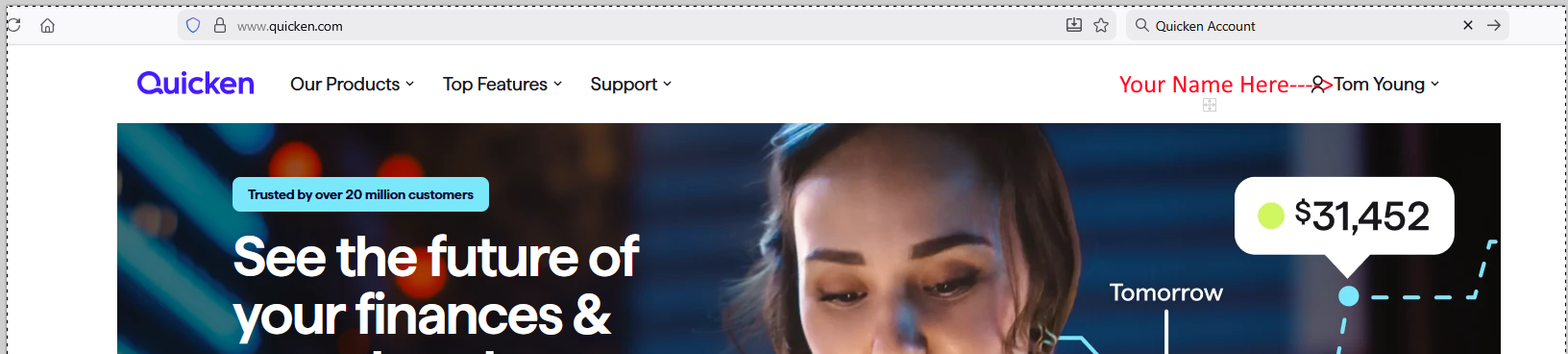
    Without some pictures these kinds of conversation can be difficult. "My Quicken Account…" would seem to suggest that you go to your browser, type in "Quicken.com" in the URL line and end up here:

    image.png

    As far as I know there's no way to look at your private financial information here, though maybe I'm wrong? So I'm thinking that perhaps you're referring to the Quicken Program instead?

    "keeps track of 3 folders,"

    In the world of Windows a "folder" is analogous to the old manila folders you'd find when you open a file cabinet drawer and inside the folder you could have many documents. In Widows, visually, you see folders that look like those manila folders of yore:

    image.png

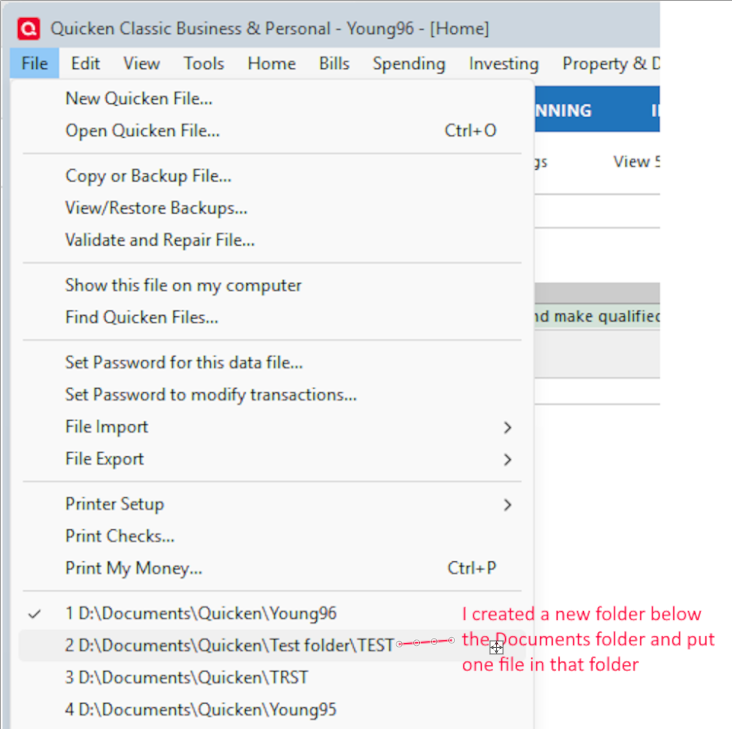
    So again I'll ask: Are you creating folders "underneath" the "Documents" folder Quicken typically uses to store these different years' files? (In Quicken, while within the program, "account" refers to an asset or a liability; accounts show up on a Balance Sheet.)

    You can do that and inside Quicken you'd see that in the drop-down list of files when you click on "files."

    image.png

    Quicken really only allows you to have one file open at a time so maybe what you're actually referring to here are saved "Reports?" You can have saved Reports customized however you want them to look, and you can have more than one Report open at a time and position them in a variety of ways.

    I'm not trying to be obtuse here but I just don't have a clear mental picture of what you're describing and that might be due to my own ignorance. The path of least resistance and the easiest way to get an answer would be to call Official Quicken Support and allow for screen sharing. That way all the "language" confusion should go away. You can simply use your mouse pointer and click on stuff while on the phone with an agent, and they can follow along, seeing exactly what you're trying to do.

    I do think that maybe this is a "Reports" issue and I'd be happy to keep trying, but using Quicken Support should I'd expect, be quicken and easier.

  • Susan From Vermont
    Susan From Vermont Quicken Windows Other Member ✭✭✭

    Tom Young: Thank you for responding. Saturday I did try to use the chat, asked for an agent, but was on hold for over 10 minutes. So I went and did some chores, had lunch, etc. Later I saw someone had come onto the chat line, but of course I was not there. I responded to the email sent to me, but have not gotten an answer yet.

    You say to call, but I do not see a phone number. The only way I see is the chat. I am planning to try again tomorrow.

    You are correct, it is largely a matter of vocabulary, knowing what words are referring to. This is what my Quicken program looks like when I open it. Under the Accounts on the left side of the screen are what I call "folders" - each one is a different bank account. The rest of the screen is Home [Dashboard] with the option to instead show "spending", and then Quicken Setup to the far right. When I open one of these accounts [or folders], I see the income and spending with dates for each transaction.

    I do understand reports - I use them to organize the data into the categories of spending. Very helpful when doing my taxes.

    List of Accounts.jpg
  • Rocket J Squirrel
    Rocket J Squirrel Quicken Windows Subscription SuperUser ✭✭✭✭✭
    Answer ✓

    Under the Accounts on the left side of the screen are what I call "folders" - each one is a different bank account.

    You can call them whatever you like in the privacy of your home. QWin has nothing called "folders", so if you come here to the forum, no one will know what you're talking about. Better to use QWin terminology. In this case, "accounts" is correct.

    Quicken user since version 2 for DOS, as of 2025 using QWin Premier (US) on Win10 Pro & Win11 Pro on 2 PCs.

  • Tom Young
    Tom Young Quicken Windows Subscription SuperUser ✭✭✭✭✭
    edited March 23 Answer ✓

    Quicken does make it slightly difficult to find that phone number - I'm sure they prefer "chat" - but in my opinion a "chat" channel for helping people with technical issues just has never proven satisfactory. I'm guessing that screen sharing isn't even an option under chat. So for future reference, when you get on the Contact Us page you click on the small "call now" link:

    image.png

    and that phone number shows up:

    image.png

    Yes, you do need to learn a new vocabulary to talk about what you're seeing in Quicken when trying to communicate in here.

    The whole column of information titled "Accounts" is called, in "Quicken-Speak", the "Accounts Bar", and it can be placed on the left or right hand of the screen.

    As @Rocket J Squirrel explained, each line on the Account Bar is a separate Account. The word "Account" is not Quicken-Speak but the word "Category" is. Any amounts entered into a Category is treated as a bit of income or expense. Accounts appear on balance sheet Reports, Categories appear on Spending Reports.

    As you know there are probably hundreds if not thousands of different screens you might see when Quicken is running and you're looking at your monitor, so it is important that you identify the screen you're looking at with some precision. If you can see a title presented on a screen you're looking at use that exact title and maybe even the "path" taken to get to it. (As an aside, I'd advise showing in these pictures the maximum amount of information you can that doesn't include information that identifies you personally.)

    So I now know what it is you're looking at: the page that comes up when you click on the "Home" tab and have selected the "Dashboard" view. I'm guessing that the Dashboard isn't relevant to you question?

    I can also see that you seem to be using a very unconventional nomenclature in your creation of Accounts. "2025-2026…" isn't a real world account in the sense that some financial institution is sending you monthly statements for an account titled "2025-2026…" I'm guessing that the Accounts titled "2025-2026…" might be checking accounts and you also have a savings account?

    Now going back to your problem:

    "When I create a new folder, is there a way to store it in the file…" but not next to the old ones?

    So you really mean "new Account" here? And of course a newly created Account IS stored in the file.

    "…but not next to the old ones?"

    So now you're referring to where this new Account shows up in the Account Bar? The answer to that question is a qualified "Yes." If you click on the gear wheel for the Accounts Bar then one of the options is "Rearrange Accounts" and that lets you order them as you see fit. The "qualification" is that they will all appear in the "Banking" section of the Account Bar.

    The other option is to edit the Accounts - presumably the "old" Accounts - and select "Keep this account separate." That will put the Account is another section of the Account bar called "Separate"; the Account will still be available to you for viewing.

    Maybe that's what you were looking for?

    A big part of the confusion here was although you used "folder" in your headline, all throughout the body of the question you used the word "file", a distinctly different concept.

  • Susan From Vermont
    Susan From Vermont Quicken Windows Other Member ✭✭✭

    Tom Young: I am so thankful you are figuring out what I meant in various parts of my questions.

    I see that the place where the phone number can be found is under "products", rather than "support". Which explains why I never saw it!

    I do understand Reports and use them a lot. The view with Dashboard on it is what comes up when I open Quicken. I don't really pay much attention to it, and you are correct - it is not relevant to my questions.

    You are correct about the Accounts - they are bank accounts. I started out putting entries into each account containing 2 years. But I am going to change that to one year so it is better organized.

    In some of the older accounts I saw that they were kept separate, but I could not remember how I did it. Thank you for saving me the time to try and figure it out… That is exactly what I was looking for.

    In a filing cabinet there are folders for different entities, which the entirety of each folder and its contents is a file. If I don't have it right when using Quicken, I will try to learn the correct terms so I don't confuse people when I ask a question!

    About the missing file information - I finally found a folder with the 2025 data for Savings, thought I had marked it so I could find it again, but now I cannot. Very frustrating. Luckily it is a file I can regenerate fairly easily because there are only several entries each month.

    My plan is to populate my Accounts with the years I want to have available, and to make sure I have a certain number of backups. Then I can delete all the extras that apparently were generated at different times and never deleted. Always fun times working with accounts and computers!!!

    Thanks again.

  • Susan From Vermont
    Susan From Vermont Quicken Windows Other Member ✭✭✭

    Rocket J. Squirrel: I certainly do need to learn a new vocabulary! Is QWin a term, or is it the title of a terminology set? Every little bit helps, because the instructions for doing various tasks in Quicken are written for those who know what is written.

    Thank you.

  • Rocket J Squirrel
    Rocket J Squirrel Quicken Windows Subscription SuperUser ✭✭✭✭✭
    edited March 24

    @Susan From Vermont , sorry, QWin is simply an abbreviation for Quicken For Windows. You won't find it anywhere in Quicken itself; it's just a shorthand some of us use on the forum.

    Quicken user since version 2 for DOS, as of 2025 using QWin Premier (US) on Win10 Pro & Win11 Pro on 2 PCs.

  • RalphC
    RalphC Quicken Windows Subscription Member ✭✭✭✭

    @Susan From Vermont Your workflow is rather unconventional. You're getting confused by thinking that the accounts you've created to hold your data are something like Windows "folders". They are not, at least not in accounting terminology. And, the proper workflow would not have you creating new banking accounts for every year for the same account. Instead, you would create one Checking and/or Savings account, and that would span multiple years, or as long as that account stays open. There's no reason to isolate separate years into data files (or separate accounts). That's done in the report generation process. My data file is around 30 years old.

    You might study some Quicken workflow tutorials which will probably greatly enhance your Quicken experience and keep your data more conventionally organized and useful.

  • Tom Young
    Tom Young Quicken Windows Subscription SuperUser ✭✭✭✭✭

    @Susan From Vermont

    As I said previously and as @RalphC has echoed, your use of Quicken is unconventional and, frankly, confusing.

    If you have three real world accounts with financial institutions than the conventional method would dictate three Quicken Accounts and you'd keep those Accounts working "forever." If you want to look back at transactions for last year or several years ago you simply either scroll through the Register or, even easier, run a Report with a beginning or ending date that spans the period you want to look at.

    I'd advocate for abandoning your current process and go with the KISS principal of just running the 3 Accounts that you have. Heaven help you if somewhere along the line you begin adding new real world accounts - an IRA, maybe an HSA, a brokerage account or two, a mortgage, maybe change banks, etc. - you can't believe the mess that will create!

    But you are the Chief Accounting Officer of your enterprise so you get to decide how you keep your own books and records.

  • Jim_Harman
    Jim_Harman Quicken Windows Subscription SuperUser ✭✭✭✭✭
    edited March 24

    @Susan From Vermont I can see how you might like to think of the items in the Account Bar as folders, like in a file cabinet where you have a folder for each year of the checks and statements for your checking account.

    If you are willing to organize things the "Quicken way," with the Account Bar items corresponding to your real life accounts, but don't want your registers to be cluttered with old transactions, you can restrict the dates shown in each register by setting a filter of "Last 12 months" or whatever date range you want at the top of the register.

    If you go to Edit > Preferences > Register and check the "Remember register filters after Quicken closes" box, It will remember the settings for the next time you run Quicken. Of course then you must remember that you have done that when you are looking for old transactions.

    But if you really want to continue making new Accounts in Quicken every year or two, you can change the order of the accounts within each section of the Account Bar. Click on the gear at the top right of the Account Bar and select Rearrange accounts. Then you can click and drag the accounts to rearrange them. Click Done at the bottom when you are finished.

    Another thing you can do if you want to divide up your real life accounts by year is to hide them in the Account Bar rather than marking them Separate. Hidden accounts will still be available for reports and will still count towards your Net Worth.

    QWin Premier subscription