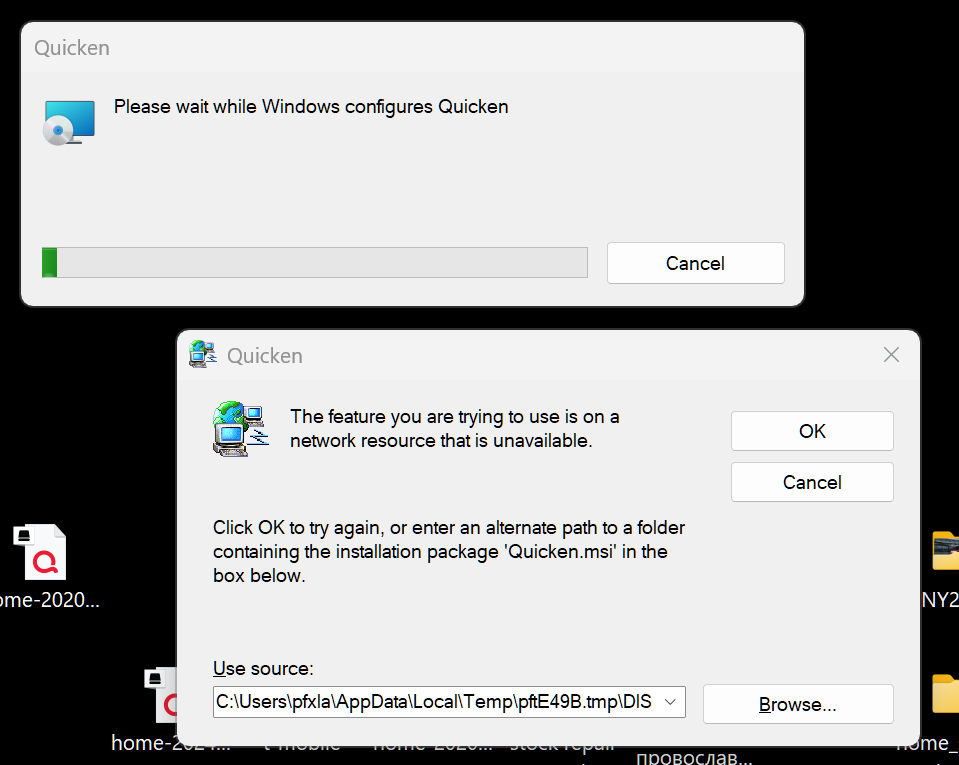
How to deal with this:
HOW did you get this file? From what bank? "Quicken.msi" is an install file, not a QFX.
Because the path you're showing in the 2nd graphic doesn't look anything like where a QFX would be saved … it looks more like the path to a program install file (but I can't be sure since you don't show the full file name).
Also, saving any Q files on a networked resource is a hit-or-miss proposition, because Q doesn't possess the coding necessary to safely process networked files. A single hiccup, while accessing such, can fry your program or data.
Hello @pauel,
Thank you for reaching out! To clarify, are you seeing that error when you try to import a QFX file you downloaded directly from your financial institution?
If you are, then you will need to uninstall and reinstall Quicken to correct the issue.
To uninstall Quicken, please backup your file, then follow these steps from our article on uninstalling Quicken:
Windows 11
1. Click the Start button and select Settings (gear icon).
2. Select Apps from the settings list, then click Installed apps.
3. In the Installed apps list, scroll down to Quicken, click the three dots menu, then select Uninstall.
4. Click on Uninstall again to confirm and follow through the prompts until the program is removed.
Windows 10
1. Click the Start button and select the Control Panel. In Windows 10, the Control Panel is located in the Windows System folder in the Start menu.
2. Under Programs, click on Uninstall a Program.
3. Find Quicken in the list of programs. They are alphabetically ordered. Highlight it by clicking on it once.
4. Click on Uninstall at the top of the list and follow through the prompts until the program is removed.
To install Quicken, please use the article linked below to download the current version of Quicken: https://www.quicken.com/support/how-do-i-download-quicken-quickencom-after-i-buy-it/#section-windows-1
Once it finishes downloading, click Run to begin.
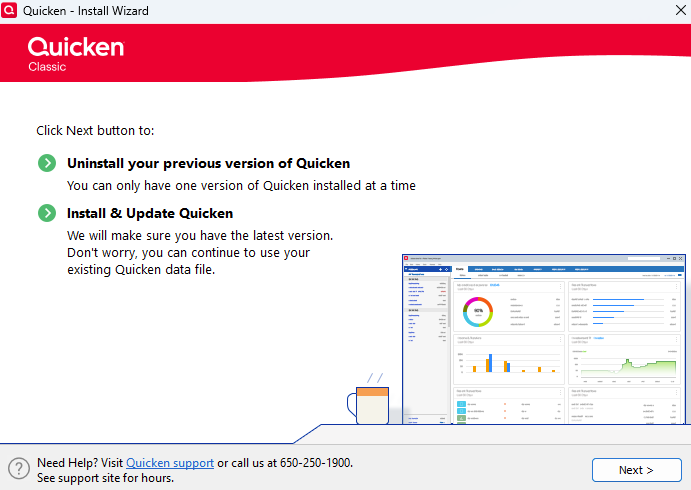
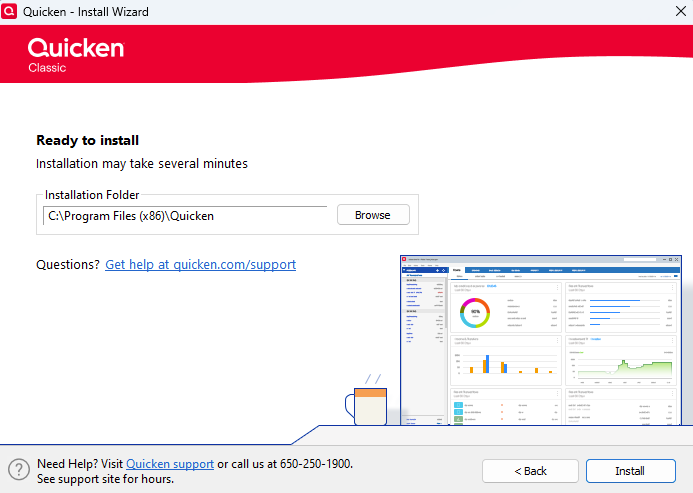
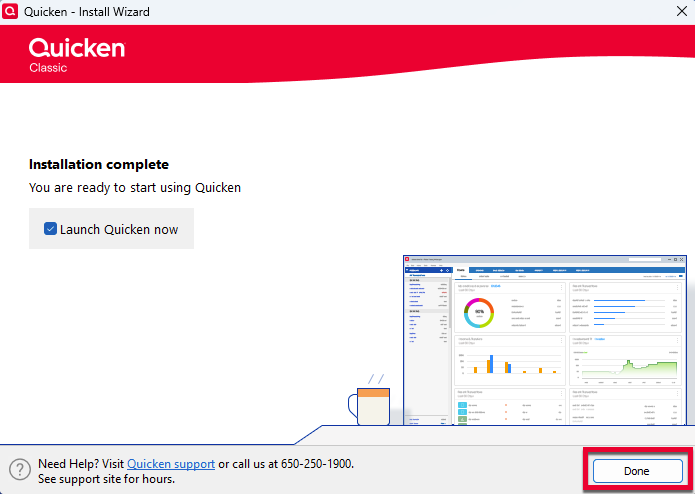
Follow these steps from the article on downloading and installing Quicken to install the program:
Install Quicken
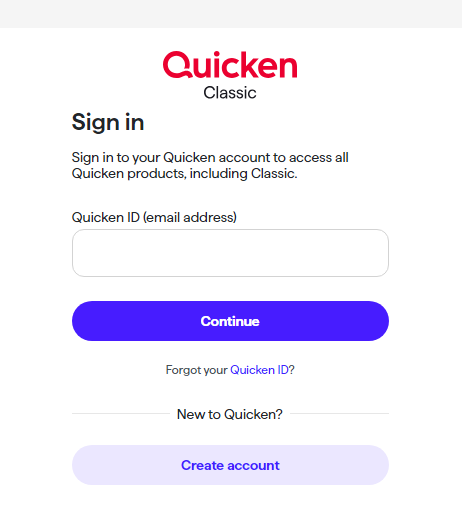
Note: If you purchased from Quicken.com, you'll only need to sign in with your Quicken ID (email address) and password.
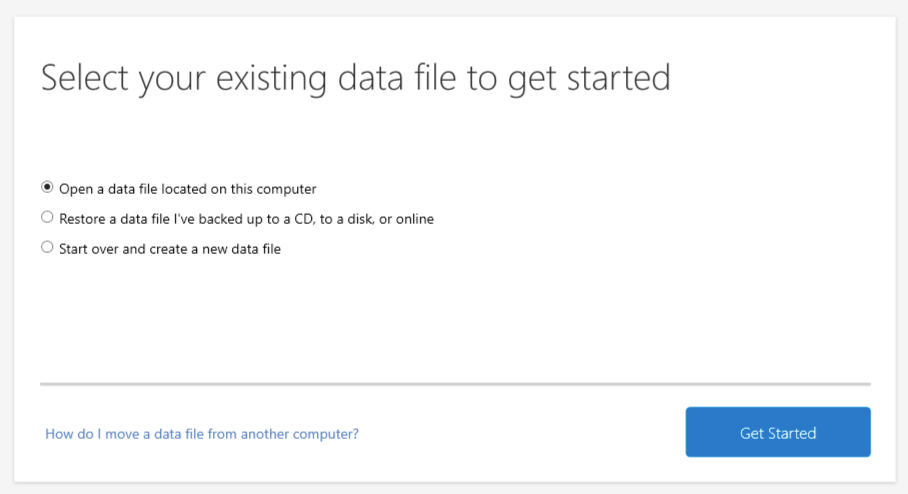
Step 3: Open your Quicken data file
If your data file is on another computer, click here for instructions on moving your data file.
Please let me know how it goes!
We haven't heard back from you in a while. Do you still need assistance?
Check back and let us know! Thank you.
Hello again,
Checking in once more before this thread is closed. Let us know if you still need assistance.
Thank you!