Using Quicken Classic for Windows R68.31. Is there a way to reconnect all accounts at once or will I have to do them individually?
Hello @jonaroberts,
Thanks for reaching out to tell us about this issue!
To better assist you, could you please provide the following details?
Your answers will help us diagnose the issue more effectively.
Looking forward to your response!
Thank you for your reply. Here are the answers you requested.
Where is your Quicken data file stored? Is it on your local hard drive (C: Drive) or a cloud-based/external drive (e.g.: OneDrive, DropBox, USB, etc.)? Hard drive
Please provide the exact file path. "C:\Jon's Files\QuickenBackup\HistoricalData". When installing, I've always selected my own location to store the data file and have had no issues prior to this.
Have you attempted any troubleshooting steps so far? If so, what were they? Yes. Deactivated then reactivated and resetting account
Are you using a VPN while updating your accounts? If so, does disabling it make any difference? No VPN
Do you have any antivirus or malware protection software running that may be interfering with Quicken? If so, have you tried temporarily disabling it to see if the issue persists? I use the antivirus that comes with Windows 11.
When did this issue first start occurring? I'm guessing 2-3 weeks ago.
When trying to run a One Step Update, does it appear as though connection is successful even though nothing downloads, or does simply nothing happen? Shows connection is successful. One Step Update Summary window shows "One Step Update Complete" but nothing has downloaded.
Were there any significant changes to your system or software before the issue began (updates, new installations, etc.)? No changes
Thank you for your reply,
Which financial institution(s) is this happening with? What kind of accounts are you encountering this issue with (Checking, Savings, Brokerage, 401K, etc.)? Have you checked on the financial institution website to confirm that there are posted transactions that should be downloading?
If you haven't already done so, I recommend following these steps from our article on Missing Transactions/Transactions not Downloading:
Be sure to follow these steps in order:
1. Go to Edit > Preferences > Downloaded Transactions. The option Automatically add to banking registers needs to be unchecked.
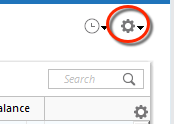
2. Refresh your online account information by clicking the Actions Gear Icon on the upper right of the register, and select Update Now. Follow the on-screen instructions to complete the update.
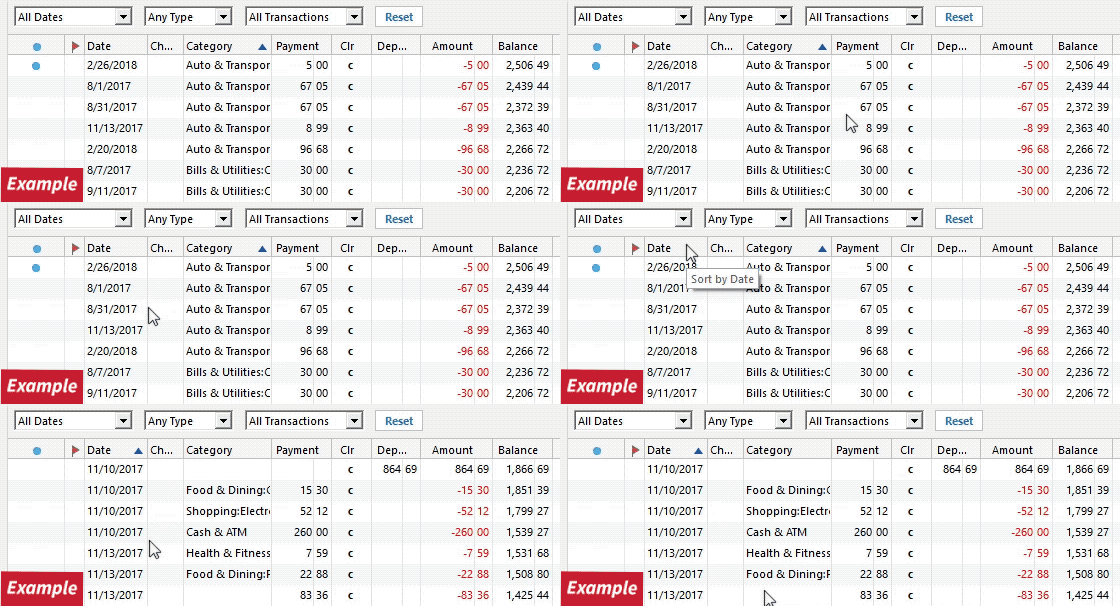
3. Confirm that the Sort Order in your account is by Date; just click the top of the Date column in your account register. It's possible the transactions are in your register, but not where you thought they'd be.
4. Click the Reset button at the top of the register. This will confirm that there's no filtering in your account register.
5. Try refreshing your login session: To do this, go to Help > Refresh Sign in. After completing the log-in process, trying running a One Step Update again.
6. Go to Actions (Gear Icon) > Register Columns > Check Downloaded Payee in the account register. This allows you to search by Payee to confirm the transactions haven't been renamed unexpectedly.
7. Go to Tools > Account List and check Show Hidden Accounts at the bottom left. Confirm the missing transactions haven't been added to a hidden account by clicking on the name of any account that appears with a check mark in the Hidden column.
I hope this helps!
We haven't heard back from you in a while. Do you still need assistance?
Check back and let us know! Thank you.
Sorry it took me a minute to reply. It appears downloads are happening, again. Just to be sure, I successfully repeated your steps. I'll let you know if the downloads stop working again.
Thank you for your help.
Thank you for the follow-up,
I'm glad to hear it's working!
Please feel free to reach back out if the issue returns or you need further assistance!