After 40 to 50 years on Quicken, I have backup files all over the place.One Drive seems to control everything. I would be happy to let a trusted expert share my screen
No one here is allowed to advertise such services, and Quicken (the company) doesn't provide such certification.
However, re: backup files … each is a complete backup of your Q data at the time the backup was created … they're NOT additive. SO, the question becomes which backup files you need to keep. Most recommendations, on this forum, are to keep the last week or so of backups, then 1 per week going back a few months, and then monthly for a while. Maybe 20 or so total
That way, IF/WHEN they're needed, you should be able to fall back to a point before the data corruption (a primary reason for using the backup) happened. The others can be safely deleted.
It's also STRONGLY suggested that you move/copy your actual Q data file OFF of OneDrive … because a system hiccup when writing to a file stored online (OneDrive, Carbonite, your home network, etc.) can irretrievably fry your file.
Saving the backups on OneDrive (or any other "off the main computer") location is fine … just not the primary file itself.
BTW, SuperUsers, such as myself, are designated as such by Quicken (the company) based upon our experience with, and knowledge of, the product … but even we aren't "certified and bonded".
Thank you all for your advice. I have been able to move my current data file off one drive, so now I can selectively delete a lot of 10 year old useless files.
Thanks for the reply. So I guess my main concern is getting my uptodate file out of onedrive and I'm having trouble doing that
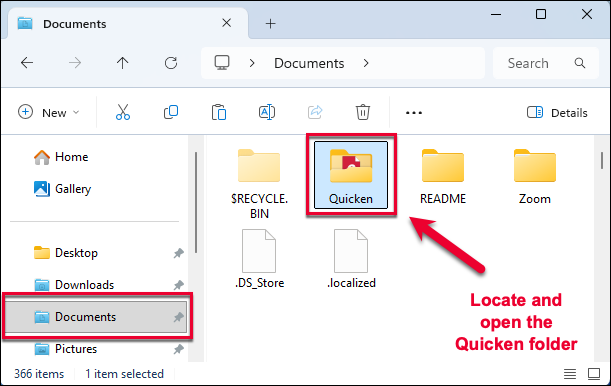
You can use Windows to move your current file. The recommended location is C:\USERS\yourusername\DOCUMENTS\QUICKEN\
Hello @c.fleming,
Thank you for reaching out! To move your file off of OneDrive, please follow these steps from our article on OneDrive:
Before you start: Close Quicken completely before moving any files. Quicken should not be open during this process. Keep the File Explorer window open.
1. In the File Explorer window, find your Quicken data file. It will end in .QDF and usually has your name or "Quicken" in the filename.
2. Right-click on that file and select Cut.
3. Navigate to this location in File Explorer: This PC → Local Disk (C:) → Users → [your name] → Documents → Quicken
4. In the Quicken folder, right-click on an empty space and select Paste.
5. Double-click the data file that you've placed in the local folder to open it in Quicken.
I hope this helps!
You're welcome!
If you need further assistance, please feel free to reach out!