linking Online billers to Reminders

this has been an on-going issue in QWin - finally taking time to ask about it.
I created monthly reminders for all of my credit card payments. I set the reminder's amount due to $0.
In Bills & Income, I'm adding the credit cards as online billers. After adding a biller, in the Action column I select "Link to Reminder". The next screen SHOULD let me do the linkage. However, none of the 'unlinked' reminders I've created show.

Here is an example of the reminder I was expecting to link to:

I note that this reminder does not have an option to "link this reminder to an online biller" that some of my other reminders created using the Link Biller's "Create a New Reminder" process have.

If in Bills & Income, I select view 'All Bills', both the online biller and the reminder show up.

So, in order to link a biller to a reminder, do I need to delete my current reminders and then re-establish them using the Link Biller process?
Comments
-
Hello @JstLukng,
Thank you for providing the detailed explanation and screenshots!
When you created the original reminders with a $0 amount due, did you manually set them up from the Reminders section, or were they imported or duplicated from another reminder? Do any of the unlinked reminders that fail to appear include custom categories or payees that might not match those associated with the online biller?
When you view “All Bills” and see both the reminder and online biller listed separately, is there any indication that Quicken recognizes them as potentially related, such as shared naming or scheduled dates? Lastly, if you were to try creating a new reminder directly through the “Link to Reminder” option for a biller, are you then able to see that reminder listed for linking later on?
Let me know!
-Quicken Jasmine
Make sure to sign up for the email digest to see a round-up of your top posts.
0 -
I typically go to the account register, highlight the most recent payment, right click, and select Add Reminder. Sometimes they show as Transfer reminder, not a payment reminder.
There is nothing to indicate they're related

Interestingly, I had a linked reminder and then edited it to unlink it, when I attempt to relink the reminder in Bills & Income, it only comes up with Create a New Reminder - I can't just select the previously linked reminder.
 0
0 -
Hello @JstLukng,
Thanks for the clarification!
Based on everything you've shared, the core issue seems to be that reminders created directly from the register (by right-clicking a payment and selecting Add Reminder) are often saved as transfer reminders instead of bill reminders. These types of reminders are currently not eligible to be linked to online billers in Quicken Classic for Windows.
This is why those manually created reminders don’t show up in the "Link to Reminder" dialog — even if their names and dates align — and also why an unlinked reminder that was previously linked cannot be re-linked.
To get everything working as expected, you’ll need to recreate the reminders using Quicken’s Link to Reminder workflow, which ensures they are created as valid bill-type reminders. Here's how to fix it step-by-step:
Steps to Link an Online Biller to a Reminder
- Delete the current reminder:
Go to Bills & Income, set the view to All Bills, click the action arrow next to the reminder that won’t link, and select Delete this instance and all future instances.
- Locate the online biller:
In Bills & Income, find the online biller you'd like to link under the Online Billers section. - Click the action arrow next to the biller:
In the Action column for that biller, click Link to Reminder.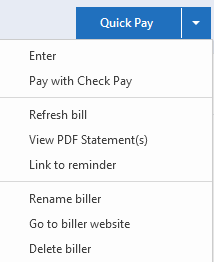
- Create a new reminder through the prompt:
Choose Create a New Reminder when prompted.- Ensure the payee name matches the online biller exactly.
- Set your preferred due date, frequency, and amount (it’s okay to set the amount to $0 if you prefer it to be filled in automatically later).
- Save the reminder:
This new reminder will be formatted as a bill-type reminder that is fully compatible with online biller linking. - Confirm the link:
After saving, go back to View: All Bills. You should now see the online biller and its linked reminder grouped together under the same tile.
Unfortunately, previously linked reminders (even if manually unlinked) cannot currently be relinked in the UI unless recreated through the correct process.
If you're trying to maintain historical data or notes from your original reminder, you can copy those details before deleting and paste them into the notes field of the new one.
I hope this helps!
-Quicken Jasmine
Make sure to sign up for the email digest to see a round-up of your top posts.
0 - Delete the current reminder:
-
Jasmine, Many thanks for the clarification. I will recreate the reminders.
0 -
Great! Please let me know how it goes!
I am happy to help!
-Quicken Jasmine
Make sure to sign up for the email digest to see a round-up of your top posts.
0 -
I hope all is well, just wanted to check in!
-Quicken Jasmine
Make sure to sign up for the email digest to see a round-up of your top posts.
0 -
Hi, sorry for the delay. I've recreated the reminders and they're working. Quicken's Bill & Income tab showed banks that could be linked to online billers and I accepted them. I then added new reminders and deleted the old ones.
Now, if I could just get rid of a bunch of 503 errors and download transactions! (I have a ticket in for those issues)
0 -
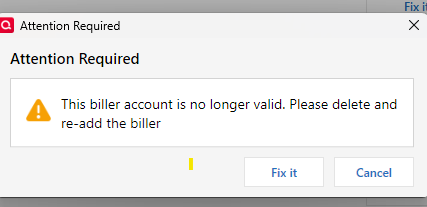
hmm. well, one step update said all bills weren't updated. so on the bills & income tab, I selected update all. 11 of the billers came back with yellow triangles indicating "this biller account is no longer valid". And I believe most, if not all, were the ones quicken suggested adding and I had quicken add.
 0
0 -
Sorry. Bills & Income tab is a bit of a train wreck. Sorry I can't help you. I stopped using it.
0 -
Hello @JstLukng,
Thanks for letting me know. I am sorry to hear that you are still experiencing issues.
To start with, I suggest you try to Review and Repair Online billers. However, I do recommend that you save a backup of your data file first (just in case). After that, please navigate to the Bills & Income tab and click on the gear icon on the top-right. Then, click on Review and Repair > Review and Repair Online Billers in the dropdown menu.

Once that is done, see if the issue still continues to persist.
Let us know how it goes!
-Quicken Jasmine
Make sure to sign up for the email digest to see a round-up of your top posts.
0 -
I did:

with those billers now gone from the bills & income tab.
oh well.
0 -
Hello @JstLukng,
Thanks for letting me know, I apologize that this issue is so persistent.
Due to the nature, I suggest contacting Quicken Support directly for further assistance as an escalation may be in order. The Quicken Support phone number can be found through this link here. Phone support is available from 5:00am PT to 5:00pm PT, Monday through Friday.
I do also apologize that I could not be of further assistance.
-Quicken Jasmine
Make sure to sign up for the email digest to see a round-up of your top posts.
0 -
OK. Always appreciate your helpfulness. thanks
0 -
No problem at all. Please let me know how it goes!
-Quicken Jasmine
Make sure to sign up for the email digest to see a round-up of your top posts.
0 -
Quicken support had me copy my file to eliminate all connections. Using the copied file, I then reconnected online accounts - had same issue with accounts with CC-503 errors (still awaiting tech support to fix).
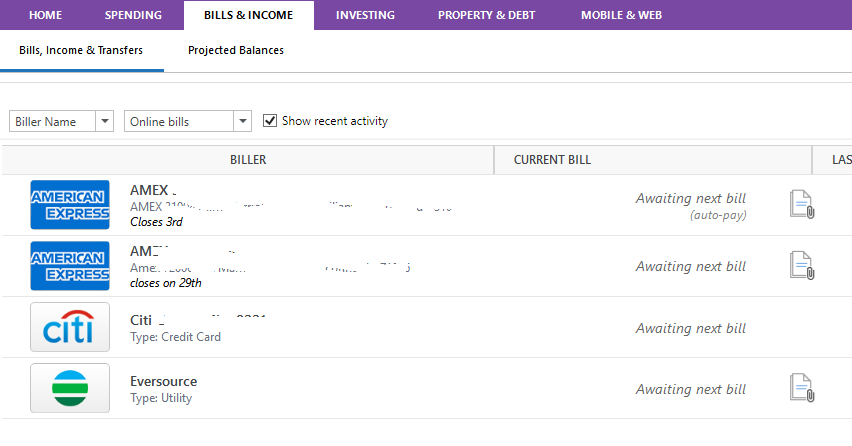
In Bills and Income tab, started adding the banks with online accounts. Could only get 4 to add
When attempting to add other cards, I was notified they were 'already added', for example this on Chase cards:
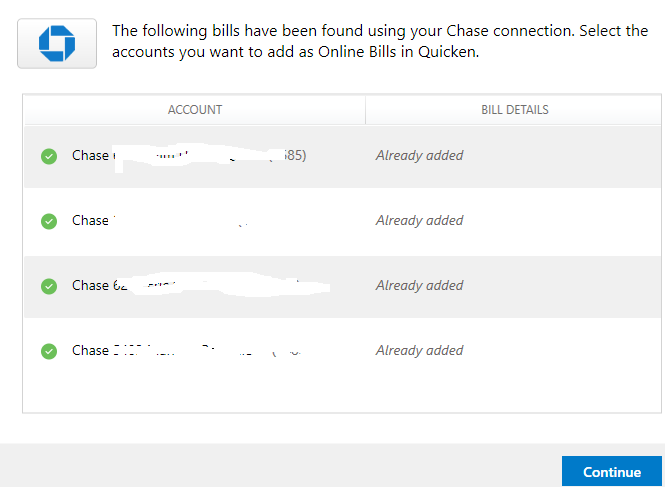
I can't select those cards to add again. How can I 'reset' those shown as 'already added' so I can add them on the bills & income tab as online billers?
Thanks.
0 -
Hello @JstLukng,
Thanks again for the update—and for continuing to work through these steps. I’m sorry to hear that you’re still running into roadblocks.
The message that a biller is "already added" usually means that the biller's connection data is still being held in the background, even if you’ve switched to a new data file. In cases like this, a reset of the internal connection for that biller may be needed before it can be added again in the Bills & Income tab. Below are some steps that you can try to resolve it. As always, it is recommended to save a backup before proceeding.
Step: Remove “Ghosted” Biller Entries
- In Bills & Income, click the gear icon in the upper-right corner.
- Select Review and Repair > Review and Repair Online Billers.
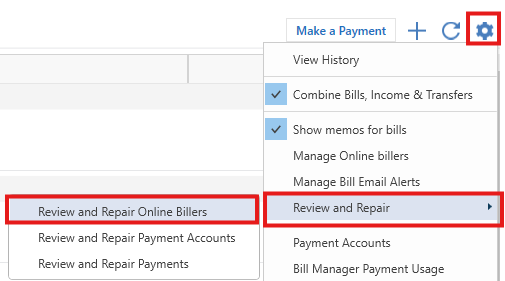
- Let Quicken run the process. If any billers are flagged, confirm removal.
- Once complete, close and reopen Quicken.
If that doesn’t fully resolve the issue…
Step: Use the “Manage Online Billers” Option
- Still in Bills & Income, click the gear icon again.
- This time, choose Manage Online Billers.
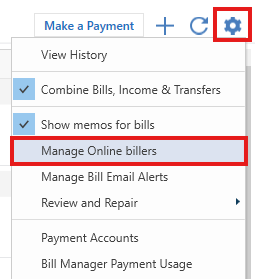
- Look for the billers that are showing as "already added" (like your Chase cards).
- If they appear there, click the down arrow under the Actions column then click Remove.
Once removed, you should be able to re-add them via “+ Add Online Biller”.
Let me know if that helps get things back on track!
-Quicken Jasmine
Make sure to sign up for the email digest to see a round-up of your top posts.
0 -
hi Quicken Jasmine
Sad to say that didn't work. Nothing needed to be repaired and in Manage Online Billers, only the four online bill accounts that are on my Bills, Income & Transfer screen show up. No Chase or other billers that showed 'Already added'. how else can those billers be reset?
0 -
Hello @JstLukng,
Thanks for providing more information! I suspect that this could potentially be a data file issue. Therefore, I suggest that you please try validating and/or super-validating your data file. However, I recommend that you save a backup file before performing these steps.
Validate:
- File
- Validate and Repair File...

- Validate File
- Click OK
- Close the Data Log
- Close Quicken (leave it closed for at least 5 secs)
- Reopen Quicken and see if the issue persists.
If the issue persists, proceed to Super Validate. If the issue is resolved after performing validation, then please disregard the instructions to Super Validate.Super Validate:
- File
- Hold CTRL + Shift and click Validate and Repair File...
- Super Validate File

- Click OK
- Close the Data Log
- Close Quicken (leave it closed for at least 5 secs)
- Reopen Quicken and see if the issue persists.
Let me know how it goes!
-Quicken Jasmine
Make sure to sign up for the email digest to see a round-up of your top posts.
0 -
Good morning Quicken Jasmine. performed validation, closed file, checked billers - no change - in Manage Online Billers, only the four online bill accounts that are on my Bills, Income & Transfer screen show up.
performed super validation, closed file, checked billers - no change - in Manage Online Billers, only the four online bill accounts that are on my Bills, Income & Transfer screen show up.
0 -
Hello @JstLukng,
Thanks for reaching back out and attempting those steps. I am sorry that this issue is still occurring.
Due to the nature of this issue and the attempted troubleshooting steps thus far having failed, I recommend that you contact Quicken Support directly for further assistance, as I believe an escalation may be in order.
The Quicken Support phone number can be found through this link here. Phone support is available from 5:00am PT to 5:00pm PT, Monday through Friday.
I am sorry that I could not be of more assistance. Please let me know how it goes with Quicken Support!-Quicken Jasmine
Make sure to sign up for the email digest to see a round-up of your top posts.
0 -
Quicken Jasmine
OK - thanks for the help in trying to trouble shoot this issue. I'll let you know when & how its resolved
0 -
Hello @JstLukng,
You are very welcome, yes please let me know!
-Quicken Jasmine
Make sure to sign up for the email digest to see a round-up of your top posts.
0
