Downloads getting stuck in Online Center - not in Download tabs for accounts

I got a new computer and reinstalled Quicken Classic (latest version) and restored from a previous backup. Now, none of my online accounts will sync - USAA and Chase. I get no errors when doing the online update, but the downloads do not appear in the downloads tab for each account. However, they do appear under "Tools/Online Center." But, there's no option to move or do anything with them.
I attempted to deactivate and reactivate my Chase account, but when I reactivate, Quicken displays "Use the bank-hosted sign-in form in your browser" but nothing pops up - it just spins. I have to end task from the Task Manager.
I am positive syncing worked fine on my old computer and the backup is good. I have gone through all the troubleshooting tips I can find on Quicken's site - including validating and repairing my data file. Thanks for any help.
PS - I did submit this and all logs via Help/Report a Problem.
Best Answers
-
@shannonadams68 have you tried doing an "Update now"? If not, that is the first thing to try. In the account register, click on the gear icon in the upper right of the register, then select "Update now".
Next thing to try - Click Edit → Preferences → Downloaded transactions and check if "Automatically add…" is not checked. If they are then uncheck. If they are unchecked, then check them, click "OK" and go back in and uncheck them again, then click "OK". The other place that this setting can be set is on the Online services tab in Account Details. This sets the option on an account level. Check there if "Automatically add" is selected. And if not, try turning if on and off.
The other thing to try is to uninstall and reinstall the Quicken program. After Quicken is uninstalled, check to make sure this Quicken folder is also deleted - C:\Program Files (x86)\Quicken. If it's still there, delete it. Then reinstall Quicken.
Also, if you haven't already, make a copy of your data file, as @recursor1 suggested. You will need to reactivate online services for all accounts in the copied data file.
- Make a backup of your data file. Also, make backups during this process, just in case you need to go back a step.
- Do a Quicken "Copy File" to create a copy of your data file. This process forces a rewrite of code and fixes some file corruption issues. It will also clear out online connection "remnants" for all accounts. Click on File → Copy or Backup File, and select "Create a copy or template", and then click Next.
- On the next screen, leave the defaults as is. You can change the new file name and location, if you wish. Click on "Save Copy".
- During the copy process, you will be asked to provide a password for the new file. If you don't want a password, hit ESC.
- When the process completes, switch over to the new data file (copy).
- Reactivate online services for all accounts in the new data file, by using “Add Account” (do not use “Set up now” on the Online Services tab of Account Details) and carefully link to existing accounts in Quicken. If needed, use the FI information from the Account List for account mapping.
0 -
@shannonadams68 you are welcome. Glad you got your issues straightened out.
0
Answers
-
You have a few options here. You could try instead of restoring a complete backup file, instead restoring a copy or template file. This should ensure your online accounts are thoroughly disconnected from the file prior to restore. The other option is the try a complete refresh of the account in the online center refresh transaction information dialog (ctrl+contact info).
0 -
@shannonadams68 are the download windows missing from the register, or do they just not show downloaded transactions?
0 -
@CaliQkn they don't show in the register or under the downloaded transactions tab (for me to review and accept like in past). They only show up under Tools/Online Center.
0 -
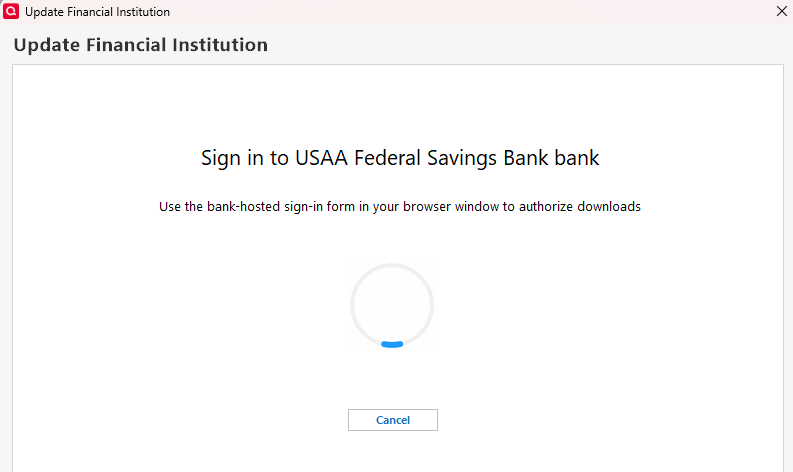
@recursor1, thanks for the response. Where do I go to try to do a complete refresh of the account that you reference? When I go to an online refresh through Tools/Online Center, I get this dialog and it never goes away. I have to "kill" Quicken in the Task Manager.
 0
0 -
@shannonadams68 have you tried doing an "Update now"? If not, that is the first thing to try. In the account register, click on the gear icon in the upper right of the register, then select "Update now".
Next thing to try - Click Edit → Preferences → Downloaded transactions and check if "Automatically add…" is not checked. If they are then uncheck. If they are unchecked, then check them, click "OK" and go back in and uncheck them again, then click "OK". The other place that this setting can be set is on the Online services tab in Account Details. This sets the option on an account level. Check there if "Automatically add" is selected. And if not, try turning if on and off.
The other thing to try is to uninstall and reinstall the Quicken program. After Quicken is uninstalled, check to make sure this Quicken folder is also deleted - C:\Program Files (x86)\Quicken. If it's still there, delete it. Then reinstall Quicken.
Also, if you haven't already, make a copy of your data file, as @recursor1 suggested. You will need to reactivate online services for all accounts in the copied data file.
- Make a backup of your data file. Also, make backups during this process, just in case you need to go back a step.
- Do a Quicken "Copy File" to create a copy of your data file. This process forces a rewrite of code and fixes some file corruption issues. It will also clear out online connection "remnants" for all accounts. Click on File → Copy or Backup File, and select "Create a copy or template", and then click Next.
- On the next screen, leave the defaults as is. You can change the new file name and location, if you wish. Click on "Save Copy".
- During the copy process, you will be asked to provide a password for the new file. If you don't want a password, hit ESC.
- When the process completes, switch over to the new data file (copy).
- Reactivate online services for all accounts in the new data file, by using “Add Account” (do not use “Set up now” on the Online Services tab of Account Details) and carefully link to existing accounts in Quicken. If needed, use the FI information from the Account List for account mapping.
0 -
What? You shouldn't be seeing that dialog at all if your account is already connected. At least I don't think you should be. Maybe I'm misremembering, but online center refreshes are supposed to just tell Quicken to clear and re-pull all financial data from the financial institution on the next update. I think you should follow @CaliQkn 's advice to the letter, except I would say that there are some hidden Quicken files that should probably be deleted as well if you go the uninstall route. But that gets a bit complicated. So try creating a template first.
0 -
@recursor1 & @CaliQkn, you two are my heroes! I followed both your instructions and I am back in business. That was stressful! Much appreciated!
0 -
@shannonadams68 you are welcome. Glad you got your issues straightened out.
0