New Q web user - how to match bank transactions with bill/income reminders

I have moved and access to my desktop is now more cumbersome. I'm a longtime classic user but would like to start managing day to day bank and credit card transactions by syncing with Q on the web. I understand investment transactions aren't supported and I plan to update those periodically on the desktop and sync for account totals. I have started doing this - so far, so good.
One thing I don't see how to do is to match dowloaded transactions with bill/income reminders like I'm used to doing with desktop classic. I see the list of bills/income in Q web but I don't see how to add one to the register so it can be matched with a downloaded transaction.
For example, I have my paycheck set up as a monthly reminder with splits showing categories for all of the various deductions and net amount as a deposit. When I see the net deposit as a transaction in Q web, it shows uncategorized. I can manually split it but that seems ridiculous to have to do each month for all of the reminders I have set up. Is there a way to enter and match bills/income reminders in Q web as is done in Q classic desktop?
Answers
-
Hello @mikshann,
Thank you for reaching out with this question! The good news is that you can enter and manually match some reminders in Quicken on the Web. The bad news is the specific example you provide is not supported.
I tested in my own Quicken on the Web and found that paycheck reminders cannot be entered into your register.
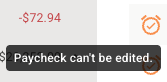
Reminders for billpay transactions, reminders for transfers to/from accounts that are not synced to Quicken on the Web, and reminders for accounts that do not support transactions also cannot be entered into your register through Quicken on the Web.
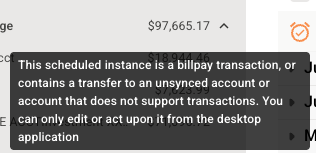
For reminders that are supported in Quicken on the Web, please follow the instructions below to enter them into your register and match them to the appropriate downloaded transactions:
First, navigate to the register you need the reminder entered into. Make sure that "Show reminders in register" is on and allows a timeframe that will make the reminder visible.
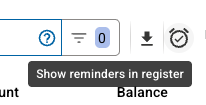
Find the reminder in your register and left click on the clock icon.
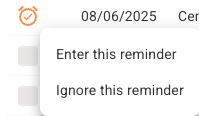
Select to enter or ignore as appropriate. If you enter it into your register and want to manually match it to the downloaded transaction, then click the checkbox next to the reminder you entered into your register and the downloaded transaction. Then, near the upper left, you will see some icons appear.
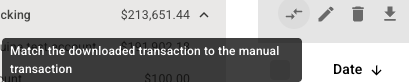
Click the 2 arrows icon (to the left of the pencil icon) to match the transactions.
I hope this helps!
Quicken Kristina
Make sure to sign up for the email digest to see a round up of your top posts.
0

Categories
- All Categories
- 16 Product Ideas
- 34 Announcements
- 248 Alerts, Online Banking & Known Product Issues
- 20 Product Alerts
- 516 Welcome to the Community!
- 680 Before you Buy
- 1.5K Product Ideas
- 55.6K Quicken Classic for Windows
- 16.8K Quicken Classic for Mac
- 1K Quicken Mobile
- 834 Quicken on the Web
- 126 Quicken LifeHub