One Step Update Settings not being saved.

I have had an issue for several versions of Quicken… currently running Version R64.23 Build 27.1.64.23. I go to One Step Update… Select "All" accounts to be updated… click on the "Apply" button and then updated… process completes no issue… summary screen appears… close it.
I go back to One Step update and none of the accounts that were selected and applied are saved… I have to select "All" again and so on…
In previous posts about this I saw to validate and super validate the data file… I have done this and both complete and report no errors…. and still have same issue.
How do I correct this…
Comments
-
Hello @jaywigginton,
Thank you for sharing your experience. The issue you describe is usually caused by file specific issues. Since you mentioned you already tried validating the file and the issue persists, the next step is to try restoring a backup from before the problem started, if possible.
Please let me know how it goes!
Quicken Kristina
Make sure to sign up for the email digest to see a round up of your top posts.
0 -
The problem started long before any backups I have… I have had this issue since at least the beginning of 2024… if not longer than that… 😒
0 -
What happens if you create a new test file and enter some OSU accounts? Do they save with the new file?
0 -
I just added a test account and added to accounts… they do save with the new test account… 🤔
0 -
would replacing the Runtime.dat file in the customer's C:\ProgramData\Quicken\Inet\Filename folder* solve this particular problem?
* Replace Filename with the name of the currently in use Quicken data file.
0 -
Thank you for your reply @UKR,
It is possible, however, our documentation does not include replacing the Runtime.dat file as a troubleshooting step for this type of issue.
Thank you for your reply @jaywigginton,
The fact that is works with your test account, but not with your other accounts indicates that it maybe something specifically with those accounts that is broken in the file. If that is the case, there are a couple options.
1) The first option is that you could backup your Quicken file, deactivate all the problem accounts, then navigate to Tools>Add Account, follow the prompts, and add those accounts as new rather than linking to the existing. Once that is done, test to see if the issue is resolved. If the issue is resolved, you could copy your transaction history from the old accounts to the newly added accounts, and delete the old accounts (once you confirm that they are no longer needed).
2) The second option is that you could make a copy of your file, and test to see if the issue is resolved in that copy. To do that, please navigate to File > Copy or Backup File... > Create a copy or template (see examples below) which will also allow you to select a date range to move forward with.
If you wish to move forward with your entire data file, please check the full date range of your entire data file before copying so you can enter the correct date range if you do not wish to "shrink" your file by eliminating certain dates. Note - The only reason you would "shrink" your file is if you believe that older data in the file is the cause of the issue you're encountering.
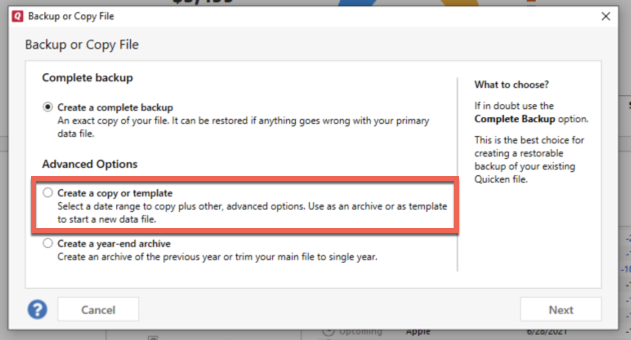
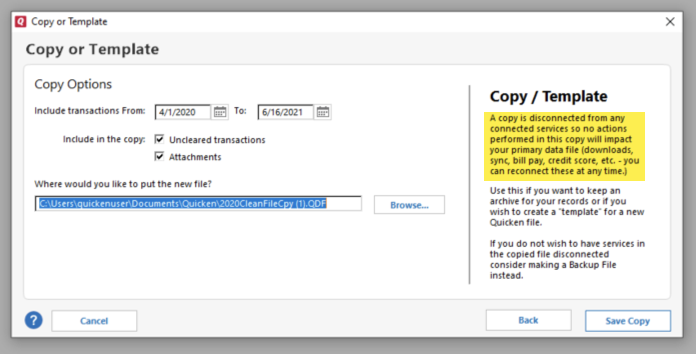
It's important to know that all online services will be disconnected in the copied file, and you will need to sign back in with your Quicken ID and reconnect all of your online accounts, online billers, Quicken Bill Manager services, etc if you plan to use that copied file going forward. The reason for this is that the new copy also creates a new and separate dataset ID.
Before you reconnect everything, I recommend that you test by reconnecting just one or two financial institutions and see if the issue is resolved. If the issue is resolved, then reconnect the rest of the financial institutions and use the copy as your new main file.
If the issue is not resolved in the copied file either, then feel free to switch back to your original file. For instructions on returning to your main file, click here.
I hope this helps!
Quicken Kristina
Make sure to sign up for the email digest to see a round up of your top posts.
0 -
Option 2 worked… update settings are now saved…. 😊
Thanks
Jay
0 -
Thank you for the follow-up,
I'm glad to hear that making a copy of your file resolved the issue!
If you need further assistance, please feel free to reach out!
Quicken Kristina
Make sure to sign up for the email digest to see a round up of your top posts.
0


