The graph at the bottom of the Manage Bills and Income is not working right

I noticed that when you hover your mouse over the All Bills and Deposits it no longer shows the dollar amounts like it used to. The $ in thousands on the left doesn't give enough detail. I'm on version R64.30.
Comments
-
Can you please capture one or more images of the parts of your Quicken window showing the issue, sensitive information blacked out as necessary to protect your privacy and attach the image(s) here?
How do I post a screenshot in the community from a macHow do I post a screenshot in the community from windows
Please save images to files of file type PNG or JPG only. They're easier to work with than PDF files.
0 -
Thank you. Here is the screenshot
0 -
Thank you for the image. I'm using the same version, release as you do and I'm not able to recreate the problem.
My screen clearly shows a two-line popup message when I hover over an item in the graph, for example, hovering over the Total button for 10/1 shows: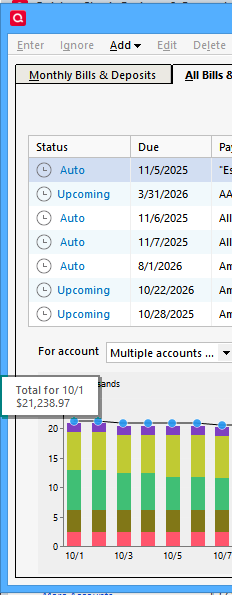
The same applies to hovering over the bar for an individual account.
I'm hesitant to suggest the usual remedies (reinstall Quicken from the Mondo Patch file, validate and supervalidate data file) as the next thing to do. There must be something else going on here, for example screen resolution settings are different between your system and mine.
Perhaps somebody else will come up with a better suggestion …BTW, capturing an image which includes the popup can be done by doing this:
Press Win key + PrtScrn. Doing so will take a screenshot of the entire screen including popups and save it to a file; in most cases, you'll see the screen dim briefly. You'll find the screenshot in your \Pictures\Screenshots folder. Each screenshot that you take will be consecutively labeled "Screenshot (number)" to correspond with the order in which the screenshots were taken. Edit the image with MS Paint or any other image editor and crop the image to only show important parts, hiding personal information.0

