Delete all accounts from Quicken Mobile and Web?

How do I delete all vestiges of visible data from Quicken on the web? I update all accounts with OSUs regularly but don't want any of my accounts shown online. I must have inadvertently enabled syncing at some point. Perhaps it's all stored online somewhere in the background and I'm naive about it, but I don't want anything displayed there.
Best Answers
-
Hello @SomebodyInGNV,
Thank you for sharing your experience and asking this question.
There are a couple of ways to delete/remove information from the cloud-sync. I think the easiest way is to just delete the entire dataset. To do this, you will need to move to another file because Quicken prevents you from deleting the dataset of a file you are currently viewing.
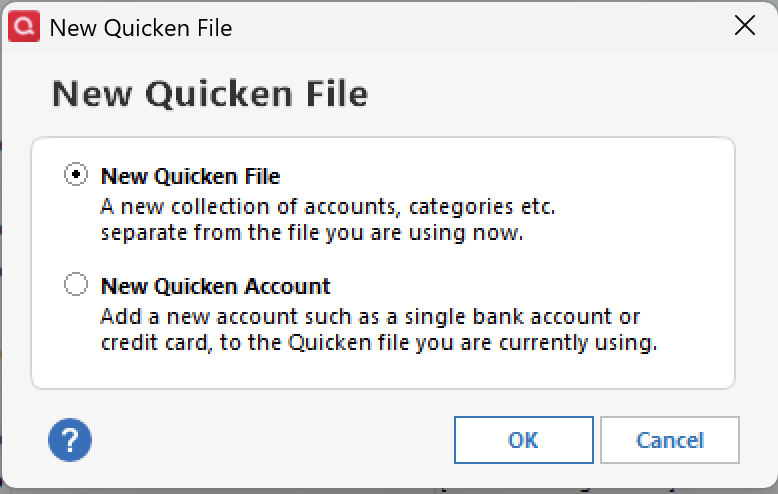
- Go to File>New Quicken File…
- Select New Quicken File>Click Ok
- Name the file. I used the name "Test" when doing this. Click Save.
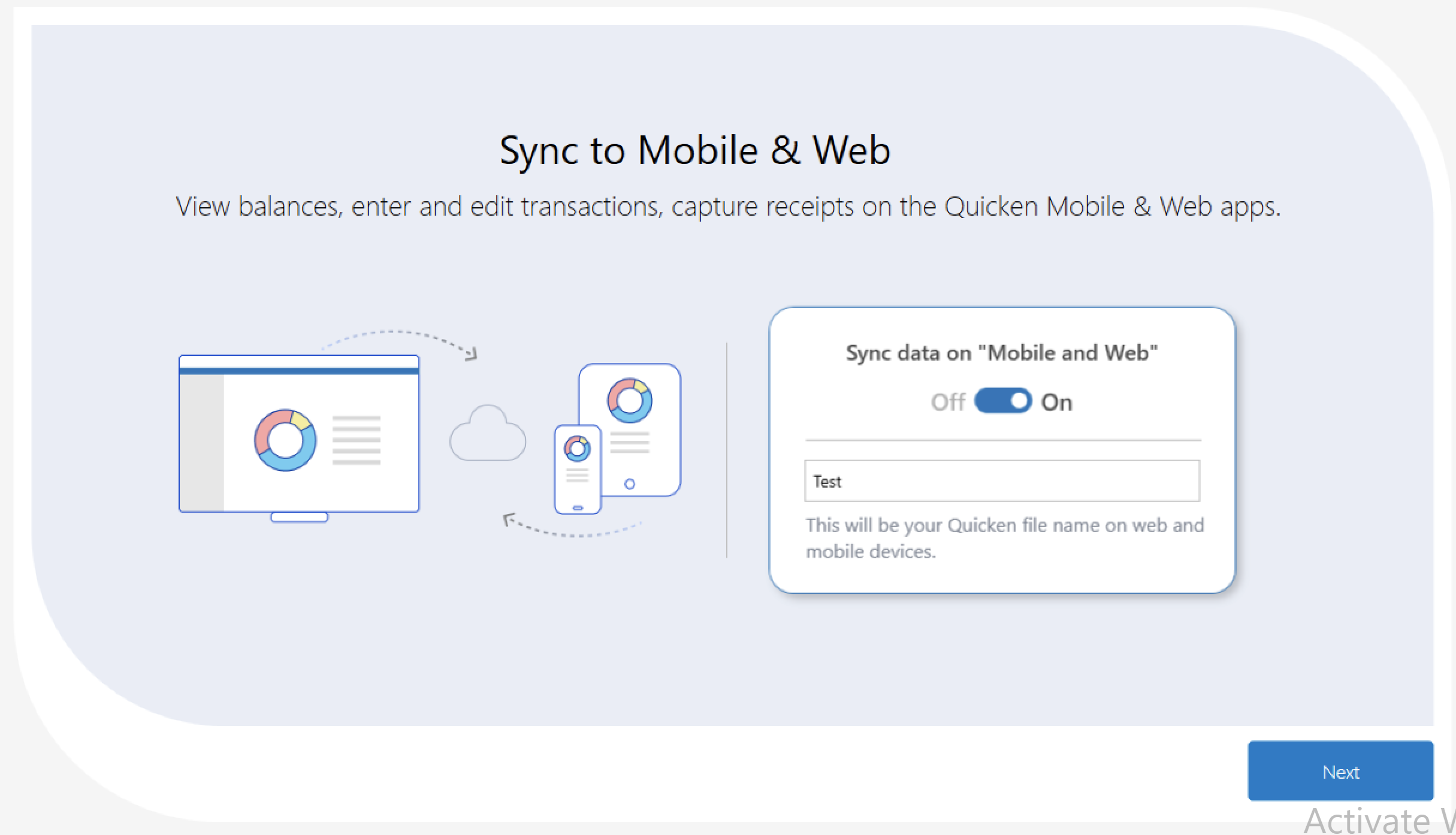
- Follow the prompts for creating a new file. When asked about Mobile&Web, you will want to make sure you have it turned on in this file. Click Next.
- In the next window, click Add Accounts.
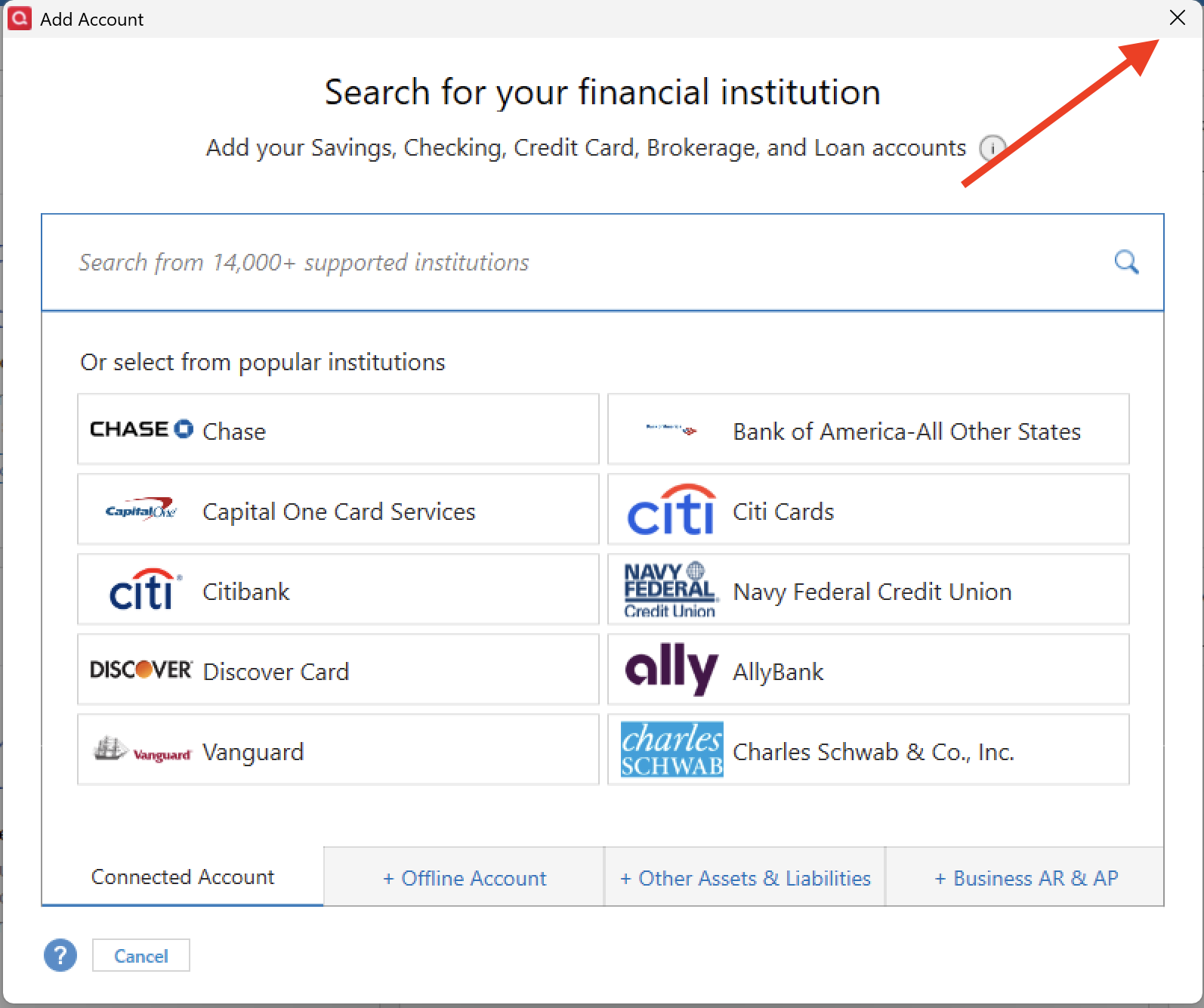
- Quicken will load your new file and a box will popup so you can add your accounts. Close the box.
Now we need to get to the cloud accounts so we can manage them.
- Go to Edit>Preferences.
- Select Quicken ID & Cloud accounts from the options.
- Click on Cloud accounts associated with this Quicken ID.
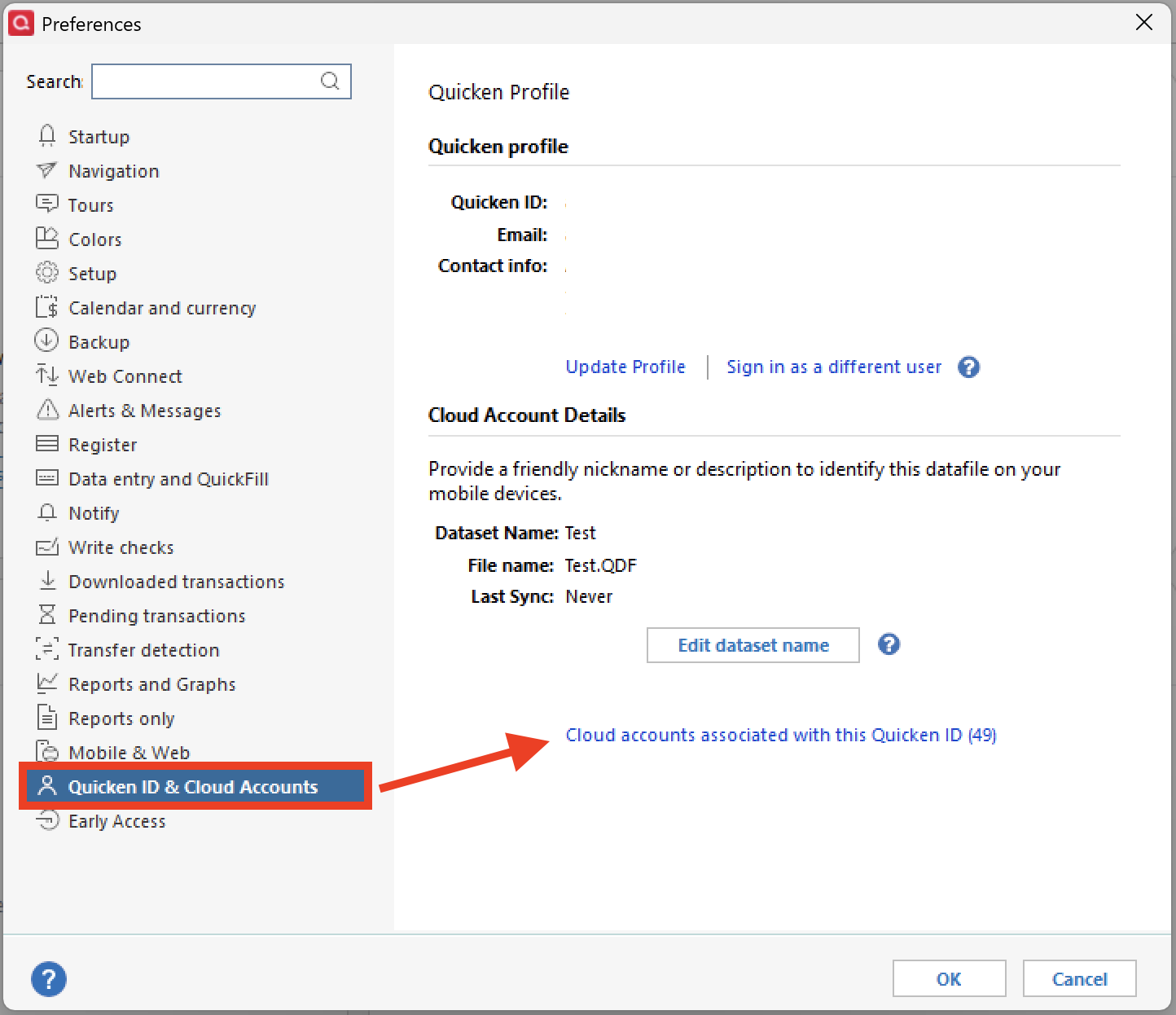
- A small box will open with your Cloud Accounts listed.
- Click on one you no longer want, then click Delete.
I hope this accomplishes what you are asking. Let me know if you need further assistance.
Thank you!
Quicken Alyssa
Make sure to sign up for the email digest to see a round up of your top posts.
0 -
Thank you for your reply,
To answer your question, yes. Since Quicken has to have at least one cloud account for you, the cloud account will be associated with that new, empty file, and you'll be able to delete the cloud accounts associated with your other files.
Once you switch back to your main file, it should work normally. While it is rare, sometimes, you may need to reconnect some accounts in the main file. If that happens, backup your file and reconnect the accounts.
I hope this helps!
Quicken Kristina
Make sure to sign up for the email digest to see a round up of your top posts.
0


Answers
-
Hello @SomebodyInGNV,
Thank you for sharing your experience and asking this question.
There are a couple of ways to delete/remove information from the cloud-sync. I think the easiest way is to just delete the entire dataset. To do this, you will need to move to another file because Quicken prevents you from deleting the dataset of a file you are currently viewing.
- Go to File>New Quicken File…
- Select New Quicken File>Click Ok
- Name the file. I used the name "Test" when doing this. Click Save.
- Follow the prompts for creating a new file. When asked about Mobile&Web, you will want to make sure you have it turned on in this file. Click Next.
- In the next window, click Add Accounts.
- Quicken will load your new file and a box will popup so you can add your accounts. Close the box.
Now we need to get to the cloud accounts so we can manage them.
- Go to Edit>Preferences.
- Select Quicken ID & Cloud accounts from the options.
- Click on Cloud accounts associated with this Quicken ID.
- A small box will open with your Cloud Accounts listed.
- Click on one you no longer want, then click Delete.
I hope this accomplishes what you are asking. Let me know if you need further assistance.
Thank you!
Quicken Alyssa
Make sure to sign up for the email digest to see a round up of your top posts.
0 -
Deleting the entire dataset online is what I want to do. What happens to my current data files (one with 24 years of data, the other with 8 years of data) when I do that? Do I create a new temporary file and use that to delete the online dataset, then just open my main (8 year old) file and it works normally?
0 -
Thank you for your reply,
To answer your question, yes. Since Quicken has to have at least one cloud account for you, the cloud account will be associated with that new, empty file, and you'll be able to delete the cloud accounts associated with your other files.
Once you switch back to your main file, it should work normally. While it is rare, sometimes, you may need to reconnect some accounts in the main file. If that happens, backup your file and reconnect the accounts.
I hope this helps!
Quicken Kristina
Make sure to sign up for the email digest to see a round up of your top posts.
0 -
Your recommended approach did remove all accounts online. I logged into quicken.com and it told me I haven't synced my accounts yet, which was the goal.
I broke every bank connection in my main file. It took more than an hour to reestablish all 17 connections (multiple IDs for each of multiple banks) but it all worked. In fact, I was able to correct a connection problem (at least for now?) with Citi Personal Wealth Management.
I'm okay with having to reconnect everything, since it resulted in removing everything from the web, or so it appears.
0 -
Thank you for the follow-up,
I'm glad to hear you were able to get rid of your data in the web!
If you need further assistance, please feel free to reach out!
Quicken Kristina
Make sure to sign up for the email digest to see a round up of your top posts.
0