Backup - Manual (Ctrl-b) Backup, No File Overwrite Warning

Quicken Deluxe, Windows, Version R64.30, Build 27.1.64.30 (always the latest)I run two accounts using the same Quicken executable (above) but different user file locations (two different desktop icons, same C: drive but different user file directories; same backup directory location on the D: drive). In one account, I always get a file overwrite warning when executing a manual backup (ctrl-b) to my D: drive. In the other account, about 8 months ago I stopped getting the manual backup file overwrite warning. I finally looked into it today and irregardless of the backup file Quicken naming options (3 possibilities: neither, date only, date/time) for the account, the same scenario plays out. A File Overwrite warning for one account, no file overwrite warning for the other. I would guess that there has to be something in these two separate account Preferences that is telling one account to issue the file overwrite warning and the other account not to issue the warning. I can't find such a Preference setting. I don't believe I've changed the Preference options for over the last 4 years, the backup file overwrite warnings have been displayed for the last 10 years. NOT a problem but either this is a Windows Pro (always the latest) operating system issue or a Quicken (always the latest) issue but most likely in the Preferences. Curious as to the reason for this odd discrepancy.
Comments
-
Is it possible that, when using the file which does not give you an overwrite warning, you accidentally clicked on a
"Do not ask me again" (or similar text) message?
With the problem file open, go to Preferences / Alerts & Messages and click on "Reset Quicken Warnings".As far as naming a backup file is concerned, I would always name the backup file with both a Date and a Timestamp. You do not want to have only one backup file.
Review your Preferences / Backup settings. You want to have both Automatic Backups and Manual Backups enabled with "… after [1] times"
One can never have enough backup copies of a Quicken data file.0 -
Thanks for the response in which I fully agree. My high probability stance is always 'operator error'. To baseline this situation, note that I run the file validation on a regular schedule and this has never resulted in a file validation warning other than an occasional warning that some scheduled transaction has been fixed. I have never understood what this is attempting to tell me.
In both accounts, following your suggestion results in no visual response being displayed when clicking on "Reset Quicken Warnings" box. The fickle finger of fate is always displayed when I cursor over to "Reset Quicken Warnings" Any amount of clicking results in only re-displaying the fickle finger of fate over the still active reset box with no indication of anything having been done. Note that clicking on OK at the bottom of the page does result in visual/tactile feedback - the Alerts page goes away, but there is no change to the always active "Reset Quicken Warnings" box (always blue text inside the box with the fickle finger of fate displayed when cursored over to the box). It seems to me as if just a click or clicks over the constantly active reset box should result in some alerts page display change. It doesn't. However after 4 attempts at clicking on "Reset Quicken Warnings" box with no visual or tactile feedback (it is as if the reset box is greyed out which it isn't) - all of sudden the backup file overwrite warning is now being displayed. I will be forced into believing that clicking on the reset box eventually got thru. Conclusion, nothing I like better than non-deterministic operating systems. In my 40-year engineering career (US space programs), I was never allowed to let errors be resolved without knowing exactly what fixed or caused the problem. So pressing on with this Gov't funded program constraint, I restored Quicken to a backup created before I started with your advice and sure enough I can recreate the issue with the overwrite warning NOT being displayed. Restoring to today's QDF file, the backup file overwrite warning is now displayed. (I run triple backup file redundancy with one system backup file always stored off-site – after all we are dealing with my money!!.) Something in the "bad" account's QDF file must have been hosed six months ago. (I will save the hosed QDF file for a time within my system backup protocol.) My no-impact Quicken problem is fixed. I should be happy, but I will always wonder what really happened to the bad accounts QDF file that didn't happen to the other account's QDF file. Mucho grass. I can now sleep at night (lol)!!
0 -
I am beginning to think that Clicking on the OK of the Alerts & Messages page actually did the trick. If so the human engineering aspect of the page is very poor. The "Reset Quicken Warnings" box on the Alerts & Messages page is always highlighted, you get the fickle finger of fate when you cursor over the box although you can't change a thing in the box (read as static) and clicking on it with the message always highlighted does nothing. The issue is that if you can't do a damn thing with the "Reset Quicken Warnings" box why is it active? Bringing it to your attention is one possible answer but the fickle finger of fate should not be displayed when you cursor over the box since it is in actuality - static.
0 -
The Reset Quicken Warnings button does not provide an immediate response. It resets all the places in Quicken where there is a "Don't show again" checkbox. I agree that this is probably a bad UI design. At least when you click it, there should be a follow-up dialog that says, "Quicken warnings have been reset."
If you click the button and then try to save a backup with a name that matches an existing backup file, you will get this warning:
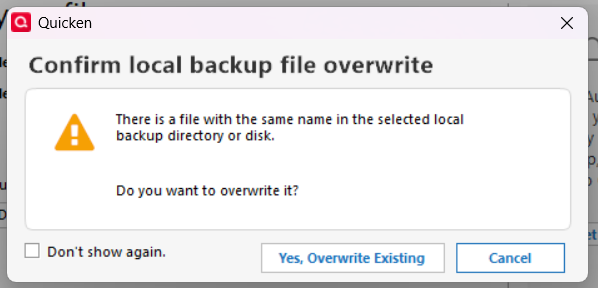
You will also start to get warnings in any other places where you have previously checked the Don't show again box. You will have to check the Don't show again box if you don't want to see those warnings.
QWin Premier subscription1


Categories
- All Categories
- 6 Product Ideas
- 34 Announcements
- 249 Alerts, Online Banking & Known Product Issues
- 19 Product Alerts
- 265 Welcome to the Community!
- 301 Before you Buy
- 1.5K Product Ideas
- 55.8K Quicken Classic for Windows
- 16.9K Quicken Classic for Mac
- 1K Quicken Mobile
- 834 Quicken on the Web
- 129 Quicken LifeHub