Entries disappearing from checking account after being accepted

The past few weeks, after downloading and accepting entries into a checking account (has happened to multiple accounts), after closing the file the next time I open it, the entries seem to have disappeared. Adding to this, it seems that they are there as there are multiple lines of entries that are blank, but the next new entry line is several entry lines down (see screen capture below)
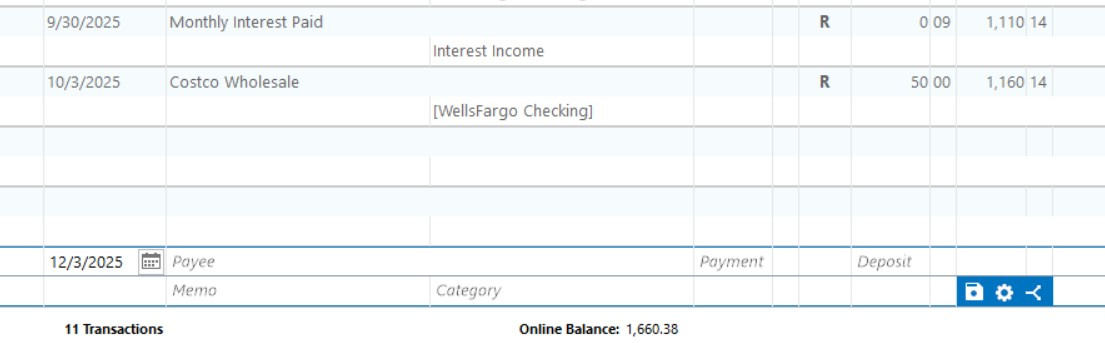
. Any idea what's causing this and how to fix?
Answers
-
Hello @RobbieW,
Thank you for sharing what you are experiencing with us.
I am unsure what exactly could be causing this based on the information I have so far, but I do have some follow-up questions for you that could help narrow it down.
- Do you use Quicken Mobile & Web?
- How do you open Quicken?
- Are you using the application icon that is a red square with a white Q in it?
- Are you using a file with an icon that looks more rectangular, like a sheet of paper with the corner folded?
- Where is your data file located?
- Is your file being synced/backed up by any third-party services like Norton, OneDrive, or Dropbox?
Looking forward to your response.
Quicken Alyssa
Make sure to sign up for the email digest to see a round up of your top posts.
0 -
- Do not use Mobile & Web
- I have an icon (red square with white Q) pinned to my taskbar
- The file icon is red with white turned down upper right corner
- File is located on a mapped drive (yes, I know this is not advised, but has worked for a long time and allows my wife and I to use our individual laptops to interact with the file. We ensure that we are not trying to access the file at the same time. This SHOULD not be an issue as a mapped drive is supposed to be an extension of the current drives. AND this method worked fine for several years until just a few weeks ago.)
- Not being otherwise synced or backed up (other than my intentional backup).
0 -
Also, an update - I went through and accepted/added all charges to a credit card and reconciled same through end of current statement. After closing the file and next time I opened it, all those entries are blank, but they seem to be there as there are many blank lines between the last date showing and the current day entry ready to be entered.
0 -
In another post, a suggestion was made to do a Super Validate, which I did. This removed the blank entries, but also removed a number of entries that I had downloaded/accepted/reconciled just yesterday.
Going to renew a backup and start fresh. Very frustrating.
0 -
Thank you for following up and providing more information.
My next suggestion would be to move your file. As you stated, it is not advised to use your active file from an external/cloud drive. Using it this way can cause damage to your file. Sometimes, you can use a file this way for a long time before any noticeable damage starts to surface.
The default path for your file is C:>Users>username>Documents>Quicken, and that is where we recommend keeping it. Ensure you exclude it from any third-party backups/syncs you have in place on your computer.
Once you locate a good backup, and the file is moved, you can then try validating it to see if that helps clear out and repair any of these issues. To do this:
- Save a backup.
- Go to File.
- Select Validate and Repair file…
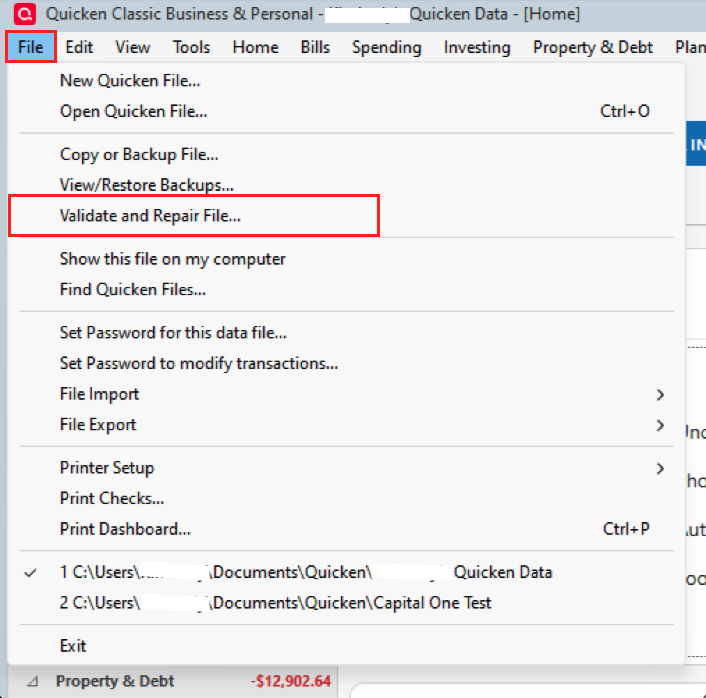
- Check the first box for Validate file.
- Click Ok.
Once the file is validated, close and reopen Quicken. Are your transactions still present? Let me know how it goes. If the issue returns, I do have some more steps we can try.
Hope this helps!
Quicken Alyssa
Make sure to sign up for the email digest to see a round up of your top posts.
0 -
OK, I did move the file to my local machine and did a super validate which removed the blank entries, but also many items from the past two months (seemingly those that were blank) also disappeared. Because they had been downloaded, they won't download again, and the primary bank with missing entries does not have a QFX/QIF method to download, just CVX which won't import to a bank account. Is there a way to change the download date (which shows in the Accounts Listing) to a different date?
Also, I have a different post about the name for an account (now two accounts) show up as N/A, and after trying to change the name, I get a response that the name is already in use - even though it doesn't show up in the sidebar or Account List with that name).
0 -
Thank you for following up with additional information.
No, there is no way to change the download date. Given the issues you have mentioned, I think that using the steps in the Advanced Data File Troubleshooting support article may resolve these issues you are seeing.
We can start on step three.
Copy and Validate instructions
Always make a backup before performing complex procedures. This ensures that you have a "fallback" file you can use to get back to where you were when you started.
- Go to File > Copy or Backup File and select Create a copy or template (do not choose Year End Copy for this procedure).
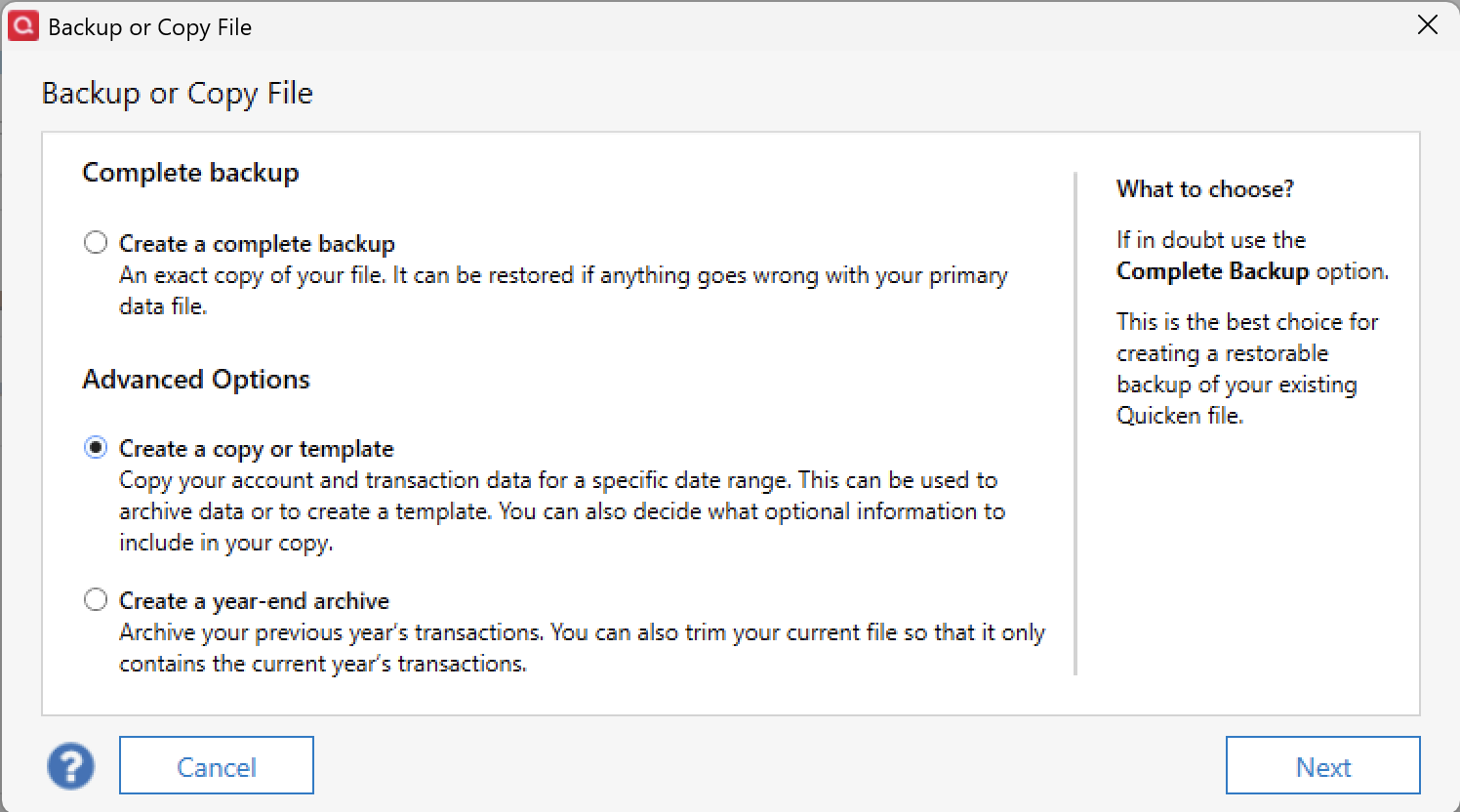
- Please note, a file copy is disconnected from online services, such as transaction download. Online services would need to be reconnected if you wish to use them in the file copy.
- Leave all the settings, including file name and checkboxes, at their default (change nothing on this screen). Simply click Save Copy.
- After the Copy is complete, choose to Open New Copy.
- In the New Copy, go to File > Validate and Repair File and select the Validate file option. This is to ensure there are no lingering issues with the data in this file.

- After the Validation process is finished, you will see the Data_Log appear in a Notepad window. This file is a summary of the Validation results.
- Review the Data_Log.txt for messages pertaining to the quality of your data and resolve any that are advised with instructions you should follow. This may require that you delete, edit, or re-enter transactions manually.
Example of Data Integrity Issues in Data Log
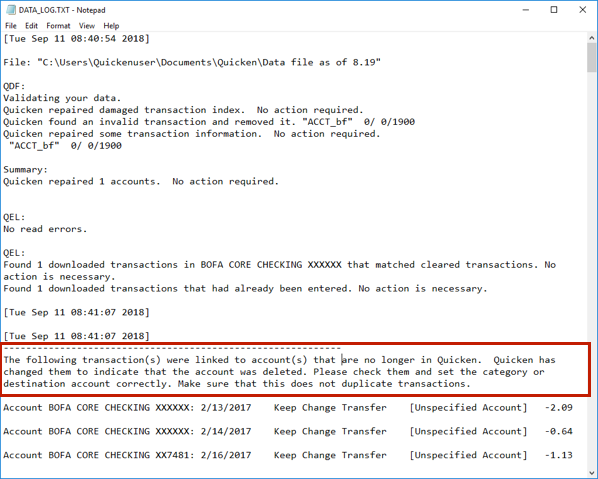
In the example above, further instructions are given advising to review and set the categories correctly.
- If you receive the message "Damaged data block" in the Data_Log after the Validation completes, the file is not repairable. We recommend restoring a backup from prior to the date listed in this message.
7. Test your regular procedure(s) to see if the issues you were encountering are now resolved. If the issue is resolved, continue using the new, repaired data file.
Let me know how it goes!
Quicken Alyssa
Make sure to sign up for the email digest to see a round up of your top posts.
0 - Go to File > Copy or Backup File and select Create a copy or template (do not choose Year End Copy for this procedure).
-
Just checking in, we haven't heard back from you in a while.
Do you still need assistance?
Thank you!
Quicken Alyssa
Make sure to sign up for the email digest to see a round up of your top posts.
0 -
Hello again,
Checking in once more before this thread is closed.
Let us know if you still need assistance.
Thank you!
Quicken Alyssa
Make sure to sign up for the email digest to see a round up of your top posts.
0 -
Due to the lack of response, I went ahead and closed this post.
If you still require assistance, please feel free to start a new post.
Thank you!
Quicken Alyssa
Make sure to sign up for the email digest to see a round up of your top posts.
0
