Downloaded transactions for review, but 'Downloaded Transactions' is empty

I did a One Step Update and transactions downloaded for multiple accounts (mousing over the flag shows the number that downloaded), including banking, investment and credit cards, but when I click on the "Downloaded Transactions" tab, it is empty for every account that downloaded. This began happening after the latest Quicken Business & Personal software update R65.29 build 27.1.65.29 on Windows 11.
Comments
-
Hello @AbeK,
Thanks for reaching out!
Please review this support article that covers this issue. The article covers the following information in greater detail:
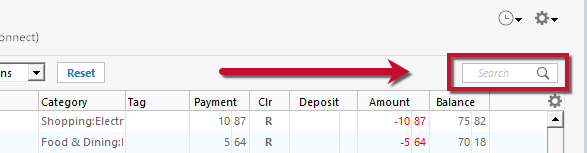
- Check the Search Bar – Make sure the search bar above the register is cleared, as any text there will filter out transactions.
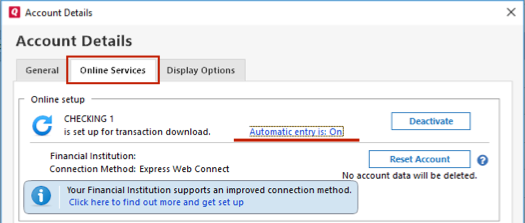
- Turn Automatic Entry Off – Go to Ctrl+A > Edit (next to account) > Online Services > Automatic entry is > No. Close and reopen Quicken.
- Check the Account Register & Online Center – Look for transactions in the Downloaded Transactions section at the bottom of the register, or via Tools > Online Center > Transactions. Use Compare to Register to accept transactions if needed.
- Validate Data File – If the issue persists, your data file may have minor issues. Make a copy via File > Copy or Backup File, then run File > Validate and Repair File on the new copy. After validation, you may need to reactivate accounts for download.
If these steps don’t resolve the problem, please contact Quicken Support for further assistance or possible escalation if needed.
This process usually resolves cases where transactions appear to have downloaded but aren’t visible for acceptance.
Hope this helps!
-Quicken Anja
Make sure to sign up for the email digest to see a round up of your top posts.0 - Check the Search Bar – Make sure the search bar above the register is cleared, as any text there will filter out transactions.
-
Hello again,
We haven't heard back from you in a while. Do you still need assistance?
Thank you!
-Quicken Anja
Make sure to sign up for the email digest to see a round up of your top posts.0 -
I have the same problem and have tried all your troubleshooting
0 -
I also have the same problem and have gone through the troubleshooting article at
This did not solve the problem
0 -
Hello @Jdavidson & @SteveSensei,
Thanks for letting us know you’re experiencing this issue.
Since the steps in the support article previously linked above didn’t resolve the problem, please follow the guidance provided at the bottom of that article to contact Quicken Support directly. They can provide further assistance and escalate the issue if needed.
Thank you!
-Quicken Anja
Make sure to sign up for the email digest to see a round up of your top posts.0 -
None of that worked. I've switched to "automatically add transactions," but it's not what I want. I'd really prefer to go back to manually adding transactions.
0 -
Hello @AbeK,
Thanks for following up!
Since the troubleshooting steps in the support article did not resolve the issue, the next step (as noted at the bottom of that article) is to contact Quicken Support directly. They’ll be able to review your logs, and escalate internally if needed.
Thank you!
-Quicken Anja
Make sure to sign up for the email digest to see a round up of your top posts.0

Categories
- All Categories
- 20 Product Ideas
- 34 Announcements
- 247 Alerts, Online Banking & Known Product Issues
- 19 Product Alerts
- 518 Welcome to the Community!
- 682 Before you Buy
- 1.5K Product Ideas
- 55.7K Quicken Classic for Windows
- 16.8K Quicken Classic for Mac
- 1K Quicken Mobile
- 834 Quicken on the Web
- 128 Quicken LifeHub