When Quicken downloads transactions the red flag appears,but the transactions don't appear.

Normally, when transactions are downloaded, a red flag appears notifying you of unaccepted transactions. Now, when these transactions are downloaded and the red flag appears, it says 0 transactions. They are not visible. The only way I can see the transactions, is if I turn on automatic entry, close quicken, and then open again. The transactions then appear in the registers.
This is going on with all of my bank accounts, credit cards and checking. Not sure about investment accounts yet.
I am running current version (27.1.65.29). I have restored to earlier backups twice, reconnecting all accounts, and tried validate and repair. Neither of these very time consuming attempts have been successful.
What is the fix for this?
Answers
-
Hello @DopeeD,
Thank you for letting us know you're seeing this issue. It sounds like you've already done some of the recommended troubleshooting, but it "fixes" it only if you want to leave automatic entry on. To continue troubleshooting this issue, I recommend following these steps from our article on when Quicken says there are transactions, but you can't see them:
Check the account register and Online Center
Quicken will show you downloaded transactions in multiple locations. The following information shows you how to check for downloaded transactions in the account register and Online Center.
- Open the account register and select Downloaded Transactions at the bottom of the register.
- If there are transactions listed, accept them to the register.
- If there are not any transactions listed, proceed with the next step.
- Choose the Tools menu > Online Center.
- Select the appropriate financial institution and account.
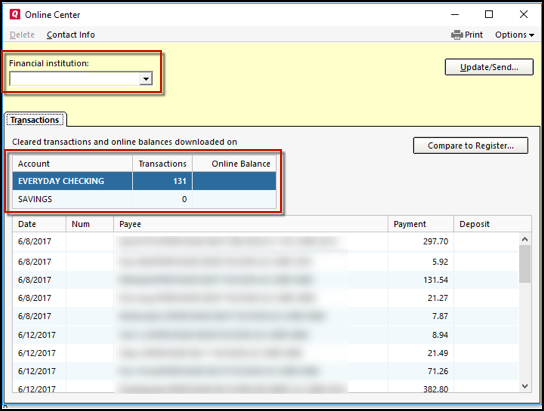
4. Select Transactions.
- If transactions are listed, click Compare to Register and accept the transactions. Note: Compare to Register will display online payments on the initial screen. After accepting your online payments, click Continue, Next or Done to see the rest of your downloaded transactions.
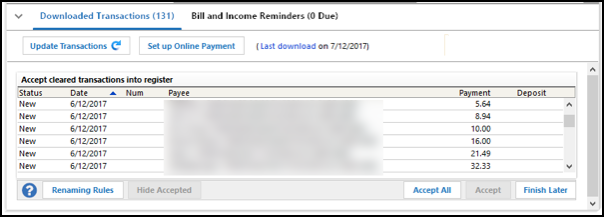
- If no transactions are listed or Compare to Register does not allow you to accept the transactions, proceed to the next section.
Lastly, correct data issues
If the Quicken data file is damaged, you might receive prompts about downloaded transactions when you don't have any downloaded transactions.
If you know when this issue began, the best solution is to restore a backup created before this issue began.
If you do not have a backup to restore, Quicken has a built-in utility, Validate, that will correct many data issues. Please note this does not correct all issues and these steps should be taken if the other steps outlined did not resolve the problem.
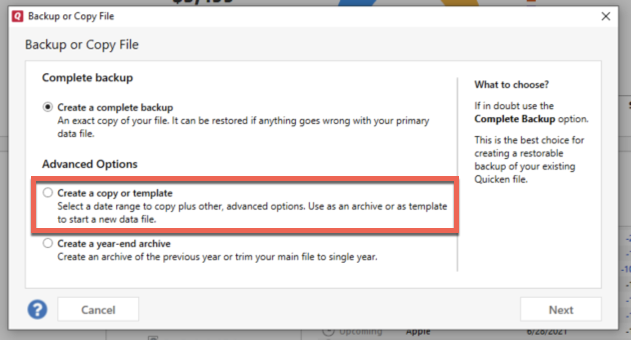
- Choose the File menu > Copy or Backup File.
- Select Create a copy or template, then click Next.
- Accept all defaults and click Save Copy.
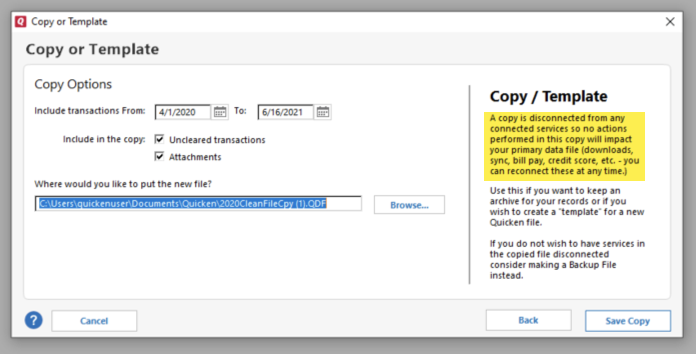
- Open the New Copy when prompted.
- Choose File > Validate and Repair File.
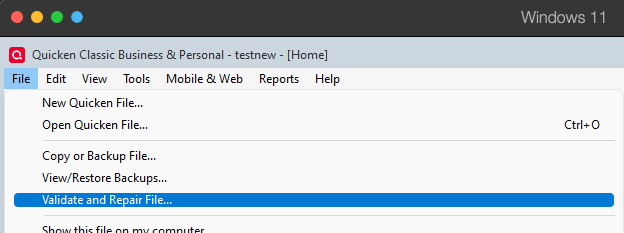
- Select the new copy created in step 3 and click OK.
Note: Depending on the size of your data file, you may need to wait a while for the validation process to finish. Do not use the Task Manager to close Quicken. Quicken displays an error message if it cannot validate the file. If Quicken is able to validate the file and any errors are found, Quicken displays a message, "Data losses were found in your file." You can view the log file for more information.
When the validation process is complete, you will need to Reactivate your accounts for transaction download in the new file copy. Note - Start by reconnecting only what is needed to test if the issue is resolved. If the issue is resolved in the copied file, then reconnect everything.
- Go to Tools > Add Account.
- Select the bank for the deactivated account(s). If prompted, select the connection method.
- Enter your credentials and click Connect.
- When the list of located accounts appears, choose LINK next to each account you want to reactivate.
- Click Next then Done on the last prompt.
- After all of your accounts have been Reactivated, complete the Check the account register... section steps above again.
If the issue is not resolved in the copied file, then you can return to your main file. For instructions on switching between Quicken files, click here.
Please let me know how it goes!
Quicken Kristina
Make sure to sign up for the email digest to see a round up of your top posts.
1 - Open the account register and select Downloaded Transactions at the bottom of the register.
-
Quicken Kristina
Make sure to sign up for the email digest to see a round up of your top posts.
0 -
Hello again,
Checking in once more before this thread is closed.
Let us know if you still need assistance.Thank you!
Quicken Kristina
Make sure to sign up for the email digest to see a round up of your top posts.
0 -
Hello again,
Due to the lack of response, I went ahead and closed this post.
If you still require assistance, please feel free to start a new post.
Thank you!
Quicken Kristina
Make sure to sign up for the email digest to see a round up of your top posts.
0
