Quicken is not booting up correctly. I just have a blank screen. What to do?

I have Windows. The software worked fine a couple of days ago. What do I need to do?
[Edited-Readability]
Answers
-
What kind of a "blank screen" are you talking about?
Does Quicken start and give you at least a Quicken banner at the top and the File and Help Menu items?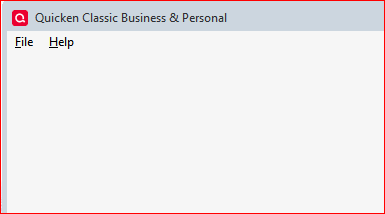
If so, try clicking on File. The popup menu will show you the last used Quicken data file name at the bottom of the menu, prefixed by a "1".
Click this line to open the data file.
Report back if there are any errors.0 -
Hello @drankin4484,
Thank you for sharing your experience.
I have some follow-up questions for you.
- Did this issue start on 1/25, as far as you can tell?
- Did you experience any other strange behaviors before this issue happened?
- Are you running a VPN, antivirus, or firewall?
- If so, try temporarily disabling it.
- Were there any significant changes to your system before this happened?
- Like Windows updates, Quicken updates, etc?
- Where is your data file located?
- Is your file being backed up/synced with any third-party services like Dropbox, OneDrive, or BackBlaze?
We do have a Support Article that outlines some steps we can try to resolve this.
Here are the first steps; the rest can be found in the article linked above.
First, try updating Quicken and Validating your file
- Download the latest update here if you have not done so already.
- After completing the update, open Quicken.
- Hold the Control key and select File menu > Validate & Repair File.
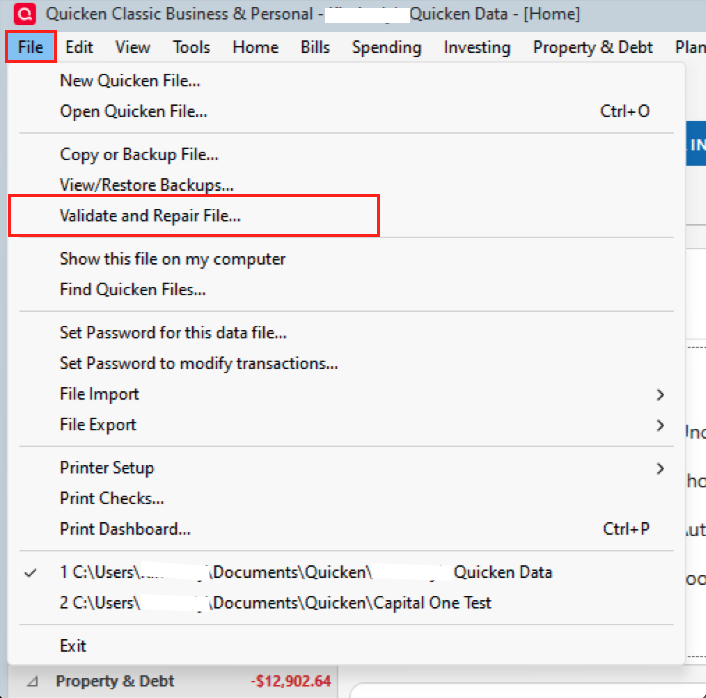
- Check the Validate file box and click OK.
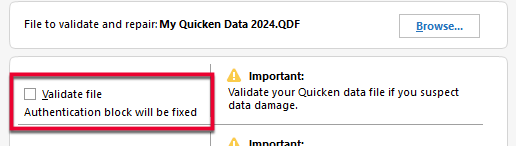
If initiated correctly, the Validate file checkbox will also show the message "Authentication block will be fixed" as pictured above.
When the Validate process is complete, try to sign in again.
Next, sign out of Quicken and sign back in
- Go to Edit > Preferences > Quicken ID & Cloud Accounts. If you are unable to see your Edit > Preferences menu, continue to the next section.
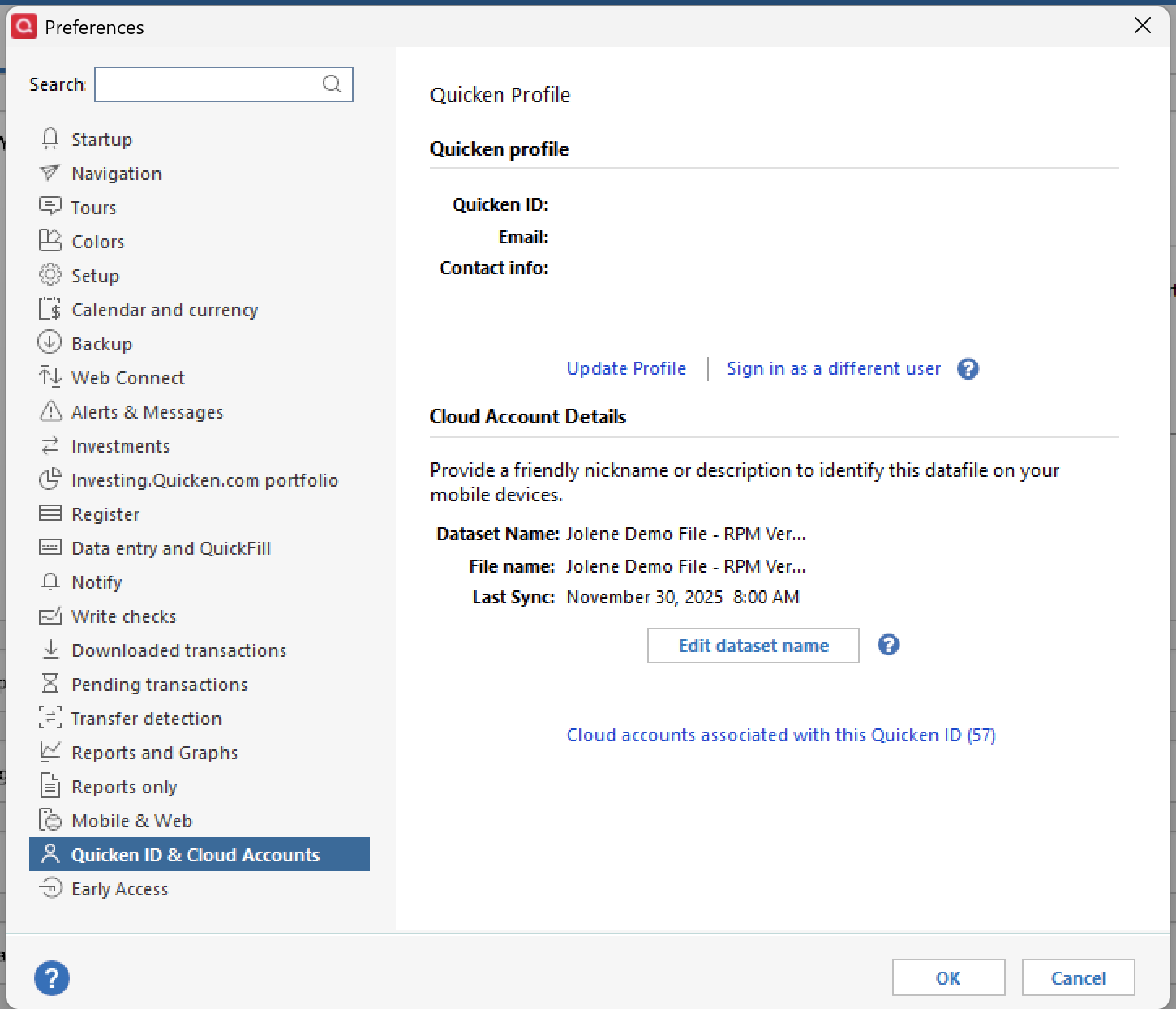
- Click Sign in as a different user.
- Type "yes" to confirm and click Sign Out.
- After you sign out, sign back in with the same Quicken ID.
Third, close Quicken and reopen it
There are some instances in which Quicken simply needs to be closed and reopened for the Sign-in screen to load. Try this a few times before moving on to the next steps.
Fourth, try connecting to the Quicken ID login website
- Close Quicken.
- Launch a web browser.
- Go to the Quicken My Account login page. If the webpage appears, then the system can connect to the Quicken ID server. If the webpage cannot be displayed, follow internet connectivity troubleshooting.
Let us know how it goes!
Quicken Alyssa
Make sure to sign up for the email digest to see a round up of your top posts.
0 -
Just checking in, we haven't heard back from you in a while.
Do you still need assistance?
Thank you!
Quicken Alyssa
Make sure to sign up for the email digest to see a round up of your top posts.
0 -
Hello again,
Checking in once more before this thread is closed.
Let us know if you still need assistance.
Thank you!
Quicken Alyssa
Make sure to sign up for the email digest to see a round up of your top posts.
0 -
Due to the lack of response, I went ahead and closed this post.
If you still require assistance, please feel free to start a new post.
Thank you!
Quicken Alyssa
Make sure to sign up for the email digest to see a round up of your top posts.
0


Categories
- All Categories
- 6 Product Ideas
- 34 Announcements
- 248 Alerts, Online Banking & Known Product Issues
- 19 Product Alerts
- 265 Welcome to the Community!
- 301 Before you Buy
- 1.5K Product Ideas
- 55.8K Quicken Classic for Windows
- 16.9K Quicken Classic for Mac
- 1K Quicken Mobile
- 834 Quicken on the Web
- 129 Quicken LifeHub