The answer to the security question that you entered in Quicken is incorrect

I ran a OSU and for SECU of Maryland I copied and pasted the 2FA code that I was texted. But I get this error in the summary.

It's not possible for it to be incorrect as I clicked the copy code button in Windows Phone Link's notification.
Best Answer
-
Hello @Michael Rosen,
Thanks for sharing the screenshot—that helps clarify what’s happening.
Even though the message mentions a security question, the error code shown (CC-587) is a more general login-verification failure. This means the financial institution is telling Quicken that the authentication it received did not validate successfully, even if the 2FA code itself was copied correctly.
A couple important clarifications based on your scenario:
- CC-587 does not necessarily mean the 2FA code was typed incorrectly.
- This error can occur if the financial institution rejects the login session after the 2FA step, such as:
- The code expired before being fully processed
- The session timed out during One Step Update
- The institution expected a different authentication challenge than what was presented
- Cached or outdated credentials were reused during OSU
Because of this, Quicken reports the failure as a login issue, even when the code itself was correct.
At this point, the recommended steps are as outlined below:
- Verify that you are using the correct login information
- Log in to your financial institution's website.
- If you are able to log in, continue with step b.
- If you are not able to log in, contact your financial institution for assistance.
- Locate your challenge questions and answers, and verify the question and answer.
- Note: If you need assistance verifying your challenge question or answer, contact your financial institution.
- Log in to your financial institution's website.
- Verify and update your login information in Quicken
- After verifying your login information at your financial institution, open Quicken and choose Tools menu > One Step Update
- In the One Step Update window, click Manage My Passwords.
- In the Edit Password Vault dialog, verify that the customer ID displayed for the account is the correct customer ID.
- If your customer ID is incorrect in Quicken
- Choose Tools menu > Account List

- Click the Edit button next to the account you want to change the customer ID for.
- In the Account Details window, click the Online Services tab.

- Click Deactivate, and then click Yes to deactivate online services.
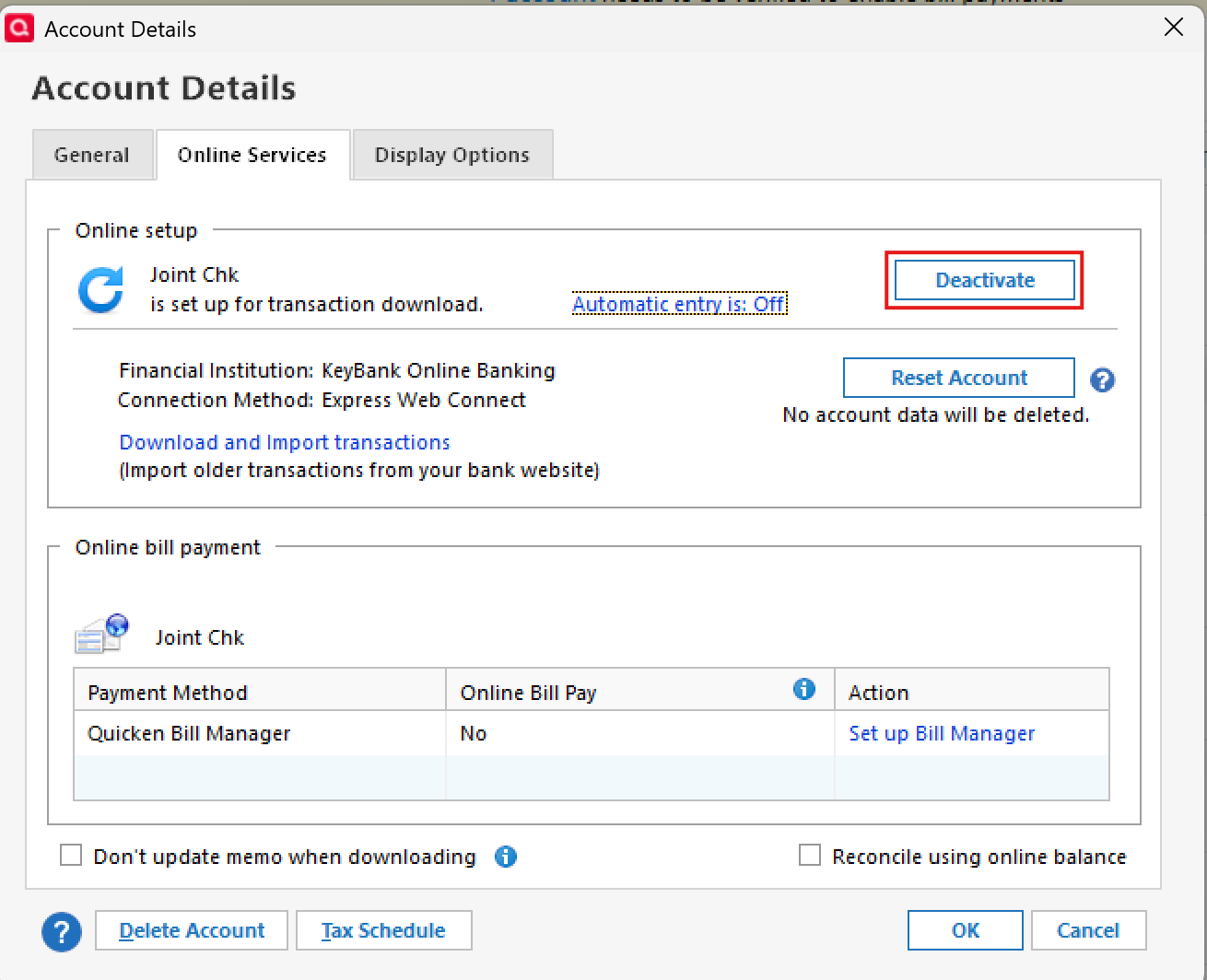
- Click OK when prompted to confirm your choice.
- Repeat these steps for all accounts held at the financial institution.
- Back on the Online Services tab, click Set up Now and follow the on-screen prompts to activate online services for the account.
- Enter the correct customer ID and follow the on-screen prompts to activate your account.
- Repeat steps g and h for all accounts held at this financial institution.
- Note: If you use the Password Vault, you need to update your Password Vault with the new information.
- Note: If you use the Password Vault, you need to update your Password Vault with the new information.
- Choose Tools menu > Account List
You can find the full CC-587 support article here for reference, which also outlines these steps.
Additionally, I reviewed your account on our end and noticed that while you are encountering a CC-587 error in Quicken, internally we are seeing an FDP-185 (CC-585) error instead. This error typically indicates that the financial institution has introduced a new or updated security requirement that needs to be completed before Quicken can successfully update the account.
In many cases, this involves an additional verification or security step that must be addressed directly on the financial institution’s website.
Because of this internal error, I also recommend reviewing and following the steps outlined below, which are also detailed in this support article:
Ensure you are on the latest release for your version of Quicken
- Select Tools menu > One Step Update.
- Click Update Now.
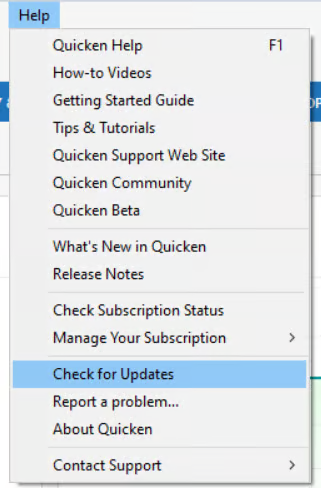
You can also check for an update by going to Help > Check for Updates.
Refresh your online account information
- From your account register, select the Actions gear icon at the very top of your register (Ctrl + Shift + N).
- Select Update Now.
- Follow the on-screen instructions to complete the update.
- Repeat these steps for each financial institution experiencing this error.
Visit your financial institution's website
- Sign in to your financial institution's website.
- Navigate to the page where you view your account information.
- When you encounter the new web page that requires your response, fill out the requested information and dismiss the screen. If you have the option to not display the page or ask you again, select that option. If you do not, the error may continue to occur.
Note: Some financial institution websites may have this new security requirement located in your inbox or message center.
If any of the above guidance fails to resolve the issue, we recommend contacting Quicken Support directly for further assistance and possible escalation if needed.
Thank you!
-Quicken Anja
Make sure to sign up for the email digest to see a round up of your top posts.0

Answers
-
Hello @Michael Rosen,
Thanks for sharing the screenshot—that helps clarify what’s happening.
Even though the message mentions a security question, the error code shown (CC-587) is a more general login-verification failure. This means the financial institution is telling Quicken that the authentication it received did not validate successfully, even if the 2FA code itself was copied correctly.
A couple important clarifications based on your scenario:
- CC-587 does not necessarily mean the 2FA code was typed incorrectly.
- This error can occur if the financial institution rejects the login session after the 2FA step, such as:
- The code expired before being fully processed
- The session timed out during One Step Update
- The institution expected a different authentication challenge than what was presented
- Cached or outdated credentials were reused during OSU
Because of this, Quicken reports the failure as a login issue, even when the code itself was correct.
At this point, the recommended steps are as outlined below:
- Verify that you are using the correct login information
- Log in to your financial institution's website.
- If you are able to log in, continue with step b.
- If you are not able to log in, contact your financial institution for assistance.
- Locate your challenge questions and answers, and verify the question and answer.
- Note: If you need assistance verifying your challenge question or answer, contact your financial institution.
- Log in to your financial institution's website.
- Verify and update your login information in Quicken
- After verifying your login information at your financial institution, open Quicken and choose Tools menu > One Step Update
- In the One Step Update window, click Manage My Passwords.
- In the Edit Password Vault dialog, verify that the customer ID displayed for the account is the correct customer ID.
- If your customer ID is incorrect in Quicken
- Choose Tools menu > Account List
- Click the Edit button next to the account you want to change the customer ID for.
- In the Account Details window, click the Online Services tab.
- Click Deactivate, and then click Yes to deactivate online services.
- Click OK when prompted to confirm your choice.
- Repeat these steps for all accounts held at the financial institution.
- Back on the Online Services tab, click Set up Now and follow the on-screen prompts to activate online services for the account.
- Enter the correct customer ID and follow the on-screen prompts to activate your account.
- Repeat steps g and h for all accounts held at this financial institution.
- Note: If you use the Password Vault, you need to update your Password Vault with the new information.
- Note: If you use the Password Vault, you need to update your Password Vault with the new information.
- Choose Tools menu > Account List
You can find the full CC-587 support article here for reference, which also outlines these steps.
Additionally, I reviewed your account on our end and noticed that while you are encountering a CC-587 error in Quicken, internally we are seeing an FDP-185 (CC-585) error instead. This error typically indicates that the financial institution has introduced a new or updated security requirement that needs to be completed before Quicken can successfully update the account.
In many cases, this involves an additional verification or security step that must be addressed directly on the financial institution’s website.
Because of this internal error, I also recommend reviewing and following the steps outlined below, which are also detailed in this support article:
Ensure you are on the latest release for your version of Quicken
- Select Tools menu > One Step Update.
- Click Update Now.
You can also check for an update by going to Help > Check for Updates.
Refresh your online account information
- From your account register, select the Actions gear icon at the very top of your register (Ctrl + Shift + N).
- Select Update Now.
- Follow the on-screen instructions to complete the update.
- Repeat these steps for each financial institution experiencing this error.
Visit your financial institution's website
- Sign in to your financial institution's website.
- Navigate to the page where you view your account information.
- When you encounter the new web page that requires your response, fill out the requested information and dismiss the screen. If you have the option to not display the page or ask you again, select that option. If you do not, the error may continue to occur.
Note: Some financial institution websites may have this new security requirement located in your inbox or message center.
If any of the above guidance fails to resolve the issue, we recommend contacting Quicken Support directly for further assistance and possible escalation if needed.
Thank you!
-Quicken Anja
Make sure to sign up for the email digest to see a round up of your top posts.0