Importing Mac Quicken to PC and back

I'm doing some work on someone's finances and they have Quicken for Mac. I would like to pull their data into my system (PC) so I can perform some bulk adjustments that aren't possible on the Mac version, and then send it back to them.
I have read a few posts that mention that the migration isn't perfect, and upon trying it, I did see a few errors generated that I can mitigate. My big questions is whether all of the information that WON'T be migrated correctly is called out in the import log (when going either direction). Are there any parts of the migration that are missed and aren't addressed in that log? I just want to make sure that if I do migrate to and from the PC that I'm not going to lose information (other than what's called out in the import log).
Thanks!
Mike
Answers
-
Hello @msoultan,
Thank you for sharing this unique situation with us.
There are items that do not carry over from one system to the other. Here is a list of things that don't carry over.
Data that is not carried over:
- Online banking download setups: If you’ve set up accounts to download data from your financial institutions into your Quicken for Mac or Quicken for Windows data file, the information about your financial institutions and your user ID is typically carried over to Quicken. However, additional setup may be required, such as providing passwords to make everything work correctly.
- Custom reports: Quicken does not import any custom reports created in your old data file.
- Online banking passwords: You need to re-enter your passwords the first time you update your accounts in Quicken.
- Attachments
- Budgets
- Data from the more advanced features is not carried over. For example: business data, rental property data, lifetime planner data, cash flow forecast data, spending plan data, debt reduction data, emergency tax records data, tax planner data, and home inventory manager data are not carried over.
If needed, you can find instructions on Converting Mac to Windows here.
Convert from Quicken for Mac to Quicken for Windows
Important: Always make a backup of your file prior to attempting a conversion and review your information in the converted file.
- Open your data file in Quicken Mac.
- Choose File Export Quicken Windows Transfer File (QXF)....
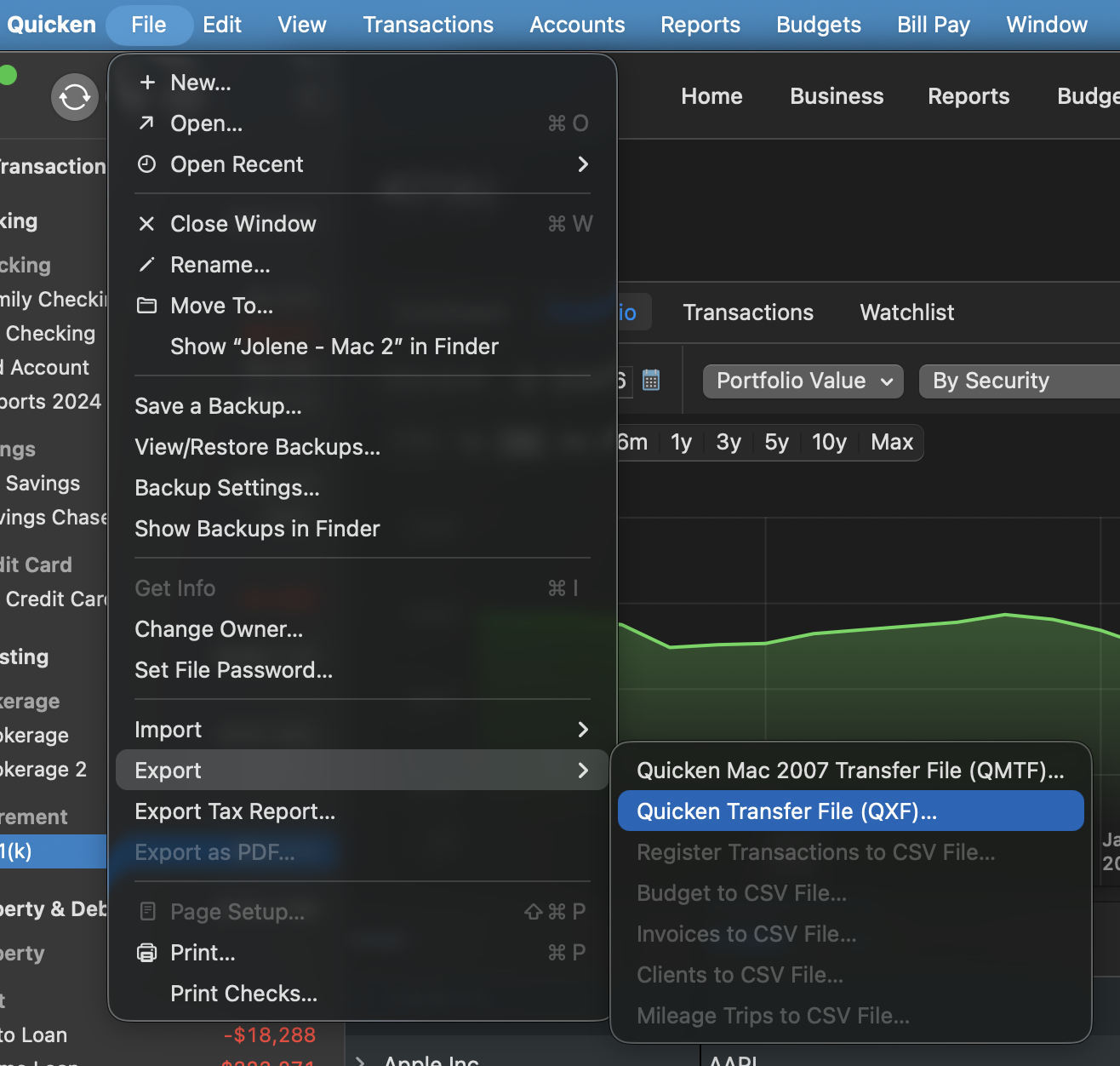
- Save the .QXF file to media that will allow you to move it to your PC, such as a thumb drive or CD/DVD. You can also use Dropbox to move files. For more information, click here.
- Move the media (thumb drive or CD/DVD) to your computer running Windows.
- Open Quicken for Windows.
- Choose File>New Quicken File.
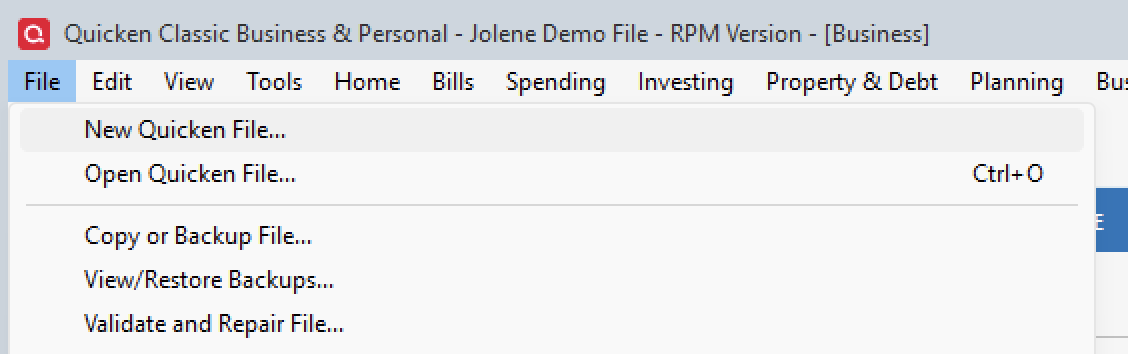
- Select New Quicken File, click OK.
- Name your new data file and press OK.
- Choose File>Import and then select the .QXF file from your media.
And here are the steps on Coverting Windows back to Mac.
This is a lengthy process, and as you stated, it is not perfect. While I wouldn't necessarily recommend this, you now have the steps to be as successful as possible.
I hope this helps!
Quicken Alyssa
Make sure to sign up for the email digest to see a round up of your top posts.
0 -
Hi,
You mentioned the following:
- Data from the more advanced features is not carried over. For example: business data, rental property data, lifetime planner data, cash flow forecast data, spending plan data, debt reduction data, emergency tax records data, tax planner data, and home inventory manager data are not carried over.
Is that list all-inclusive, or are there other items that aren't carried over? I ask because it says "For example" - I would think (hope) that the Quicken's programmers should know exactly every item that wouldn't carry over, and it would be very helpful to know exactly what doesn't carry over when making a migration like this.
Thanks!
Mike
0 -
I would think that the developers won't know the exact list of what won't be transferred over. They would have a list of what "is transferred".
Quicken Windows and Quicken Mac have similar but not exact feature sets. To answer the question of what is transferred is rather straightforward. You just look at what is exported and what is imported.
To judge what isn't transferred you have to have an exhaustive list over everything in both versions of Quicken and list everything that isn't on the list of items that are in the exported and imported list. No one really has a full list of all the features of Quicken.
What's more there are "feature mismatches" like the fact that Quicken Mac doesn't have the virtual checking account for investment accounts. And there are others like Quicken Windows has better multiple currency support than Quicken Mac, and there are differences on what support there is for cryptocurrencies.
0 -
I understand your point, but I disagree that the developers would not know what does and does not transfer.
If there is an export format and an import parser, then by definition there is a defined schema of fields that are mapped and fields that are not. That means someone internally knows exactly what is supported and what is excluded.
My concern is not theoretical feature mismatches between the two platforms. It is whether there is a documented list of specific data objects or metadata that are dropped, flattened, or transformed during migration. Saying "for example" suggests the list is not exhaustive, which makes it difficult to evaluate migration risk.
I am simply trying to determine whether Quicken has a formal mapping specification that identifies what is excluded, rather than relying on a high-level feature comparison.
0 -
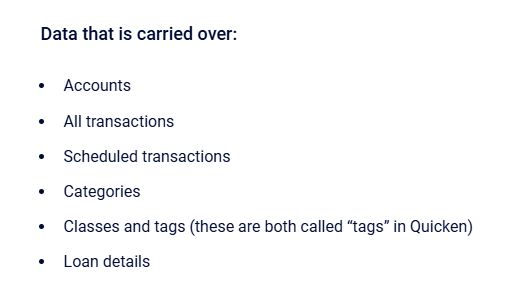
Let me put it a different way, they can give you a list of what transfers, and anything else has to be assumed to not transfer.
And that list has been provided:
 0
0 -
BTW Quicken Inc never gives "internal details". You are never going to see a "formal mapping specification".
0 -
I understand you may be speaking from experience, but (I'm assuming) you are not Quicken, and I do not think it is appropriate to pre-emptively close the door on a reasonable request for clarification.
My question is straightforward: their documentation says "for example," which implies the list may not be exhaustive. For something as consequential as migrating financial data, asking whether a complete exclusion list exists is entirely reasonable.
Saying "you are never going to see that" effectively speaks on the company’s behalf and normalizes a lack of transparency. If Quicken chooses not to provide that level of detail, that is their decision to communicate. I would prefer to hear that directly from them rather than assume it.
Users evaluating platform risk should advocate for clarity, not lower the bar in advance.
0 -
Hi, @msoultan
I won't wade into the discussion about what Quicken will/should admit, but I will tell you a bit more about QXF after dealing with it for ~16 years for Mac conversions.
It is mostly a reliable conversion format albeit low fidelity even going Mac to Mac. (The Win side has improved drastically in recent years.)
Yes, you will lose things as noted above, and lose some other things not noted such as split line ordering, etc.
Your transx and balances will come through (especially if you go Mac:Mac), but it isn't something you want to do unless you have to. It is only intended to retain core data.
Perhaps a better question is what bulk cleanup are you attempting to do? You may (or may not) already be able to do that on the Mac side. I always found bulk cleanup of typical things easier on the Mac side, but there are some things you can't. Explaining what you wish to change might be a better way of approaching this. Good luck!
0 -
Hey @John_in_NC
Thanks for the helpful reply! The reason I was considering migrating a client's Quicken file from Mac to PC was because she created an insane amount of categories that I'm trying to consolidate into default categories (and a few extras that we deemed useful). The problem is that she used many of them inside of splits, and as far as I can tell the Mac version of Quicken is unable to bulk change categories for transactions that live in splits. So, I was weighing whether it was worth it to do the migration to PC, update the categories, and then migrate back. The problem is, if I don't know what is lost because it's not well documented, then I'm not going to do it because I don't want to get a year down the line and realize I lost a bunch of data. I don't think she utilizes a lot of the functionality that would be lost, but because of the lack of clarity as to what will be lost, I don't want to risk it.
0 -
Hi, again, @msoultan
I think you can easily do what you want if cleaning up/merging categories is mainly your goal. I find that easier on the Mac side-even if it is in splits.
You will want to go into the Window:Category list. All those lists (Payee, Category, Tag) are a backend to the database and not "lookup lists", so any changes you make there will be reflected in all transactions within Quicken automatically.
If you go into that Category list, you can easily rename and/or select categories to Merge via the bottom at the bottom.
Make a backup, and give it a whirl. The bigger problem (or inability to do) with bulk editing splits in QMac is if you wish to change a split child line to a completely different category, add a memo, etc.
Note: in the main register, you can also batch select (command or shift) multiple transx and Edit and change multiple categories as well. I use the All Transactions view for this to do it across multiple accounts. Use live searching to filter transactions and sorting to assist.
I was able to clean up my data far easier this way than using the old Find & Replace of Quicken of old. The place where the latter excels is with splits, but that doesn't appear the case here. You are just trying to consolidate/get the similar categories all the same name.
I think if you tried doing this the QXF route, you would have an unhappy client with all the other issues it would involve. And it assumes you have access to their machine. Good luck!
Edit/Tip:: you can also promote: demote categories to be subs of another in this view if you know what you are doing.
0 -
Sorry, I think I left out a key detail - I have a bunch of transactions that are categorized like this:
Vacation - New York
Vacation - Europe
Vacation - Africaand there are like 20 of them. To your point, yes, I can merge those all into one category called Vacation or Travel or whatever is the appropriate category to use, but then I lose the details of what trip those transactions are associated with. What I need to be able to do is merge them all into a single category, but before I do that, tag all of the New York transactions with New York and so on for the others and then take care of the categories. So yes, the categories is the easy part, it's the tags where I got hung up as I couldn't find a way to bulk tag the items within the splits without digging into each split. Is there a way to do that on the Mac version?
0 -
Tags are ideal (I am glad you are aware of them), but no, you won't be able to retroactively add those to split lines conveniently. Moving forward, have your client use tags for the future transx.
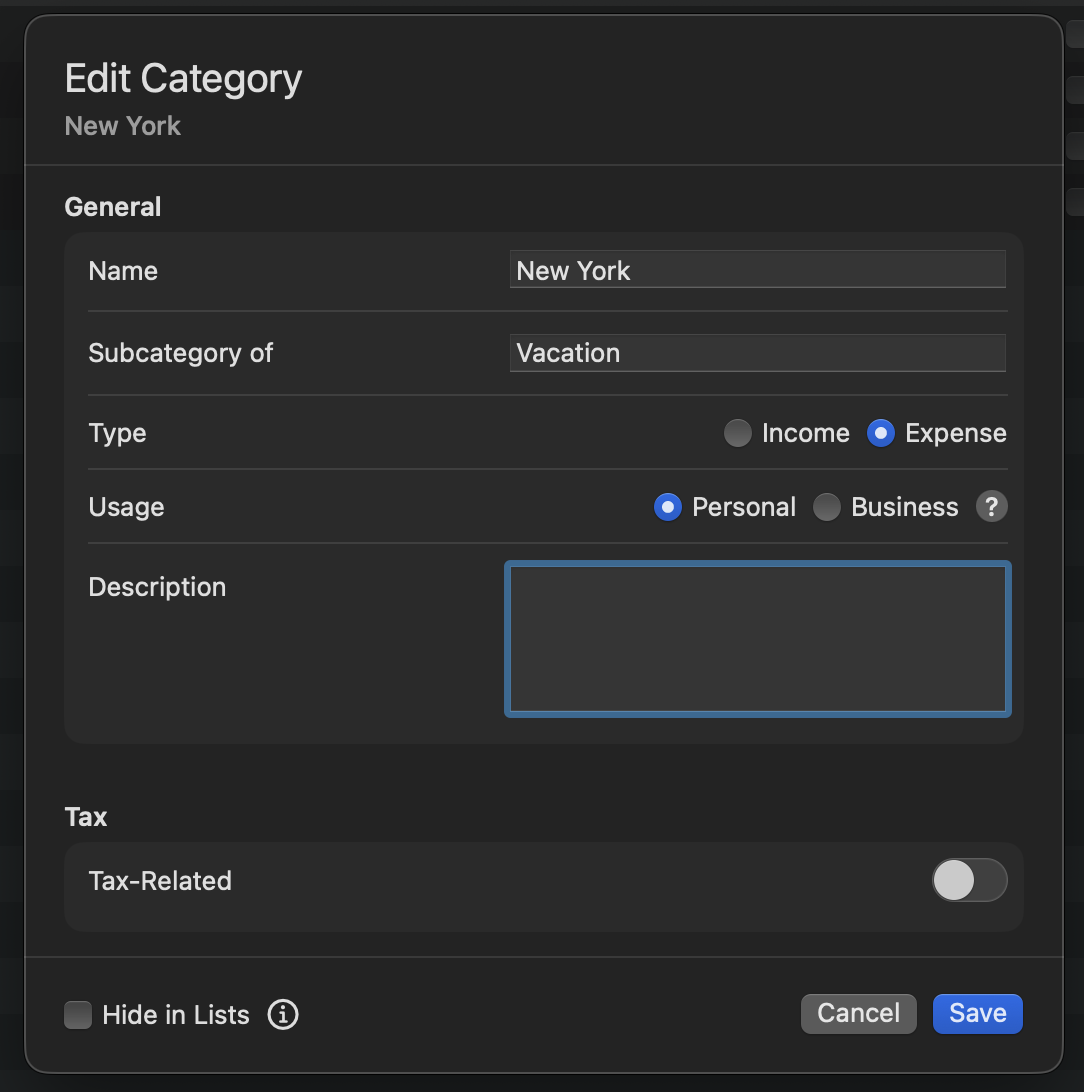
But, in the interim, could you not create a parent category for Vacation, and merge all the New York, Europe, Africa, etc. trips into respective subs of Vacation that would be placed into the split lines? That could produce reports if needed.
If I were in your shoes, (outside of taking them off), that is how I would approach it. I just how your client has done that for multiple categories for each trip :-( Good luck.
 1
1 -
Yeah, at this point I'm moving all of those vacations into a parent category and hiding them so they can no longer be used and don't clutter things too much. I was really hoping to consolidate stuff and get rid of extra categories, but I don't want to lose information. Vacation details aren't really that important, but there are plenty of other categories that they used within splits that force me to keep the categories. Even worse, they were using splits to describe every credit card transaction within a CC payment, instead of having an account just for the credit card transactions. I'm not going to tear apart all the splits, but moving forward that will be changing.
0


