Charles Schwab account not syncing properly

I've had a Charles Schwab account setup for quite a while and everything was fine. Now, however, it's not updating my total holdings and positions properly. I've reset the account but still nothing is right. How in the world do I get this back to where it's supposed to be? Should I just create a new account and see if it gets all my positions?
Please advise.
Comments
-
Hello @chall3809,
Thank you for sharing your experience and reporting the issue you are running into.
Please follow these steps to see if they resolve the issue:
- Create a backup of your Quicken file first.
- Deactivate all Charles Schwab accounts in Quicken.
- Select the Tools menu and select Account List....
- In the Account List, select the account you want to deactivate, and then click Edit.
- In the Account Details window, click the Online Services tab.
- Click Deactivate next to the service you want to disable.
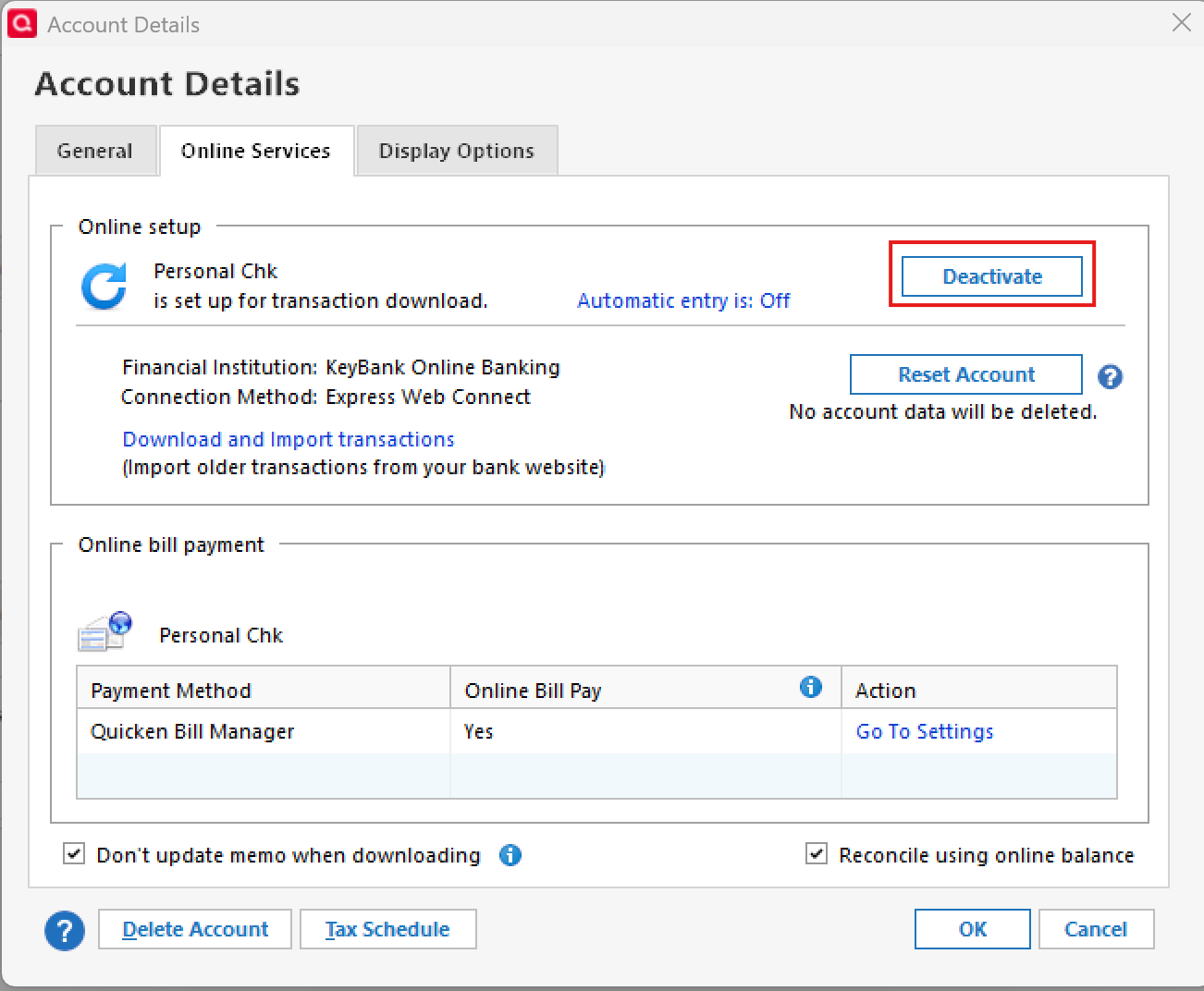
- Click Yes to the message confirming if you want to disable this service. Note: If you do not receive this message, additional information is available below.
- Click OK to the confirmation message.
- If you have an investment account that is linked to a cash account, you need to deactivate the online services from the investment account, which will automatically deactivate the linked cash account.
- Important: If you are deactivating/reactivating an account to fix an issue, you'll need to deactivate all the accounts with the affected financial institution that you have activated in Quicken (including hidden ones). Once they're all deactivated, then you can follow the steps to reactivate.
- Revoke Quicken’s third-party access from the Charles Schwab website.
- Reactivate the accounts in Quicken.
- Go to Tools > Add Account.
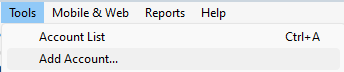
- Select the bank for the deactivated account(s). If prompted, select the connection method.
- Enter your credentials and click Connect.
- When the list of located accounts appears, choose LINK next to each account you want to reactivate.
- Click Next, then Done on the last prompt.
- Go to Tools > Add Account.
If these steps do not resolve the issue, please provide screenshots of what you are seeing on your end. If needed, please refer to this Community FAQ for instructions on how to attach a screenshot. Alternatively, you can also drag and drop screenshots to your response if you are not given the option to add attachments.
Let us know how it goes!
Quicken Alyssa
Make sure to sign up for the email digest to see a round up of your top posts.
0 -
Yes, this resolved the issue. What I discovered, however, was that there was a an entry that was listed as an "unidentified security" that I had to delete in order to get the balance to reflect properly.
1 -
Thank you for following up and letting us know what worked for you!
If you need more help, don't hesitate to reach back out!
Thanks again!
Quicken Alyssa
Make sure to sign up for the email digest to see a round up of your top posts.
0 -
I am considering opening a Charles Schwab account in addition to Merrill account, which I already have. ML seems to work well, with the exception of a time or two when I couldn't connect over the years. Do you guys think Schwab/Quicken connection is reliable and something that I should not worry about?
0 -
Thank you for posing this question.
Yes, I think the Charles Schwab connection is reliable. There is no reason to be concerned about it at this time.
Thanks again!
Quicken Alyssa
Make sure to sign up for the email digest to see a round up of your top posts.
0

Categories
- All Categories
- 24 Product Ideas
- 34 Announcements
- 248 Alerts, Online Banking & Known Product Issues
- 19 Product Alerts
- 265 Welcome to the Community!
- 301 Before you Buy
- 1.5K Product Ideas
- 55.8K Quicken Classic for Windows
- 16.9K Quicken Classic for Mac
- 1K Quicken Mobile
- 834 Quicken on the Web
- 129 Quicken LifeHub