How to clear invoices from 2022 that were assigned the wrong payments?

Sometimes Quicken just outsmarts itself. One area applying payments. I use a property manager for a rental property and they send us the monthly rent MINUS expenses and management fees. So I create an Invoice that shows the full amount of the rent with line items for expenses. I then use their EFT to pay the invoice. Somehow, some of these EFTs got marked as cleared in the Rental Invoice account which meant they got arbitrarily assigned by Quicken to the wrong invoices. I was partially able to correct the problem by going into the invoices and removing the payment but I'm left with about 10 uncleared and not easily resolved transactions involving credits and expenses. If there was any way to simply mark the invoices and payments as Cleared in the register, that would solve the problem. However, I cannot access the cleared field (grayed out). Reconciling doesn't help either because there's no traditional marking of transactions.
Incidentally, my system normally works well and ends up correctly matching the PM's 1099 and cash flow basis.
Suggestions?
Comments
-
Hi @Tominator,
Thank you for explaining the situation — I know how tricky it can be when invoice payments get misapplied, so I’m happy to help clarify what’s happening and how to fix it.
In Rental Property accounts, Quicken can occasionally auto‑match EFT payments to invoices based on amount and timing. When this happens, some payments may be incorrectly linked, and because Rental accounts work differently from regular banking accounts, the Cleared (C) column is grayed out and can’t be manually edited. They also don’t use the traditional reconciliation process, which is why reconciling doesn’t resolve the issue.
To correct the mismatched payments, here are the best steps within Quicken for Windows:
1. Remove incorrect payment links from the invoices
For each invoice that has the wrong payment applied:
- Go to Customer invoices account
- Select the payment applied to the affected invoice.
- Remove the payment (Unlink/Delete Payment).
You’ve already done some of this, which is great, the next steps will handle the remaining entries.
2. Reassign the payments correctly
You can reapply the payments using the correct workflow:
- Go to the Customer Invoices account.
- Open the invoice you want to apply the payment to.
- Select the option to Apply Payment.
- Enter the payment amount and choose the account where the deposit originated.
This method applies the payment cleanly to the correct invoice and avoids needing to adjust the Cleared column, which isn’t editable in Rental/Customer Invoices accounts.
Once your payments and invoices are correctly linked again, your system should return to its usual behavior and continue matching your property manager’s 1099 and cash‑flow totals accurately.
Please let me know how it goes!
Quicken Laura
Make sure to sign up for the email digest to see a round up of your top posts.
0 -
Step 2 - There is no APPLY PAYMENT option. Only a Receive Payment which tries to create a new item with the current date — I'm trying to fix past issues. Another problem is that Invoices become Credits when the Property Manager has paid for repairs that are more than the amount of the rent. Then there is no way of applying that SPECIFIC credit amount to a future invoice. Maybe I'm missing something here.
For example, the issue I have right now is an invoice that turned into a credit to the PM on 8/1 of $905. The next invoice to the PM from us was for $1440 on 9/1. The net was the PM paid us $535 by EFT on 9/7. I cannot get the credits and payment (uncleared) applied to the 9/1 invoice. It seems like such a simple thing but Quicken refuses to apply them properly even though the register shows the balance properly as $0. That credit and that payment from the PM never get resolved.
0 -
As a further note, I tried deleting the payment of $535 and recreating it as "Receive Payment" plus applying existing credit. While Quicken applied it to the $1440 invoice, it reached forward and applied a different unapplied credit from 2023 screwing everything up. This entire Rental Property portion of the Quicken needs to be seriously revamped.
0 -
Hi @Tominator,
Thank you for providing the additional details.
As you mentioned, the “Receive Payment” option will create a new transaction. To help avoid duplicate entries, the previous steps suggest removing the original payments first.
If you would like to apply a credit from an existing transaction, please ensure it is categorized under [Customer Invoices] in the account where payments are recorded as deposits (checking account). Quicken will automatically treat any overpayment as a credit. The only way to prevent this is to make sure the payment amount matches the invoice total.
The following image shows how the deposit/credit should look.

When recording a payment, you have the option to modify the date of the payment being received. I’ve attached a screenshot below as a reference.
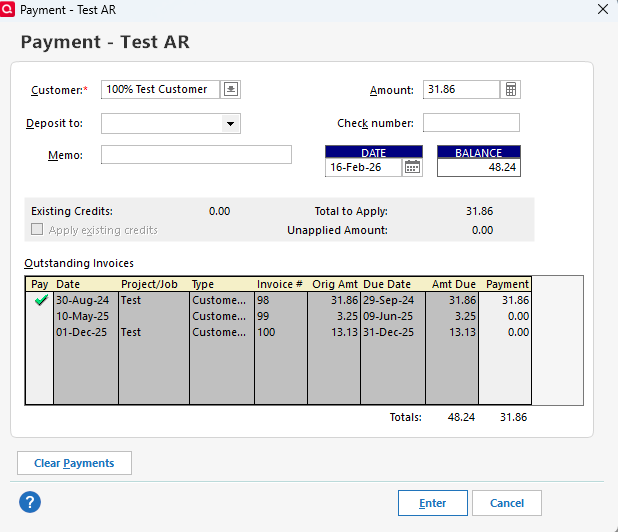
If you have a remaining credit from a previous invoice, you should see the “Apply Existing Credits” option. You’ll find it on the left side of the Payment window, just below the memo field. Please keep in mind that the date of an existing credit cannot be changed.
Please let me know how it goes!
Quicken Laura
Make sure to sign up for the email digest to see a round up of your top posts.
0 -
I gave up. Nothing works. Quicken refuses to clear the recreated payment. The Invoice account balances but those three unresolved transactions stay as unapplied credits and unpaid invoices in the list. Apply existing credits tries to grab payments from the future instead of dealing with the ones in the past first. As stated before, it turns an invoice INTO a CREDIT if the property manager has fronted more for repairs than the value of the rents received. That CREDIT cannot be applied to a future invoice. Quicken simply won't do it. I've tried everything including your suggestion of deleting and recreating the payment. The only alternative I can come up with is to create a VENDOR bill showing the expenses but then I have to create a whole new account to track those. My system was working fine until this one situation came up.
0 -
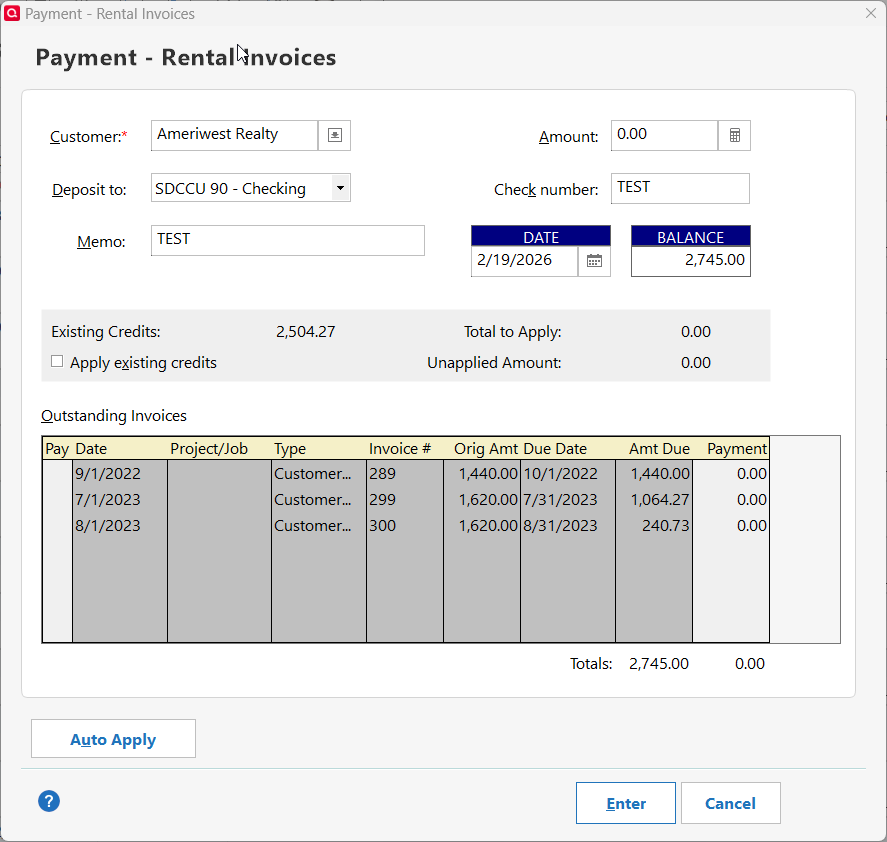
For this customer, try creating a $0.00 amount New Customer Payment transaction.
First capture an image snapshot of what the transaction dialog looks like and attach it here.
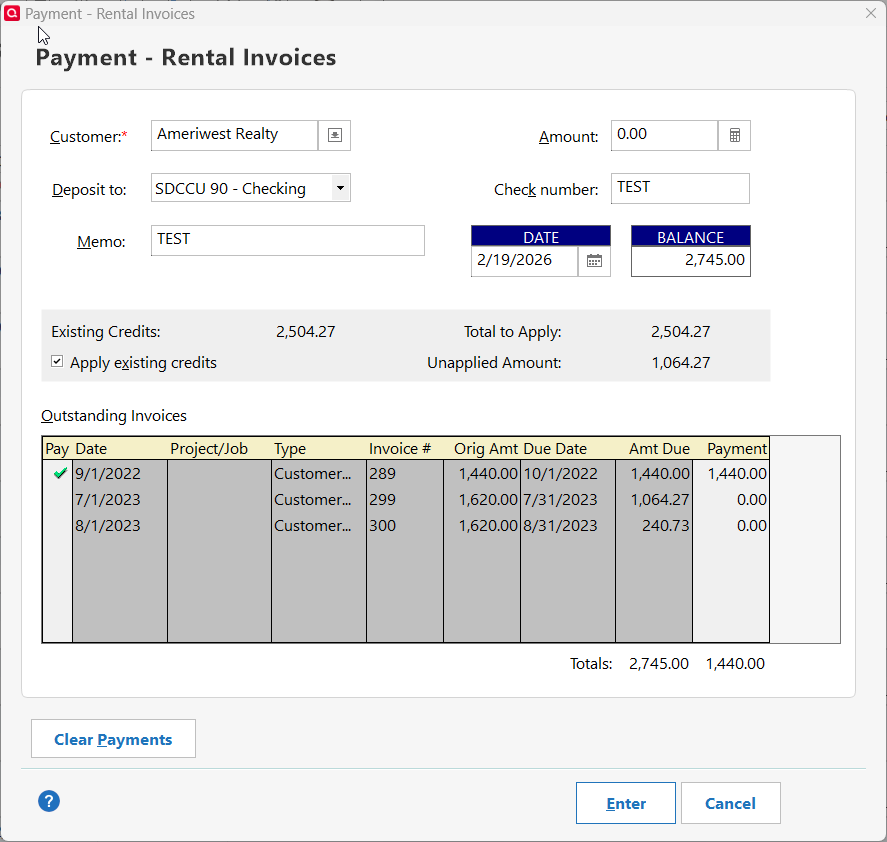
Now try to mark any outstanding invoices as paid and put a checkmark in "Apply existing credits". Does that work?
Have you verified that the customer name (payee name) is spelled exactly the same for all invoices belonging to this customer? An extra blank between first and last name of after the end of the name, for example, will not match correctly
0 -
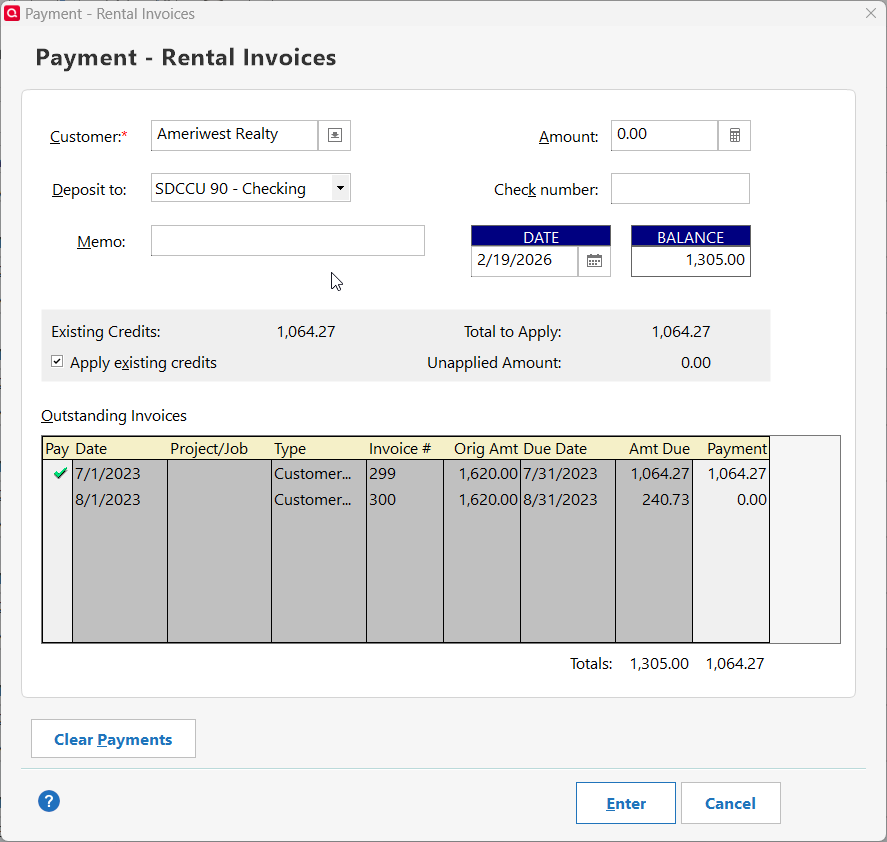
So doing this cleared one of the invoices but not the others and there's a credit mismatch now. Here are 3 screenshots. The first is as you requested. The second is applying existing credits to one of the invoices. The THIRD shows the credit mismatch. The PM has paid us correctly, all the payments are recorded as transfers to the INVOICES account. What's apparently happened is Quicken has applied partial payments to invoices 299 and 300 even though the PM paid the full amount for both. I can't figure out how to undo. It only applied $1379.27 from the $1620 received (on 8/4) for Invoice 300 and applied $555.73 from the full payment on 7/6 to invoice 299. And as you can see, it thinks there's a credit balance of $1064.27. None of these amounts exist standalone anywhere. Thanks for your time!
 0
0 -
Hi @Tominator,
Thank you for sharing these details with us.
Since you mentioned that your account balance is correct, which suggests that the payments themselves are matching, I recommend contacting Quicken Support, as they can investigate further and possibly detect the error we are overlooking.
Please let me know how it goes!
Quicken Laura
Make sure to sign up for the email digest to see a round up of your top posts.
0

