BECU OL-294-A error Again

Quicken is unable to complete your request. Please try again later.
Comments
-
Hello @rdschmid,
Thank you for letting us know you're seeing this issue. You mentioned that it's happening again in the title of your post. When did it happen the first time?
To start troubleshooting, please follow these steps from our article on OL-294 errors:
First, verify your account services in Quicken
If you have not yet signed up for the bill payment service provided by your financial institution, but have enabled that service in Quicken, you will get this error. Make sure that your account settings in Quicken match the services currently provided by your financial institution. To do so:
- Choose Tools menu > Account List.
- Click the Edit button of the account you want to verify.
- In the Account Details dialog, verify that the account settings in Quicken match the services currently provided by your financial institution and make changes, as necessary, so the information matches.
- If you make changes, try to connect to your financial institution again (Choose Tools menu > One Step Update).
- If everything looks correct or if the problem persists, continue with the next procedure.
Second, verify your password
With the convenience of the Password Vault in Quicken comes the opportunity to forget to change your password in Quicken when it has been changed at the financial institution. To update your password in Quicken:
- Choose Tools menu > One Step Update.
- Uncheck all options except for the financial institution that is reporting the error.
- Click the key icon to the right of the financial institution name.
- Enter your password.
- Click Update Now.
Third, refresh your online account information
- From your account register, select the Actions gear icon at the very top of your register (Ctrl + Shift + N).
- Select Update Now.
- Follow the on-screen instructions to complete the update.
- Repeat these steps for each financial institution experiencing this error.
If the issue persists
If the issue is not resolved after following the steps above, you will need to contact your financial institution to resolve this issue. Quicken does not have access to the financial institution's servers to correct the problem. This may require you ask to speak with an online services specialist who handles transaction download issues at the financial institution. If your financial institution states it can't assist, an escalation with the financial institution may be necessary.
I hope this helps!
Quicken Kristina
Make sure to sign up for the email digest to see a round up of your top posts.
0 -
I have the same problem.
0 -
Hello All,
I forwarded this issue to the proper channels to be further investigated. In the meantime, if you haven't already, please follow the troubleshooting steps in my earlier post. If the issue persists after following those steps, please navigate to Help > Report a problem and submit a problem report with log files attached and (if you are willing) a sanitized copy of your data file to contribute to the investigation.
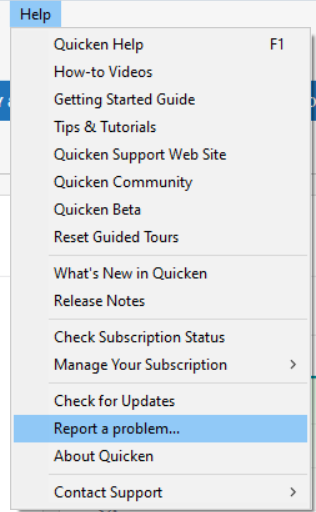
While you will not receive a response through this submission, these reports will help our teams in further investigating the issue. The more problem reports we receive, the better.
We apologize for any inconvenience!
Thank you.
(CTP-16385)
Quicken Kristina
Make sure to sign up for the email digest to see a round up of your top posts.
0 -
Same issue on two different BECU accounts with multiple bank accounts under each account. Started this morning.
1 -
Hello @Dustmonger,
Thank you for letting us know you're also affected by this issue. Thank you also for sending the problem report with log files attached. It will help our teams investigate this issue.
Thank you!
Quicken Kristina
Make sure to sign up for the email digest to see a round up of your top posts.
0 -
BECU is acknowledging that this is a problem on their side that started yesterday (2/19/2026). They don't yet have an ETA to fix the issue.
2 -
Same issue here, but I was able to fix it.
1 Each BECU account went into Edit Account Details.
2 Online Services tab, deactivated each account.
3 General tab, delete bank name, routing number, and account number, etc.
4 After all account info deactivated and deleted, restarted Quicken.
5 Opened one of the accounts.
6 Online Services tab and Set Up now… button and logged back in, linking all accounts online with those in Quicken.
Works fine again!!!
0 -
I saw that too. The message was not visible this morning (2/21/2026) but there was another one about overnight maintenance of some kind, probably unrelated.
0 -
I had to deactive my BECU accounts then set up online services again. Didn't have to play with the names/routing numbers/etc. Quicken refused to 'find' my savings account to link to, so I had to create a new account and then move all the prior transactions.
0 -
Odd that the behavior was inconsistent during the outage. First, my spouse had no issues at all with her Quicken file. In my case, I had to deactivate my BECU accounts in Quicken and then "add" accounts under the Tools menu. Initially I got a Quicken message saying that my request could not be completed. I figured I would give up for the time being and started doing something else on another screen. I eventually glanced back at the other screen and saw that the BECU accounts had popped up, on a delayed basis, ready to link.
All good now.
1 -
Was able to do deactivate/reactivate to get accts working with Express Web Connect. No Direct Connection.
Process was very slow and all accts didn't show up on first try.
1 -
One more data point: Deactivate/reactivate results in Express Web Connect.
0 -
I have the same problem with BECU accounts not updating. It started 3-4 days ago. I figured I'd be patient and wait for the error to be resolved. I've tried the troubleshooting procedures, but they did not resolve the errors.
0 -
Same problem here, again. Neither my wife or I can download successfully and get the same error (OL-294). Worth noting that my business accounts download just fine. This has been ongoing for about 4-5 days. These constant interruptions are getting old…
0 -
Adding on to previous comment - I just tried downloading the QFX file directly from BECU and that no longer works either. This used to be a workaround until fixed, but not anymore…
1 -
Thank you for your replies,
Thank you for sharing! When I check our internal tools, I can see you were able to get connected again by switching from the Direct Connect (DC) connection to the Express Web Connect (EWC) option. I'm glad to hear that the EWC connection works!
Thank you for sharing your experience! When I checked our internal tools, I can see that you're currently connected using Express Web Connect (EWC). I suspect that may be the reason you saw the inconsistent behavior. If your spouse was connected using EWC, they likely would not have seen any issues. When you deactivated and re-added your accounts, you reconnected using EWC.
Thank you for sharing! It defaults to Express Web Connect (EWC), unless you use the Advanced Options link to select Direct Connect (DC). Using EWC should be a viable alternative while waiting for the DC issue to be corrected.
To switch between Direct Connect and Express Web Connect, backup your Quicken file, deactivate your Boeing Employees' Credit Union accounts, then go to Tools>Add Account and search for your financial institution. Select Boeing Employees' Credit Union, then click the blue Advanced Options link.
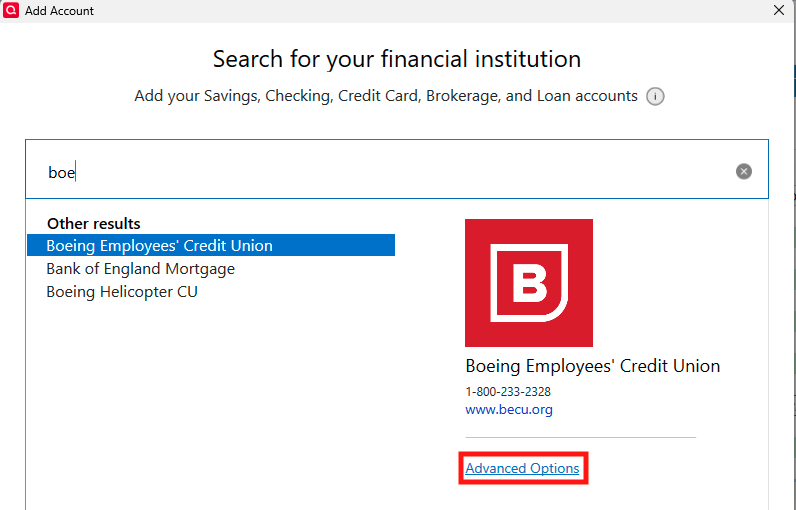
Review the information screen, then continue, and on the next screen, select the connection option you want to use.
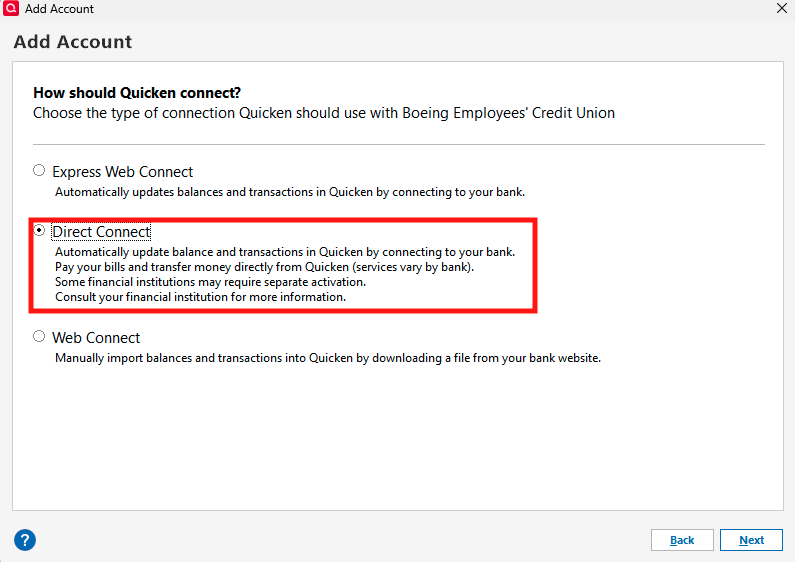
Follow the prompts. When you get to the Add/Link screen, make sure to carefully link your accounts to the correct nickname in Quicken.
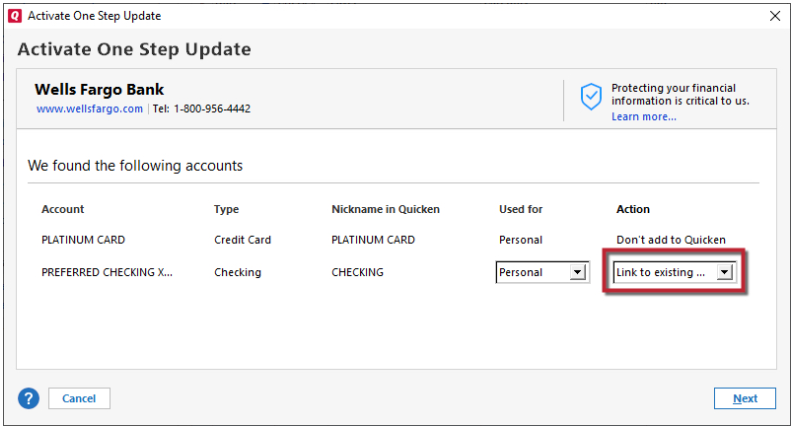
Thank you for sharing that QFX does not work either. Do you see any error message/code when you try to import?
Other customers reported that the Express Web Connect connection is still working. However, switching to Express Web Connect is not recommended, due to the risk of duplicate transactions.
I hope this helps!
Quicken Kristina
Make sure to sign up for the email digest to see a round up of your top posts.
1 -
Hello All,
We now have a Community Alert for this issue. Please bookmark the alert to be notified of any updates, once available, and to know when the issue is resolved.
Thank you!
(Ticket #12251443/CTP-16385)
Quicken Kristina
Make sure to sign up for the email digest to see a round up of your top posts.
0 -
Thanks @Quicken Kristina - your EWC vs. DC explanation makes sense for my experience. As does the BECU website banner, now that I take a closer look at it ("direct").
 1
1 -
I am also unable to download a QFX file either.
I get an error: "There are Quicken components currently open, and can not be uninstalled. Please close Quicken, and try uninstalling again."
I have never had this when downloading this type of file.
0 -
Hello @Retlaw,
Thank you for letting us know you're seeing that issue when trying to import a QFX file. That error typically means there's a program issue. To troubleshoot, please close your Quicken program, uninstall it, and reinstall it.
To uninstall Quicken, please follow these steps from our article on uninstalling:
Windows 11
1. Click the Start button and select Settings (gear icon).

2. Select Apps from the settings list, then click Installed apps.
3. In the Installed apps list, scroll down to Quicken, click the three dots menu, then select Uninstall.
4. Click on Uninstall again to confirm and follow through the prompts until the program is removed.
Windows 10
1. Click the Start button and select the Control Panel. In Windows 10, the Control Panel is located in the Windows System folder in the Start menu.
2. Under Programs, click on Uninstall a Program.
3. Find Quicken in the list of programs. They are alphabetically ordered. Highlight it by clicking on it once.
4. Click on Uninstall at the top of the list and follow through the prompts until the program is removed.
To reinstall the program, first, use the link in this article to download it:
Once it's downloaded, select run and follow these steps from the article to install it:
Install Quicken
- Follow the on-screen instructions to complete the installation.
- Click Next to get started.
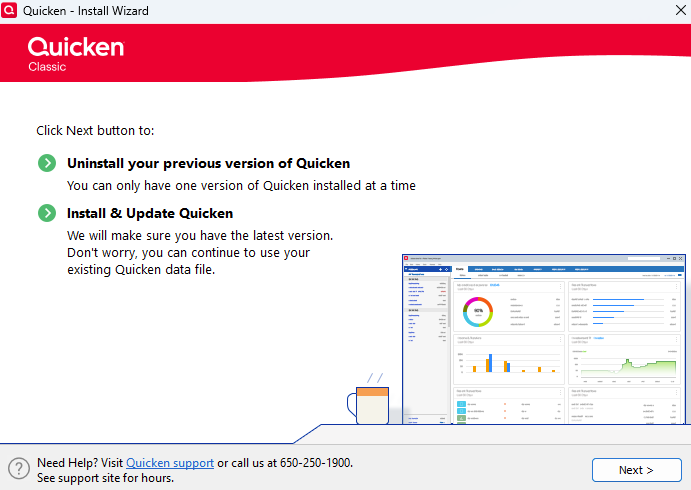
- Click Install on the Ready to install prompt.
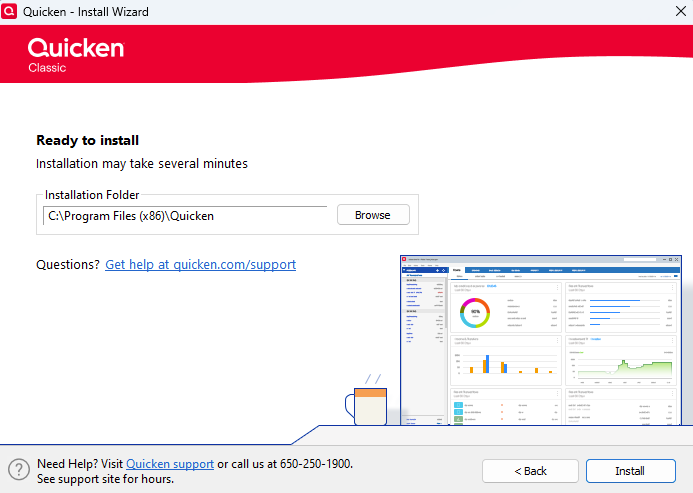
- When the installation is complete, click Done.
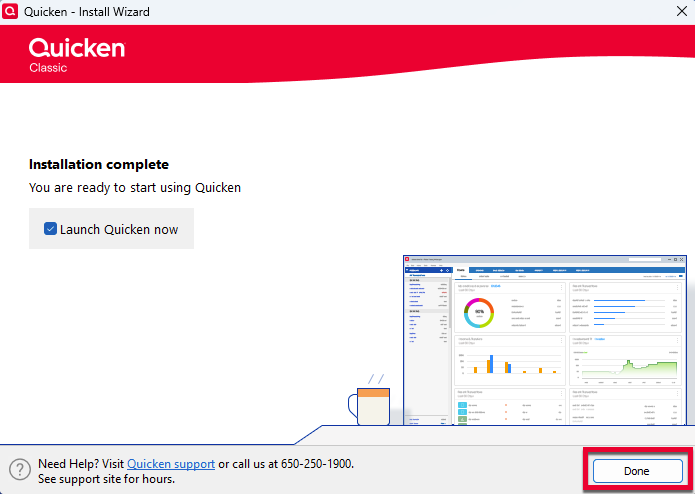
- Click Next to get started.
- Enter your Quicken ID and Password.
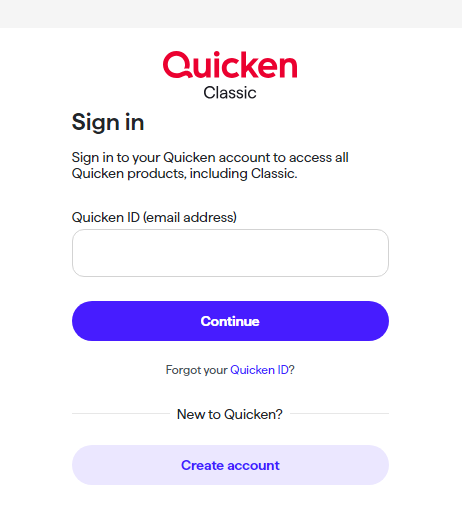
- If prompted, enter the 6-digit code. This process verifies your information and helps keep your account safe.
Please let me know how it goes!
Quicken Kristina
Make sure to sign up for the email digest to see a round up of your top posts.
0 - Follow the on-screen instructions to complete the installation.
-
March 18-20 update from another impacted customer:
We have two different userid accounts, comprising over a dozen separate accounts. one of the two userids was impacted by this ol-294 problem above (it used Direct Connect, the other used Express Web Connect, and it had no problems). I used directions above to change the connection protocol from Direct Connect to Express Web Connect, and it worked, for perhaps a couple of days at most. Now, attempting to connect to download transactions for either userid results in CC-506 errors. No idea if this means BECU is actually trying to do something on their end to fix this problem, or did something to cause yet another problem. Attempting the Quicken fix of allowing it to deactivate/reconnect is a big fail, as BECU and Quicken cannot connect, and the BECU is 'still reporting connection issues' banner shows up on the connect dialog. Do we really have to have an annual problem between BECU and Quicken? Can't you guys set a protocol and stick to it?
2 -
Can I use quicken without downloading the new version every year and paying the high costs? This is becoming frustrating, and is just not worth the pain of not being able to use my quicken program for months out of the year. I'd rather do it manually, and never have to pay the annual fee again.
1 -
If anything, being in this vicious cycle of problems between quicken and BECU, experienced over the last 3+ years, we've all learned how to download the files manually, so who needs the full version of quicken anymore if we can't direct connect to the servers?
0 -
[Removed - Duplicate Post]
0 -
Hello @donnyL,
It is frustrating when a connection you rely isn't working. If you feel that the subscription is no longer worth it, you can use Quicken without an active subscription. Without a subscription, you lose access to all online services, program updates, and support. Additionally, there will be banners reminding you to resubscribe. For more information, please review our subscription FAQ:
Note: Importing QFX files is an online service and will not work without a subscription.
I hope this helps!
Quicken Kristina
Make sure to sign up for the email digest to see a round up of your top posts.
0 -
Seems to always happen after FORCED Quicken "Updates".
[Removed - Rant/Speculation]
-1 -
Hello @RA_RA_RA1,
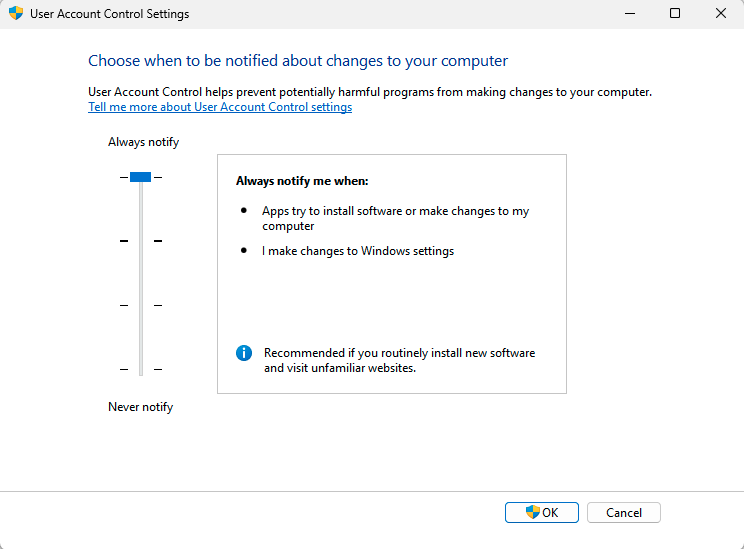
Thank you for reaching out! If Quicken updates install automatically and you want to force it to ask for permission first, you can do that by adjusting your computer's User Account Control Settings. Setting it to Always notify will cause a notification to pop up, and you'll have the option to approve or deny.
I hope this helps!
Quicken Kristina
Make sure to sign up for the email digest to see a round up of your top posts.
0 -
Well, the latest update (last was 3/20) in my OL-294 / CC-506 errors today (3/23) is that one of my accounts is now reporting CC-800. Out of our 13 Quicken accounts (from two separate BECU userids), that is the only one of them reporting the CC-800. All of the supposed reasons for getting a CC-800 (outdated Quicken s/w, account deactivation, login credentials changes) are not in play, with the possible exception of BECU changes or a corrupted Quicken file. But if either of those were in play, why only one account reporting the error?
Two other things of note. In the update that generated the CC-800, one of the other accounts under the same userid did update and bring in new transactions; …
And when I did a manual QFX download of the CC-800-reporting account and sucked it into Quicken, the account updated and showed the transactions, while the "red circle w/slash thru it" icon remained next to the account name.
Having to budget a lot more time each update session, and feeling like it's requiring a daily effort to keep up to date with all the nonsense.
[Edited - Readability]
0 -
Hello @chasticsto,
Thank you for reaching out! It's possible the error is happening because something changed on the financial institution's end. Have you already backed up your file and followed the troubleshooting steps in our article on CC-800 errors?
If you haven't, I recommend troubleshooting to resolve the error. Warning: Since you mentioned that you updated via QFX, there is a risk of downloading duplicate transactions.
Here are the steps from our article on CC-800 errors:
First, you'll need to deactivate the affected accounts:
- Select Tools > Account List
- If present, select the Show Hidden Accounts checkbox at the bottom of the Account List
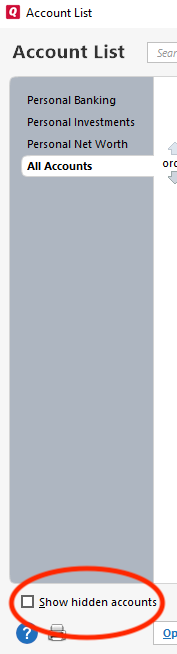
- Select Edit on each account with this error and Deactivate them on the Online Services tab
- When finished, close the Account List.
Second, reactivate the accounts:
- Select Tools > Add Account
- Complete the flow of re-adding the deactivated accounts to Quicken, using your bank login credentials and answering any security questions.
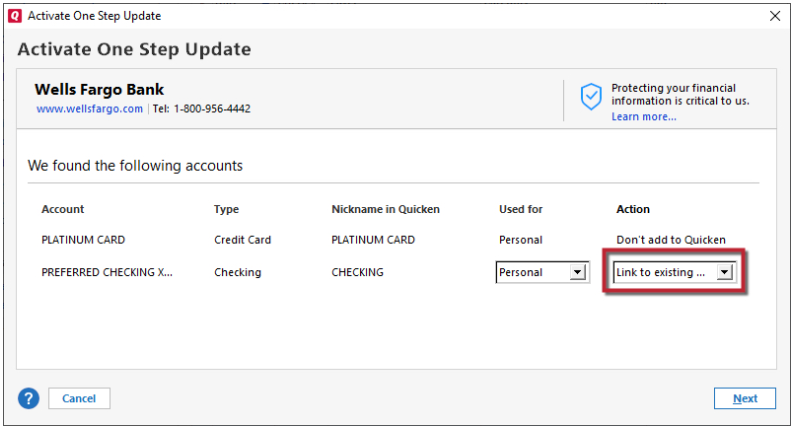
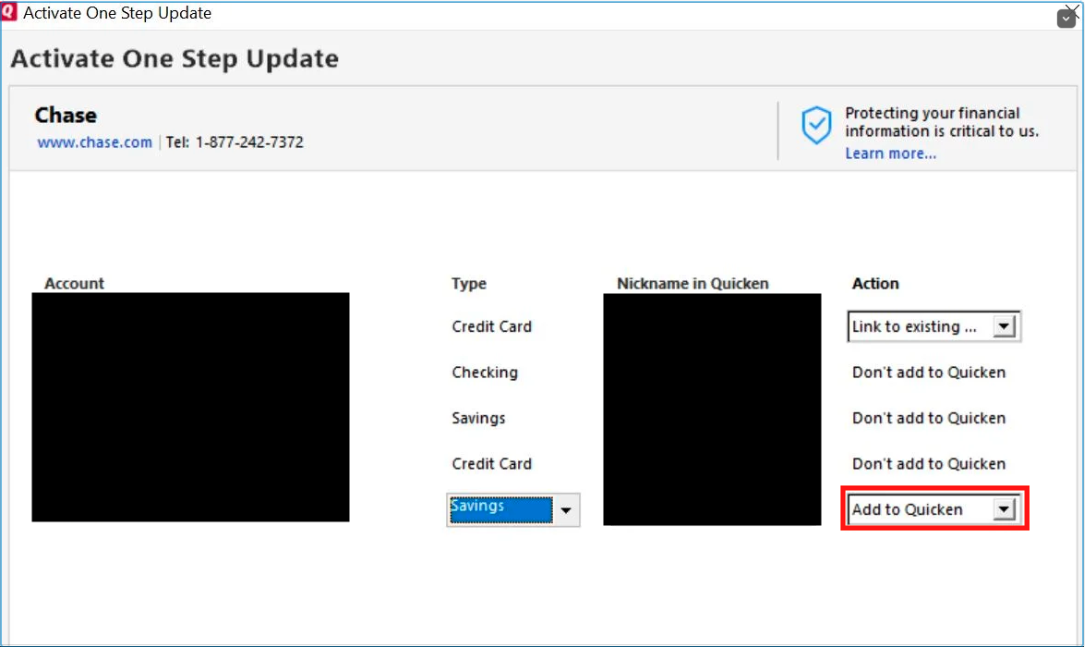
- When you reach the screen listing the accounts discovered at the financial institution, use the Action drop-downs to re-link your accounts:
- For accounts you want to re-link, select Link to existing account and choose the corresponding account to re-link with.
- Select Add to Quicken for new accounts you didn't previously track in Quicken.
- For accounts you don't want to link or add, select Don't add to Quicken.
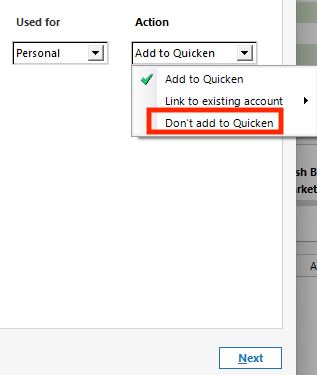
- For accounts you want to re-link, select Link to existing account and choose the corresponding account to re-link with.
I hope this helps!
Quicken Kristina
Make sure to sign up for the email digest to see a round up of your top posts.
0 -
Thanks, but sorry, your recommendation doesn't work. I did that already to change the 9 accounts from Direct Connect to Express Web Connect. Attempting the recommended CC-800 fix shows that Quicken is recommending the change to Direct Connect. I know that won't work because BECU is still not working with you. But, I did try, to say that I did, and so when I did, I got the 'cannot connect' message that doesn't come with an actual error code on that dialog, and then when the one step update summary comes up, it has a yellow banner saying that BECU is reporting connection issues, and then a red banner giving the CC-800 code. I would seriously recommend that your s/w programmers come up with more detailed error codes that you can share with the world, since one code for 5 completely unrelated causes is not supporting your users. Feel free to pass that 2 cents up your chain of command.
-1


