Online banking with Chase

Hello - can you please help me? I use Quicken Classic Premier (R66.23) on Windows 11 Home.
I have several Chase accounts.
One account (credit card) hasn't downloaded transactions since early Jan. I just noticed, because I don't use that card very much. All of my other Chase accounts have been downloading correctly. For the impacted account, I tried to Reset Account in the Account Settings/Online Services. The screen hung and I closed the window. Now the Online Services/Online Setup says Setup Now - which is hanging as well. I waited at least 10 minutes for the screen to complete before closing quicken and trying to again. I also tried going to one of my other Chase Accounts and when i tried Reset Account, it also hung, and now says Setup Now.
Please advise
Thank you
Comments
-
Hi @JayCornell,
Thank you for sharing what you're experiencing. I’m happy to help you troubleshoot.
I recommend validating your data file, but first, we’ll want to confirm the file is stored locally on your computer and not syncing with a cloud service (such as OneDrive, Dropbox, etc.), as that can cause unexpected issues.
Check File Location
- Open Quicken.
- Click File.
- At the bottom under Recent Files, the file with the check mark next to it is the one currently open.
- Please let me know the full file path shown there.
Default recommended location
- C:\Users\username\Documents\Quicken
If the File Is Not Stored Locally
Follow these steps to move it:
- Close Quicken if it is open.
- Open File Explorer and locate your current Quicken data file (.QDF).
- Right-click the file and select Copy (or Cut, if you prefer to move it).
- Navigate to C:\Users\username\Documents\Quicken.
- Right-click inside the folder and select Paste.
- Once copied, double-click the file from this new location to open it in Quicken.
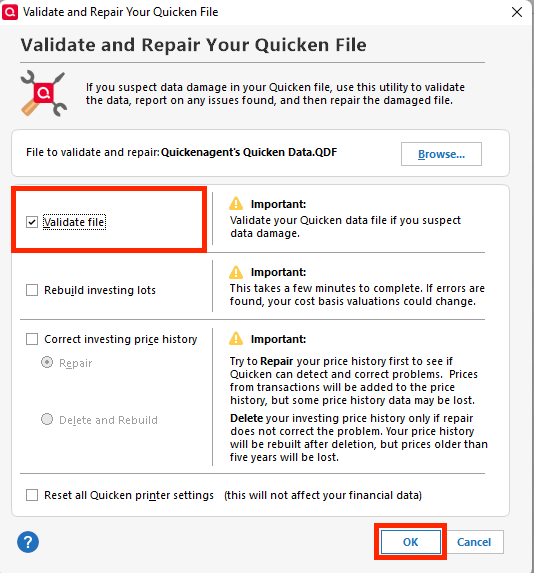
Once the file is in the right place, please validate it with the following steps (make sure to save a backup first):
- Go to File.
- Click Validate and Repair File.
- Select Validate File.
- Click OK.
And finally, please try to reactivate the account with the steps below:
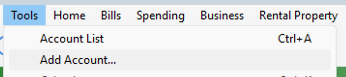
- Go to Tools > Add Account.
- Search for and select your financial institution.
- If prompted, choose the appropriate connection method.
- Follow the on-screen instructions.
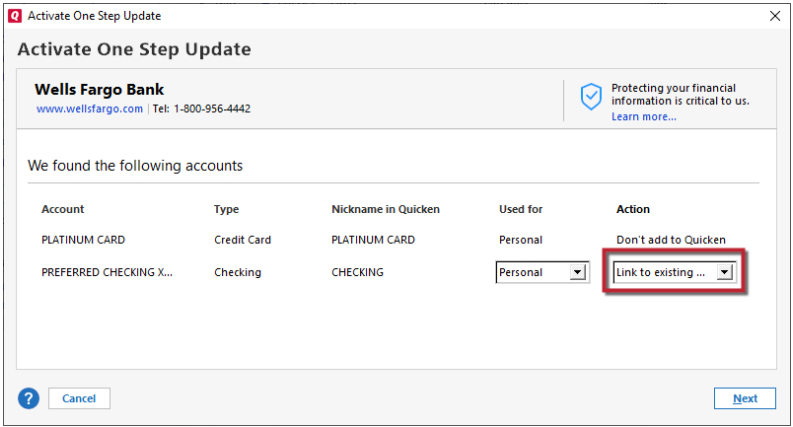
- When the list of found accounts appears, be sure to select Link to connect them to your existing accounts (do not add duplicates).
Please let me know how it goes!
Quicken Laura
Make sure to sign up for the email digest to see a round up of your top posts.
0 -
thank you for reviewing my issue. I tried to Validate the file when the problem just occurred. Based on you suggestion to try it — i confirmed the location and tried again. The Validation runs clean every time.
I'm still unable to complete the Online setup for an account that worked before and now is hanging
0 -
Hi @JayCornell,
Thank you for taking the time to complete the previous steps, and I appreciate you sharing the screenshot. That was very helpful in clarifying the issue.
The next step is to refresh your session by signing out and back in. Please follow the steps below:
Refresh Your Quicken ID Session
- Go to Edit > Preferences > Quicken ID & Cloud Accounts. If you are unable to see your Edit > Preferences menu, continue to the next section.
- Click Sign in as a different user.
- Type "yes" to confirm and click Sign Out.
- After you sign out, sign back in with the same Quicken ID.
Close Quicken and reopen it
There are some instances in which Quicken simply needs to be closed and reopened for the Sign-in screen to load. Try this a few times before moving on to the next steps.
Test Connection to the Quicken ID Website
- Close Quicken.
- Launch a web browser.
- Go to the Quicken My Account login page. If the webpage appears, then the system can connect to the Quicken ID server. If the webpage cannot be displayed, follow internet connectivity troubleshooting.
Temporarily Turn Off Windows Firewall (for testing purposes)
- Open the Control Panel. The Control Panel is located in the Windows System folder in the Start menu.
- In the Control Panel, select System and Security.
- Now, in System and Security, select Windows Firewall.
- Select Turn Windows Firewall on or off.
- If you are given the option to turn off the Private and Public Firewalls, select to turn both off.
- Once turned off, click OK.
After completing these steps, please try connecting your accounts again.
Let me know how it goes.
Quicken Laura
Make sure to sign up for the email digest to see a round up of your top posts.
0 -
Hi @JayCornell,
I just wanted to follow up since I haven’t heard back from you. I’m checking in to see if you still need assistance.
Quicken Laura
Make sure to sign up for the email digest to see a round up of your top posts.
0 -
Hello again,
Checking in once more before this thread is closed. Let us know if you still need assistance.
Thank you!
Quicken Laura
Make sure to sign up for the email digest to see a round up of your top posts.
0

