One Step Update summary not showing Wealthscape Downloads

When I do a one step update all my accounts that I have selected do download the transactions. However, the one step update summary does not reflect the Wealthscape downloads, even though they were indeed downloaded. Wealthscape is a direct connect download. My other downloads are Express Web Connect + downloads, which all show up on my one step update summary. It just started to do this after my latest Quicken for Windows Premier update to R66.23. Is this a new issue?
Comments
-
Hello @tbone100,
Thanks for reaching out to tell us about this issue!
First, could you please provide the following details?
- Where is your Quicken data file stored? Is it on your local hard drive (C: Drive) or a cloud-based/external drive (e.g.: OneDrive, DropBox, USB, etc.)?
- Please provide the exact file path as shown in the example below.
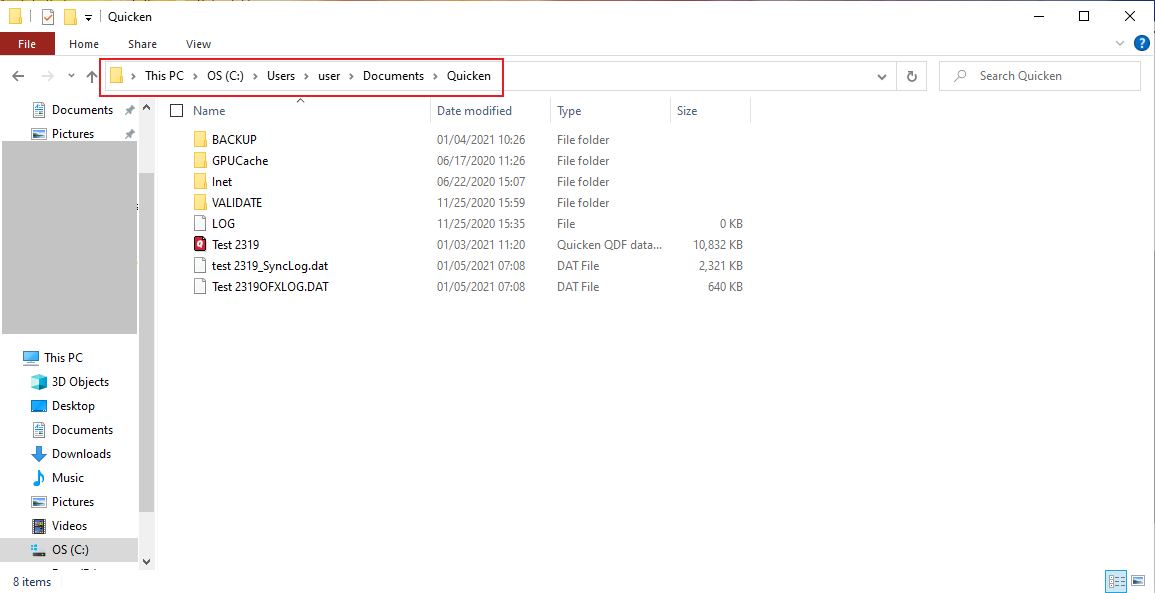
- Please provide the exact file path as shown in the example below.
- Have you attempted any troubleshooting steps so far? If so, what were they?
- Are you using a VPN while updating your accounts? If so, does disabling it make any difference?
- Do you have any antivirus or malware protection software running that may be interfering with Quicken? If so, have you tried temporarily disabling it to see if the issue persists?
- When did this issue first start occurring?
- Were there any significant changes to your system or software before the issue began (updates, new installations, etc.)?
Your answers will help us diagnose the issue more effectively.
Before attempting the troubleshooting steps below, please make sure to save a backup (just in case).
Next, please try the following:
- Open Windows File Explorer and navigate to C:\ProgramData\Quicken\Inet[folder with user’s data file name]
- Rename the runtime.dat file found at C:\ProgramData\Quicken\Inet\FILENAME\.
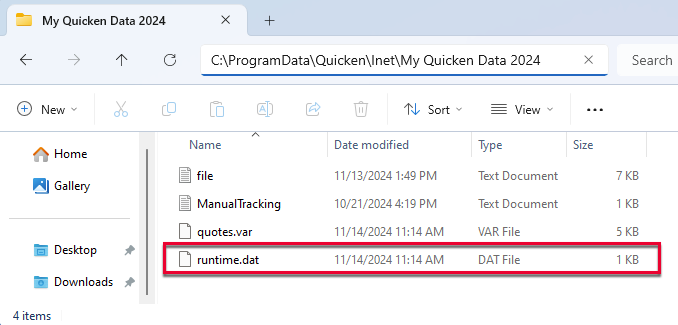
- Run a One Step Update (OSU) again to confirm the issue is resolved.
- If the issue persists, sign out and back in from Quicken and reset the affected accounts following these steps below:
- Sign out and back in:
- Deactivate the affected accounts—Navigate to Edit
- Preferences...
- Quicken ID & Cloud accounts
- Click Sign in as a different user (or it might say Sign in using a different Quicken ID)

- Follow the prompts to Sign Out
- Sign back in using your Quicken ID (email) and password
- Reset affected accounts:
- .In the Account List, select the account you want to deactivate, and then click Edit.
- In the Account Details window, click the Online Services tab.
- Click Deactivate next to the service you want to disable.
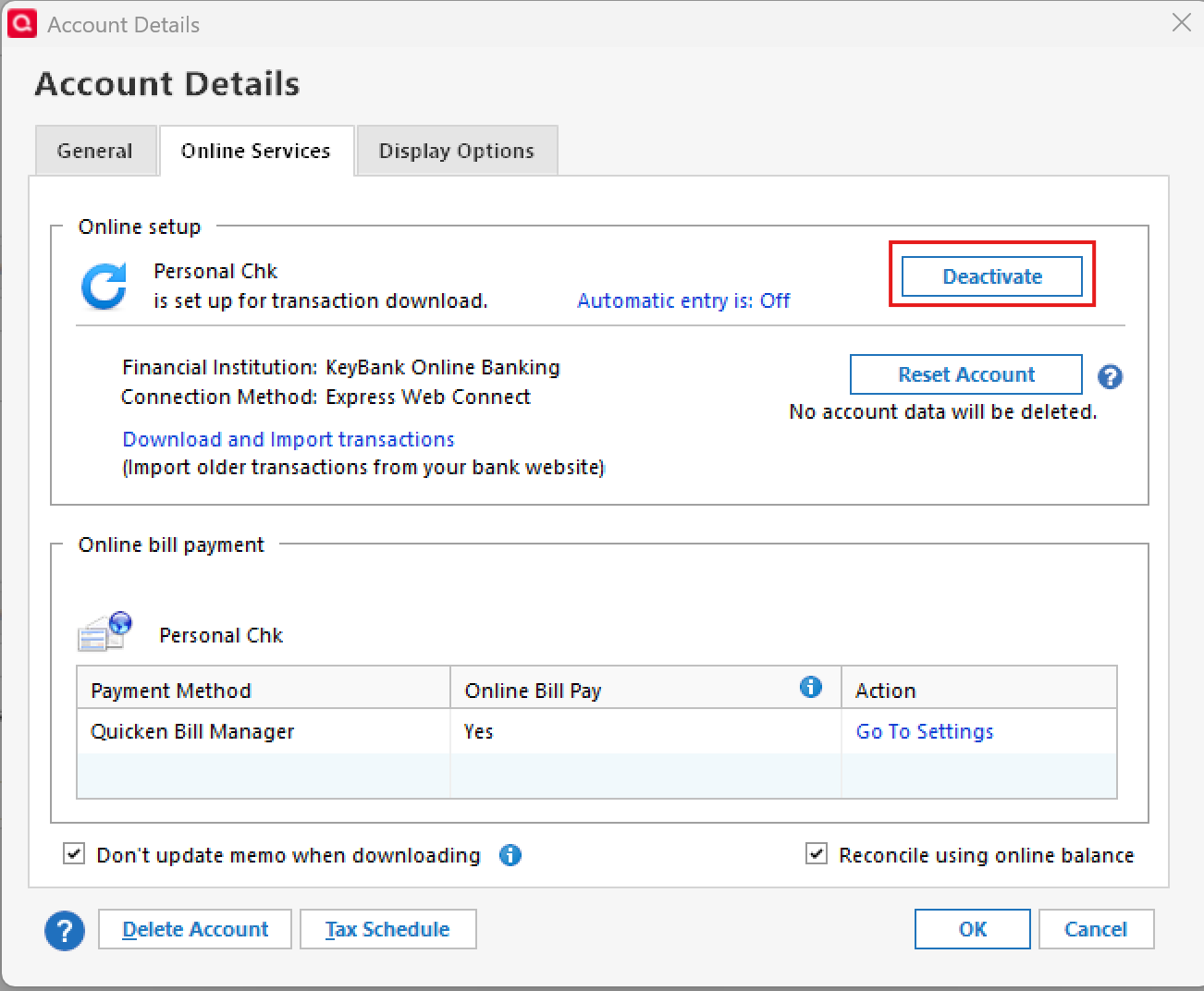
- Click Yes to the message confirming if you want to disable this service. Note: If you do not receive this message, additional information is available below.
- Click OK to the confirmation message.
- Reactivate the accounts in Quicken—Go to Tools > Add Account.
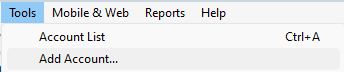
- Select the bank for the deactivated account(s). If prompted, select the connection method.
- Enter your credentials and click Connect.
- When the list of located accounts appears, choose LINK next to each account you want to reactivate.
- Click Next then Done on the last prompt.
- Sign out and back in:
Let us know how it goes!
-Quicken Anja
Make sure to sign up for the email digest to see a round up of your top posts.0 - Where is your Quicken data file stored? Is it on your local hard drive (C: Drive) or a cloud-based/external drive (e.g.: OneDrive, DropBox, USB, etc.)?
-
Renaming the runtime.dat file and redownloading corrected the problem. Thanks!!
0
