Strange behavior updating Truist

I'm running the One Step Update and I get to the Truist prompt to send a 2FA code. I select for it to text me and then it just skips to the next account, never prompting me for a code and my bank never sends me one. So it's like it never sent the request at all.
When I go and try it again, it works fine.
Quicken Classic Premier R66.23 Build 27.1.66.23 on Windows 11.
Answers
-
Hello @Michael Rosen,
Thank you for reaching out! To help troubleshoot, please provide more information:
- When did you first notice this behavior?
- Did Truist previously require 2-factor authentication (2FA) when updating through Quicken?
- Since this behavior started, have you closed and reopened the program? Have you restarted your computer?
I look forward to your reply!
Quicken Kristina
Make sure to sign up for the email digest to see a round up of your top posts.
0 -
Hi, I am not sure when I first noticed this. It has been happening for a while. I've only had an account at Truist since last June so it's likely it's been happening since last year.
Yes, Truist has previously required 2FA.
Yes, I have closed and reopened the program and restarted my computer.
Thank you.
0 -
Thank you for your reply,
The next step to troubleshoot this is to uninstall and reinstall the Quicken program.
To uninstall, please backup your Quicken file, then follow these instructions from our article on uninstalling Quicken:
Windows 11
1. Click the Start button and select Settings (gear icon).

2. Select Apps from the settings list, then click Installed apps.
3. In the Installed apps list, scroll down to Quicken, click the three dots menu, then select Uninstall.
4. Click on Uninstall again to confirm and follow through the prompts until the program is removed.
To reinstall Quicken, first, use the article linked below to download Quicken:
Once the program is downloaded, follow these steps from our article on installing Quicken:
Install Quicken
- Follow the on-screen instructions to complete the installation.
- Click Next to get started.
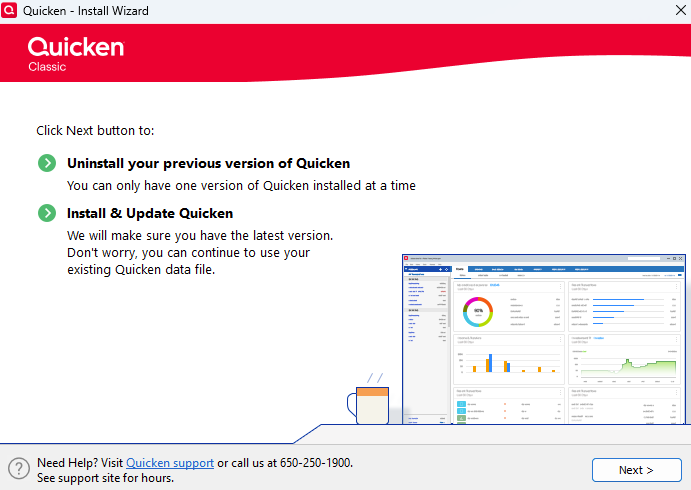
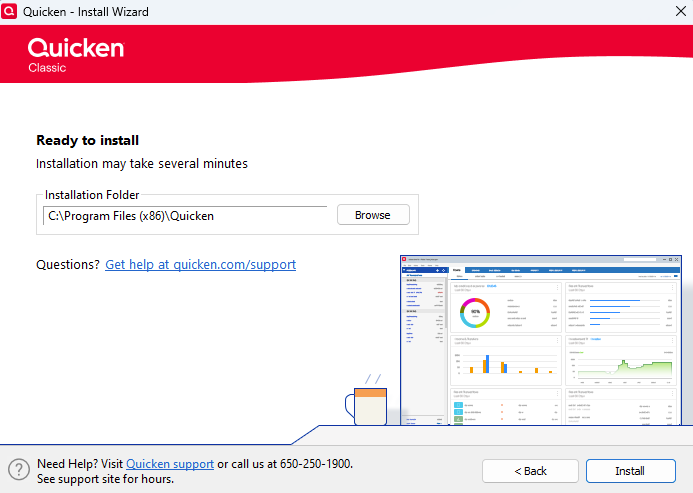
- Click Install on the Ready to install prompt.
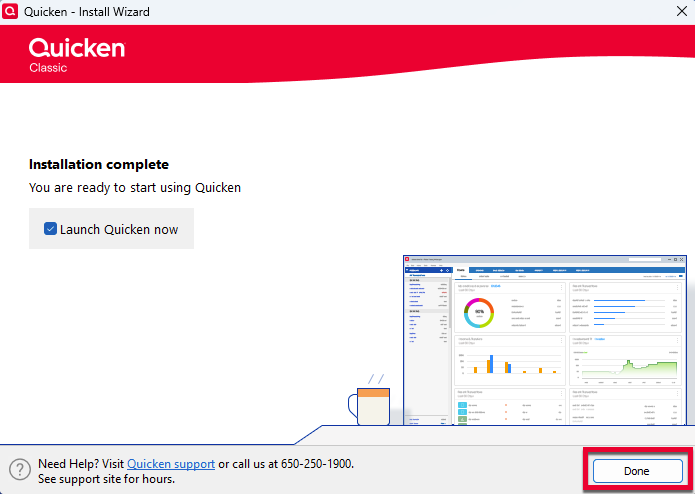
- When the installation is complete, click Done.
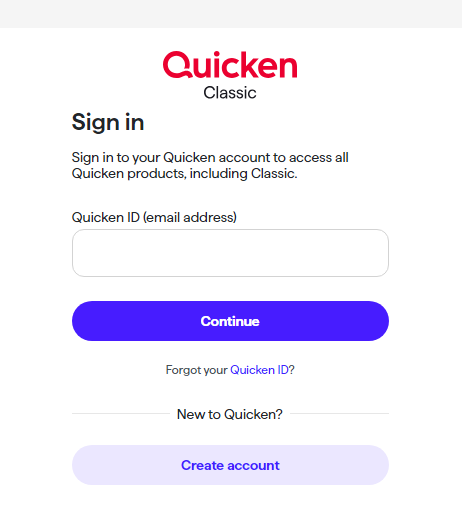
- Click Next to get started.
- Enter your Quicken ID and Password.
- If prompted, enter the 6-digit code. This process verifies your information and helps keep your account safe.
- Enter your Activation Code if you're prompted for one. An Activation Code is only necessary when Quicken is purchased from a retail store. You can find your Activation Code inside the box or your purchase confirmation email. For more information on product activation, click here.
Note: If you purchased from Quicken.com, you'll only need to sign in with your Quicken ID (email address) and password.
Step 3: Open your Quicken data file
- Select one of the on-screen options.
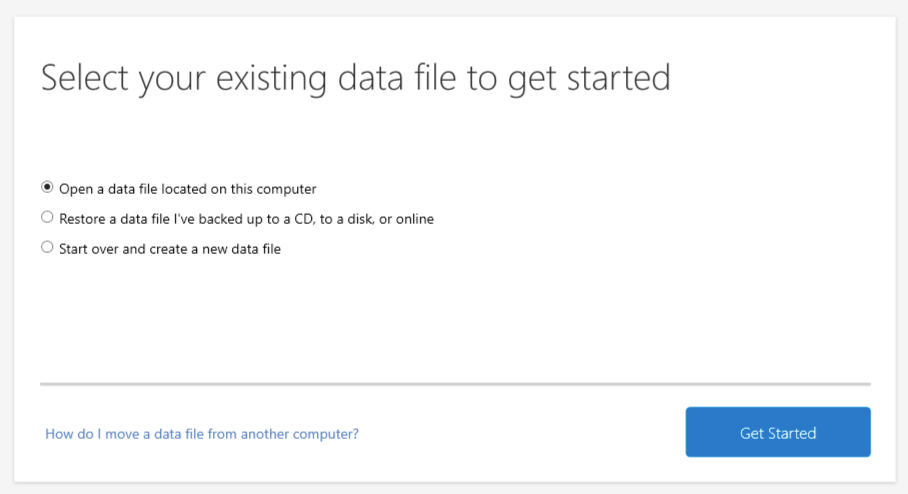
If your data file is on another computer, click here for instructions on moving your data file.
Please let me know how it goes!
Quicken Kristina
Make sure to sign up for the email digest to see a round up of your top posts.
0 - Follow the on-screen instructions to complete the installation.
-
Hello @Michael Rosen,
We haven't heard back from you in a while. Do you still need assistance?
Check back and let us know! Thank you.
Quicken Kristina
Make sure to sign up for the email digest to see a round up of your top posts.
0 -
Sorry, I didn't have a chance to try this yet.
1 -
Hi @Michael Rosen,
Thanks for your response! No worries please take your time to try the steps and let us know how it goes. We’re here if you need any further assistance.
Looking forward to hearing back from you!
Quicken Carlos
Make sure to sign up for the email digest to see a round up of your top posts.
0


Categories
- All Categories
- 6 Product Ideas
- 34 Announcements
- 248 Alerts, Online Banking & Known Product Issues
- 19 Product Alerts
- 265 Welcome to the Community!
- 301 Before you Buy
- 1.5K Product Ideas
- 55.8K Quicken Classic for Windows
- 16.9K Quicken Classic for Mac
- 1K Quicken Mobile
- 834 Quicken on the Web
- 129 Quicken LifeHub