I can no longer import Apple Card transactions into Quicken

I can no longer import downloaded monthly statements from my Apple Card into Quicken Mac on 8.5.1

The file downloads to my MacBook Air (Tahoe 26.3) but is dimmed when I try to import it. This has just started happening in the past month.

I use the proper import (File>Import>Bank or Brokerage File) that I have used in the past.

Can't find an answer in the community. Thanks for any advice.

Comments

  • Jon
    Jon Quicken Mac Subscription SuperUser, Mac Beta Beta
    edited March 9

    When I checked importing just now for my Apple Card account the QFX and CSV files were not dimmed but the OFX file was. Did you download an OFX file by mistake instead of a QFX file?

  • Patrick Stafford Golden
    Patrick Stafford Golden Member ✭✭✭

    No. All the files - including past files that I had successfully imported previously - were all dimmed.

  • Quicken Alyssa
    Quicken Alyssa Quicken Windows Subscription Moderator mod

    Hello @Patrick Stafford Golden,

    Thank you for sharing your experience.

    Files being "dimmed" usually indicate that they are an unsupported file type for the action you are trying to accomplish. If that is not the case, as you have stated, then it could be that they are in a read-only location on your computer.

    • Are you signed in as the admin on the computer?
    • Where is your Quicken data file located?
    • Is your Quicken data file being backed up/synced by any third-party services like Dropbox, iCloud, or Back Blaze?

    Additionally, can you right-click on one of these QFX files from your Finder, select Get Info, and share a screenshot of it with us? Some areas will give a better idea of what might be happening here. Below is an example of what sections to expand.

    Screenshot 2026-04-02 at 1.40.39 PM.png

    If needed, please refer to this Community FAQ for instructions on how to attach a screenshot. Alternatively, you can also drag and drop screenshots to your response if you are not given the option to add attachments.

    Looking forward to your response!

    Quicken Alyssa

    Make sure to sign up for the email digest to see a round up of your top posts.

  • Quicken Alyssa
    Quicken Alyssa Quicken Windows Subscription Moderator mod

    @Patrick Stafford Golden,

    Just checking in, we haven't heard back from you in a while.

    Do you still need assistance?

    Thank you!

    Quicken Alyssa

    Make sure to sign up for the email digest to see a round up of your top posts.

  • Austin@
    Austin@ Quicken Mac Subscription Mac Beta Beta

    I’ve found this same issue. When I download the QFX file and go to File > Import and choose the QFX file option, it prompts me to browse to the downloaded file, but when I go to the folder that has the QFX file in it, the file itself is grayed out and won’t let me select it. It started behaving this way a version or two ago. The only workaround I’ve found is to drag and drop the QFX file from Finder onto Quicken, at which point it imports the file as normal, but it’s strange that I can no longer use the File > Import option. It’s like Quicken isn’t recognizing .QFX as a valid file type that can be imported.

  • jacobs
    jacobs Quicken Mac Subscription SuperUser, Mac Beta Beta
    edited April 17

    @Austin@ In the Finder, do a Get Info on one of those downloaded QFX files. See how macOS identifies the Kind (is it Web Connect?) and the Open With (is it Quicken?) I'm guessing the Open With is NOT showing Quicken, which means this is a macOS issue, not a Quicken issue. macOS can get messed up about what file type it associates with what program, but it's usually easy to fix. Change the Open with to Quicken, and then click the Change All button to tell macOS that all files of this kind are Quicken files, and then future .QFX files should work as you'd expect them to.

    Quicken Mac Subscription • Quicken user since 1993
  • Austin@
    Austin@ Quicken Mac Subscription Mac Beta Beta

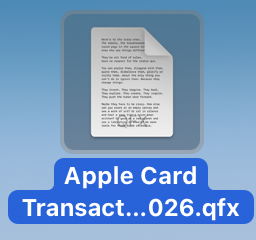
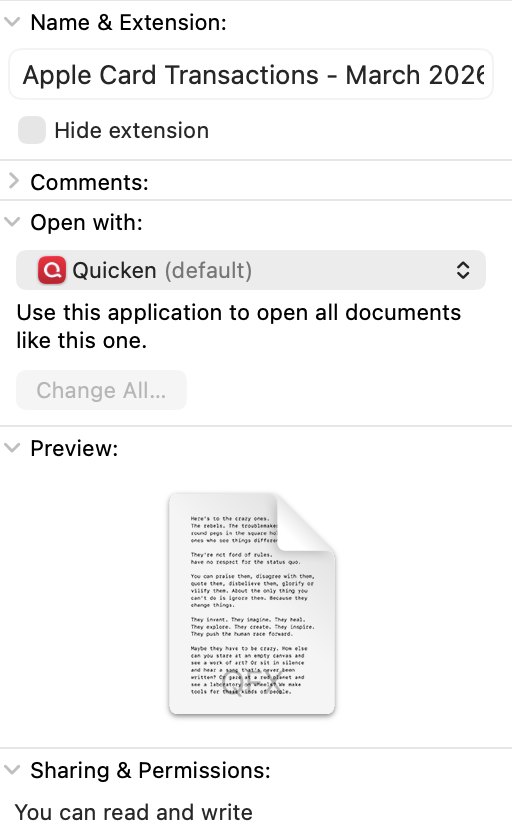
    @jacobs Good ideas, but no dice. Here is how the Get Info looks for the downloaded QFX file:

    Screenshot 2026-04-17 at 10.35.18 AM.png Screenshot 2026-04-17 at 10.34.20 AM.png

    It was already set to Open With Quicken like it always has been in the past.

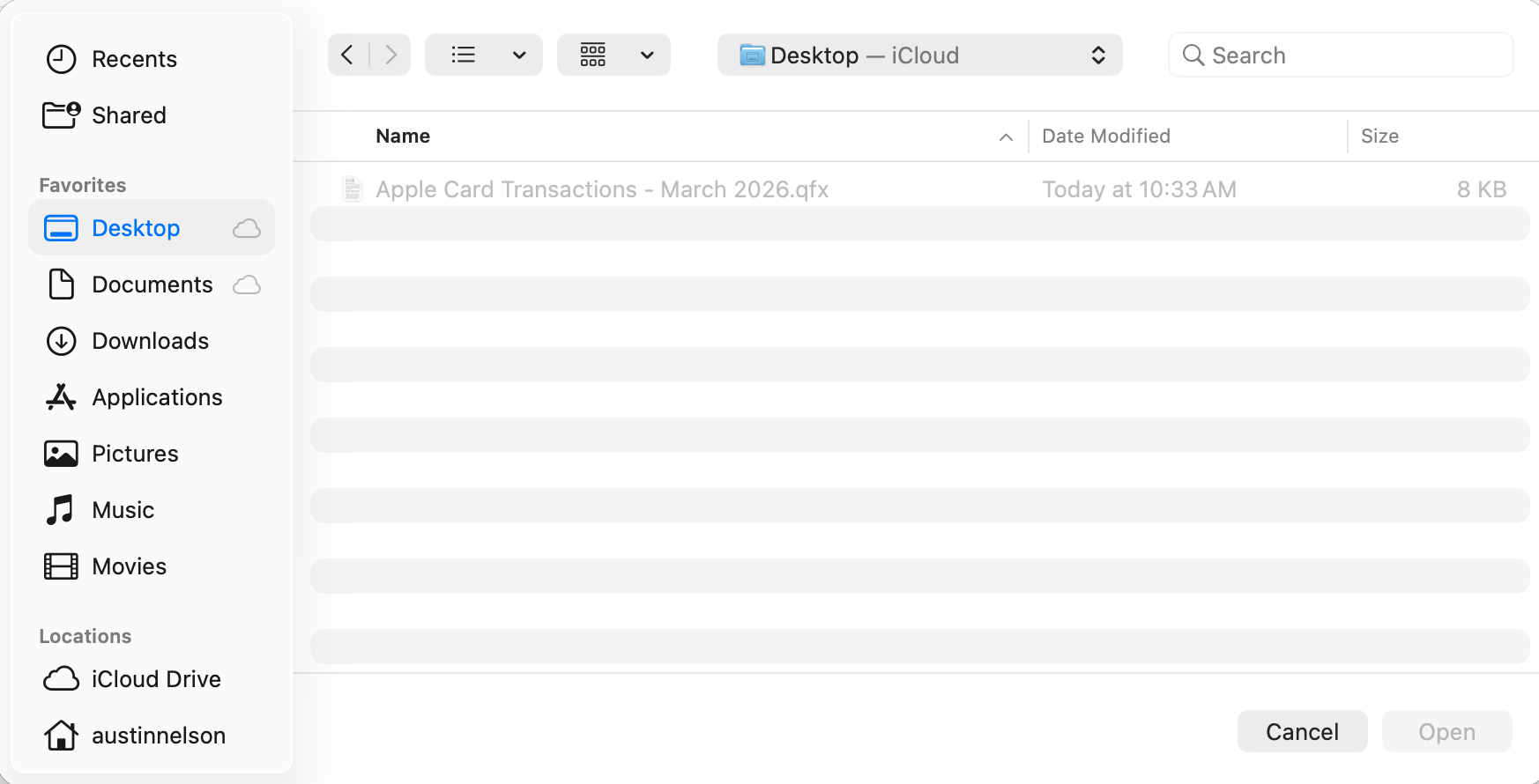
    When I try to use the File > Import > Bank or Brokerage File (OFX, QFX)… option, here is what it looks like after browsing to the file:

    Screenshot 2026-04-17 at 10.37.21 AM.png

    Note that the file is grayed out, attempting to click on it or select it does nothing, and because it can't be selected, the Open button stays grayed out. I believe this behavior started with the release of either 8.5 or 8.5.1 (can't remember which). The only thing I can do is drag and drop the file from Finder onto the open Quicken window, which then starts importing the file. But I've seen multiple reports of this same behavior from others on the community over the last month or two.

  • jacobs
    jacobs Quicken Mac Subscription SuperUser, Mac Beta Beta

    The fact that the import works correctly when you drop it onto Quicken tells us the file itself is okay. But Quicken doesn't preview the file to determine if it can or cannot be imported, so I don't think Quicken is responsible for the fuel being grayed out. The file import window in Quicken — just like setting a location for your data file, your backup files, or the location of a file export — is using macOS tools to display and manage file selection.

    Ah, in your screenshot, I see that you have this file stored on iCloud, as you apparently have iCloud set to store your Desktop and Documents folders. I don't know if that's the culprit, but I think it's worth exploring.

    First, where is your data file located? Is it in Quicken's default location (in the User Library folder), or in a folder in your Documents folder? If it is in Documents or in a folder on the Desktop, I'd try moving it (when you've quite from Quicken) to a location not in either of those places.

    Then, try moving the .qfx file from your Desktop to a folder which isn't stored in iCloud, such as Downloads or another folder not within Desktop or Documents. Then launch Quicken again, select File> Import and see if the .qfx file is still grayed out.

    Quicken Mac Subscription • Quicken user since 1993
  • Austin@
    Austin@ Quicken Mac Subscription Mac Beta Beta

    I have my Quicken file stored in the default location (Application Support, so not in iCloud—I’m aware of the reasons why the data file shouldn’t be stored in a cloud location). I just tried downloading the QFX file to my Downloads folder, which is not in iCloud. No difference. The file is still grayed out when browsing to it and attempting the import.

  • Jon
    Jon Quicken Mac Subscription SuperUser, Mac Beta Beta
    edited April 17

    What happens if you move the downloaded file to the same directory that your Quicken data file is in? The Downloads folder is one of the folders that macOS can be picky about letting apps access, but we know Quicken is allowed to access the folder where your data file is stored.

  • Austin@
    Austin@ Quicken Mac Subscription Mac Beta Beta

    I’ll give that a try later tonight, but I’ve always been able to import from the downloads folder, desktop, iCloud documents, etc. in the past without issue.

  • jacobs
    jacobs Quicken Mac Subscription SuperUser, Mac Beta Beta

    @Austin@ I know it's worked for you in the past. But one never knows wha the gremlins at Apple may have tweaked to change some behavior. It's the part of the old Apple advertising slogan that doesn't often get quoted in full: "Think Different. Behave Different." 😂

    It might not be what's affecting things, but seems worth trying to prove or eliminate that as a possible culprit.

    Quicken Mac Subscription • Quicken user since 1993
  • Austin@
    Austin@ Quicken Mac Subscription Mac Beta Beta

    Took me longer than expected, but I finally got around to trying with the QFX file in the same directory as my Quicken data file. Unfortunately, no change. I also tried with it at the top level of my user folder and Macintosh HD. Same behavior in those locations as well.

  • jacobs
    jacobs Quicken Mac Subscription SuperUser, Mac Beta Beta

    @Austin@ Hmmm… I'm pretty well stumped. I still think it's likely a macOS issue because the open (import) file dialog box is a macOS feature used by Quicken. And it's odd that the import dialog box sees the .qfx file as invalid yet drag-and-dropping the .qfx file onto Quicken works.

    One quick additional test you could try: make a copy of the .qfx file and open it in TextEdit. Make a minor edit (change an amount or the name of a payee) and save it. Is Quicken able to open the modified file?

    I guess one additional thing you could test is using the same data file and .qfx file in a different macOS User account, as that would isolate any Finder preferences. Do you have another User account on your Mac? If not, you can easily create one temporarily in System Settings > Users & Groups. Drag a copy of your Quicken data file and the .qfx file to Macintosh HD > Users > Shared. Then log into the alternate User account, and drag the two files from Users > Shared to the Desktop. Double-click the Quicken data file (you might be prompted to log in), and then see if you can do the import from the Quicken menu.

    Not that I have any clue this would matter, but in case one of the Quicken Mac developers gets to see this thread, what version of macOS are you running? (I've tested this on my Mac running Tahoe 26.3 and my Mac running Sequoia 15.7.5, and this isn't being widely reported, so I don't think it's simply a function of a specific release of macOS.)

    Quicken Mac Subscription • Quicken user since 1993