Can't treat SWGXX as cash in Schwab brokerage account

Just updated to Quicken Windows R66.18, and saw that R66.11's release notes said, "Improved: Added support for treating more than one money market fund as cash in brokerage account settings."
I thought perhaps that this would (finally, after years of waiting) treat Schwab Government Money Fund (SWGXX) as cash and make reconciliation seamless. How naive.
1. I went to Account Details in one of the Schwab brokerage accounts' Account Details. It said "Treat this Money Market as cash: SWVXX".
2. I did Reset Account and restarted Quicken.
3. I observed the account's holdings included SWGXX.
4. In Account Details, I clicked Set/Edit, then Customize, then Reset To Standard Behavior.
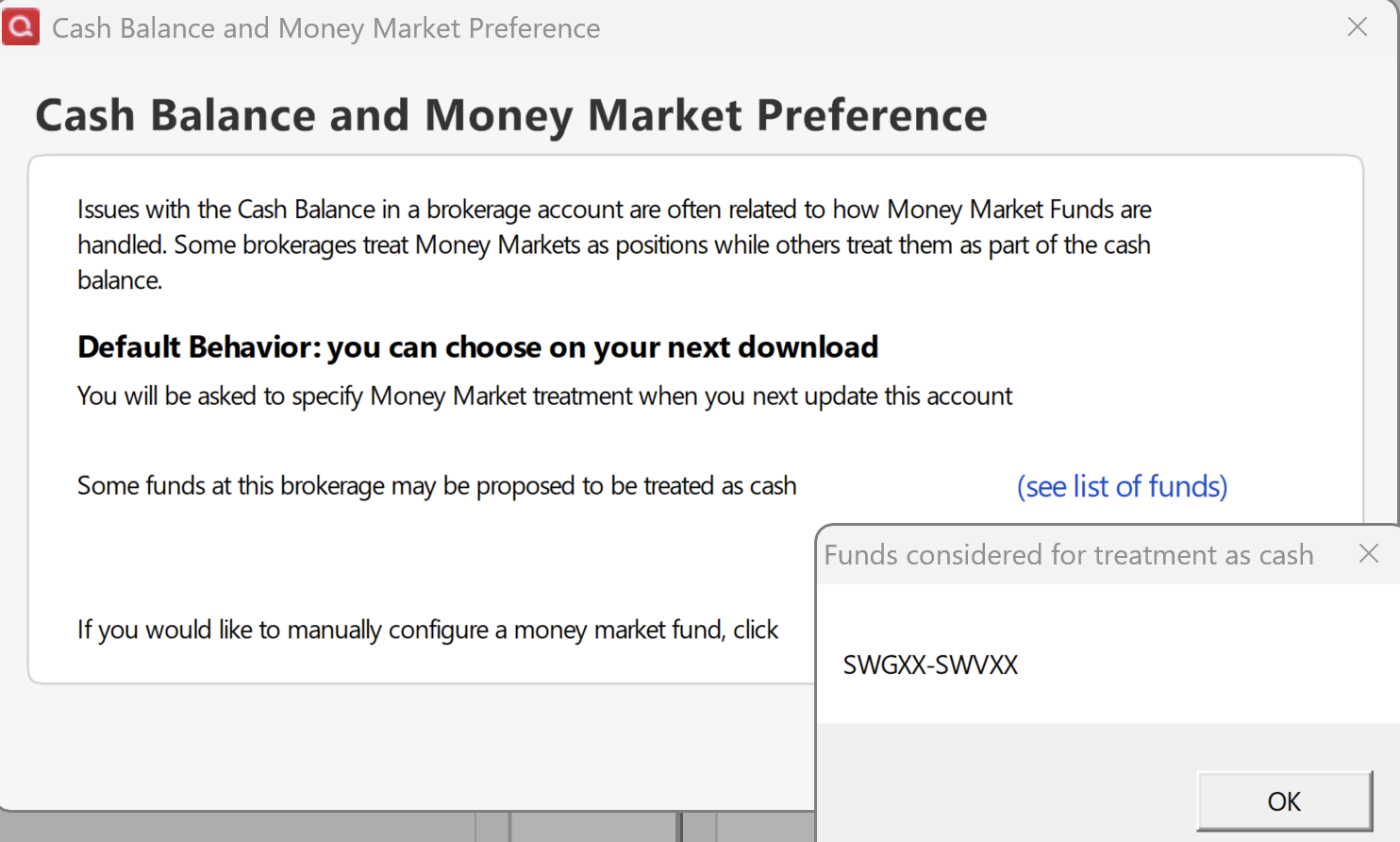
5. It said "Default Behavior: you can choose on your next download", and listed SWGXX as one of the funds proposed to be treated as cash:
6. I I restarted Quicken.
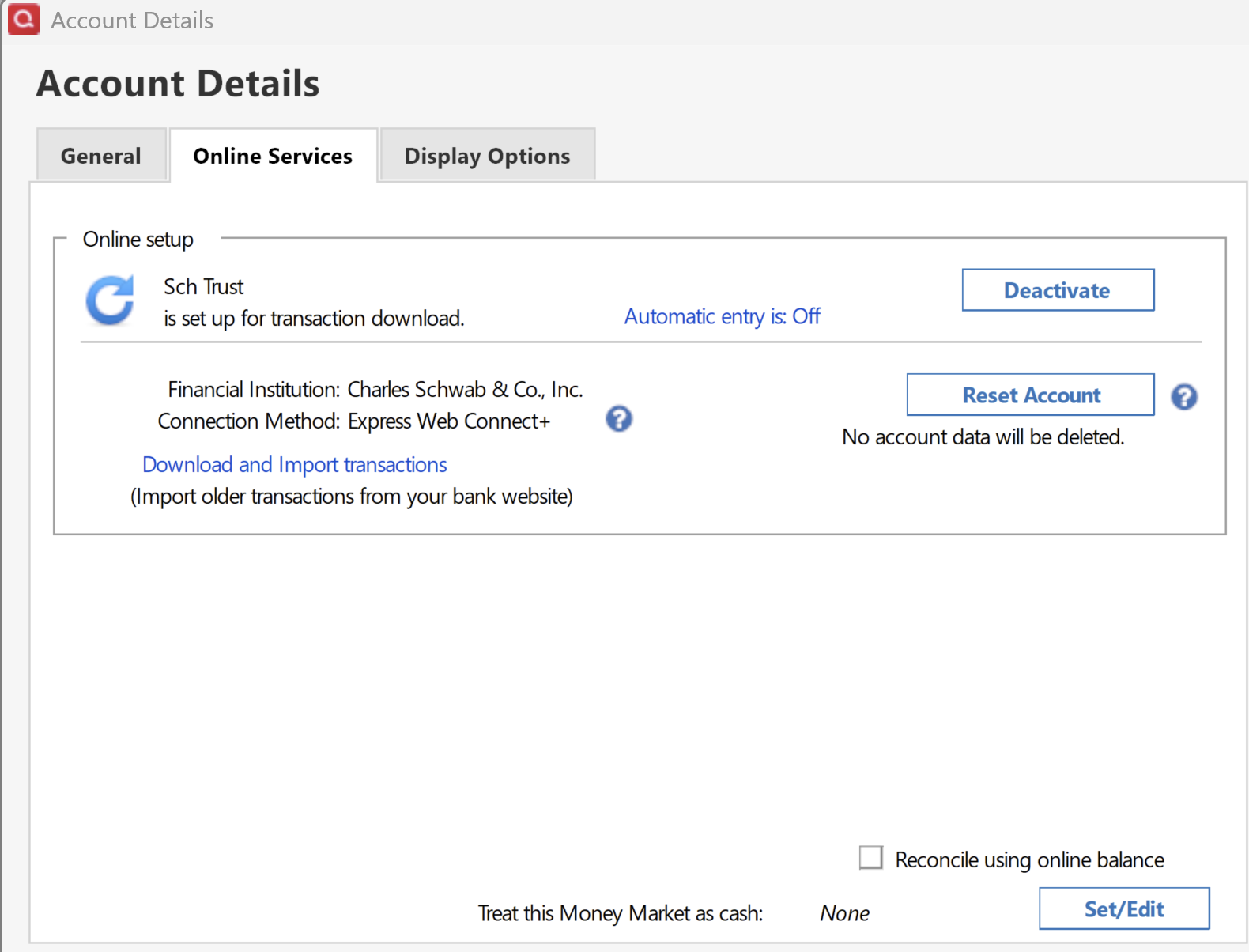
7. I selected the brokerage account and did Update Transactions. I wasn't asked to specify money market treatment, and Account Details still shows "Treat this Money Market as cash: None":
Comments
-
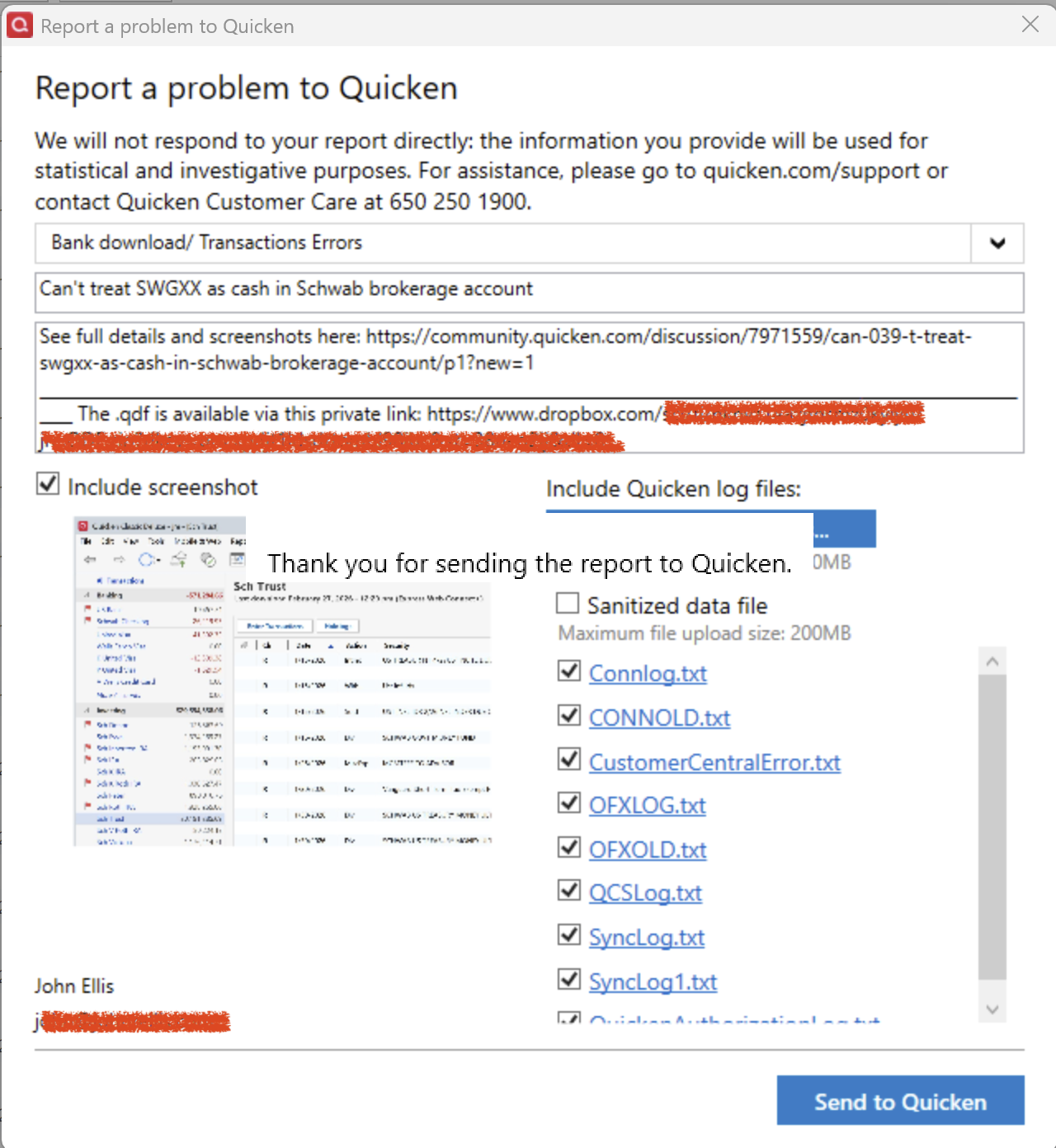
I tried doing Help > Report A Problem twice, and each time Quicken locked up and I had to terminate it via Task Manager. If the developers want details, they can contact me directly via the email address on my account.
 0
0 -
Hello @John Ellis,
Thank you for letting us know you're encountering this issue. To clarify, you didn't automatically get a prompt, but did you try manually setting SWGXX to be treated as cash?
I checked our internal tools and I see that the problem reports you attempted to send did arrive. Have you encountered any other issues with Quicken freezing? Typically, if the program freezes, it's either a program issue or a file-specific issue. To troubleshoot for a possible program issue, I recommend manually reinstalling the current patch. The download link and instructions are in this article:
I look forward to your reply!
Quicken Kristina
Make sure to sign up for the email digest to see a round up of your top posts.
0 -
I haven't encountered any other instances of Quicken freezing except when attempting to submit the problem reports. But I reapplied the current patch just to be sure.
"did you try manually setting SWGXX to be treated as cash?"
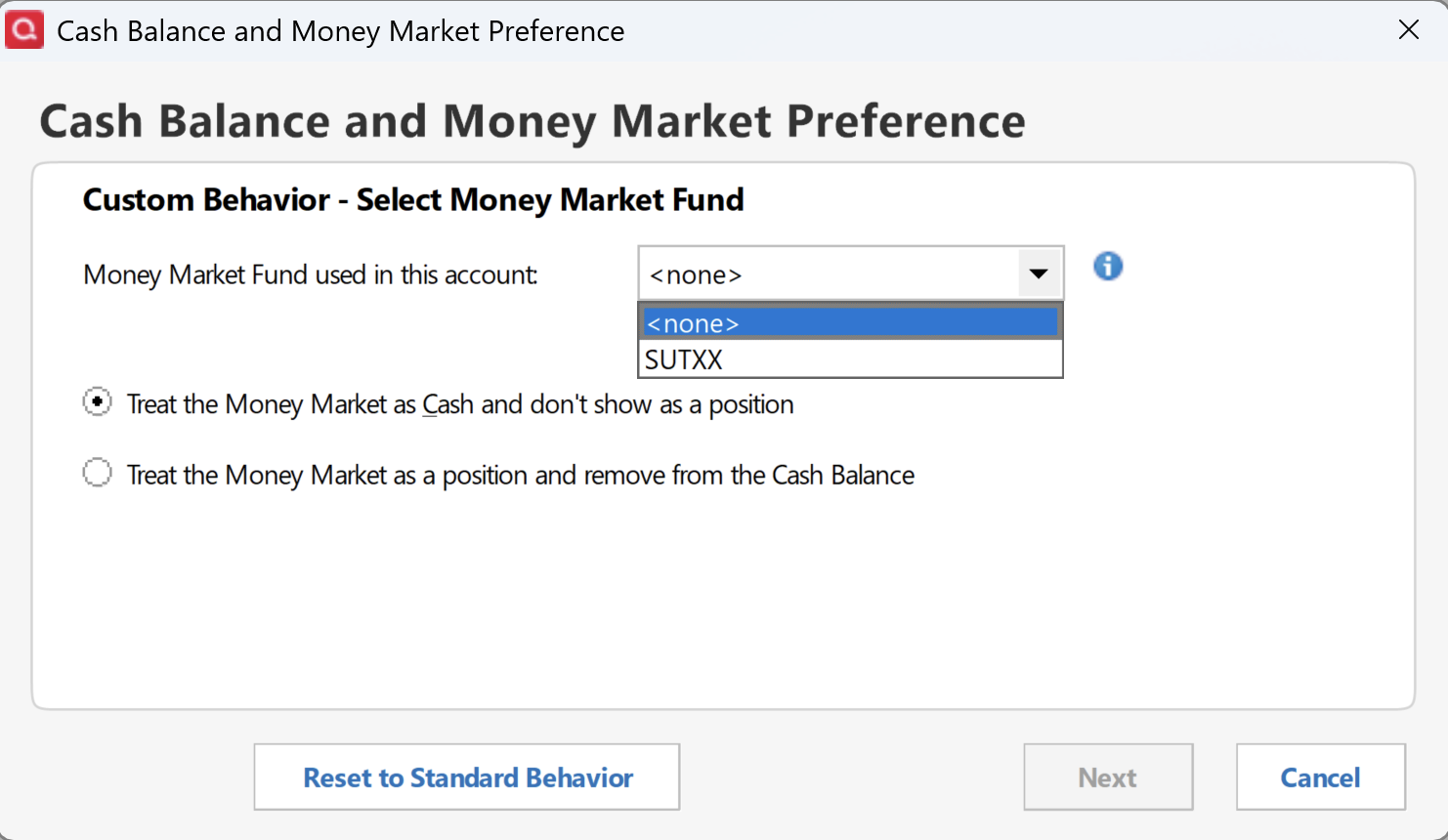
When I do Account Details > Online Services > Set/Edit > Customize, I'm only given the option of using SUTXX, a fund that has never been used with this account:
 0
0 -
Thank you for your reply,
The freezing when sending and problem report and the option to use a fund that isn't even in the account make me suspect the problem may be a file-specific issue. I suggest that you try validating your data file. Please save a backup file prior to performing these steps.
Validate:
- File
- Validate and Repair File...
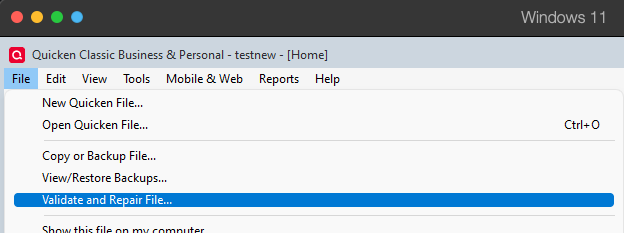
- Validate File
- Click OK
- Close the Data Log
- Close Quicken (leave it closed for at least 5 secs)
- Reopen Quicken and see if the issue persists.
Please let me know how it goes!
Quicken Kristina
Make sure to sign up for the email digest to see a round up of your top posts.
0 -
Unfortunately, your suggestion to do File > Validate And Repair File didn't make any change to the behavior reported above.
0 -
Thank you for your reply,
The next step is to restore a backup from before the issue started, if possible. To do that, please follow these steps from our article on backups:
Restore Quicken data
- Go to File > View/Restore Backups....
- Browse the Local and Online Backups tabs to find the backup file you want to restore. The Quicken backup file has the extension .QDF-Backup.
- Select the file to restore and click Restore Backup.
- Next, you will be given the option to overwrite the file you have open or to create a copy of the backup you're restoring.
- If you Create a copy, you will need to select a location to save the copy to and you will also need to give the copy a unique file name. After naming the file and selecting the location, click Save, then click Yes to open the restored file.
- What does it mean to overwrite a file?: Restoring a backup file replaces your current data with the data stored on the backup. Be aware that you'll lose any changes you made since the backup was created. If you want to preserve the current file, you must rename the current file or the file you are restoring. We recommend to avoid overwriting files.
Once you've restored an appropriate backup, please test to see if the issue is resolved in that newly restored file.
Thank you!
Quicken Kristina
Make sure to sign up for the email digest to see a round up of your top posts.
0

Categories
- All Categories
- 24 Product Ideas
- 34 Announcements
- 248 Alerts, Online Banking & Known Product Issues
- 19 Product Alerts
- 265 Welcome to the Community!
- 301 Before you Buy
- 1.5K Product Ideas
- 55.8K Quicken Classic for Windows
- 16.9K Quicken Classic for Mac
- 1K Quicken Mobile
- 834 Quicken on the Web
- 129 Quicken LifeHub