Quicken Classic Deluxe on Windows 11 - File Validation creates bogus account(s)

Problem: Validate & Repair → Validate File causes a bogus Bank account to be created and listed in the Account List. Following is the validation log (I highlighted the bogus account):
=========File: "C:\Users\j2car\Quicken Files\Qdata"QDF:
Damaged data record.
Validating your data.
Quicken repaired damaged transaction index. No action required.
Quicken repaired some transaction information. No action required.
"ACCT_76657402" 147/34/1947 "Opening Balance"
Summary:
Quicken repaired 1 accounts. No action required.
QEL:
No read errors.
QEL:
All internal consistency checks passed.
[Mon Mar 09 18:42:43 2026]
Corrected scheduled transaction: Amazon Prime Membership
Corrected scheduled transaction: Consumer Cellular
Corrected scheduled transaction: PrudentPet
3 scheduled transactions corrected
Maximum security reference: 148, number of securities: 148.
All security references are within the normal range.
Validation has completed.
======
Notice the date? The opening balance on this file is zero dollars and the register for it has only one entry - using the date and filename shown.
Suspecting a problem with the Quicken Cloud, I have turned off syncing. I had previously deleted, rebooted, reinstalled and logged into the app on my phone; with no positive changes. I don't think this is a Quicken Cloud issue.
My Qdata file is stored locally on my laptop so external cloud sync is not the problem.
I must manually select and delete this bogus account from the Account List, which seems to work - until the next File Validation. This problem is reproducible at will.
Best Answer
-
Okay, I finally had time to devote to the copy / open / validate the Qdata file and the process found "data that could not be copied…", which worried me. Nevertheless, I turned off cloud-sync and logged out of Quicken on my Android phone. Then I went through the entire process and it created the new COPY which I then opened and validated, as follows:
a. I did some cursory reviews of random transactions, I'm satisfied that the COPY is true and correct.
b. I shut down Quicken on the laptop, renamed the old file qdatabad, renamed the copy to qdata (along with the associated synclogs).
c. I restarted Quicken and pointed it at the "new" qdata file that I had earlier validated while named qdatacpy.
This seems to have cleared up the bogus data in the qdata file. As a side note: when I attempted this prior to asking for help, I received the error message about the uncopiable data and stopped. Your coaching to continue past that point was what I needed to push on, thank again.
2
Answers
-
There was a time several years ago when a bug in Quicken caused temporary accounts, created during One Step Update, to be left behind in the Category List. Validate made this left-over category entry deletable.
Does this account appear in the Tools / Account List or does it only appear in Tools / Category List?
After Validate has run, it should be possible to delete a left-over Category List entry and make it go away for good.
You do want to ensure that Sync is OFF if you are not using the Quicken mobile app on a daily basis. Otherwise it's quite possible that a bug in Sync may make deleted accounts, categories and a few other items come back after Sync. Only a complete Refresh Sync might help here, to replace the Sync file on the server and your mobile app.
0 -
Hello @JimC52,
Thank you for sharing your experience.
We do have a Support Article that goes over some advanced data file troubleshooting steps. In the article, it mentions the "Damaged data block," which is slightly different than the "Damaged data record" that has come up in yours.
Please follow the steps in the article to see if they resolve this issue. Here are the first steps to get you started:
Before you begin: It may be best to restore a backup from a date prior to when the issue began. You can find steps to restore a backup here. Once restored, see if the issues you were experiencing are resolved. If not, follow the steps below.
Copy your file and Validate
After re-opening your main data file, try the listed Validate steps with that file.
Copy and Validate instructions
Always make a backup before performing complex procedures. This ensures that you have a "fallback" file you can use to get back to where you were when you started.
- Go to File > Copy or Backup File and select Create a copy or template (do not choose Year End Copy for this procedure).
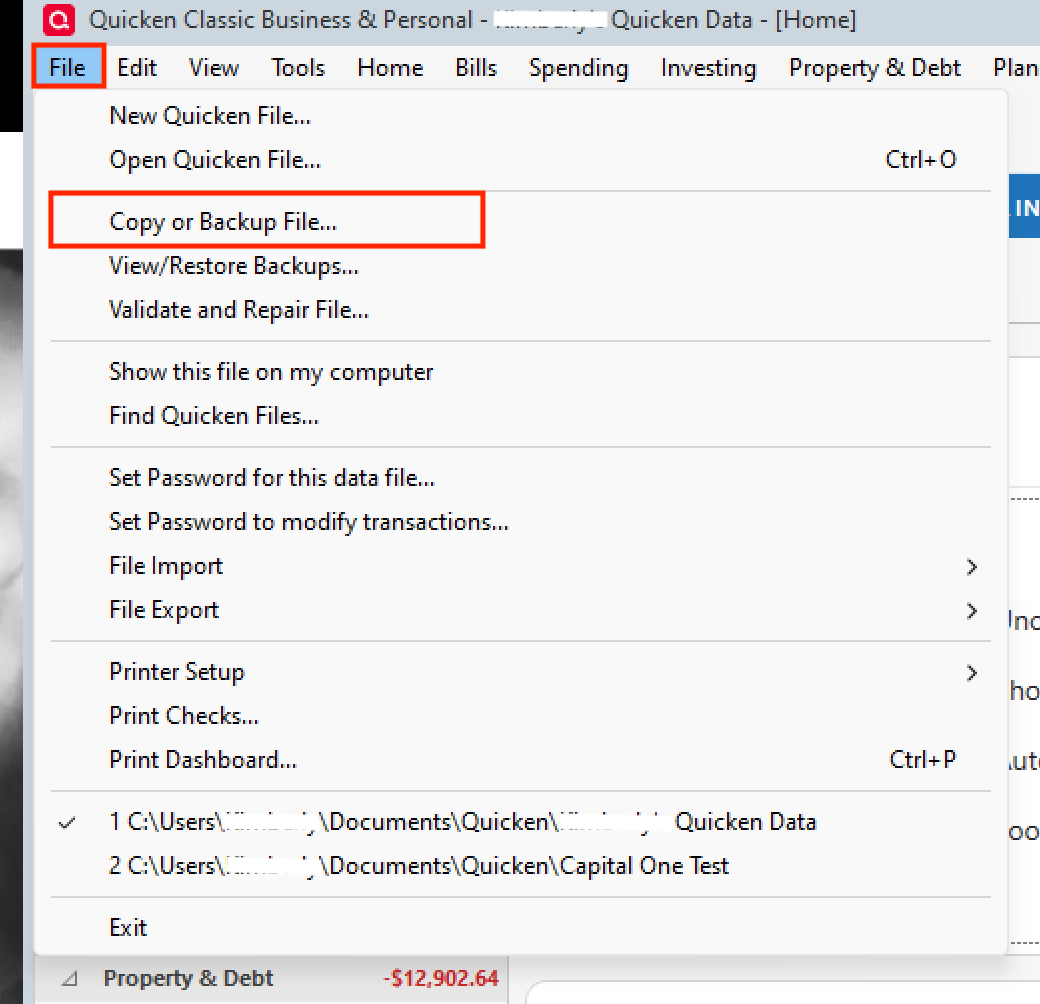
- Please note, a file copy is disconnected from online services, such as transaction download. Online services would need to be reconnected if you wish to use them in the file copy.
- Leave all the settings, including file name and checkboxes, at their default (change nothing on this screen). Simply click Save Copy.
- After the Copy is complete, choose to Open New Copy.
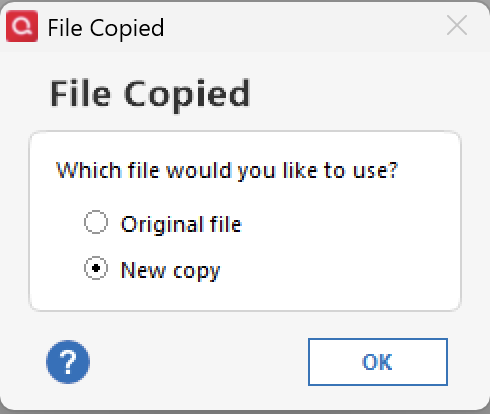
- In the New Copy, go to File > Validate and Repair File and select the Validate file option. This is to ensure there are no lingering issues with the data in this file.
- If your issue was with Investment account(s) slowness or other data issues with an investment account, be sure to also select Rebuild Lots during this procedure.
- After the Validation process is finished, you will see the Data_Log appear in a Notepad window. This file is a summary of the Validation results.
- Review the Data_Log.txt for messages pertaining to the quality of your data and resolve any that are advised with instructions you should follow. This may require that you delete, edit, or re-enter transactions manually.
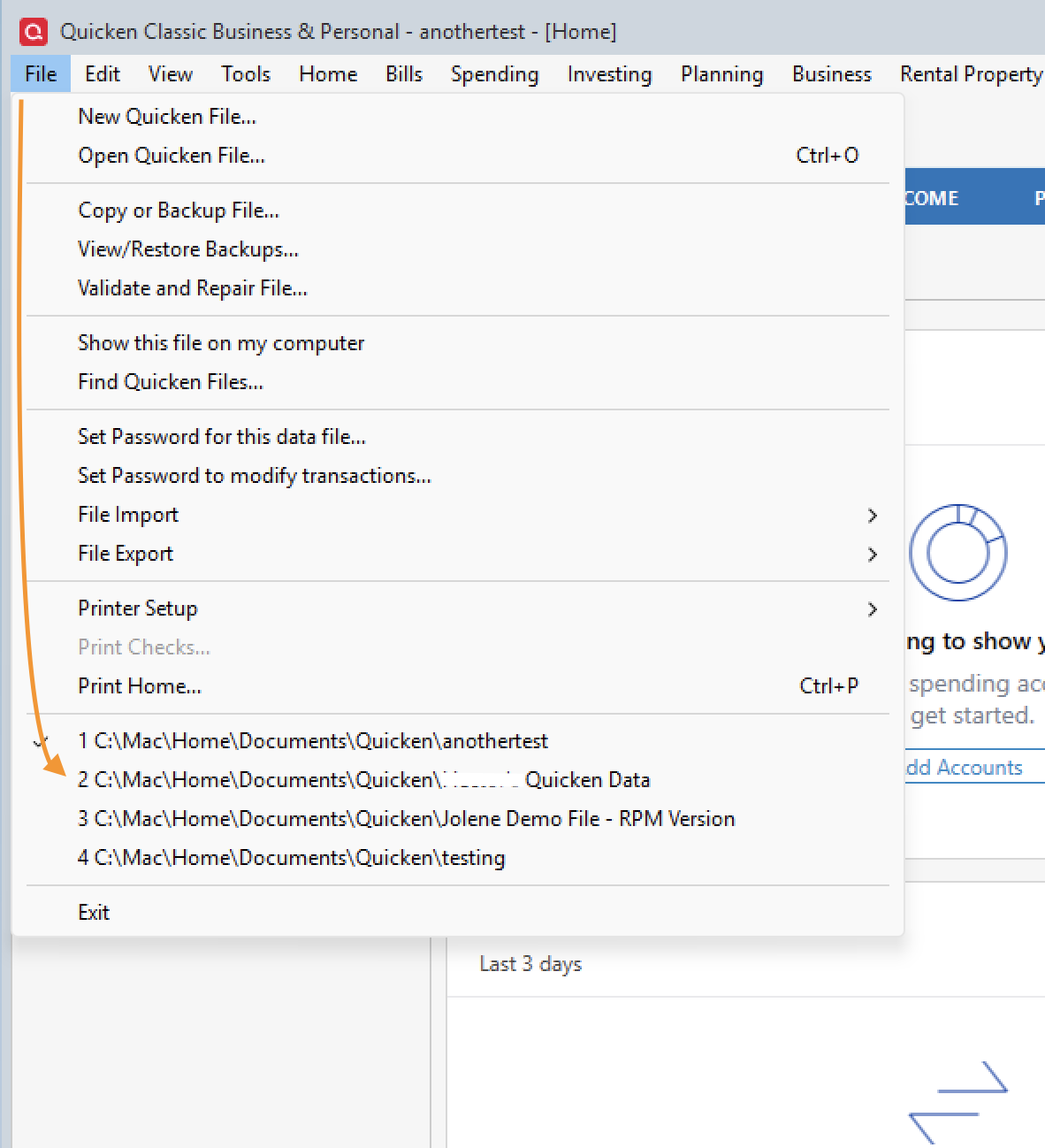
Note: If at any point in this process, you are unhappy with the results, you can always get back to the previous file by going to File and selecting the second file listed near the bottom of the menu.
Let us know how it goes!
Quicken Alyssa
Make sure to sign up for the email digest to see a round up of your top posts.
0 - Go to File > Copy or Backup File and select Create a copy or template (do not choose Year End Copy for this procedure).
-
Attn: UKR
The ACCOUNT shows up in the Tools→Accounts list as well as in the Accounts selection along the right edge of the home screen. You may have hit the nail on the head when you mentioned an update leaving trash around that Validate then "repairs it". I've had a few recent updates that were pushed and auto-started, so I really can't point a finger at which update caused this problem.
Attn: Alisha
The Validate function it causing the problem and the extended troubleshooting instructions describe how I should validate my data file to make a repair. That's not helping. I'm hoping this will clear up with another update, but after reading UKR's comment, is there any other way to fix this? OR, is this only an annoyance for now?
0 -
Thank you for following up.
The instructions say to copy your data file before validating it. I think it's worth at least trying the steps. As outlined above, it's easy to return to the point you are at now if you are unhappy with the results after completing the steps.
Let us know what you decide to do!
Quicken Alyssa
Make sure to sign up for the email digest to see a round up of your top posts.
0 -
Okay, I finally had time to devote to the copy / open / validate the Qdata file and the process found "data that could not be copied…", which worried me. Nevertheless, I turned off cloud-sync and logged out of Quicken on my Android phone. Then I went through the entire process and it created the new COPY which I then opened and validated, as follows:
a. I did some cursory reviews of random transactions, I'm satisfied that the COPY is true and correct.
b. I shut down Quicken on the laptop, renamed the old file qdatabad, renamed the copy to qdata (along with the associated synclogs).
c. I restarted Quicken and pointed it at the "new" qdata file that I had earlier validated while named qdatacpy.
This seems to have cleared up the bogus data in the qdata file. As a side note: when I attempted this prior to asking for help, I received the error message about the uncopiable data and stopped. Your coaching to continue past that point was what I needed to push on, thank again.
2 -
Thanks for taking the time to try the steps!
So happy to hear everything seems to have worked out. If you need more help, you know where to find us!
Thanks again!
Quicken Alyssa
Make sure to sign up for the email digest to see a round up of your top posts.
0

