Entering Monthly Bills, Income&Transfers from Projected Balances taking an inordinate amount of time

Hi!
Long time Quicken user here dating back to around 2000. This has been an issue for me for some time. When I enter my bill, income and transfers from the Projected Balances screen, it takes me a two hours and sometimes longer to enter my monthly transactions. Each transaction I enter takes between 30 seconds and 2 minutes to process while I wait for Quicken to be ready for me to enter the next transaction. I have changed from Multiple accounts to individual accounts, as well as change the Time range from 90 days to 30 days. Quicken still "thinks" for 30 seconds to 2 minutes for each entry. I have 90 plus entries per month.
I am using Quicken Classic Bus. & Personal.
Any help in speeding this process is appreciated.
Thanks!
Comments
-
Slow performance?
Please provide more details about your system and your Quicken data file.
• I'd like to know if you have account registers where a single account is approaching or exceeding 10,000 transactions.
• What is the file size, in KB, as shown by Windows File Explorer?
• And I'd also like to see the "File Information" window (See below)
• Is any cloud backup software (Dropbox, MS OneDrive, etc.) actively accessing your Quicken data file while Quicken is running?
• What is the complete path and file name of your Quicken data file (e.g. C:\Users\username\Documents\Quicken\QDATA.QDF)?
Click on the File Menu. The popup window will have a list of up to 4 file names listed near the bottom. The one marked with number 1 and a checkmark is the currently open file name
• How much total RAM do you have installed?
• How much of the available RAM is in use after Quicken has started? Windows Task Manager will give you this information. 80% or higher?
• What version of Windows are you running?About file size and number of transactions:
You can find out how many transactions you have in your data file by doing this:- Click Tools / Account List. This should tell you how many transactions you have in each of your accounts in an optional column, "# of Transactions".
If this column is not shown in the Account List, click the Options button at the bottom of the Account List window, then click "Number of Transactions" to add the column. - File Information: Click Help in the Menu Bar. Shift+click About Quicken and it'll give you a File Information box. Please capture an image snapshot of this File Information box and attach it here.
The Windows Snipping Tool can be used to capture a partial screen image and save it to a file of file type PNG or JPG only.
To attach the image here please review
How do I post a screenshot in the community from a mac
How do I post a screenshot in the community from windows
0 - Click Tools / Account List. This should tell you how many transactions you have in each of your accounts in an optional column, "# of Transactions".
-
Hi,
thank you for assisting here. I think this is everything requested. Your help is greatly appreciated.
File size is 403,616KB
I have one account with 1300 plus transactions and a Visa that has over 19,000 transactions. The other accounts have between 800ish transactions down to 2 transactions.
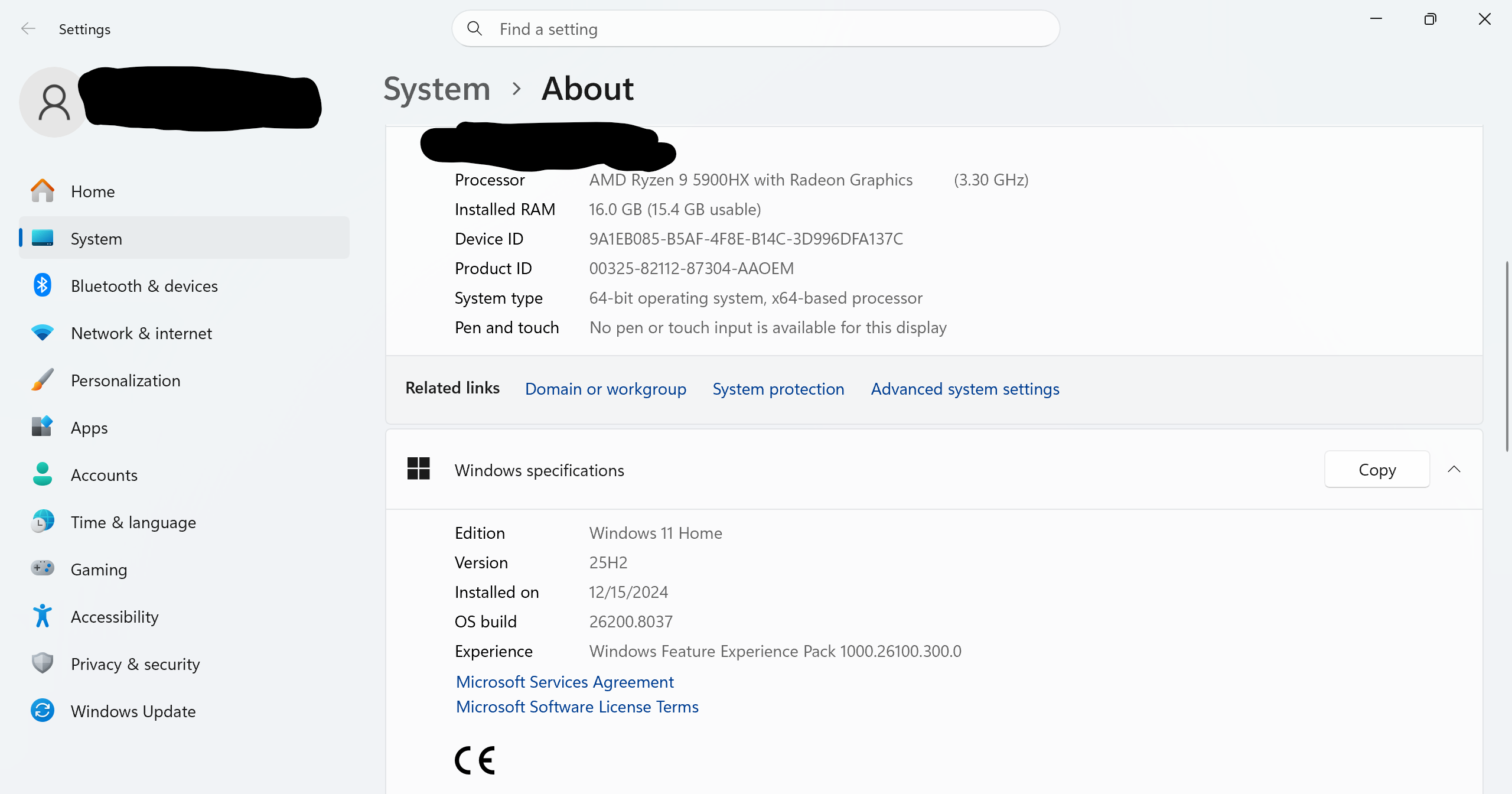
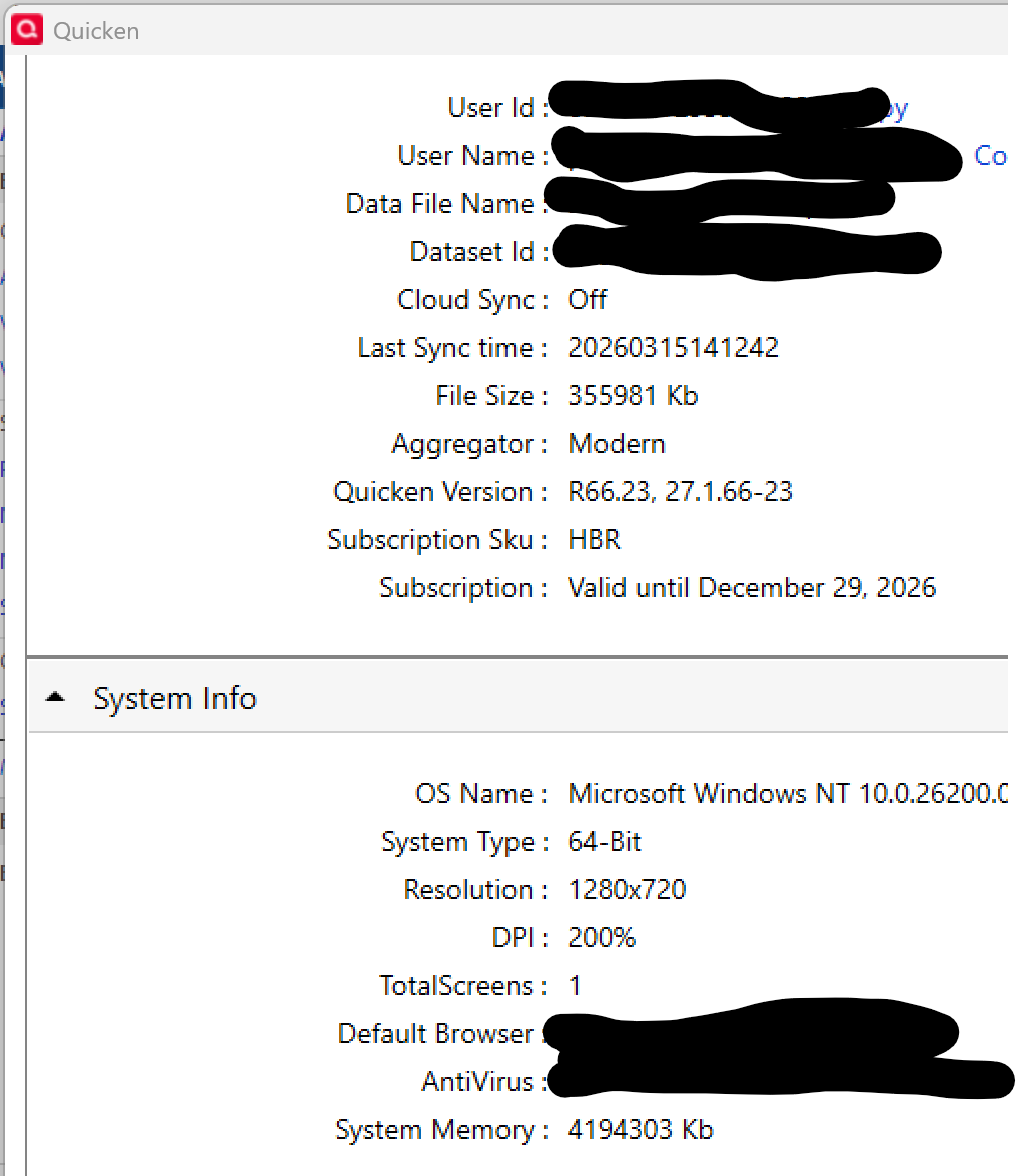
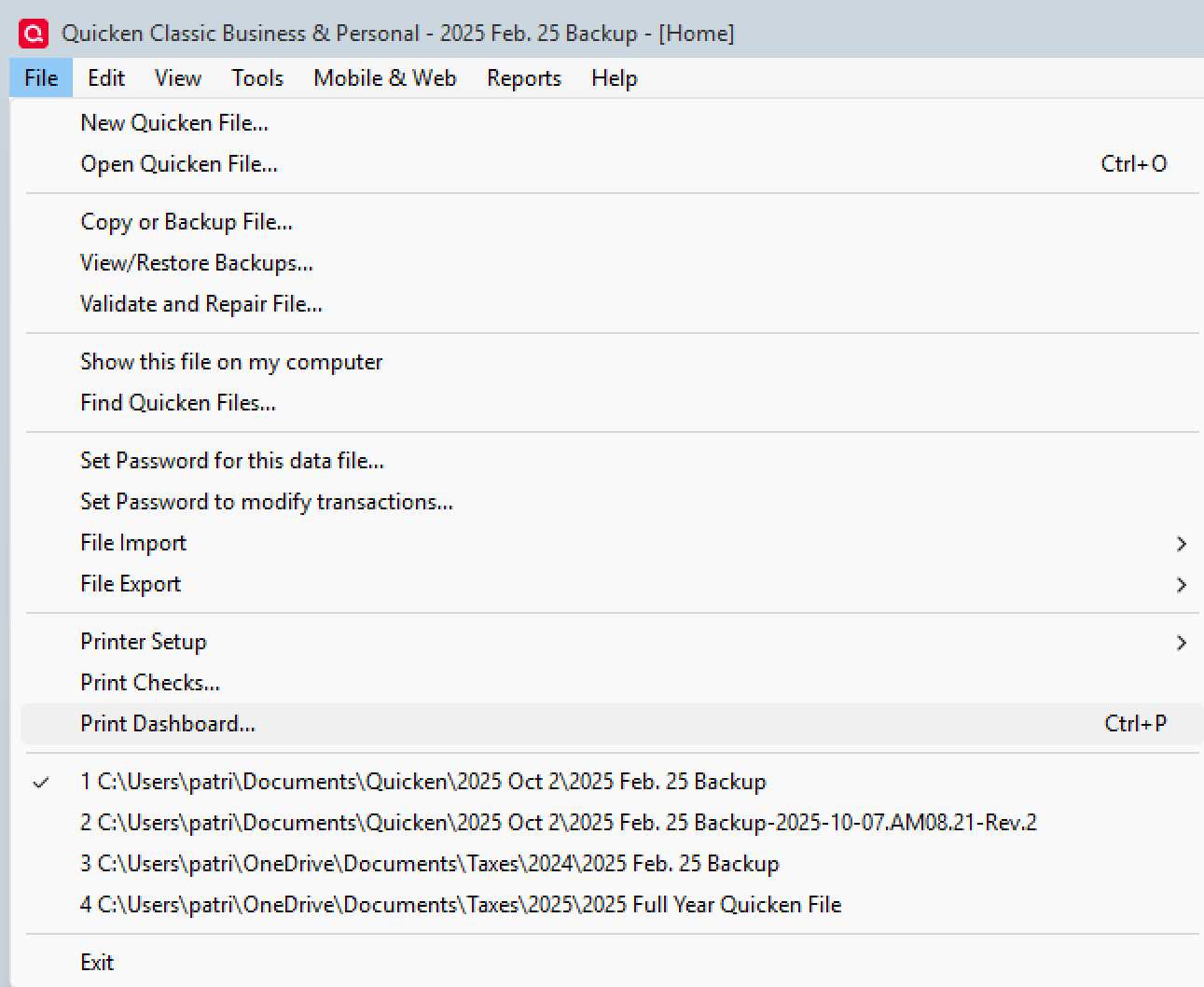
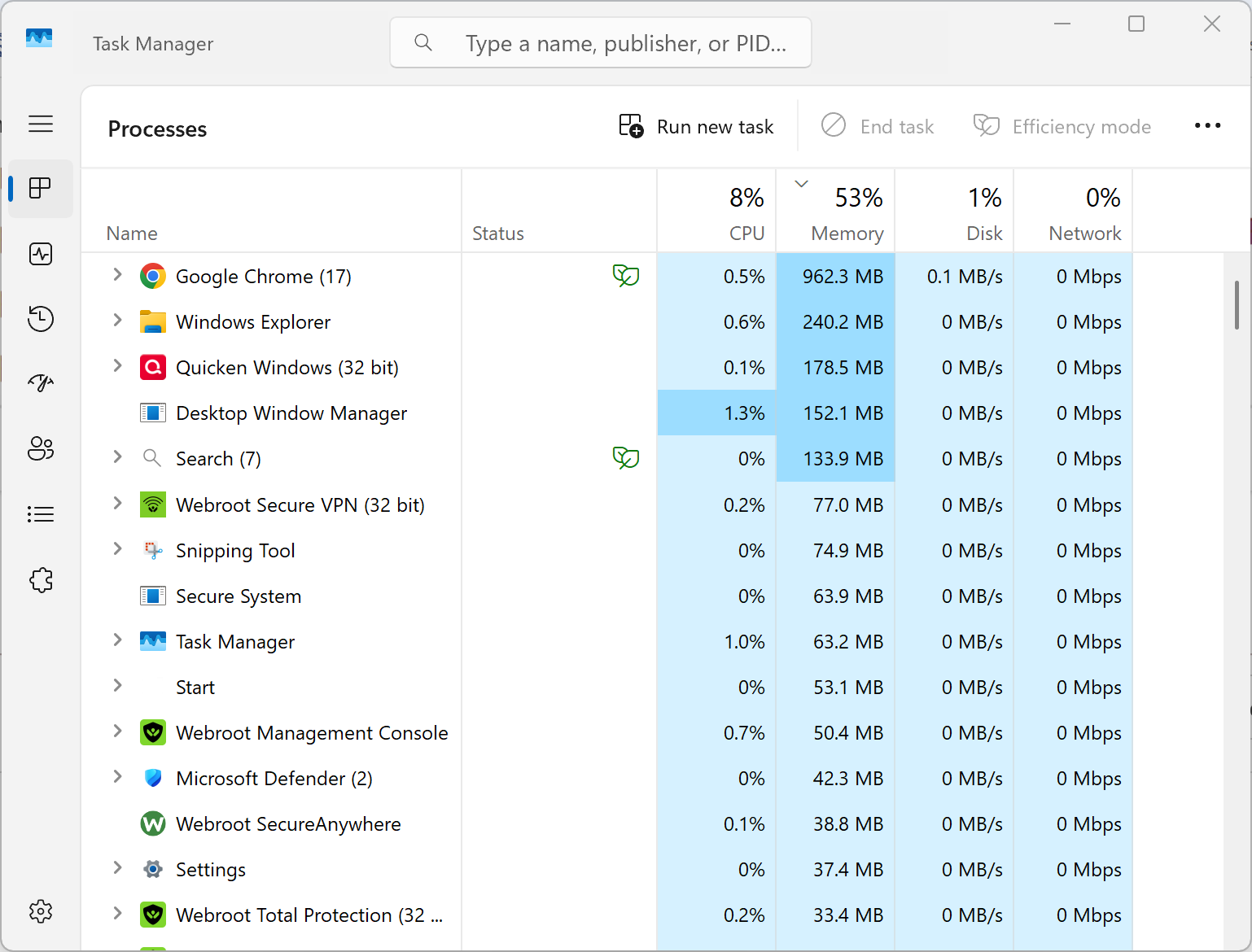 0
0 -
Hi,
thanks for providing all this information.
If you could, I'd also like to see the File Information window from Help / Shift+click About Quicken, the one which shows this detail: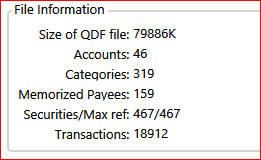
The information about Categories and number of Memorized Payees will be helpful. If the numbers are very large, cleanup may be necessary, to reduce the size of internal database indices.
The large VISA account with over 19,000 transactions may be a performance concern. I would shift activity to a new Quicken account register, with transactions beginning with your January 2026 ending statement. Leave the other transactions in the original register but rename it to something like "VISA Old" and mark it closed. You will have to redirect any scheduled reminders to point to the new account register. This might help performance, but I don't know how much.
When's the last time you have run Validate and/or Supervalidate on your Quicken data file?
If you have investment accounts, running Validate with options "Rebuild investing lots" and "Correct investing price history" may be needed.Slow Performance issue for Laptop users:
If you're using a laptop, is it plugged in while you're working with Quicken or are you running on battery with power saving reduced performance settings?
Check your Control Panel / Power Options. Make sure the selected Power Plan allows for best performance while plugged in and while on battery.Here's some more info to look at regarding performance:
That's it for now. Let's see if other Community users come up with additional suggestions.
0 -
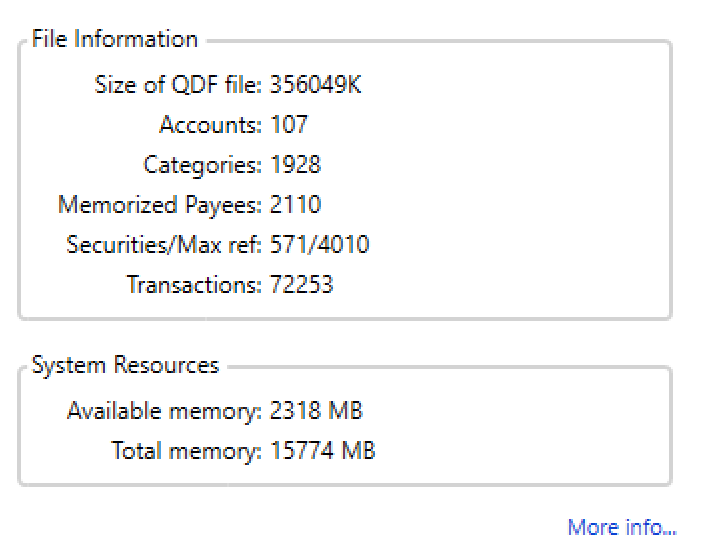
Hi! Thanks for the info. Here is the screenshot.
 0
0 -
…also, I can't recall the last time I validated and I am not familiar with super validating. please educate me. Thank you for all of your insight.
0 -
Categories: 1928
Do you really need that many categories?
I know you can have subcategories, nested down to 16 levels. But the deeper down into the number of nested levels you go, the more calculations are required to roll up a transaction's amount from the lowest level up towards the parent category and the Income or Expense grand total. This applies every time you add, change or delete a transaction or one of a transaction's splits.In some instances using Tags might be an alternative to calculating totals, e.g., Auto:Gasoline:VW, Auto:Gasoline:Ford, etc. could be replaced by one category, Auto:Gasoline and Tags for VW, Ford, and/or any other car you own
Pruning the Categories tree is advisable
Memorized Payees: 2110
Do you have variations of the same payee in your Memorized Payee List and in your register transactions?
For example, instead of one entry for "Starbucks", do you have several entries like "POS TRANS 070124 STARBU", "POS TRANS 070224 STARBU", "POS TRANS 070324 STARBU", etc., every time you get a cup of coffee?Do you have old, unused entries in your Memorized Payee List?
To trim the list and keep it in shape please do this: In Edit / Preferences / Data Entry and Quickfill make sure you have a checkmark at [√] "Remove memorized payees not used in [xx] months" and set [xx] to something like "18". Do not set it to zero. IMHO, you should set the number to 12 or higher for best results, so that once-a-year payees don't vanish.Renaming Rules might be helpful when you want to standardize the use of Payee Names while creating new transactions from downloads.
To clean up Payee Names in your registers, use Edit / Find/Replace
For example: Find Payee Name contains Starbu; select the ones to change and replace Payee Name with StarbucksQuicken maintains an index for each and every payee name in your transaction registers. Report selections by Payee, creating reports with subtotals by payee, selecting a payee name from a payee selection list becomes much more meaningful if you have only one Starbucks entry instead of dozens of variations
Securities/Max ref: 571/4010
These two numbers should be identical. This might have an impact on the performance of investment transaction registers.
To validate your Quicken data file please do the following actions:
• Even if you are on the latest software level already, download and install the latest Manual Patch file from https://www.quicken.com/support/update-and-patch-20182019-release-quicken-windows-subscription-product to ensure your Quicken software is up to date and correctly installed.
• Reboot Windows. Let Windows fully wake up and do whatever it wants to do after booting up … 15 minutes or so.
• Start Quicken. Do not run One Step Update.
• Run BOTH Validate and Supervalidate to attempt to repair your Quicken data file.
• If nothing helps, try to restore your Quicken data file from an Automatic or Manual backup taken just prior to the problems first occurring.Validate and Supervalidate instructions
First save a backup file prior to performing these steps
Validate:
• Click File
• Select Validate and Repair File...
• Select Validate File
• If the data file contains investment accounts also select "Rebuild investing lots".
• If you suspect that a damaged Quotes Price History causes your problems, also select "Correct investing price history" functions "Delete" or "Repair and Rebuild".
• Click OK
• Review the Data Log. Anything interesting in there, worthwhile posting here?
• Close Quicken, leave it closed for about 30 secs
• Reopen Quicken and see if the issue persists.Super Validate:
• Click File
• Press and hold both CTRL and Shift keys while you click Validate and Repair File...
• Select Supervalidate File
• Click OK
• Review the Data Log. Anything interesting in there, worthwhile posting here?
• Close Quicken, leave it closed for about 30 secs
• Reopen Quicken and see if the issue persists.Projected Balances view
Before I forget to mention it again …
While entering reminders from the Projected Balances view, be sure the Time Range is set to 14 or 30 days, not longer. This may also have an impact on performance.1
