repeatedly reauthorizing Discover account

For several days I have had to reauthorize my Discover accounts, both credit & banking. After connecting to Discover, the transactions download. But the next connection requires the same process.
Comments
-
Do you have Mobile & Web enabled?
0 -
I can log into Discover on the Mobile app
0 -
I'm having the same issue.
0 -
Something is changing your data after you reauthorize each time. As a first troubleshooting step, I would try disabling Mobile & Web.
0 -
Hi everyone,
Thank you for reaching out and for sharing the details of what you are experiencing.
In addition to the steps already mentioned, I recommend trying to deactivate and then reactivate your accounts if you have not done so already. When doing this, please make sure that all accounts are deactivated, including any accounts that may be hidden.
Steps for Mac
- Select the account to open its register.
- Click the Settings gear icon in the lower right corner of the register.
- Click the Downloads tab.
- Click the Disconnect Account button.
- Click Done.
- Revoke Quicken’s third-party access from your account on the FI website.
Check for hidden accounts:
- If you have hidden or separate accounts in your account list, please open each of those accounts as well and follow the steps above to ensure they are also disconnected.
- Select the account to open its register.
- Click the Settings gear in the lower right corner of the register.
- Go to the Downloads tab.
- Click the Connect Account... button.
- Select the financial institution or type in the name to search for it.
- Click Continue and complete the flow.
- Choose LINK on the screen displayed after Quicken finds the available accounts at the financial institution for your login credentials, and carefully link to your existing Quicken account(s).
- Click Continue.
Steps for Windows
- Select Tools > Account List
- If present, select the Show Hidden Accounts checkbox at the bottom of the Account List
- Select Edit on each account with this error and select the Online Services tab.
- Click Deactivate.
- Click Yes to the message confirming if you want ot disable this service.
- When finished, close the Account List.
- Revoke Quicken’s third-party access from your account on the FI website.
- Go to Tools > Add Account.
- Search for and select your financial institution.
- If prompted, choose the appropriate connection method.
- Follow the on-screen instructions.
- When the list of found accounts appears, be sure to select Link to connect them to your existing accounts (do not add duplicates).
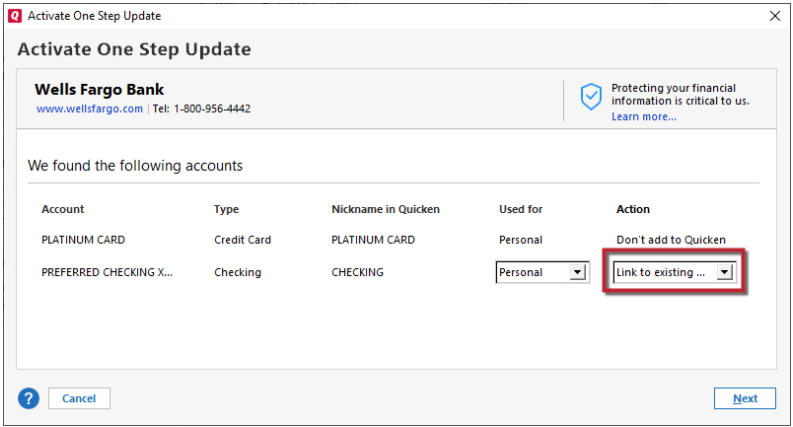
Please let me know how it goes!
Quicken Laura
Make sure to sign up for the email digest to see a round up of your top posts.
0 -
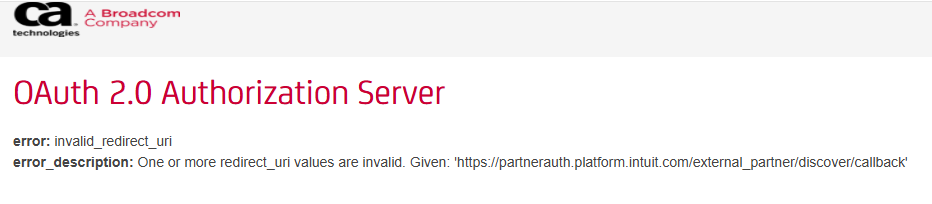
When trying to re-activate my account I get:
 0
0 -
Hi @haskinsr,
Thank you for bringing this error to our attention. The issue has been escalated internally for further investigation.
To help our team look into this more thoroughly, we would appreciate it if you could submit your logs. You can do this by following these steps:
- Open Quicken
- Go to Help
- Select Report a Problem
- Click Send to Quicken
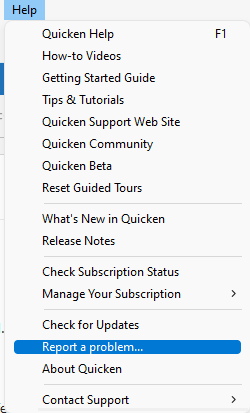
Once submitted, please let us know. I look forward to your response!
Quicken Laura
Make sure to sign up for the email digest to see a round up of your top posts.
0 -
I got the same message.
0

