Red Flags indicate I have downloaded transactions, but I can't see them

I have tried toggling automatic entry on/off, verify and super verify all to no avail. Online Center shows the downloaded transactions, but Compare to Register simply closes the Online Center. I have several Quicken files and this is happening on all of them. Could really use the help!
Answers
-
Hello @the_bake,
Thank you for letting us know you're seeing this issue. Based on your description, it sounds like you've already done most of the recommended troubleshooting. Do you recall when this issue started? If it started fairly recently (within the last 90 days), I recommend restoring a backup from before the issue started, if possible.
If restoring a backup isn't a viable option, then, per our article on when Quicken says there are transactions to accept, but you don't see them in your register, make a copy of your file and validate the copy. To do that, follow these steps:
- Choose the File menu > Copy or Backup File.
- Select Create a copy or template, then click Next.
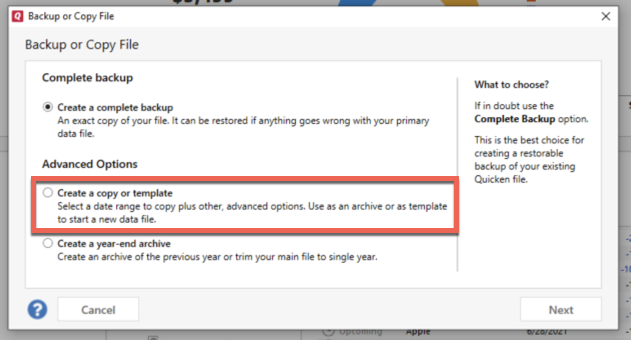
- Accept all defaults and click Save Copy.
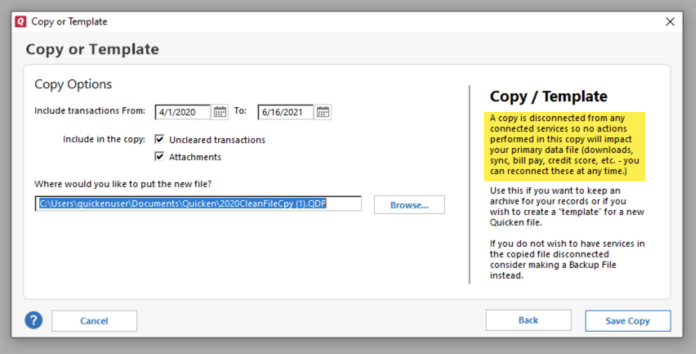
- Open the New Copy when prompted.
- Choose File > Validate and Repair File.
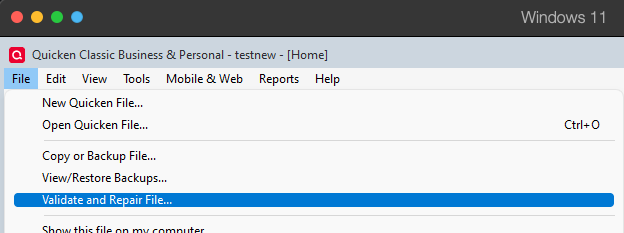
- Select the new copy created in step 3 and click OK.
Note: Depending on the size of your data file, you may need to wait a while for the validation process to finish. Do not use the Task Manager to close Quicken. Quicken displays an error message if it cannot validate the file. If Quicken is able to validate the file and any errors are found, Quicken displays a message, "Data losses were found in your file." You can view the log file for more information.
When the validation process is complete, you will need to reactivate your accounts for transaction download in the new file copy. Note: All online services will be deactivated in the copied file. Reconnect only the accounts you need to in order to test if the issue is resolved.
To reconnect accounts, follow these steps:
- Go to Tools > Add Account.
- Select the bank for the deactivated account(s). If prompted, select the connection method.
- Enter your credentials and click Connect.
- When the list of located accounts appears, choose LINK next to each account you want to reactivate.
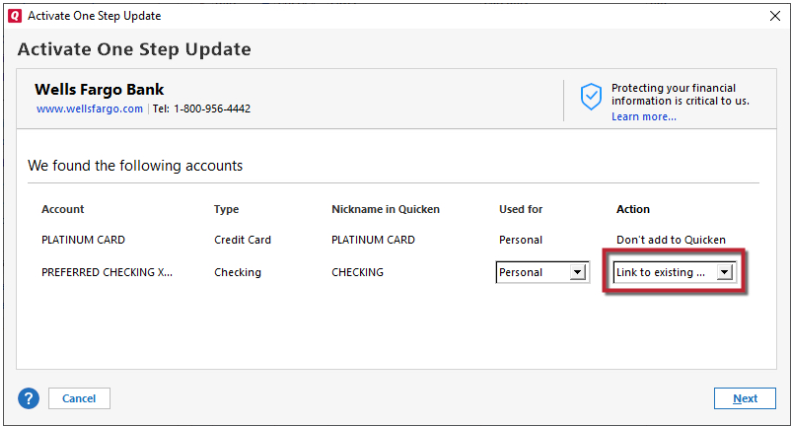
- Click Next then Done on the last prompt.
If the issue is resolved, then reconnect the rest of your accounts and use the copied file as your main file going forward.
If the issue is not resolved, then you can return to your main file. For instructions on switching between Quicken files, click here.
Please let me know how it goes!
Quicken Kristina
Make sure to sign up for the email digest to see a round up of your top posts.
0
