Quicken Classic (Windows) on Crossover Wine: Add Account interface showing gibberish display

Quicken recently auto updated my Windows Quicken Classic to R66.18. Now the "Add Account" window interface is unusable (screenshot attached).
I spoke to a Quicken Support who recommended uninstalling Quicken, redownloading the software, and reinstalling Quicken. This did not solve the problem.
I am running Quicken on Crossover Wine Version 26.0 (build 26.0.0.39794).
Anyone facing the same issue and able to fix this? Please share your experience.
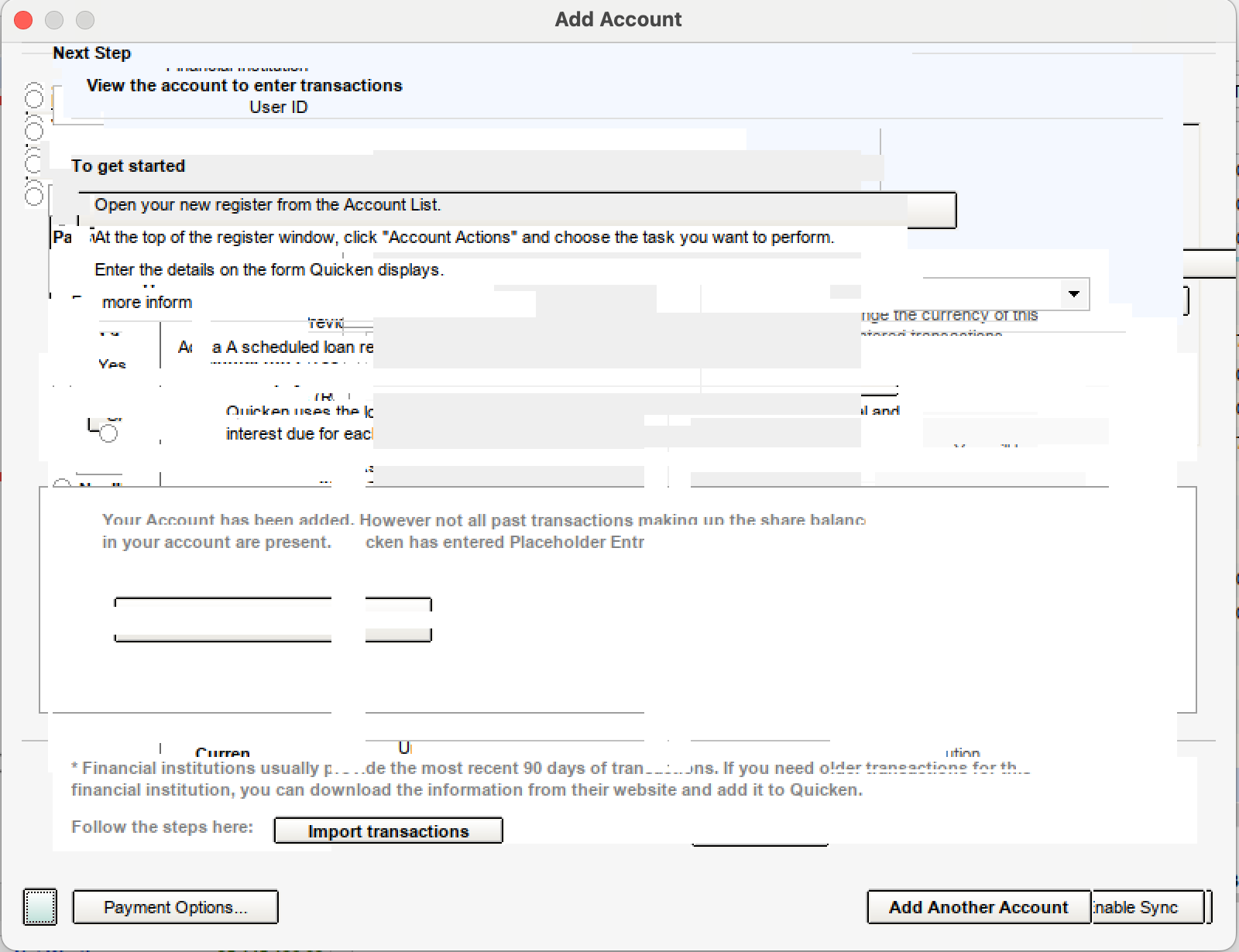
Comments
-
I run Quicken under Crossover (a supported implementation of WINE) on Linux and I too have this problem. I opened a ticket with Crossover support. It is apparently related to WINE. It does not happen when running under native Windows. I created a virtual Windows 10 machine on my Linux server, installed Quicken, transferred my datafile there, restored it in Quicken and it works fine. Crossover support told me it happened with a recent Quicken update and it happens not only in the current Crossover version but in previous versions as well. Crossover support will be following up with Quicken support to see what, of anything, can be done to fix this.
2 -
Workaround: Change graphics to D3DMetal
0 -
How does one change graphics to D3Dmetal? I can't find that anywhere as an option.
0 -
On the crossover interface
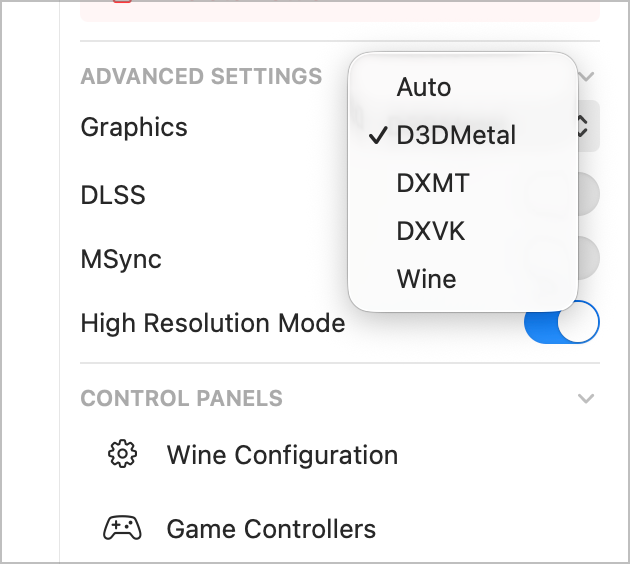 1
1 -
A hotfix, R 66.28, has been released which fixes the Add Account dialog.
Consider installing that, too, and please let the Community know which change worked for you.0 -
Problem still exists with 66.28 running under crossover.
0 -
As for D3Dmetal, mine only has Auto, DXVK and Wine.
0 -
Does changing the D3Dmetal to any of those help?
0 -
My version of crossover (24) has a toggle for D3Dmetal. toggling this to on did not solve the problem. Crossover support also gave me access to a new version of crossover they said would solve the problem but this did not. The same gibberish screen appears when attempting to add a new account.
0 -
When crossover runs it starts several processes. When you exit it, the processes keep running in the background. Updating crossover does not stop these old processes. If you know how to find them and stop them, do that and restart crossover and Quicken. Otherwise, just reboot your system. That will definitely get rid of the old processes and I think you'll find the issue with adding a new Quicken account will be fixed.
0 -
I rebooted and the problem persists. I informed Crossover support and received this response:
We've continued investigation and Quicken broke our fix after another one of their updates.. No current news on a permanent resolution or workaround yet.. apologies for the inconvenience this has caused.
Best wishes,
- CodeWeavers Support
0 -
I have the same problem and none of the mentioned fixes worked for me. Anyone get this to work to add a new account somehow?
0 -
Taking a shot in the dark here. When I install crossover on my fedora system, it goes into /opt/cxoffice and an icon for running it is placed on my desktop. This version has the bug we a talking about here. When I install the preview version of crossover, it goes into /opt/cxpreview and a different icon is placed on my desktop. This icon is yellow in color whereas the original one is white. You must use this second icon to start crossover. Behind the scenes, this simply runs /opt/cxpreview/bin/crossover-preview. Also, when the crossover window opens, there is a switch on the right hand side that must be on to enable the preview version. If my memory is correct, the first time you run the preview version there may be some kind of popup asking you to enable it.
0 -
Running Classic in Crossover on Fedora… Started seeing the garbled Add Account thing with Citibank requiring reauthorization a week or so ago. Upgrading Crossover broke my 32bit Quicken bottle, so I tried someone's Windows10 suggestion, which gets stuck with a blank Quicken login screen. In desperation I transferred data files to a Windows box running an older Quicken, reauthenticated there and sent the files back. Later, I found a reinstall on a 64bit Windows7 bottle seems to work now... I don't see the garbled Add Account screen anymore, but I mistrust my ability to reproduce the same path to that particular screen. Back in business, thankfully.
0
