Crash Report in Quicken. (Edited)

Comments
-
Hi @Bailey Farm,
Thank you for reaching out to the Quicken Community!
I have a few questions to better understand the issue:
- Could you please upload a screenshot of the error you’re encountering?
- When did the issue start?
- Have there been any recent updates to your computer or Quicken software?
- Have you tried uninstalling and reinstalling Quicken?
If you haven’t done so yet, please follow the steps to uninstall Quicken.
After uninstalling and before reinstalling, please open Windows File Explorer and navigate to:This PC > C: Drive > Program Files (x86)
Then, locate and delete the folder named “Quicken.”
This step will not affect your data files.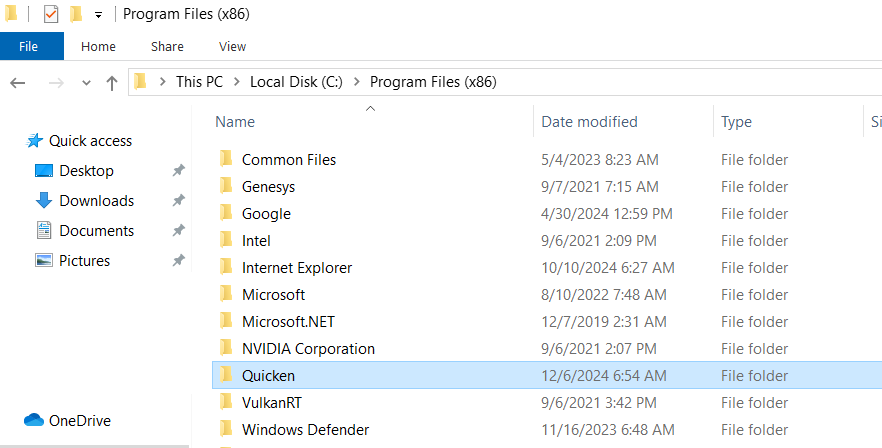
Once that’s completed, we can proceed with reinstalling it.
Please let us know how it goes. I look forward to your response!Quicken Carlos
Make sure to sign up for the email digest to see a round up of your top posts.
0 -
- Could you please upload a
screenshot of the erroryou’re encountering? - When did the issue start? Today
- Have there been any recent updates to your computer or Quicken software? No
- Have you tried uninstalling and reinstalling Quicken? No
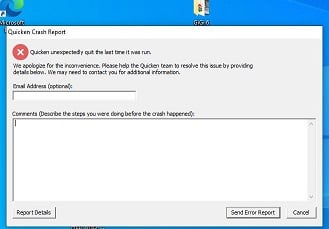
0 - Could you please upload a
-
Hi @Bailey Farm,
Thank you for your reply and for sharing a screenshot of the error message. It’s very helpful.I recommend uninstalling Quicken and deleting the Quicken folder from Program Files (x86). Please follow the steps below:
Windows 11
- Click the Start button and select Settings (gear icon).

- Select Apps, then click Installed apps.
- Scroll down to Quicken, click the three-dot menu, and select Uninstall.
- Click Uninstall again to confirm and follow the prompts.
Windows 10
- Click the Start button and open the Control Panel (located in the Windows System folder).
- Under Programs, click Uninstall a Program.
- Locate Quicken in the list and select it.
- Click Uninstall and follow the prompts.
Next, open File Explorer and navigate to:
This PC > C: Drive > Program Files (x86)
Locate and delete the folder named “Quicken.”
This will not affect your data files.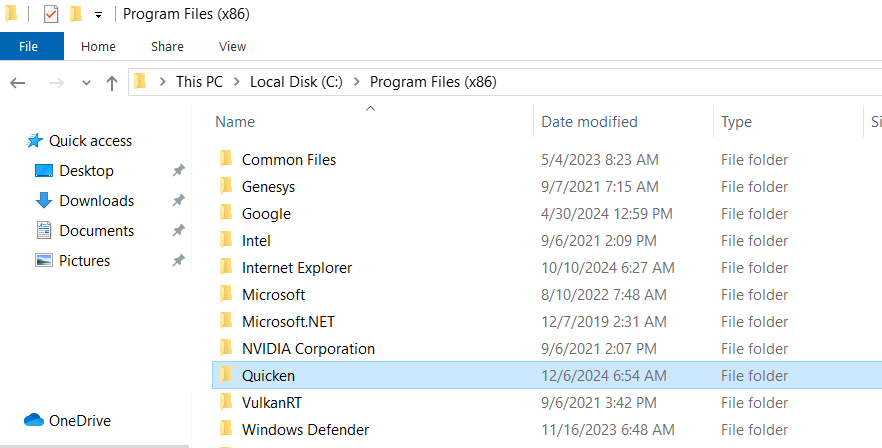
Once that’s completed, please reinstall Quicken here.
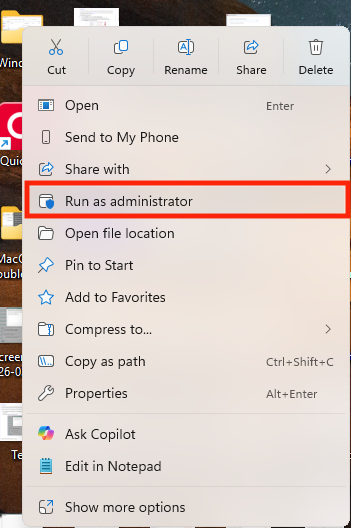
Then, try running Quicken as an administrator:
- Right-click the Quicken shortcut on your desktop
- Select Run as administrator
- Enter your Windows administrator credentials if prompted
Finally, try opening Quicken again.
Let me know how it goes!
Quicken Carlos
Make sure to sign up for the email digest to see a round up of your top posts.
0 -
I went through all the steps above and once I logged in to Quicken again I got the same error message.
0 -
I went through the steps again, but got a message saying it doesn't support running as administrator. However, my information seems to be there at first glance.
0 -
Hi @Bailey Farm,
Since the steps above did not resolve the issue.
I recommend contacting Quicken Support for further assistance. They can guide you through additional troubleshooting steps in real time or escalate the case if necessary.Phone support is available Monday through Friday, from 5:00 AM PT to 5:00 PM PT.
Chat support is available Monday through Sunday, from 5:00 AM PT to 5:00 PM PT.
Hope this helps!Quicken Carlos
Make sure to sign up for the email digest to see a round up of your top posts.
0