Crashes once updating to R67.7

I updated to R67.7 yesterday, and started to experience random crashes during investment register/transaction entry or managing the Security List on at-least 3 occurrences within a few hours.
I downgraded back to R66.23 and have not experienced a crash since, with the same data-file. No reboots of Windows occurred in between, so it appears to be related to R67.7 in this case.
I also experienced what appears to be a GUI issue; my investment transaction was entered and showed on the screen, but the GUI did not show me, nor did it permit me to scroll down to a new, empty transaction. I could scroll upwards through transactions, but it was stuck in a state where it would not show nor allow another new entry to be made below the one last entered. Closing and restarting Quicken cleaned things up so that I could enter new transactions.
I will try R66.28 next to help further determine where a change was made that started this.
Is anyone else experiencing similar? I'm looking for suggestions on how to best isolate so that I can provide additional detail/bug report with useful info to the development team.
Thanks
Comments
-
R66.28 is stable for me - no crashes. Whatever I've experienced, it's only once upgrading to R67.7
0 -
Hi @jmaino,
Thanks for reaching out to the Quicken Community and for bringing this to our attention.
There are several scenarios where Quicken may crash. To better understand the issue, I have a few questions:
- Is the error you’re seeing the same as the one shown in the image below?

- If so, does the same behavior occur after restoring a backup?
- Are there any pending updates on your computer?
I also recommend trying to run Quicken as an administrator:
- Right-click the Quicken icon
- Select Run as administrator
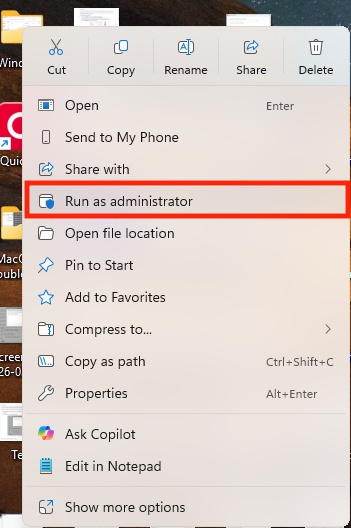
Then, try navigating to the Investing transactions to see if the crash still occurs. If it works without crashing, you won’t need to run Quicken as an administrator every time.
I look forward to your reply!
Quicken Carlos
Make sure to sign up for the email digest to see a round up of your top posts.
0 -
Hi @Quicken Carlos - no, I never received that screen regarding Quicken unexpectedly quitting the last time it was run. In the cases where I saw crashes with R67.7, the tool would simply exit/close/disappear, and restarting would bring it up as normal again, until the next crash. There are no pending updates on my computer, and when I saw crashes in R67.7 vs none when subsequently downgrading to R66.2x, I performed no reboots either. Only changing the version of Quicken being used.
I've again updated to R67.7 and am trying to run in Administrator mode as you recommended, but received this dialog when doing so, saying that Quicken does not support running as Admin - so, I'm not quite certain this is what you expected when making that recommendation:
My user has Admin priveleges and datafile is stored locally.
There are no issues with simple navigation - my issues always seemed to occur during or after the entry of new investment transactions - so will have to wait into this week to know more. I'll report again on additional details and finding once I have something new to enter.0 -
Hi @jmaino,
Thank you for the detailed information; this is very helpful, especially your testing across versions. The fact that the same data file is stable on R66.23/R66.28 but crashes on R67.7 does suggest this may be related to a change introduced in the newer release.
Regarding the Administrator message, you’re correct. Quicken typically discourages running in admin mode. We suggested it only as a troubleshooting step to observe any difference in behavior.
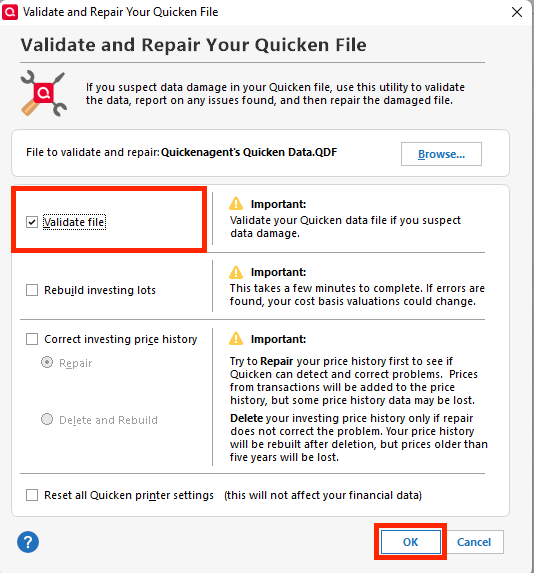
As a next step, it may still be worth running Validate and Repair or restoring a backup from before the update while remaining on R67.7, just to confirm whether the issue is due to any subtle file inconsistencies.
To validate the file:
- Go to File
- Select Validate and Repair File
- Choose Validate File
- Click OK
We appreciate your continued testing. Please keep us posted on any additional findings.
Quicken Laura
Make sure to sign up for the email digest to see a round up of your top posts.
0