Data file difference Web vs Desktop

Quicken on the Web (and the iOS app) shows a different data file than the one on my desktop. How can I get the right one? I tried Reset. The name is different.
Answers
-
Hello @Leslie Jones,
Thank you for letting us know you're seeing the wrong file in the Quicken companion apps. To switch between files, first, make sure the file that you want to view on Quicken on the Web and Quicken Mobile is synced to the Quicken Cloud. For information on how to sync your file, click here.
In Quicken on the Web, to switch which file you are looking at, navigate to the Profile option (near the lower left of the screen).

In the Profile section, you will see a "My Cloud Accounts" section. The file you are currently viewing will have a checkmark by it. Select the file that you want to view, and it will switch to that other file.
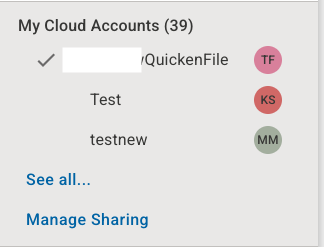
In Quicken Mobile, tap on the hamburger menu (the three horizontal lines near the upper left), then select the option that shows the name of the file you're currently looking at.
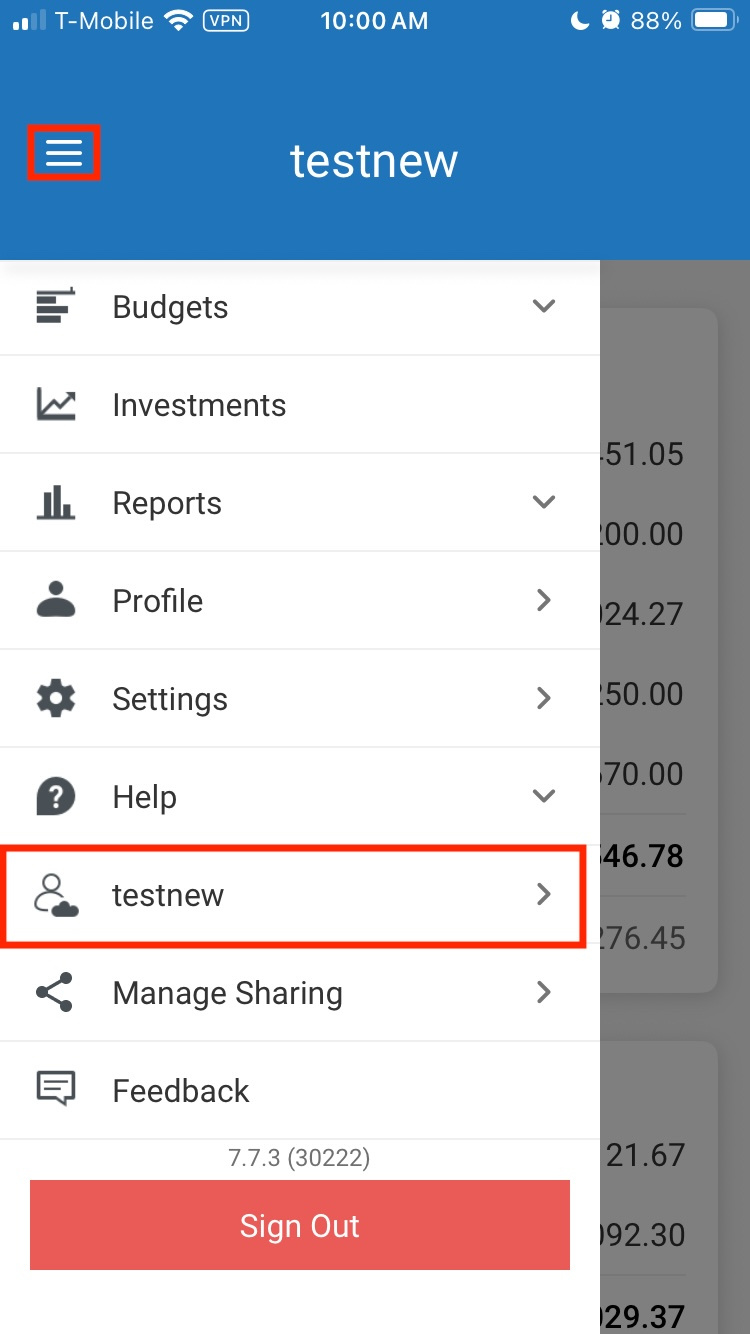
That will bring you to a screen that shows a list of all your files. Select the file you want to view.
I hope this helps!
Quicken Kristina
Make sure to sign up for the email digest to see a round up of your top posts.
0 -
Thank you for both responses. Both Quicken Web and the iOS app show the same file BUT is is not the file on my desktop. Also, that is the only file that is shown and I cannot see an option for picking a new file.
Web & iOS 231212**LAJ's Finances10-now3.1-3.3**5
Desktop 231212LAJ's Finances10-now3.3 5 2023-11-30 2
0 -
Thank you for your reply,
It is possible for the cloud account nickname to be different from the file name. To check if that's what is happening, in your Quicken program, navigate to Quicken>Settings…>Connected Services.
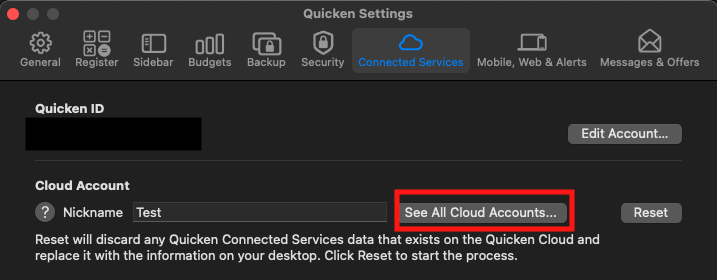
In the Cloud Account section, it will show the Nickname for your current file, and gives a button that lets you view all Cloud Accounts you have set up. You can click that button to see a list of your Quicken files and what cloud account nickname is associated with each file.
Are you able to to verify which file the cloud account is connected to?
Thank you!
Quicken Kristina
Make sure to sign up for the email digest to see a round up of your top posts.
0 -
Thanks Kristina, Nothing else shows up in Cloud Accounts. I did verify the Cloud name is the one I have been seeing and it does seem to be the correct file. So that does not explain the discrepancy with the different amounts. I'll have to explore that further. How do I change the name of the Cloud Name so it matches the File name?
0 -
Thank you for your reply,
To change the cloud account name to match the Quicken file name, navigate to Quicken>Settings>Connected Services. In the Cloud Account section, the word "Nickname" has a textbox next to it. You can edit the nickname in that textbox. Once you click out of that textbox, it will save the new nickname.
I hope this helps!
Quicken Kristina
Make sure to sign up for the email digest to see a round up of your top posts.
0

Categories
- All Categories
- 16 Product Ideas
- 34 Announcements
- 248 Alerts, Online Banking & Known Product Issues
- 20 Product Alerts
- 516 Welcome to the Community!
- 680 Before you Buy
- 1.5K Product Ideas
- 55.6K Quicken Classic for Windows
- 16.8K Quicken Classic for Mac
- 1K Quicken Mobile
- 834 Quicken on the Web
- 126 Quicken LifeHub