This discussion was created from comments split from: Janus Henderson accounts not updating.
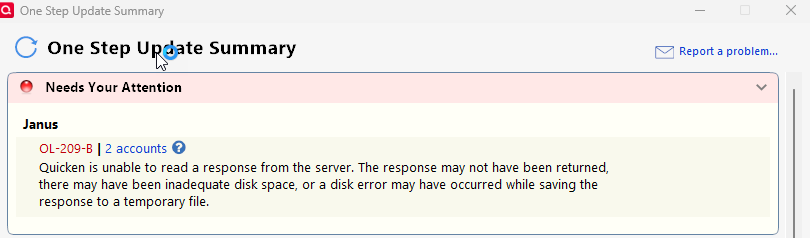
I'm getting a similar error OL-290-A. I have the latest version of quicken for Windows 11. My problem has begun on July 30, 2025.
To re-emphasize, this error message applies to Janus Henderson Investments.
I think I'll just let it play out. I'm confident it will eventually resolve itself.
Nitch
Hello @nitch,
Thanks for reaching out! I’ve moved your post to its own thread in the appropriate Windows category since the one you originally commented on was Mac-related.
When you get a chance, could you please provide a screenshot of the OL-290-A error message you're receiving? That’ll help us take a closer look and better understand what might be going on.
If needed, please refer to this Community FAQ for instructions on how to attach a screenshot. Alternatively, you can also drag and drop screenshots to your response if you are not given the option to add attachments.
Thank you!
Above error message applies to Janus Henderson
Again, my problem began July 30th. Last attempt to update my account was August 4TH.
Thank you.
NOTE: My original post I said the error message was OL-290_A. It is actually OL-209-B.
Sorry.
[Removed - Off Topic]
Thank you for your reply,
To troubleshoot this issue, I recommend following these steps from our article on OL-209 errors:
Note: If the Temporary Internet Files folder contains a significant amount of content, this process may take several minutes to complete.
Please let me know how it goes!