Cannot link to Bill Pay Vendor (Windows 11)
Previously I set-up Provident Funding (mortgage vendor) to be paid by check in the Bills and Income section and then used the Link option so that I'd get update payment option along with status of checks sent.
For some reason that option is long available as I cannot find Provident Funding in your list.
Just a little history… I've had a mortgage with Provident Funding since 12/2017 and have always used Quicken to pay using either via printing a check or by Check Pay/Linik.
Question
- What is the process to set-up Pay by Check for Provident Funding so that I can see it in the list of vendors in the Bill & Income section?
- What is the process of associating the Link to the Pay by Check for Provident Funding?
Comments
-
Hello @ChrisD,
Thank you for reaching out to the Community with these questions. According to our article on making payments with QuickPay and CheckPay, you would follow these steps to make a payment via CheckPay:
Making a payment with Check Pay
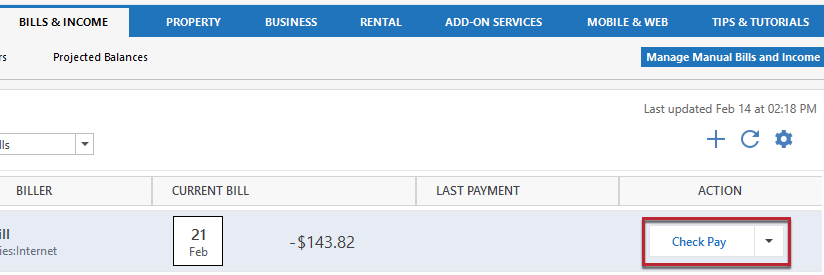
1. Go to the Bills & Income tab.
2. Click Check Pay next to the biller you want to pay.
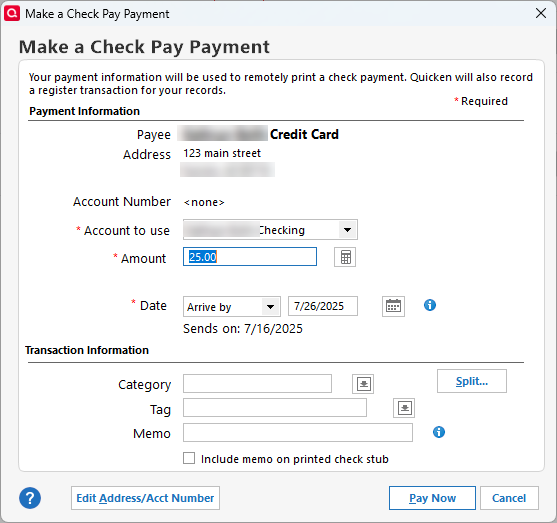
3. In the Make a Check Pay Payment screen, enter the payment and transaction details.
To make a payment using Check Pay, you need the following information:
- Account to use: By default, Quicken will use the account that you chose while setting up the reminder. You can choose any other Check Pay-enabled account as well.
- Payment amount: Quicken will display the default amount that was entered when you created the reminder. You can change the amount as needed.
You can optionally enter information for the Category, Tag, and Memo fields. Adding this information will improve Quicken reports about your payments and transactions. If you want the memo to be printed on the physical check, check the box next to Include memo on printed check.
4. Click Pay Now.
5. Review your payment details, then click Confirm.
6. In the Check Pay Payment Sent screen, click OK.
Making a Check Pay payment from the register
1. Go to the register for your Check Pay enabled account.
2. Select the empty transaction at the bottom of the register.
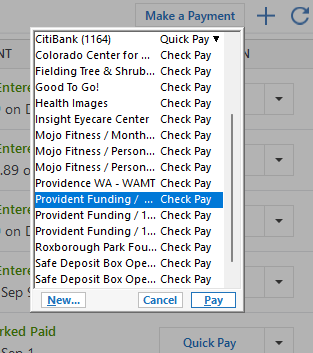
3. Click the drop-down arrow in the Check # field and select Pay (Quick Pay/Check Pay).
4. Select the biller you want to schedule the payment for.
5. In the Make a Check Pay Payment screen, enter the payment and transaction details.
To make a payment using Check Pay, you need to enter the following information:
- Date: Select the date you want the payment to mail. A payment can be scheduled out a maximum of 45 days. Please take into account the expected delivery date range to ensure your payment arrives by the due date.
- Account to use: By default, Quicken will use the account that you chose while setting up the reminder. You can choose any other Check Pay-enabled account as well.
- Payment amount: Quicken will display the default amount that was entered when you created the reminder. You can change the amount as needed.
You can optionally enter information for the Category, Tag, and Memo fields. Adding this information will improve Quicken reports about your payments and transactions. If you want the memo to be printed on the physical check, check the box next to Include memo on printed check.
6. Click Pay Now (or Schedule, if you set the payment for a future date).
7. Review your payment details, then click Confirm.
8. In the Check Pay Payment Scheduled screen, click OK.
You can view your scheduled payment in the Bills Dashboard in the Last Payment column.
I hope this helps!
Quicken Kristina
Make sure to sign up for the email digest to see a round up of your top posts.
0 -
What is interesting is the window you're reflecting is not what I'm seeing since the update. There is a new button called "Make Payment". The vendor that I want to make a payment to is now under the "Make Payment" tab, not in the Biller list where is previously was.
My concern is Provident Funding was also Link in the Biller list providing me payment information which I can longer get.
Also how do I edit this list so that I can delete the duplicates and why cannot I no longer Link it to the payment information?
0 -
Thank you for your reply,
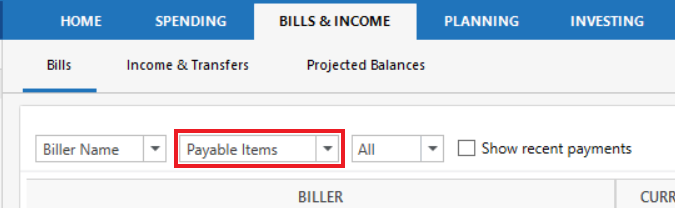
You should be able to find and edit the list of Check Pay payees by navigating to the Bills & Income tab, setting the first dropdown to Biller Name, then setting the second dropdown to Payable Items.
To clarify, when you say Provident Funding was previously linked in the biller section, do you mean it was previously an online biller? If that is what you mean, then the reason you're no longer to see that information would be due to the fact that they're not supported under the new service provider.
Thank you!
Quicken Kristina
Make sure to sign up for the email digest to see a round up of your top posts.
0
Categories
- All Categories
- 56 Product Ideas
- 36 Announcements
- 223 Alerts, Online Banking & Known Product Issues
- 22 Product Alerts
- 701 Welcome to the Community!
- 671 Before you Buy
- 1.2K Product Ideas
- 53.7K Quicken Classic for Windows
- 16.3K Quicken Classic for Mac
- 1K Quicken Mobile
- 813 Quicken on the Web
- 111 Quicken LifeHub