I have two accounts that are missing about 3 months of transactions.

Jim Randle74
Jim Randle74 Quicken Windows 2017 Member ✭✭

The missing transactions exist in the quitcken cloud. I have tried to recover them by removing them from the sync list, syncing, then re-adding them, and syncing again. This technique has always worked before for me, but now it is not restoring the transactions. I have downloaded the mising transactions from the cloud and have them in an excel file, bur I don't know how to get them back ingo my quicken file. Does anyone have a suggestion?

Answers

  • NotACPA
    NotACPA Quicken Windows Subscription SuperUser ✭✭✭✭✭

    Are you really running QWin 2017, as your profile shows? How to address your issue partially depends upon what you're running, both Product and BUILD.

    Q user since February, 1990. DOS Version 4
    Now running Quicken Windows Subscription, Business & Personal
    Retired "Certified Information Systems Auditor" & Bank Audit VP

  • Quicken Alyssa
    Quicken Alyssa Quicken Windows Subscription Moderator mod
    edited September 16

    Hello @Jim Randle74,

    Missing transactions can be frustrating, even more perplexing that they are showing in the Quicken cloud but not in the file. I am here to help.

    As far as the transactions you have downloaded into an Excel file go, Quicken does not support imports from Excel. You can learn more about this here.

    I am curious if you have restored a backup, or if you possibly have more than one datafile. Just brainstorming what could cause this discrepancy to happen. If you do have more than one Quicken file, it could be that you just have a different file open in Quicken on the Web, (I'm guessing this is what you are using to see the "missing" transactions) than you do in the Quicken software. This would explain why your attempts at syncing the data are not showing results.

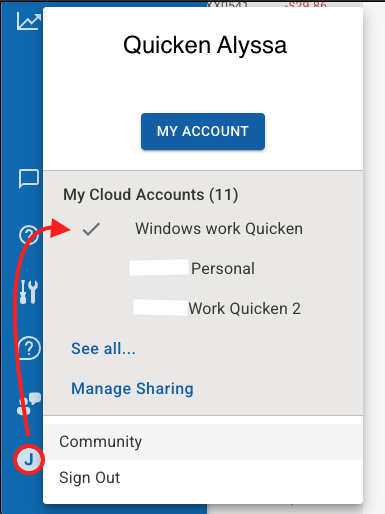
    To see if this is the case, from Quicken on the Web, you would click on the circle icon with the first initial of your name in it, from the bottom left corner of the screen. The current dataset you are looking at will have a checkmark next to it.

    Screenshot 2025-09-16 at 12.49.52 PM.png

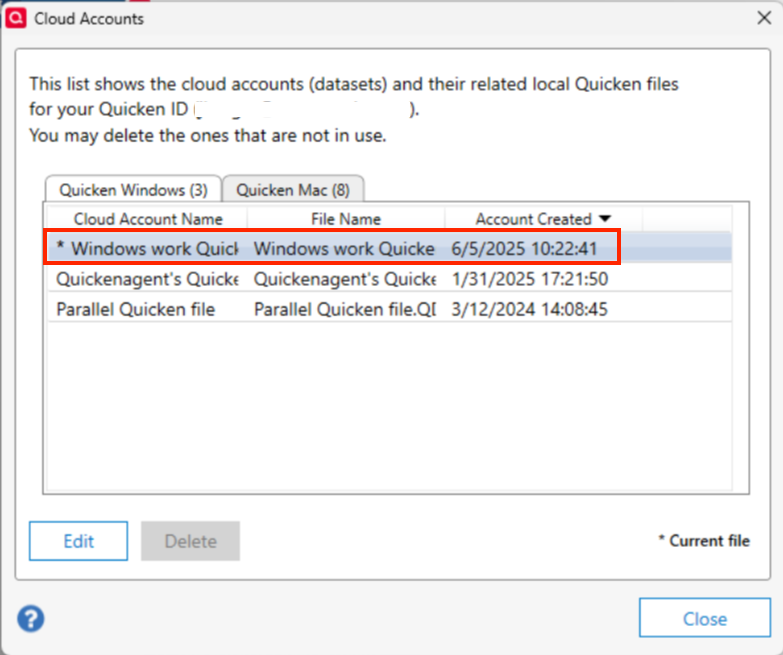
    You would then verify in your Quicken application that the file you are viewing there is the same. You can do that by going to Edit>Preferences>Quicken ID & Cloud Accounts>Cloud Accounts associated with this Quicken ID. The dataset associated with the file you are currently in will be highlighted.

    Screenshot 2025-09-16 at 12.54.40 PM.png

    If they are not matching, it can be corrected by simply switching to the correct file. Check these things and let me know if that helped sort things out.

    Thank you.

    Quicken Alyssa

    Make sure to sign up for the email digest to see a round up of your top posts.

  • Jim Randle74
    Jim Randle74 Quicken Windows 2017 Member ✭✭
    edited September 17

    Thank you for your assistance. While I have been a Quicken user (or more correctly abuser) for many years, I certainly am not knowledgable of many of its capabilites.

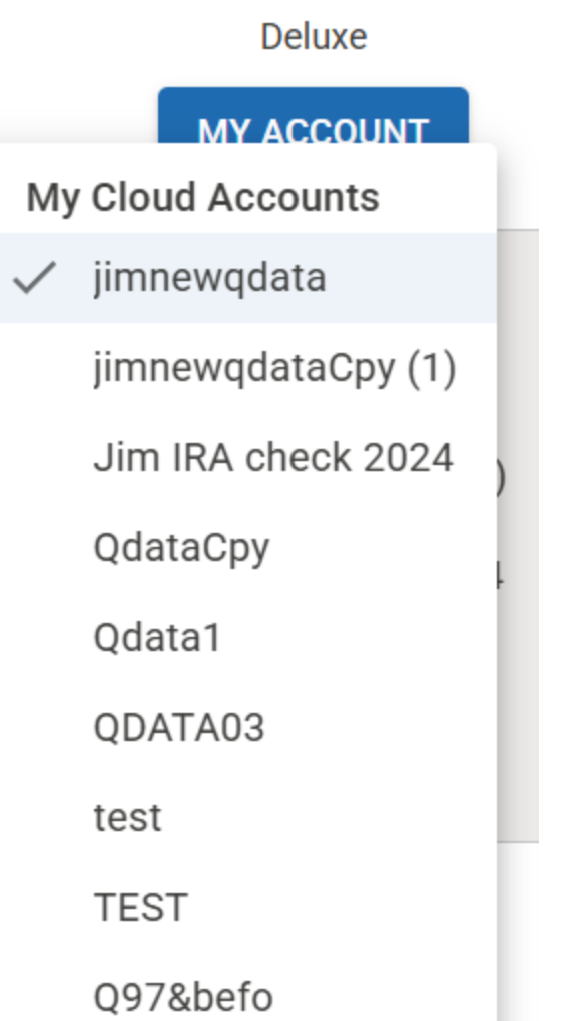
    I am on Quicken R64.25 according to my Quickin report. This is my lcloud account report

    image.png

    jimnewqdata is the account I use currently. I will delete all the other accounts

    [Edited Screenshot to Remove Personal Info]

  • Jim Randle74
    Jim Randle74 Quicken Windows 2017 Member ✭✭

    jimnewqdata is the account I am currently using. Quicken on the Web is missing the same transactions that my local quicken file is missing, but the Cloud download shows the transactions. I am at a loss to understand why or how to get them back in my local copy. Is there a way to download the missing transactions and get them inserted into my local quicken file?

  • fun1000000
    fun1000000 Quicken Windows Subscription Member ✭✭✭✭
    edited September 17

    @Jim Randle74
    I would start by removing your name and email address from your post

  • Quicken Alyssa
    Quicken Alyssa Quicken Windows Subscription Moderator mod

    Hello again @Jim Randle74,
    I wanted to follow up on my earlier message regarding importing files into Quicken. After taking a closer look, I found that Quicken on the Web actually downloads transactions in CSV format. These CSV files can be imported into Quicken Classic using the "Import" feature. Here are steps on how to do that.

    Sorry for the confusion earlier — I was initially referring to Excel-specific file types like .xls, which aren't supported.

    I would suggest deleting all transactions that are not within the 3 month time frame of transactions that you are missing, before importing them. I also wanted to mention that downloading the transactions from your banks website and importing them into Quicken using Web Connect is another option. More information on that here. Usually to do this you need to log into the banks website and select the account you want to download transactions for. Looking at the recent account activity, you should see a download/export option.

    I hope one of these options works for you.

    Quicken Alyssa

    Make sure to sign up for the email digest to see a round up of your top posts.

This discussion has been closed.