Unable to Import any QFX Files after Latest Windows Update [Edited]
Comments
-
Hello All,
The team handling this escalation has requested that we gather Event Viewer logs. For those of you who are willing to do this, you can follow the steps below.
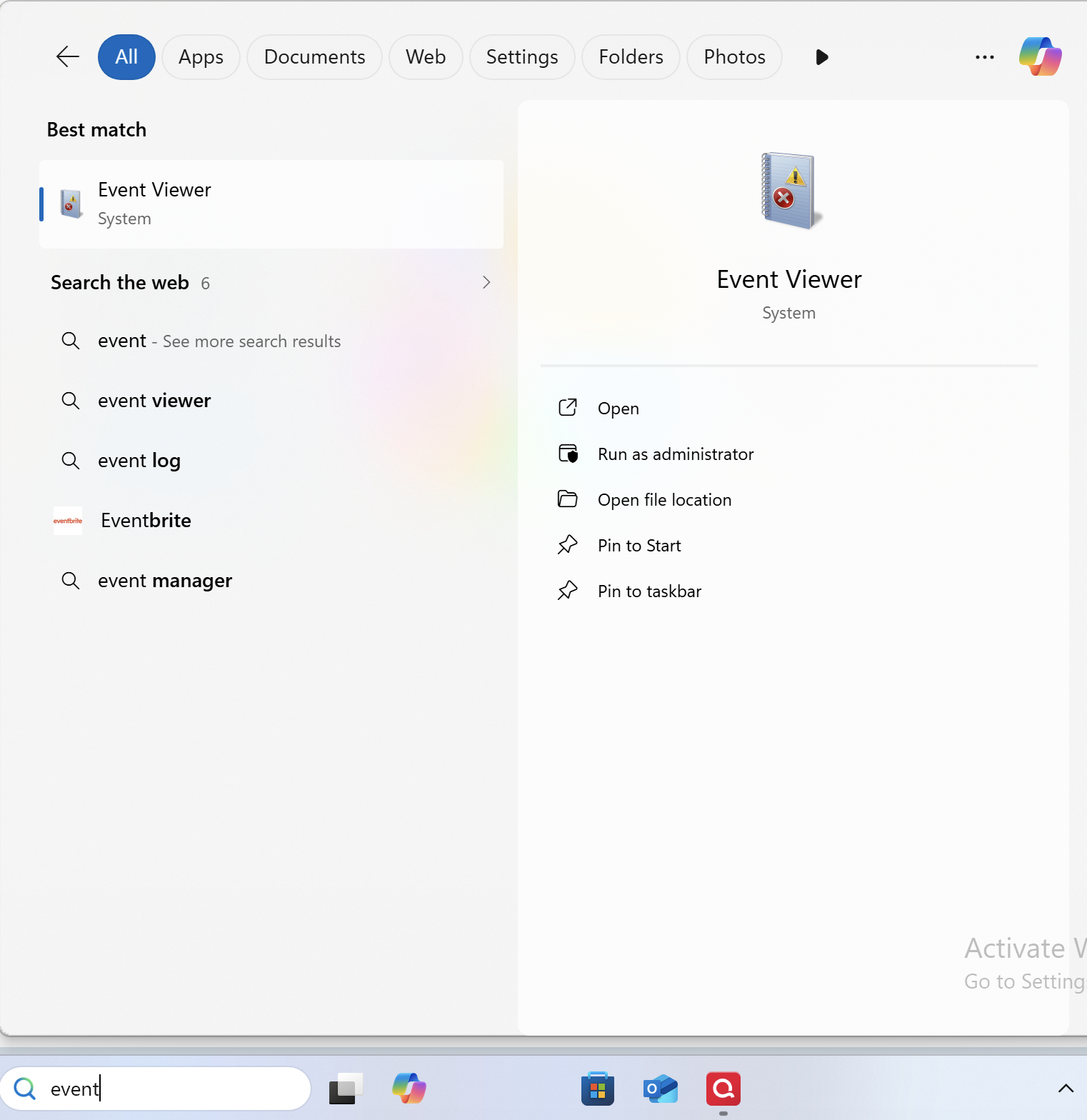
- Search for the application "Event Viewer" and open it.
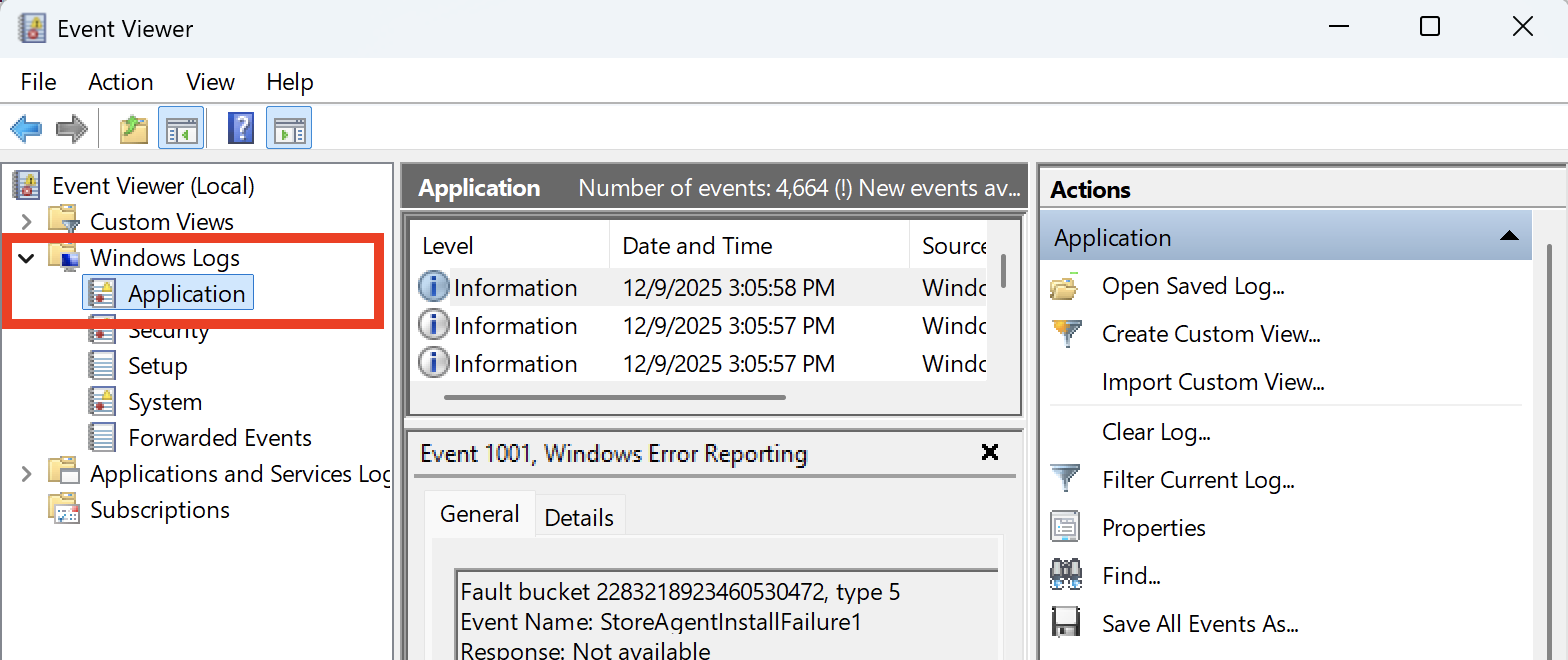
- Double-click on the "Windows Log" folder and select "Application."
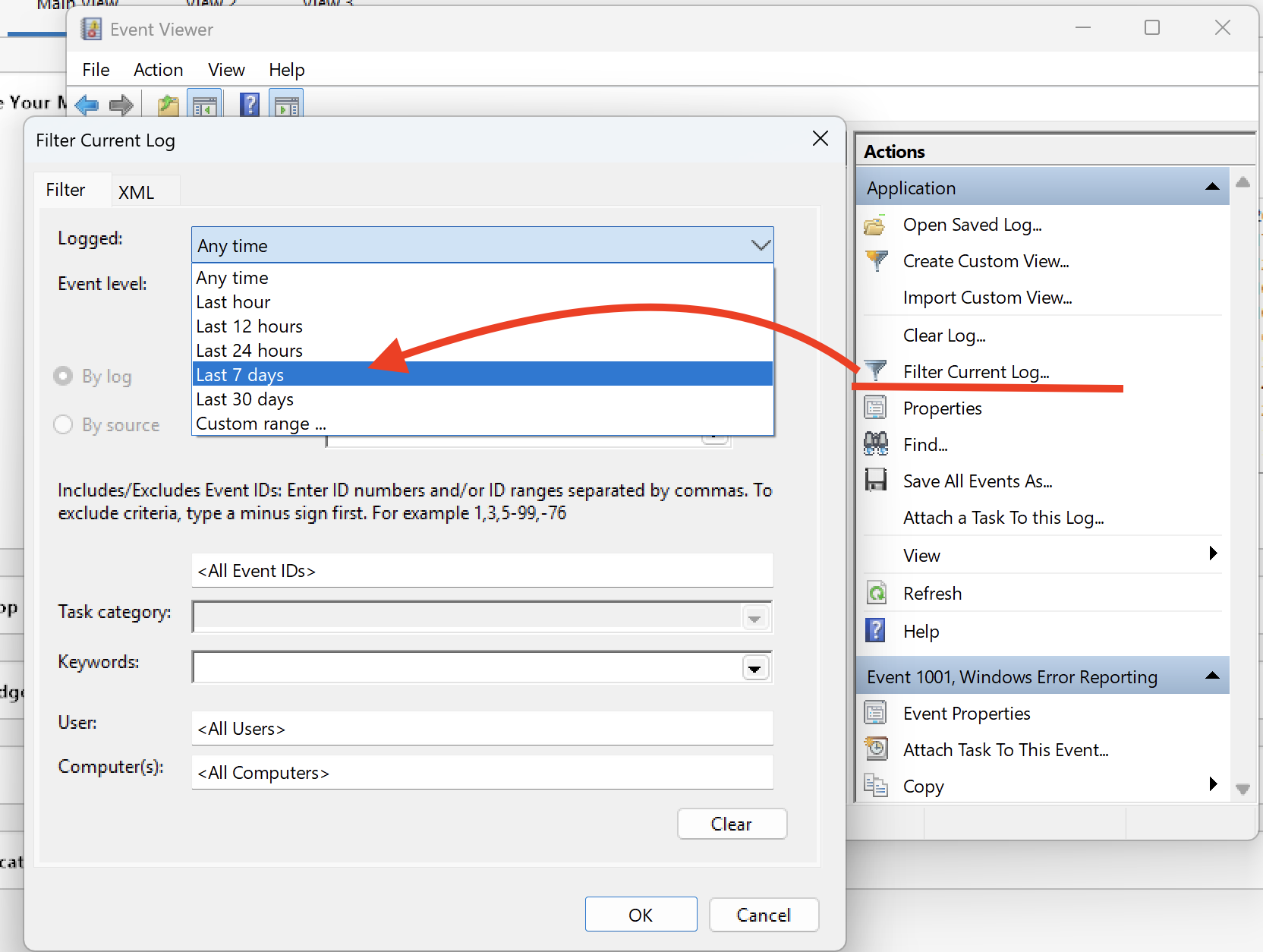
- On the right side, click on "Filter Current Log," and where it says "Logged," change the time range from "Anytime" to "Last 7 days."
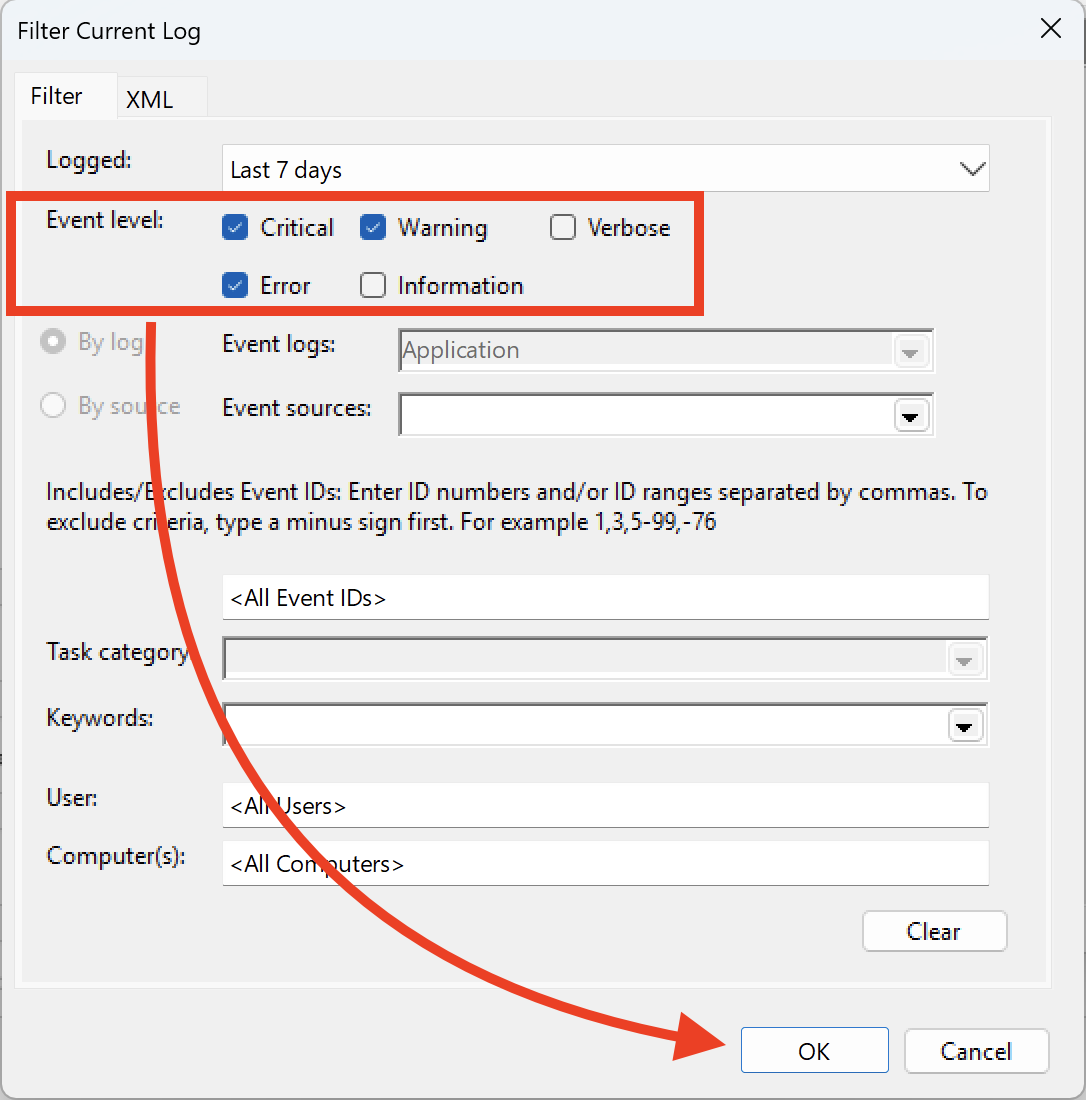
- Ensure that you select "Critical, Warning & Error," and then click OK.
- Next, click on "Save filtered log file as" and save it to the desktop.
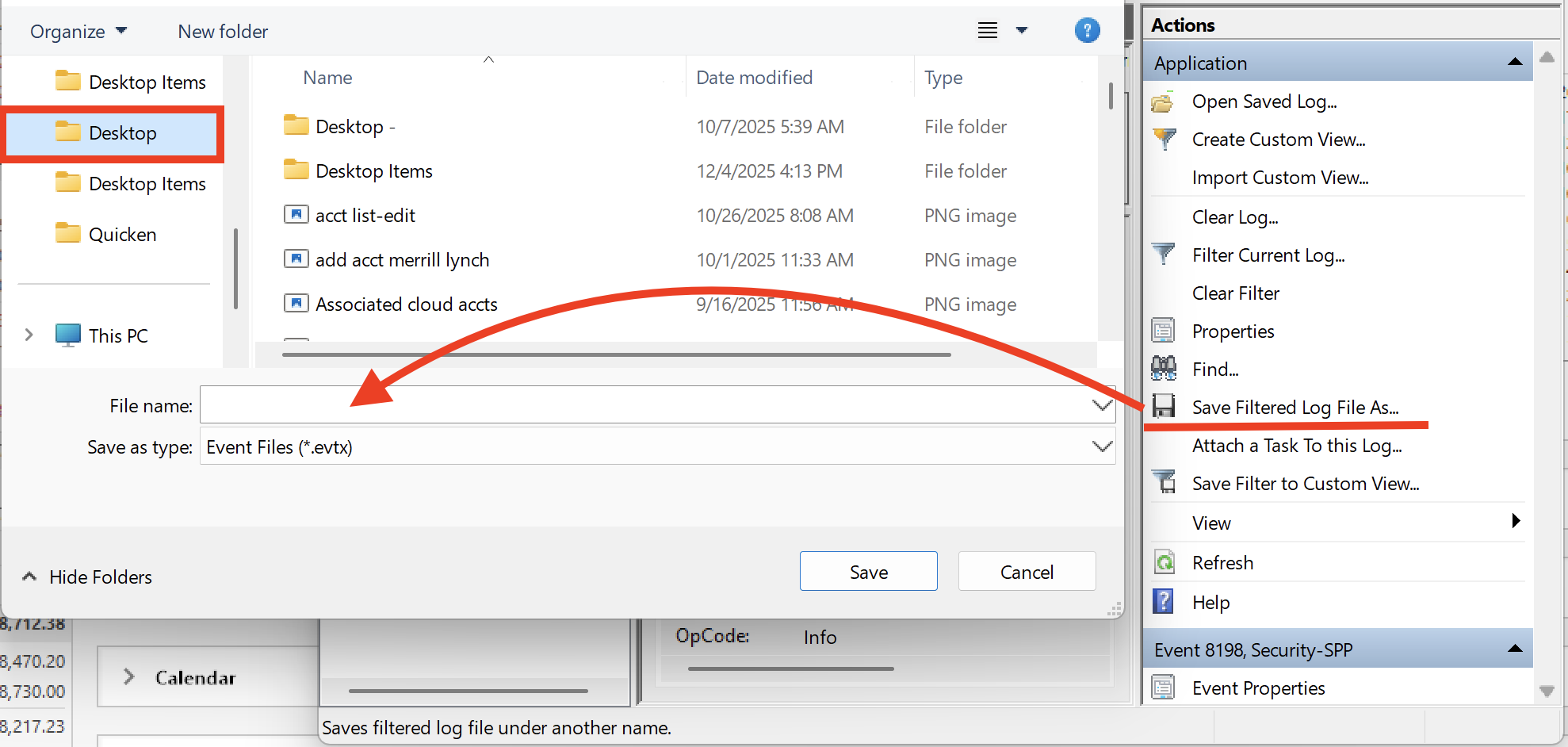
Let us know once you have gathered it, and we will provide guidance on how to send it over.
Note: please save the Event Viewer logs as a .TXT file (it defaults to .evt)
Thank you!
-Quicken Anja
Make sure to sign up for the email digest to see a round up of your top posts.0 - Search for the application "Event Viewer" and open it.
-
Just got back from some travel and got the update R65.17 and since then trying to download a qfx file results in the msi installer getting triggered to uninstall Quicken. I did save off an event viewer file if you want it. Running on Windows 10 x64 enterprise. Haven't tried the uninstall/reinstall yet.
Note that I have windows association of .qfx file type with Quicken. Based on prior comment, I used the menu "File→File import→Web Connect (QFX) file" and that works. For now I have removed the file extension association with qw.exe in Windows.
0 -
@scott967 Yes, please go ahead and submit that Event Viewer log file through Help > Report a problem.
When the window opens, click Attach additional files… and attach the saved log.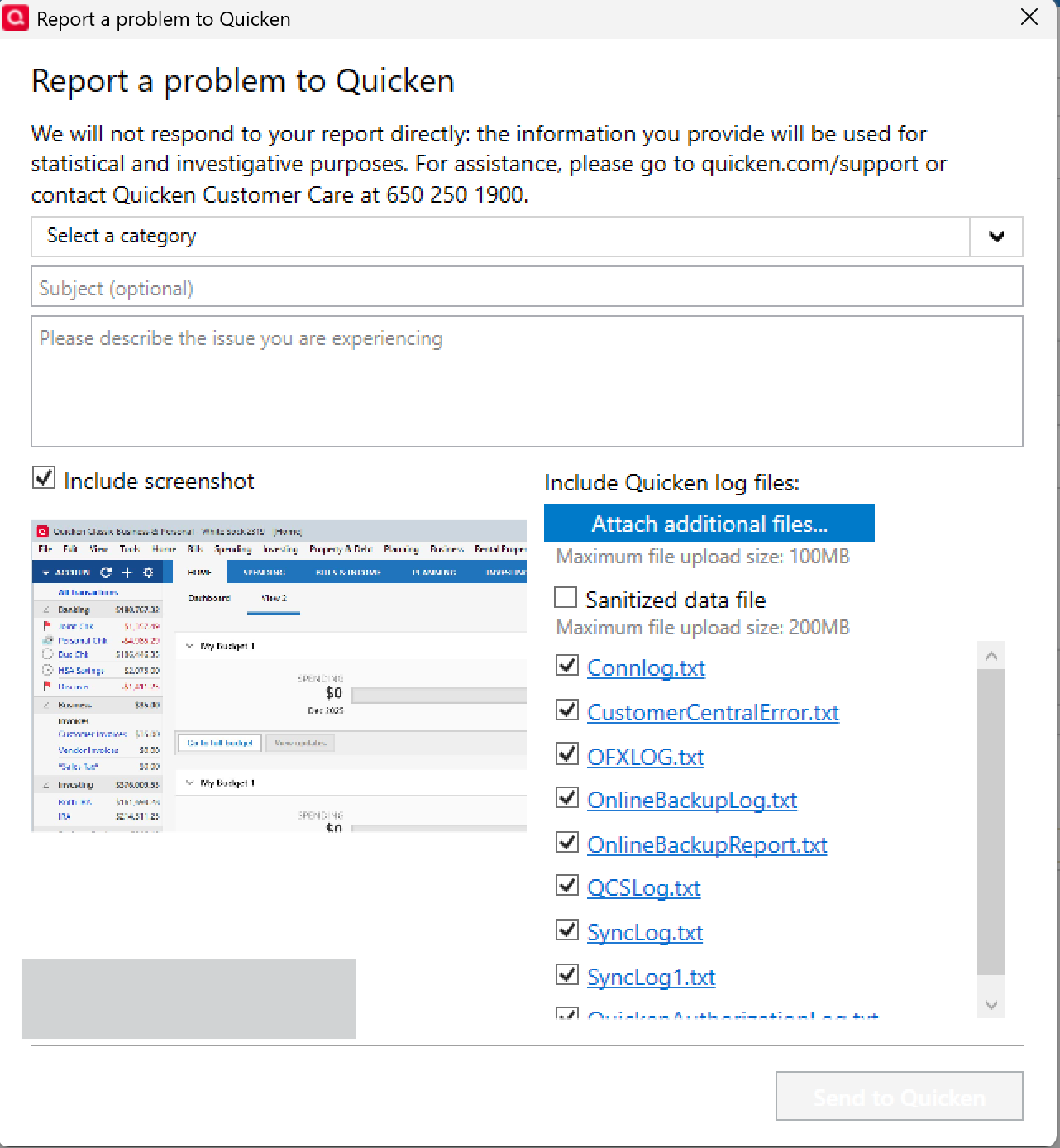
If you've already submitted the standard log files previously, you can uncheck the pre-checked boxes. If not, feel free to leave them selected so we receive the full set.
Thank you for helping us gather the data the team needs!
-Quicken Anja
Make sure to sign up for the email digest to see a round up of your top posts.0 -
Quicken msi error 1706 now with chase freedom and Amazon Ssynchrony as of 12/10/2025.
The Quicken MSI Error 1706 means the Windows Installer can't find the necessary setup files (like from your CD/download) to install, repair, or modify Quicken, often due to missing source files, permissions issues, or corrupted temp files; the fix involves ensuring the original installer is present, running as administrator, cleaning temp files, and sometimes completely uninstalling and reinstalling Quicken after confirming Windows Installer is running smoothly.
Common Causes
Missing Source Files:Installer can't find the .msi file or installation media (disc/download).Corrupted Installation:Files are damaged.Permissions:Not running with administrator rights.Temp Files:Old, bad temp files interfering.
Locate Source Files:Find your original Quicken CD or re-download the installer file from the official Quicken support site and make sure it's accessible.Run as Administrator:Right-click the installer and select "Run as administrator".Clean Temp Files:Clear your system's temporary files (often in C:\Users\<YourName>\AppData\Local\Temp).Check Windows Installer:Ensure the Windows Installer service is running (search for services.msc).Clean Uninstall/Reinstall:Use Quicken's clean uninstall tool (if available for your version) or Windows' Add/Remove Programs.Remove any lingering Quicken folders or registry entries (advanced step).Reinstall using a fresh installer file, running as admin.
Try Silent Mode:Try opening Quicken in silent mode (without a data file) to see if the issue is data file-related.
If it's happening during bank downloads (QFX files), ensure your bank still supports your Quicken version, or try importing manually via File > Import.Lets see if AI is correct……………….😕
0 -
I have the same problem.
0 -
why was this not fixed in the latest update?
0 -
The File>Import option worked for me.
I also noticed that when opening the Tax Center under Planning that the installer started up again and threw the same error about looking for the msi file.
0 -
Hello everyone,
Thank you for the continued updates and for sharing what you’re seeing.
At this point, the team is still actively reviewing this issue, and we are specifically awaiting additional Event Viewer logs to help identify the root cause (instructions can be found in one of my previous responses).
If you’re experiencing the MSI installer being triggered unexpectedly and have not yet submitted an Event Viewer log, we’d really appreciate it if you could do so by following the steps outlined above and submitting it via Help > Report a Problem (you can attach the saved log using Attach additional files).
Please let us know once you have done so, and thank you for your patience and for helping us move this forward!
-Quicken Anja
Make sure to sign up for the email digest to see a round up of your top posts.0 -
I have the same problem. Same screenshots too. I was able to manually load the file using the "File Import\Web Connect (.QFX) File…" menu option. I hope they fix this with the next update.
0 -
You may wish to slightly adjust your instructions. Either you need to save the Event Viewer logs as a .TXT file (it defaults to .evt) or provide instructions on how to override Quicken's "report a problem" → Attach Additional files - > which only allows you to choose a .txt file or .jpg, etc. files.
However, I did rename the Event Viewer log to .txt and submitted the problem/additional file just now
0 -
@mjonis thanks for pointing this out! I've included a note for it in my initial instructions.
Also, thank you for submitting it and letting us know! We'll get this turned in to the proper channels.
-Quicken Anja
Make sure to sign up for the email digest to see a round up of your top posts.1 -
For what it's worth, the installer kicks off when opening the tax planner too. Get the same error, can't locate the .msi file. I cancel and the planner opens up like it should.
0 -
three months later - same issue. I'm too tired tonight to try to uninstall and reinstall anything - has this really not been resolved without having users do that?
0

