NC SECU wont update keeps asking me to update my password

aec618
aec618 Quicken Windows 2017 Member ✭✭✭

NC SECU=NC state Employees Credit Union. I tried to update accounts in OSU today and got a popup in Quicken saying I needed to update my member access password, so I did. However it still wouldn't download transactions, and gave me the same error popup again.

I logged onto NC SECU website and still had to use my old password to log in there, and then their website gave me a similar message saying I needed to update my password. I did.

I then went to Quicken and updated my password in the vault and account details to reflect the one I just changed on the bank website, and it still gives me a message that I need to update my password with the institution.

I tried deleting online services from my NC SECU accounts in Quicken and then setting them up again, using my new password. It still pops up telling me to update my password. I hit cancel, and it tries to update, then fails and returns an OL-331-A error.

I also update accounts with a different credit union, and that one updated just fine.

Using Quicken Classic Deluxe for Windows
Version: R65.29
Build: 27.165.29
Windows 11

Please assist and resolve. Thanks.

Quicken screenshot 01102026.jpg

Comments

  • aec618
    aec618 Quicken Windows 2017 Member ✭✭✭
    Quicken screenshot 01102026-2.jpg

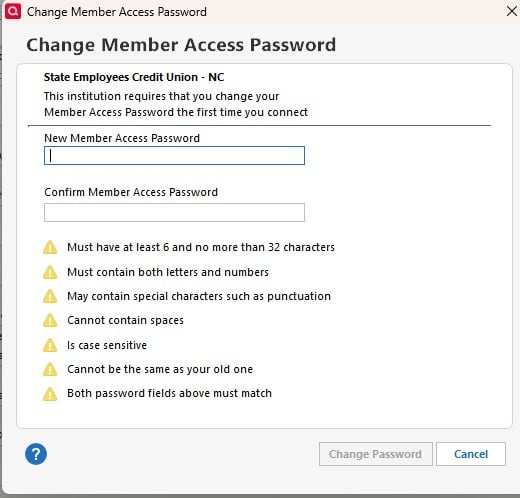
    This is the popup I get asking to change my password with the credit union. It doesn't seem to actually change anything when I use it though,. After I did it, I went to the bank website to log in and I still had to use my old password to log on.

  • aec618
    aec618 Quicken Windows 2017 Member ✭✭✭

    Also, after changing my password on the banks website it works there but not in the Quicken app. And if I try to change my password in the Quicken app in response to the popup, it knows if I'm using a prior password, but even after changing it in Quicken to a new one, it doesn't "take" and I still have to use the prior password on the banks website.

    So it seems that Quicken's server is having trouble talking to the bank's server.

  • Quicken Kristina
    Quicken Kristina Quicken Windows Subscription Moderator mod

    Hello @aec618,

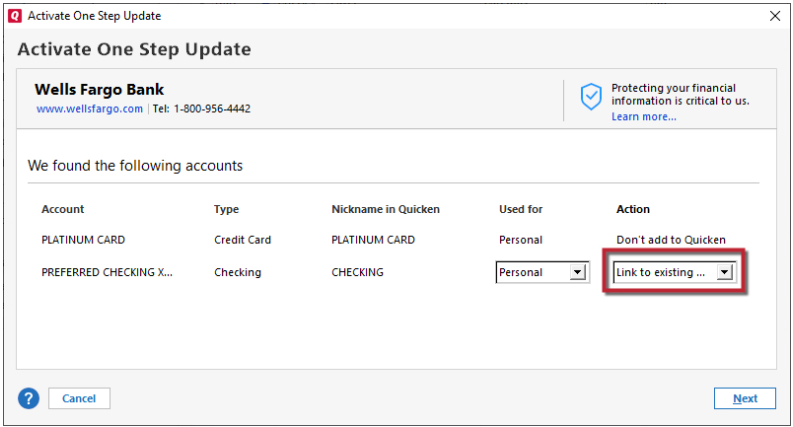
    Thank you for letting us know you're encountering this issue. Since you mentioned that you did update your password with the financial institution, but it doesn't take when you try to update it in Quicken, let's start troubleshooting by making a backup of your file, deactivating the problem account, then reconnecting it by navigating to Tools>Add Account and following the prompts, making sure to carefully link the account to the correct nickname in Quicken.

    Link to Existing.png

    If the issue persists after you've followed those steps, then per the error message from your screenshot, please try following these steps from our article on OL-393 errors:

    First, check which account failed

    1. From the Tools menu, choose One Step Update Summary.
    2. The affected account will be listed under a red heading and will have the error code next to it.

    Second, verify the account information

    1. From the Tools menu, choose Account List.
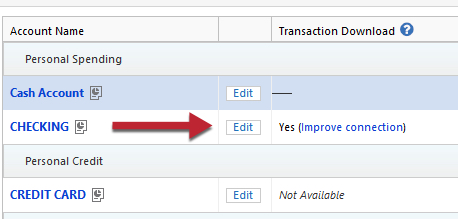
    2. Click the Edit button next to the affected account.
    Account%20List%20Edit%202022.jpg
    1. On the General tab, verify that the account information, such as the account number and routing number, is correct.

    Third, check for hidden accounts

    1. From the Tools menu, choose Account List.
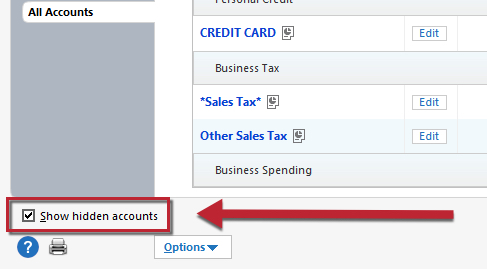
    2. Show hidden accounts will be displayed at the bottom if there are hidden accounts. If you do see this option, check the box, then click on Edit next to the hidden account. Click on the Display Options tab and uncheck Hide this account in... option(s).
    Account%20List%20Show%20Hidden%202022_0.jpg
    1. Follow the "Verify Account Information" steps above to ensure that this account has correct account information.
    2. If you no longer want to download this account, Deactivate Online Services for this account. See "Verify Online Services" below for instructions.
    3. After deactivating the account, if desired, you can hide the account again.

    Lastly, verify Online Services

    1. From the Tools menu, choose Account List.
    2. Click the Edit button next to the affected account.
    3. Select the Online Services tab and verify that the appropriate online services are activated. Be sure to check for online payments.
    4. To disable any Online Services that are no longer active in this account, click the Deactivate button.

    Please let me know how it goes!

    Quicken Kristina

    Make sure to sign up for the email digest to see a round up of your top posts.